After 20 years in digital video production and software testing, I've seen the industry transform from painfully slow manual denoising in early DV suites to instant, machine-learning-driven restoration. In 2026, AI video enhancement is no longer a gimmick—it’s an essential tool for content creators, filmmakers, and families looking to preserve decade-old memories.
Whether you need to revive grainy 480p VHS clips, upscale 1080p smartphone footage to crisp 4K, or fix low-light noise, choosing the right tool saves you hours of rendering frustration.
However, the market is flooded with overhyped tools. Some require $2,000 GPUs and a master's degree in parameter tweaking, while others charge steep subscriptions for mediocre cloud filters. My team and I tested the top AI video enhancers available this year to bring you a realistic, breakdown of what actually works.
1. Topaz Video AI — The Powerhouse for Professionals & Hardware Enthusiasts
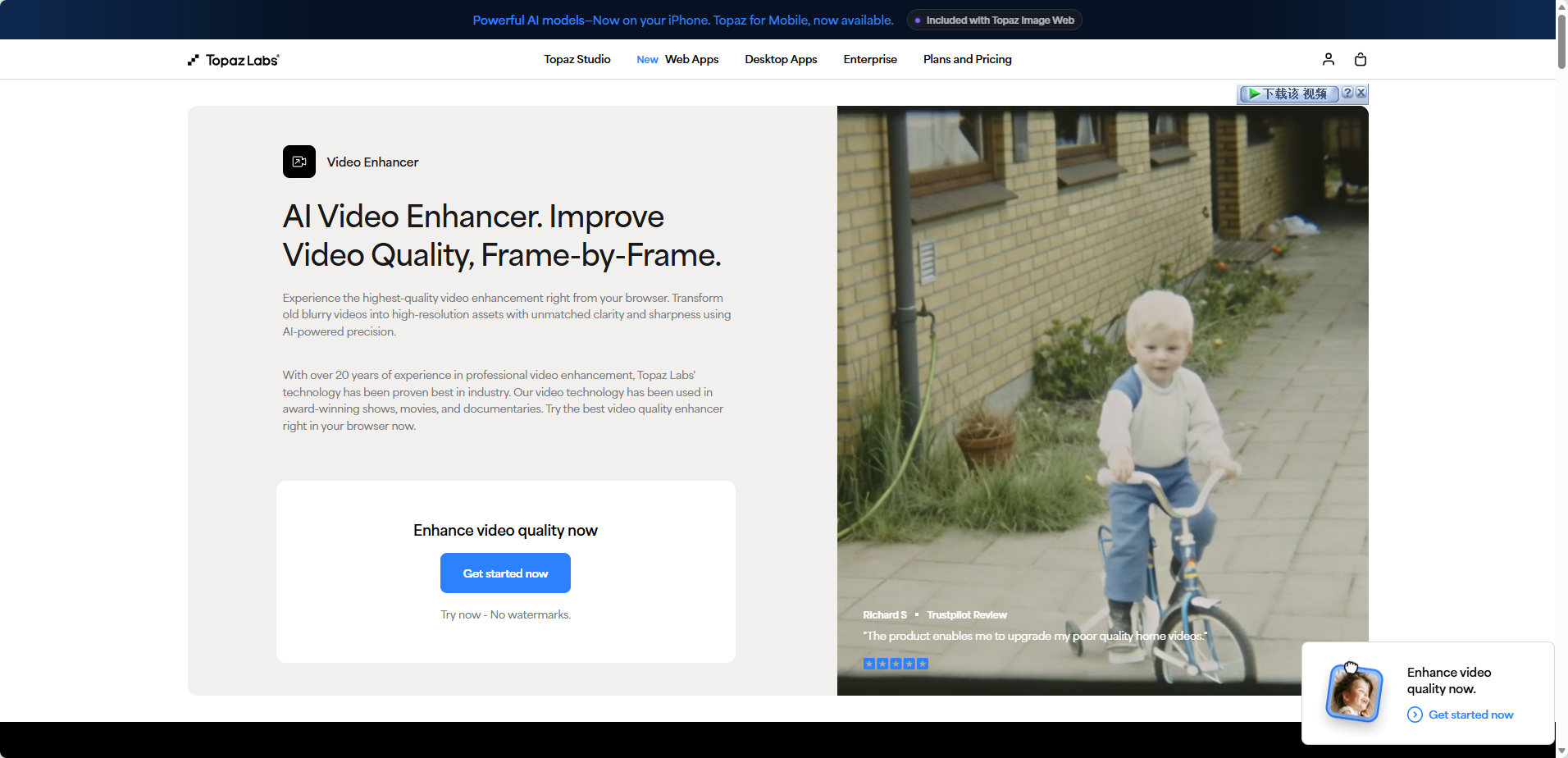
Topaz Video AI remains the gold standard for heavy-duty local video restoration. Built specifically for high-end workstations, it relies entirely on your computer's local GPU power rather than cloud servers.
Topaz offers specialized neural network models like Proteus, Iris, and Nyx, designed to target specific flaws such as face blur, low-light noise, and interlacing artifacts. Rather than simply stretching pixels, its deep-learning algorithms mathematically reconstruct genuine missing detail.
●Pros:
○Industry-leading detail reconstruction, supporting up to 8K output and advanced motion interpolation.
○100% local processing—complete privacy control and no cloud file-size limits.
○Granular parameter control over noise, sharpness, and compression artifacts.
●Cons:
○Demands high-end hardware; rendering on older laptops is impractically slow.
○Steep learning curve with a dense UI and dozens of model sliders.
○High upfront cost ($299/year subscription model).
●Pricing:
~$299/year for individuals; Studio plans from $399–$699/year.
●Best For:
Professional filmmakers, archival restoration specialists, and power users with top-tier desktop GPUs.
2. PicMa Studio AI Video Enhancer — The Zero-Learning-Curve Budget Pick
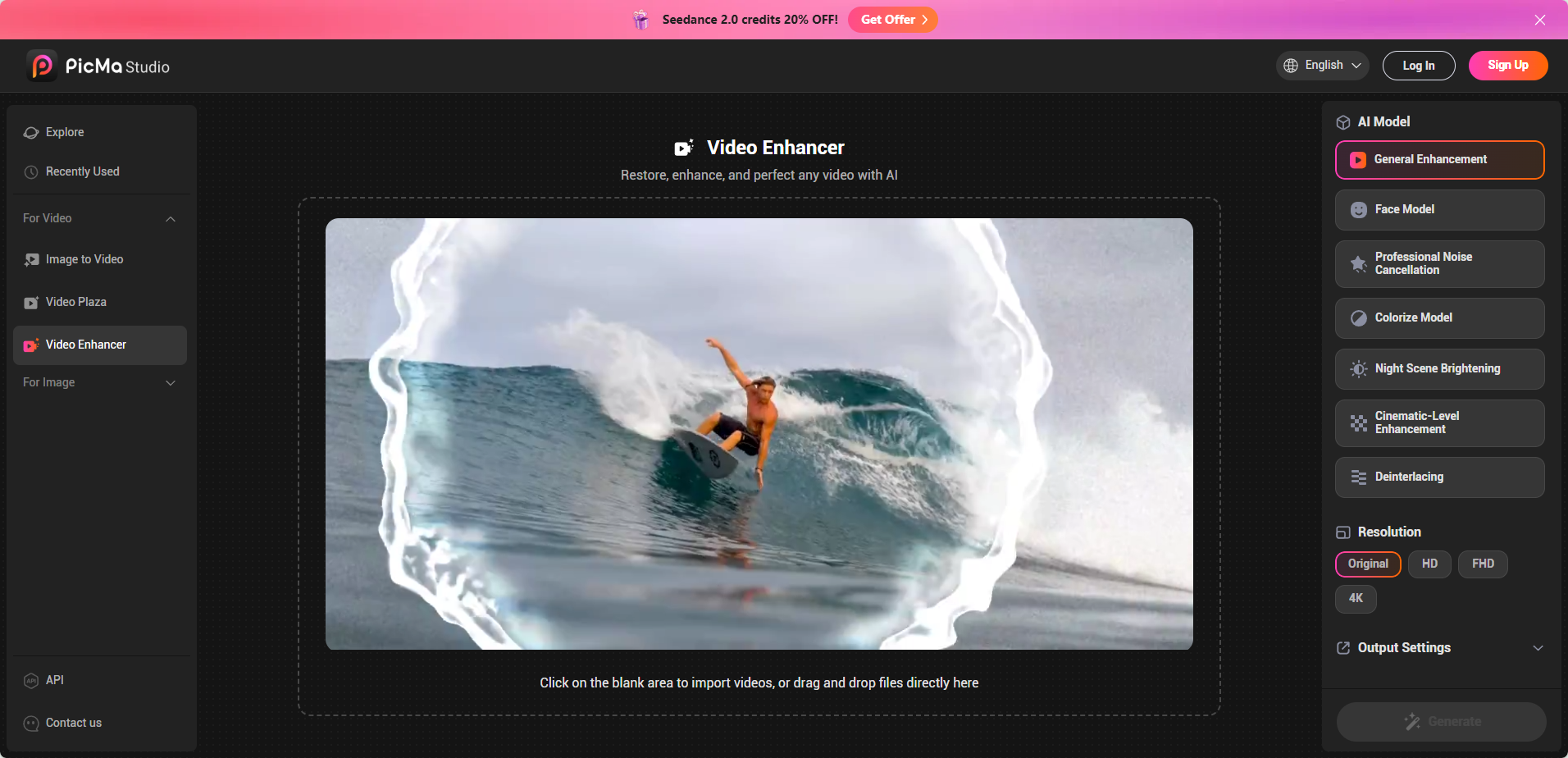
If Topaz is a manual sports car, PicMa Studio is an effortless autonomous shuttle. Among all the tools evaluated, PicMa stands out for its streamlined approach: it strips away the bloated menus of traditional editing suites in favor of instant results.
The workflow is as straightforward as it gets: Upload -> One-Click Enhance -> Cloud Processing -> Download.
PicMa handles the heavy lifting via cloud servers, automatically detecting scene context—such as low-light vlogs, blurry faces, or pet videos—and applying optimal sharpening, facial restoration, and denoising algorithms. Because it runs in the cloud, you don't need an expensive computer to process high-resolution video.
●Pros:
○Zero technical barrier: Simple "Upload-Enhance-Download" process requiring no video editing experience.
○No hardware limitations: Runs entirely in the cloud, working smoothly on standard laptops, tablets, or phones.
○Exceptional facial and daily footage tuning: Reconstructs natural skin textures and eliminates noise without over-sharpening.
○Wallet-friendly: Costs a fraction of desktop-bound professional software.
●Cons:
○Lacks manual slider adjustments for micro-tweaking parameters.
○Requires a stable internet connection for larger uploads.
●Pricing:
Basic features free; App starting around $3.99/week or $39.99/year; Web Pro plans around $6.99/week or $69.99/year).
●Best For:
Beginners, casual creators, social media managers, and anyone looking to fix old videos quickly without a steep learning curve or heavy price tag.
3. HitPaw VikPea — The Balanced Desktop All-Rounder
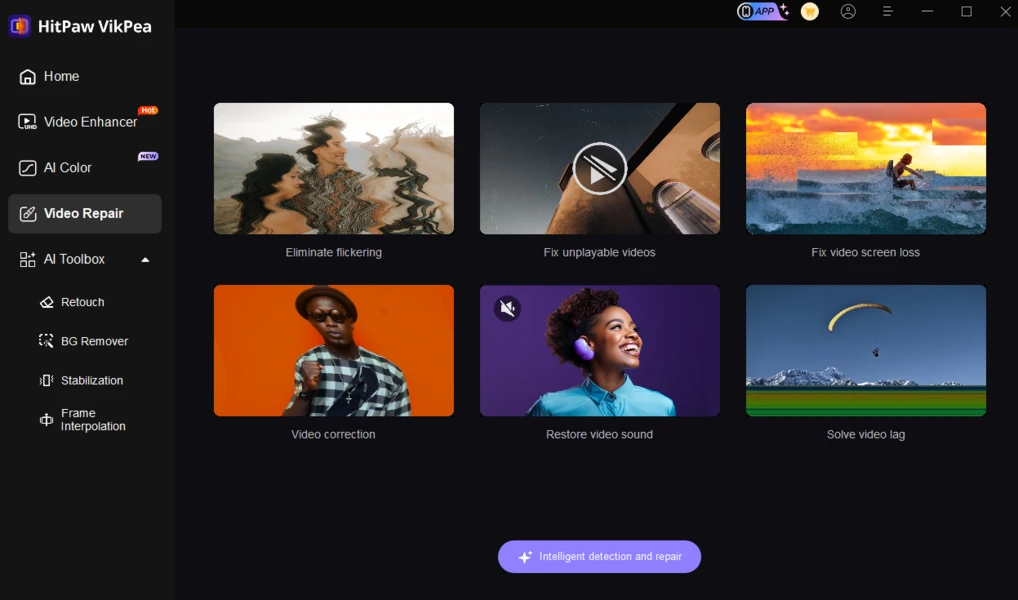
HitPaw VikPea (formerly HitPaw Video Enhancer) has established itself as a reliable desktop option that bridges the gap between complex professional tools and basic consumer apps.
HitPaw uses a modular interface featuring dedicated AI models for general enhancement, facial refinement, animation, and colorization. You drop in a file, select a module, and preview the side-by-side results before exporting. Crucially, it still offers a perpetual license option alongside its subscription tiers.
●Pros:
○Clean, task-oriented user interface with specialized presets for anime and old home movies.
○Supports batch processing with faster local render speeds than Topaz on mid-range GPUs.
○One-time lifetime license option available for users avoiding recurring fees.
●Cons:
○Free trial exports carry heavy watermarks.
○Peak detail reconstruction on severely corrupted files falls slightly short of Topaz.
●Pricing: ~$22.39/month, $90.39/year, or ~$130.39–$350.39 for a lifetime license.
●Best For: Content creators who prefer a desktop application with clear presets and batch-processing capabilities.
4. CapCut Video Upscaler — The Fast Track for Short-Form Creators
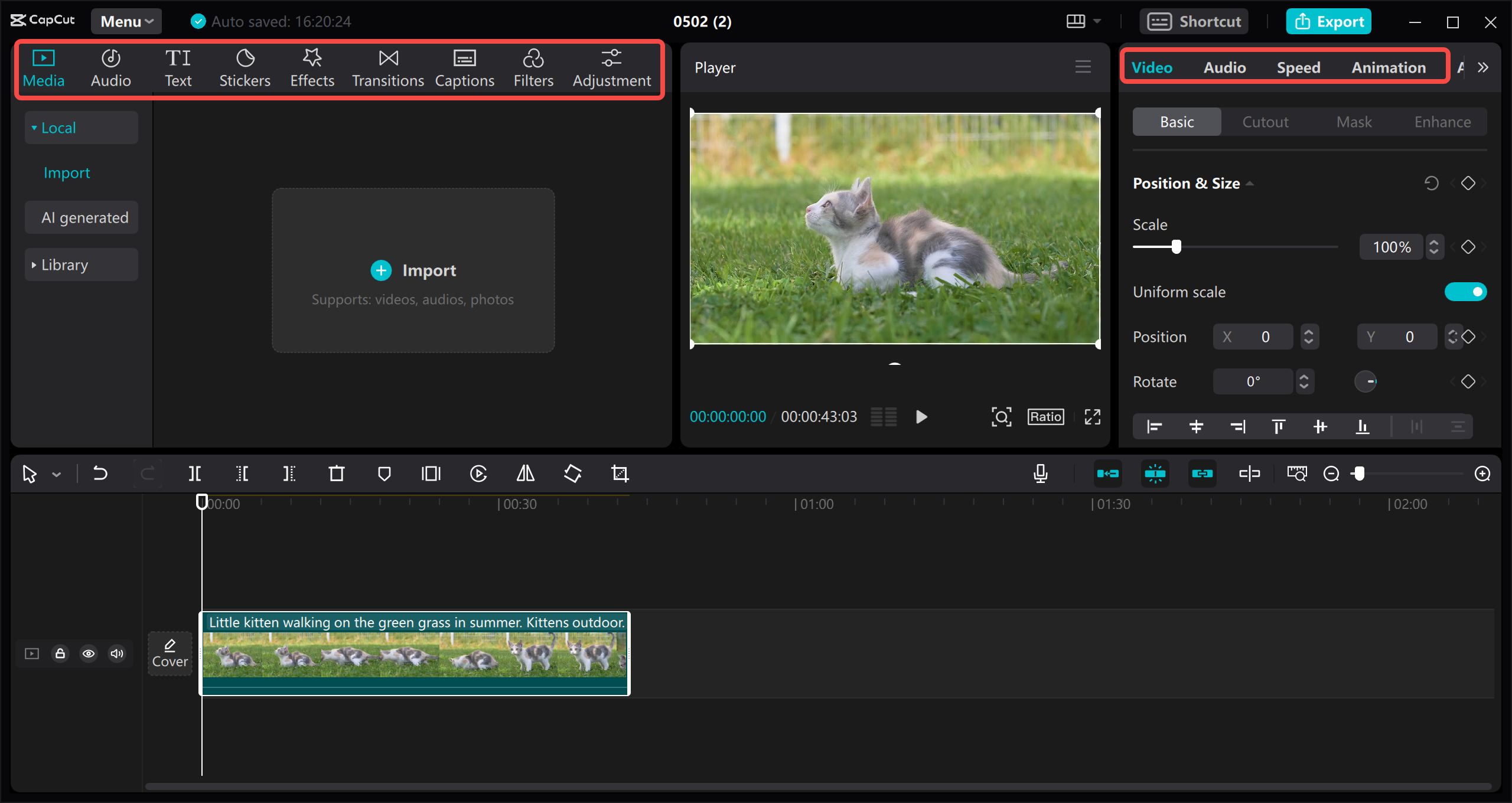
For short-form video creators, CapCut's built-in AI upscaler is one of the most convenient options available.
Its biggest selling point is workflow integration. If you already edit content for TikTok, Instagram Reels, or YouTube Shorts inside CapCut, you don't need to export files to third-party software. You can upscale 720p or 1080p clips directly on the timeline prior to publishing.
●Pros:
○Fully integrated into a full-featured video editor—no extra file management required.
○Fast processing times tailored for short clips.
○Combined with CapCut’s captions, filters, and audio tools for an all-in-one publishing workflow.
●Cons:
○Basic AI restoration; primarily relies on sharpening and simple scaling rather than deep reconstruction.
○Strictly limited file lengths and export options; not built for long-form content or documentary work.
●Pricing:
Basic features free; CapCut Pro available at ~$9.99/month or $89.99/year.
●Best For:
TikTokers, Reels creators, and social media managers who prioritize speed and integrated workflows.
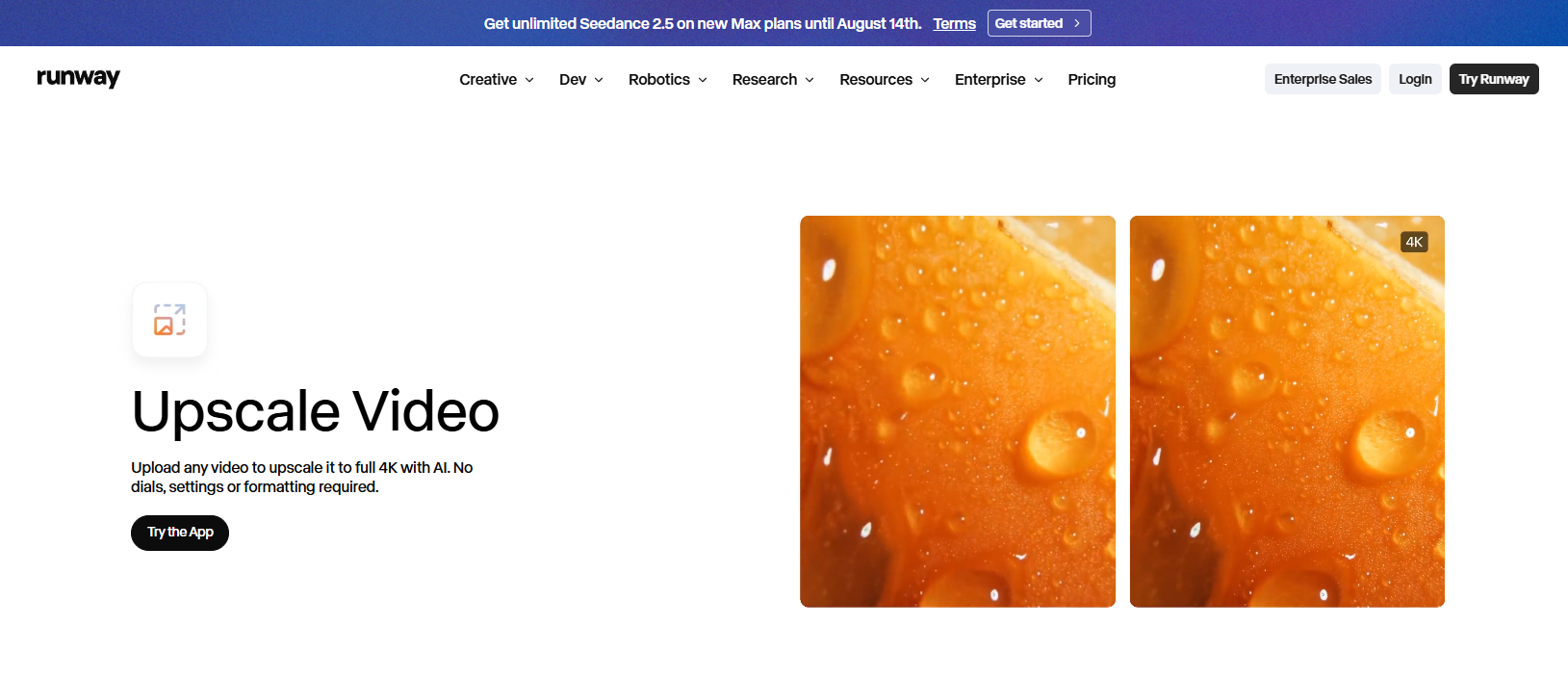
5. Runway Gen-2 & Video Tools — The Creative Generative Option
Runway is widely recognized for generative AI, but its suite of underlying video tools—including resolution upscaling, frame interpolation, and motion tracking—offers a distinct approach to video enhancement.
Unlike traditional restoration software that purely cleans up artifacts, Runway uses generative enhancement. It can introduce new contextual detail and cinematic textures based on text prompts alongside standard upscaling.
●Pros:
○Generative architecture adds artistic depth and stylistic consistency to low-res video.
○Entirely web-based with an extensive suite of modern AI generation tools.
●Cons:
○Uses a credit-based pricing model, which can get expensive for processing long, high-res videos.
○Generative models can sometimes alter underlying details rather than preserving exact original fidelity.
●Pricing:
Limited free tier; Standard from $12/month; Pro from $28/month.
●Best For:
Digital artists, indie filmmakers, and visual creators seeking artistic enhancement over strict photo-real preservation.
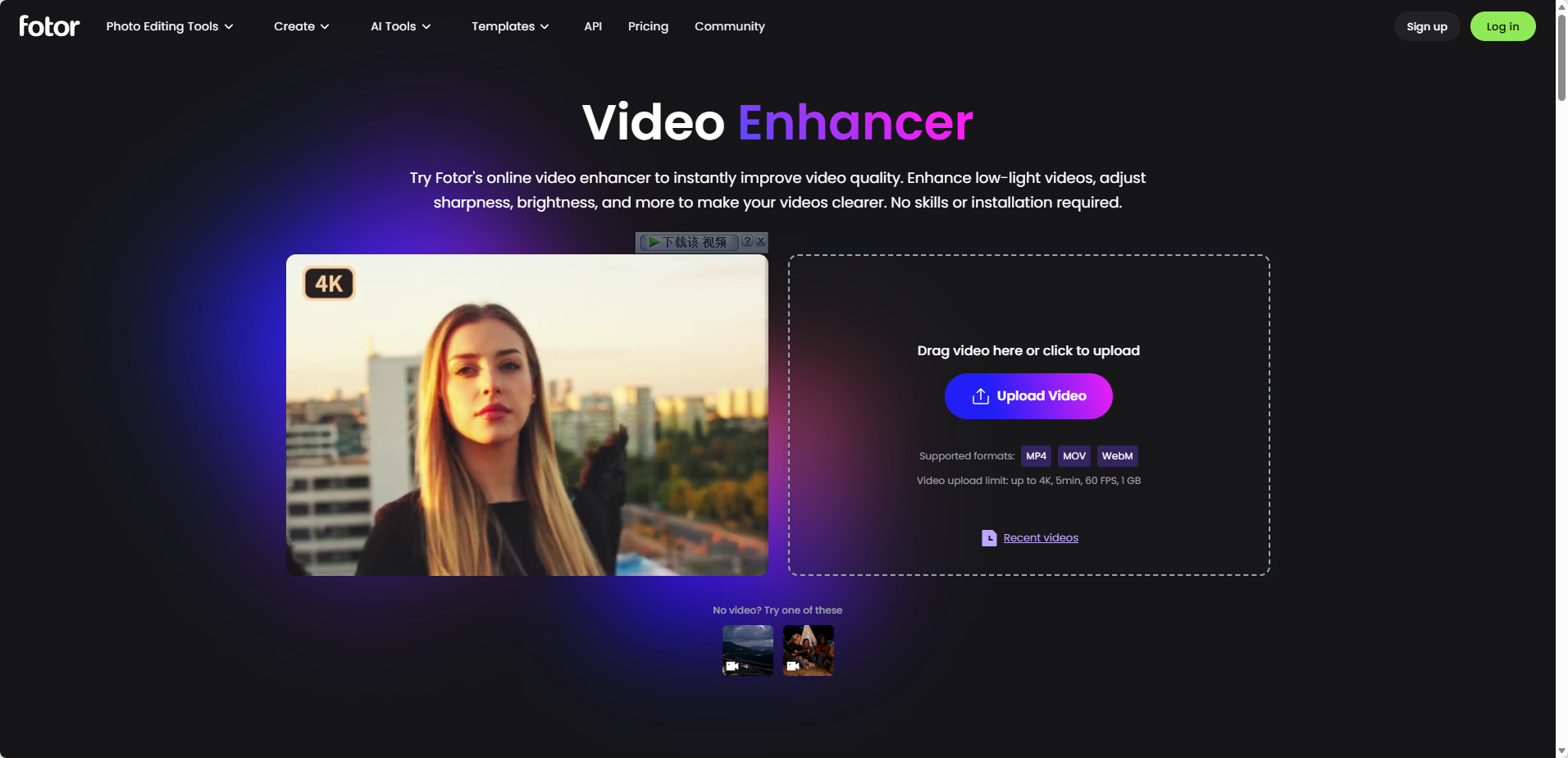
6. Fotor / Vmake AI Video Enhancer — The Quick Web-Based Fix
For occasional tasks where installing dedicated software isn't practical, browser-based tools like Fotor or Vmake provide quick, hassle-free processing.
These platforms package AI scaling and color correction into a simple browser tab. You upload a short clip, let the cloud process it, and download the refined output within minutes.
●Pros:
○Works directly in your browser with zero installation.
○Includes basic color adjustment and picture retouching tools.
●Cons:
○Free credits are minimal and high-resolution downloads require paid upgrades.
○Uploading large files in a browser tab can be slow on weaker internet connections.
●Pricing:
Limited free trial; Pro plans range from ~$8.99 to $19.99/month.
●Best For:
One-off video fixes and users who prefer not to install desktop software.
Feature Comparison Matrix
| Tool | Core Strength | Processing Type | Complexity | Max Output | Pricing Model | Best For |
| Topaz Video AI | Industry-standard detail reconstruction & local control | Local GPU (RTX/Mac Silicon) | High (Manual parameter tuning) | 8K | ~$299/year | Pros, archival restorers, heavy GPU owners |
| PicMa Studio | One-click cloud enhancement, zero learning curve | Cloud AI | Ultra-Low (One-click upload) | 4K | Free basic /~$3.99/wk ($99.99/yr Web) | Beginners, everyday users, quick viral video fixes |
| HitPaw VikPea | Preset-driven desktop app with lifetime license option | Local GPU + Cloud Hybrid | Low-Medium (Module presets) | 8K | ~$22.39/mo or ~$130.39+ Lifetime | Desktop users needing batch restoration & anime upscaling |
| CapCut Video Upscaler | Seamlessly built into popular short-form editor | Local + Cloud Hybrid | Low (Built-in toggle) | 4K | Free basic / ~$9.99/mo Pro | TikTokers, Reels, and Shorts creators |
| Runway Gen-2 | Generative AI enhancement with prompt control | Cloud AI | Medium (Prompt-assisted) | Plan Dependent | Free tier / From $12/mo | AI artists, creative directors, indie filmmakers |
| Fotor / Vmake | No-install web tool for quick adjustments | Cloud AI | Low (Drag & drop) | 4K | ~$8.99–$19.99/mo | Occasional users needing a quick browser-based fix |
Which AI Video Enhancer Should You Choose?
Selecting the right software comes down to your hardware setup, technical experience, and budget:
1.For maximum quality on a dedicated workstation: If you own a powerful graphics card and want full control over every frame, Topaz Video AI remains the top choice.
2.For hassle-free results without technical editing skills: PicMa Studio offers the best balance of speed, convenience, and affordability. Its cloud-based, one-click process delivers impressive quality improvements on everything from low-light footage to old family clips without requiring expensive hardware.
3.For fast social media turnarounds: If your primary goal is boosting content for TikTok or Instagram, CapCut keeps your entire workflow inside a single app.

Which tool fits best into your editing workflow? Drop a comment below with your project requirements or any questions on hardware compatibility.
Related Readings:

 120
120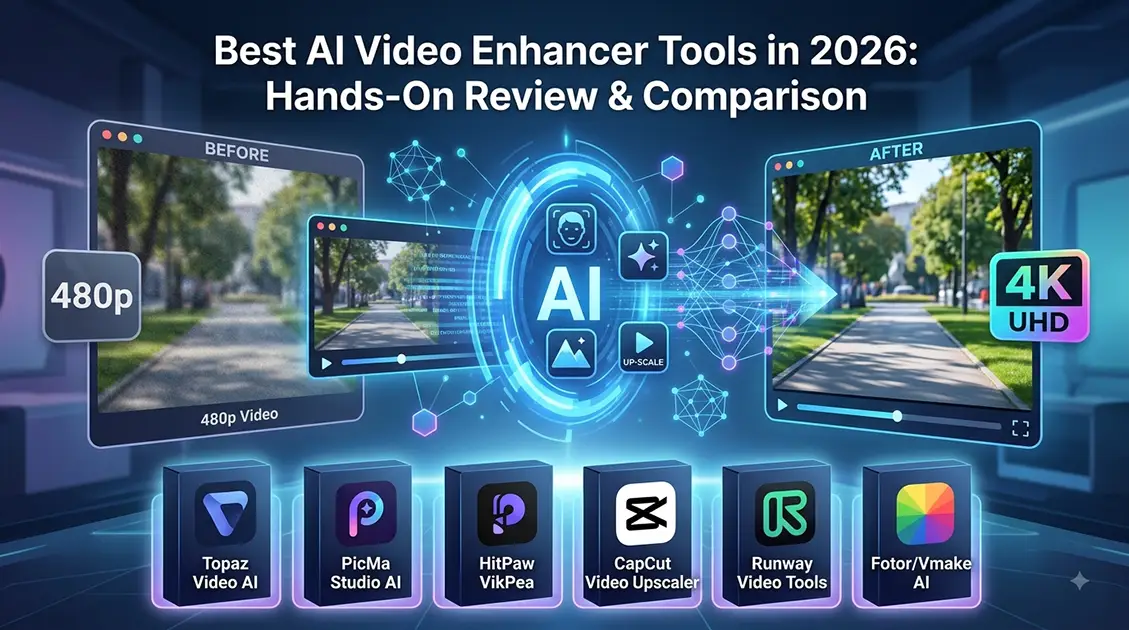

 English