A sketch does not have to stay still.
Whether it is a pencil character, a quick concept drawing, a storyboard frame, or a digital doodle, AI can now turn a single sketch into a short animated video without traditional frame-by-frame animation.
Instead of redrawing every movement, an AI sketch animation tool uses your original image as the starting frame and generates motion around it. That makes the process especially useful when you want to quickly preview how a character, idea, or scene might look in motion.
Can AI Animate a Sketch?
Yes. This process is usually called AI image-to-video generation.
You upload one static drawing, and the AI analyzes the character, pose, composition, and background before generating movement between frames.
A character can blink, turn their head, wave, or move with the environment. Even a rough concept can become a short visual test before you spend time creating a full animation.
If you are starting from a regular photo instead of a drawing, you can also first turn your photo into a sketch, then animate the result.
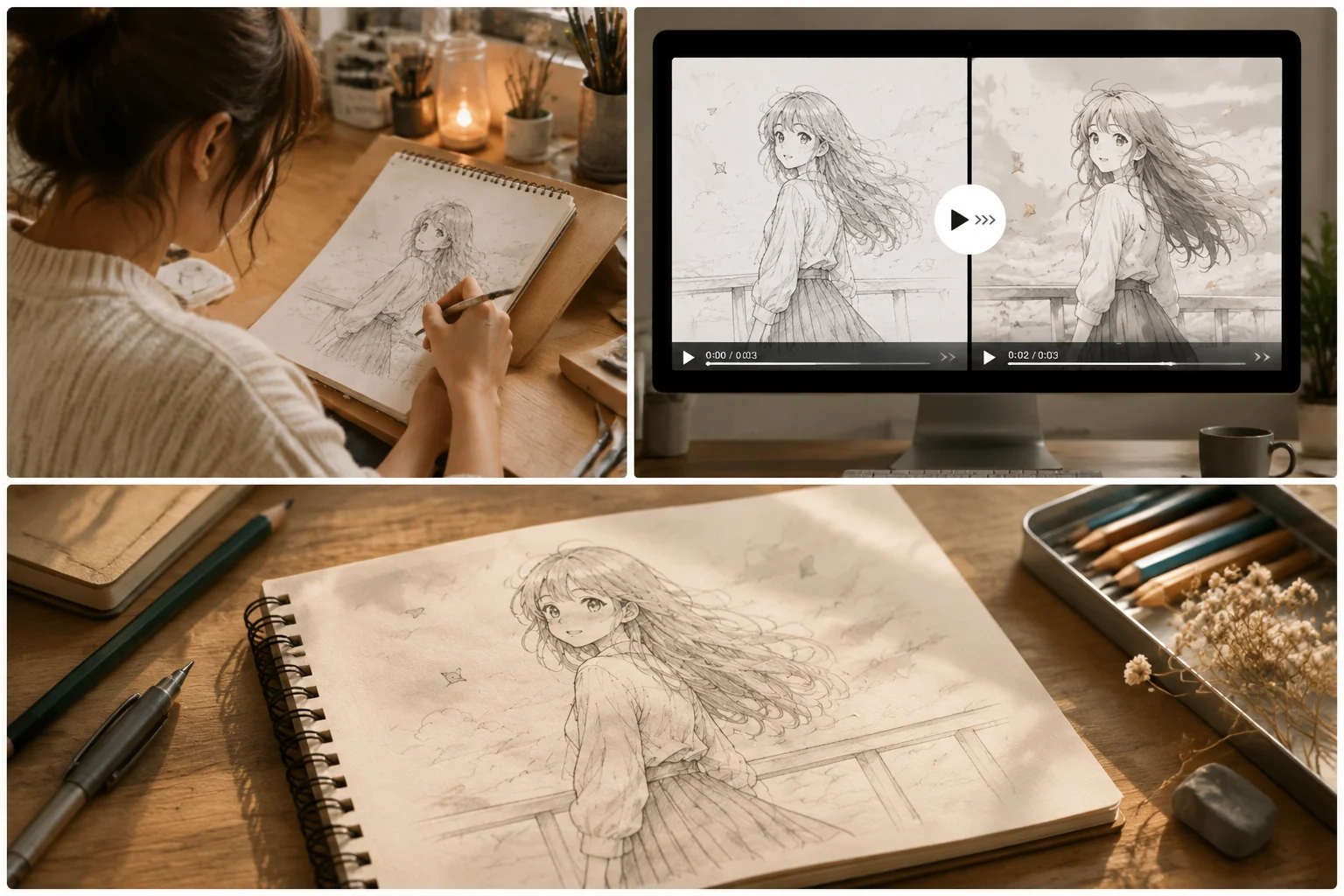
What Sketches Work Best?
You do not need a perfectly finished illustration, but a clear subject usually gives the AI more information to work with.
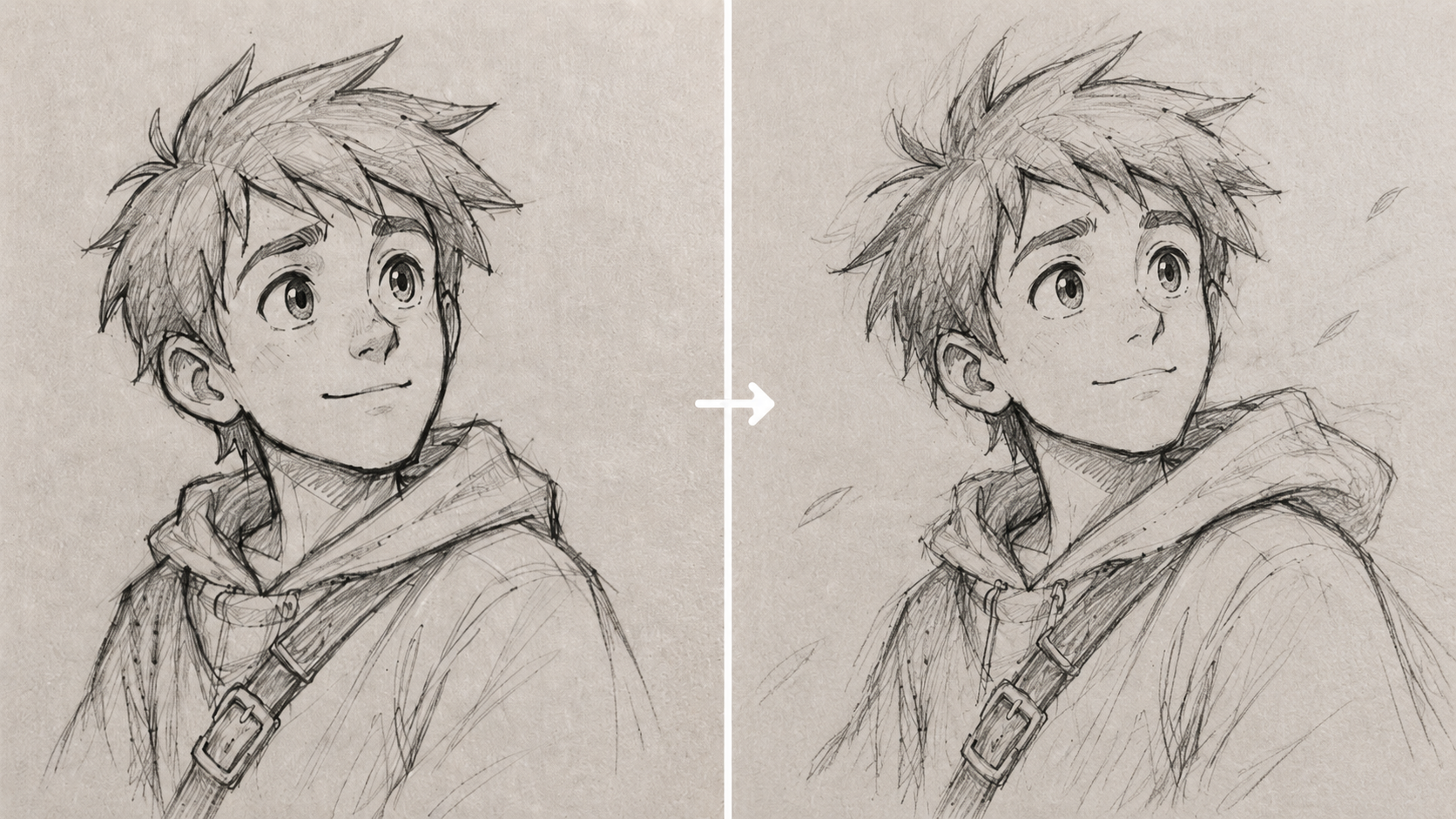
Clean character outlines, visible faces, simple poses, and uncluttered backgrounds tend to be easier to animate. Pencil sketches, line art, manga-style drawings, digital concept art, and colored illustrations can all work.
The key is to keep the movement realistic for the original drawing.
For example, instead of asking a static portrait to suddenly perform a complicated dance, try something smaller:
“The character slowly looks up and smiles, hair moving gently in the wind.”
Small, specific movements often make a sketch animation feel much more natural.
How to Turn a Sketch Into a Video with PicMa Studio
You do not need animation software or keyframes for a quick experiment. https://picma.magictiger.ai/zh/picma_web/enhance/image_to_video H lets you start directly from your existing sketch.
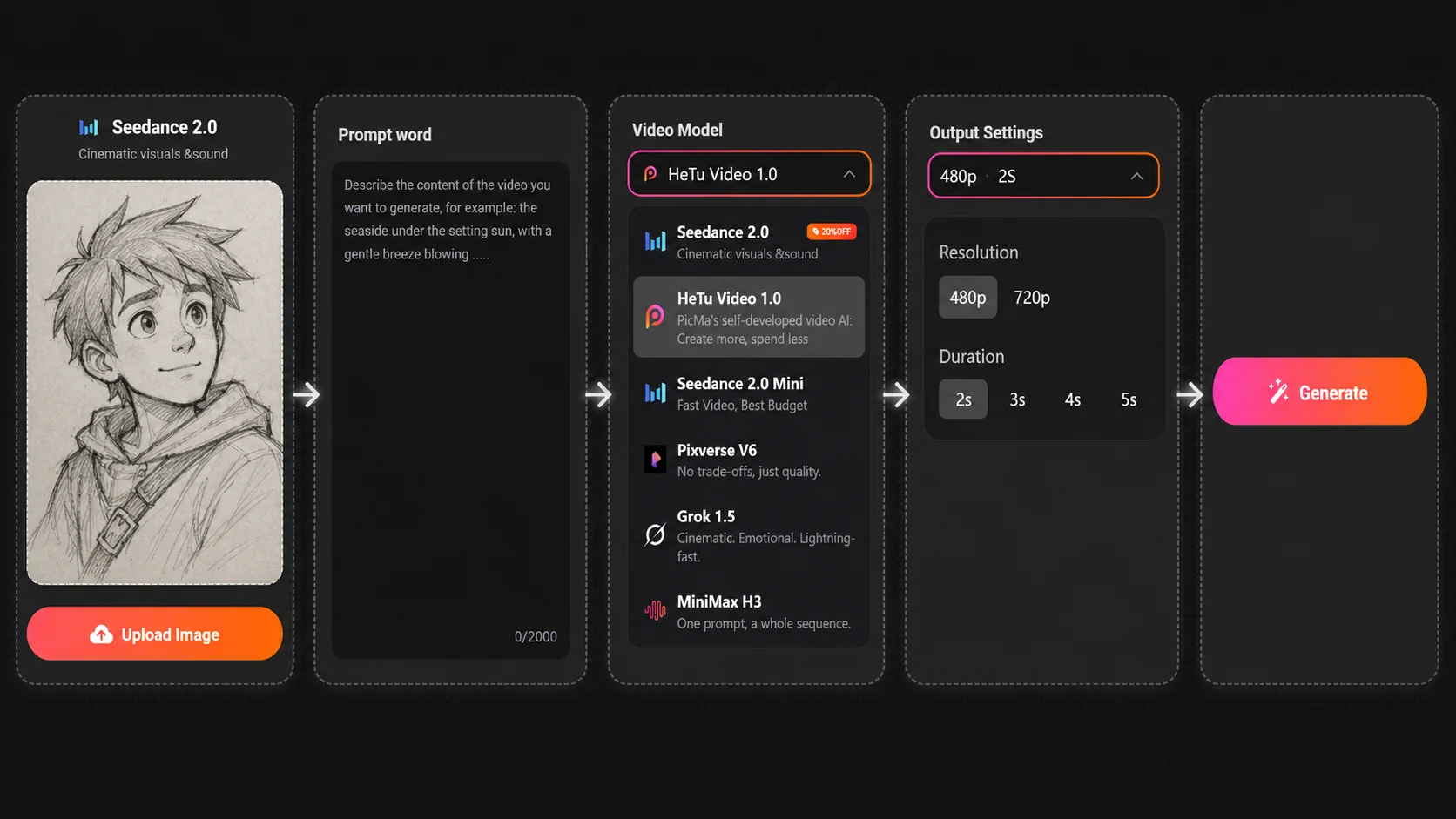
Step 1: Open Image to Video
Open PicMa Studio Image to Video in your browser.
On mobile, you can also use the PicMa app on Google Play or the App Store.
Step 2: Upload Your Sketch
Choose a clear photo, scan, or digital version of your drawing.
Step 3: Generate the Animation
Add a short motion prompt if needed, choose a video model, and tap Generate.
Step 4: Save Your Video
Preview the result and download the version you like.
That is essentially the entire workflow: upload → generate → save.
How to Make AI Sketch Animation Look More Natural
The biggest mistake is asking for too much motion at once.
AI image-to-video works especially well when the prompt describes one clear action. “Character turns toward the camera” is usually easier to interpret than a long description involving several actions, camera movements, and scene changes.
It also helps to describe details that already exist in the drawing. If the character has long hair, ask for it to move slightly in the breeze. If the sketch shows someone holding a cup, ask them to gently lift it.
Think of AI less as replacing the drawing and more as adding a few seconds of life around what is already there.
For character artists and OC creators, this can also be a quick way to test animated posts, character introductions, or short teaser clips. You can find more ideas in our guide to
bringing an original character to life with AI animation.
Your sketch already contains the idea—the animation just gives it a little more room to move.
Ready to see your drawing in motion? Try PicMa Studio Image to Video and turn your sketch into a short animation.


Frequently Asked Questions
Can I animate a pencil sketch?
Yes. A clear photo or scan usually works well.
Why does my animation look strange?
Complex poses or large movements can confuse the AI. Try a simpler prompt.
Can I animate my OC or character art?
Absolutely! Small actions like blinking, smiling, or turning often work especially well.
Related Readings:

 103
103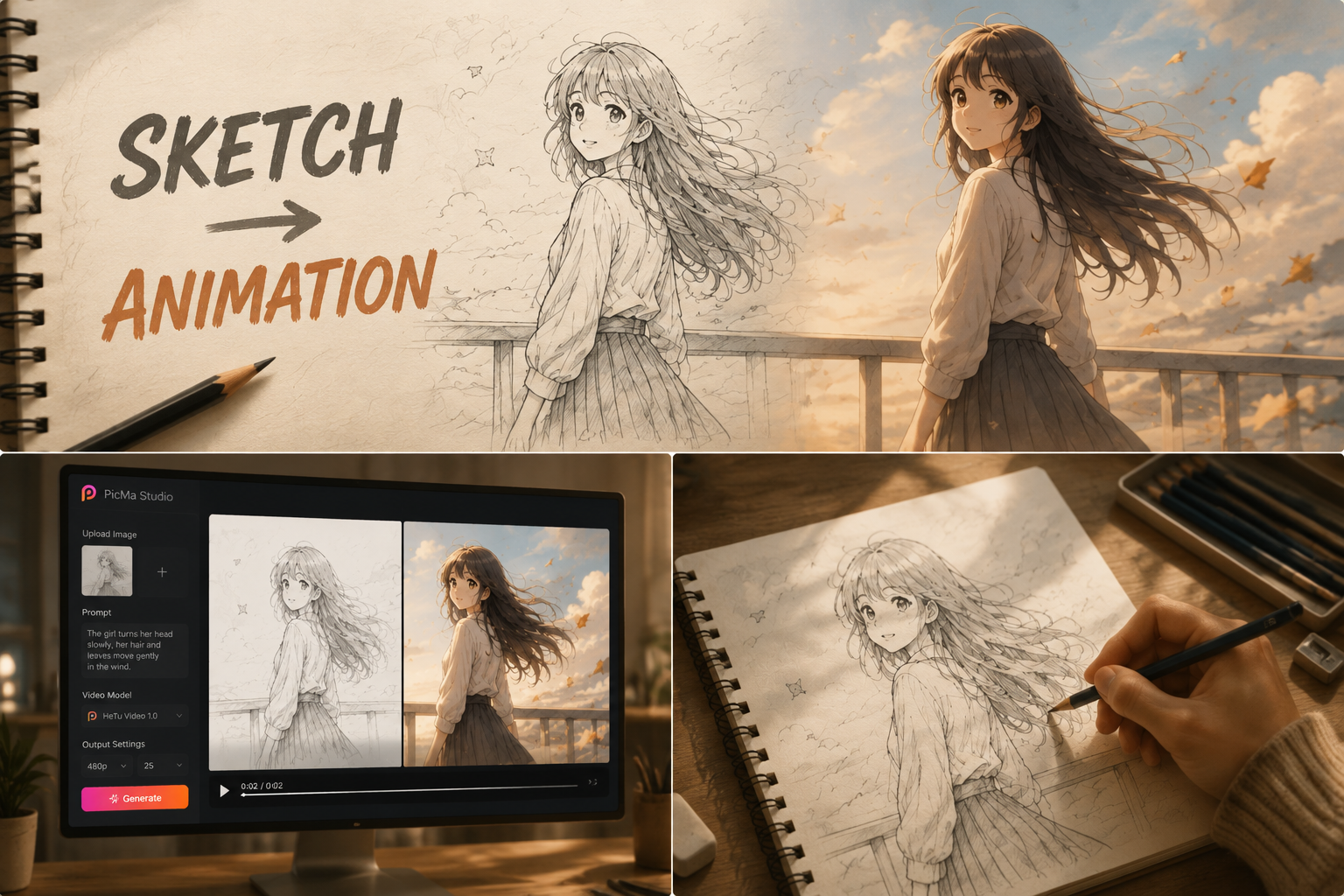

 English