Wedding videos, graduations, conferences, and live events often have the same problem: the footage still looks usable, but faces captured from far away lose detail first.
Simply sharpening the whole video can make backgrounds and edges look harsh without really fixing the faces. A better option is to use an AI video enhancer that targets the actual problem.
Why Faces Look Blurry in Event Videos
At weddings, graduations, and conferences, people are often far from the camera. Once footage is compressed or exported several times, small facial details such as eyes, hair, and expressions can become soft.
Instead of sharpening everything, a face-focused AI model can help improve the people in the frame while keeping the overall image more natural.
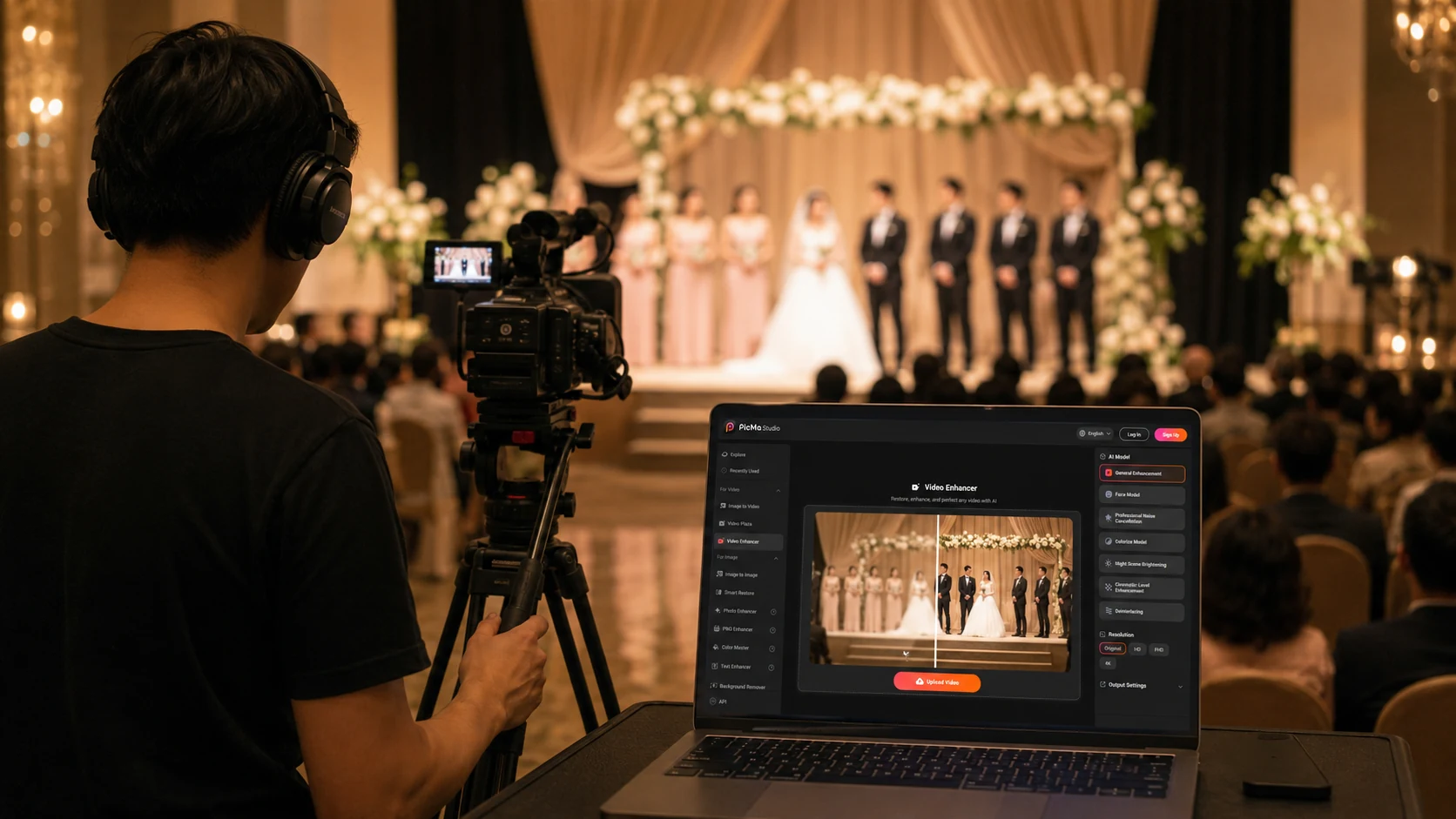
How to Enhance Event Videos with PicMa Studio
Using PicMa Studio Video Enhancer only takes a few steps.
Step 1: Open Video Enhancer
Use the web version, or open PicMa on Google Play or the App Store.
Step 2: Upload your video
Choose the wedding, graduation, conference, or event clip you want to improve.
Step 3: Choose an AI model
For distant or blurry faces, try Face Enhancement. You can also choose the output resolution and other enhancement options.
Step 4: Download the result
Run the AI, preview the enhanced video, and save it if the result looks natural.
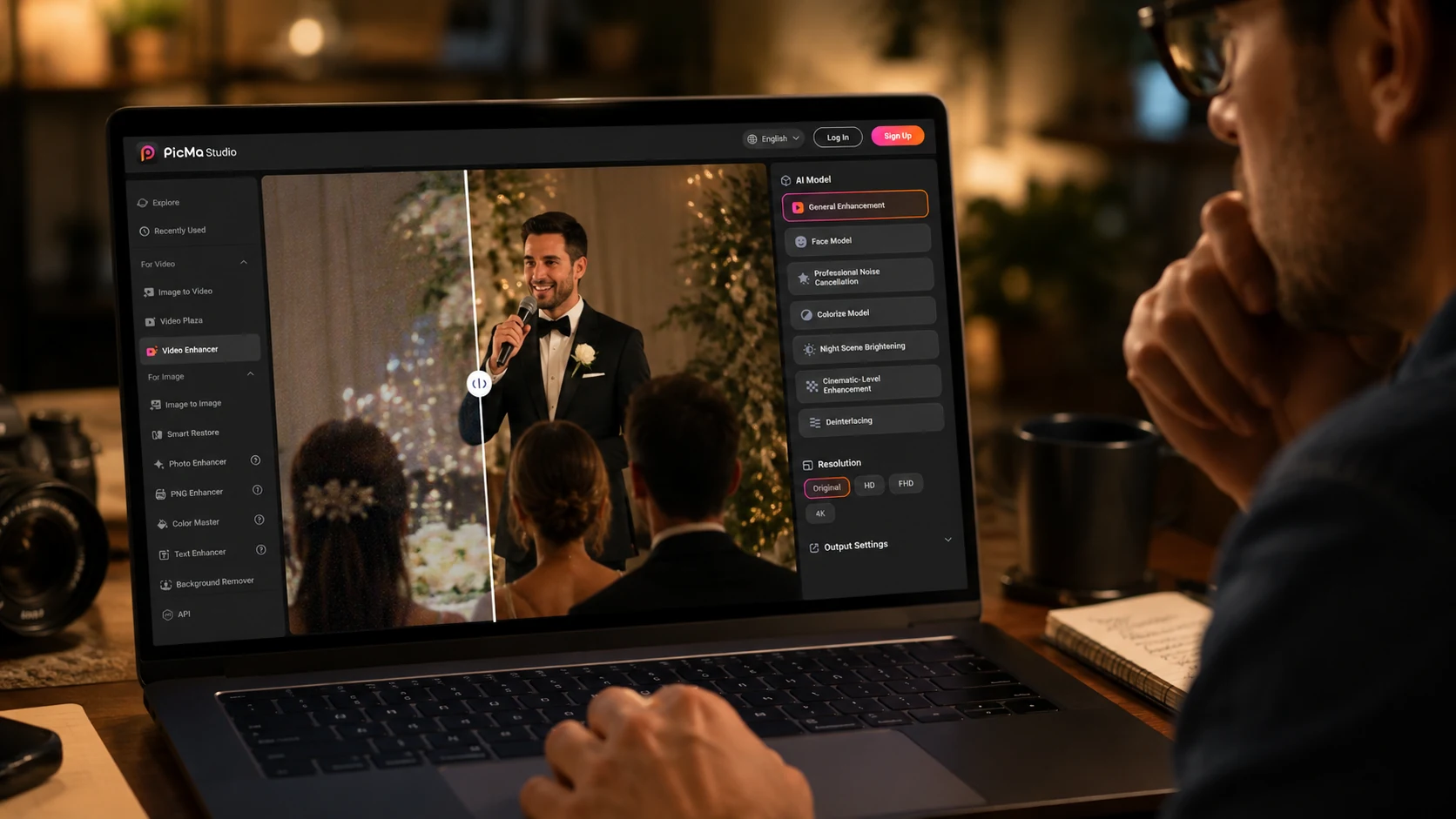
Choose the Right AI Model
PicMa Studio includes several enhancement models for different types of footage.
Face Enhancement works best when people are the priority. General Enhancement can improve overall clarity, while Professional Noise Reduction is useful for grainy indoor footage.
For dark receptions or evening events, Night Brightening may be more suitable. You can also try Cinematic Enhancement, Deinterlacing, or Colorization depending on the source video.
The key is to choose the model that matches the problem instead of applying heavy sharpening to everything.
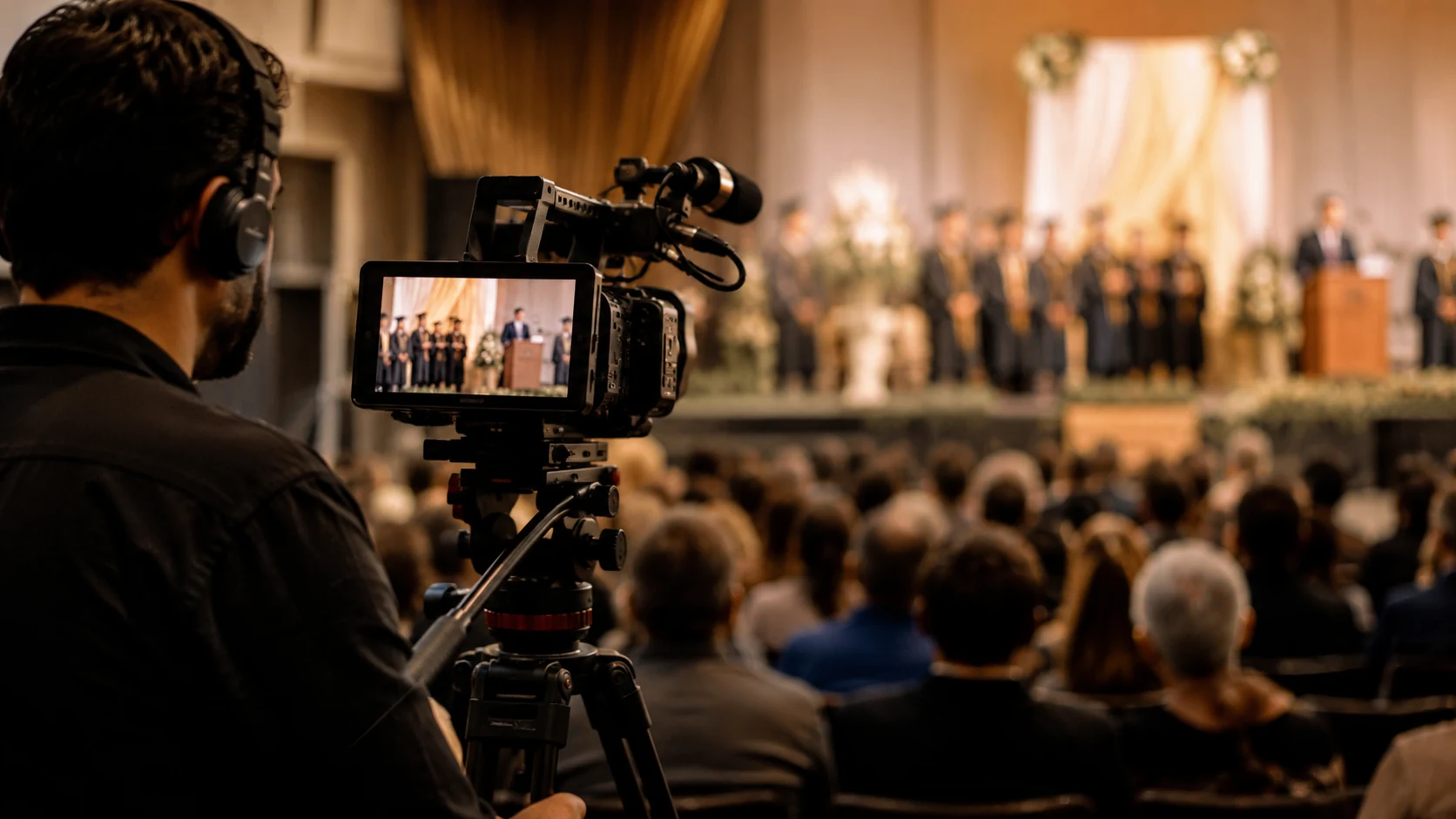
Save Event Footage That Is Almost Good Enough
A slightly blurry wedding speech or graduation moment may still be worth saving.
If the video itself is usable but faces lack clarity, try a short section first with PicMa Studio Video Enhancer. Compare it with the original, then decide whether to enhance the full clip.
AI cannot perfectly recover information that was never captured, so always keep the original footage.
Ready to improve a blurry event clip? Try PicMa Studio Video Enhancer and see whether the footage can be made clearer before giving up on it.
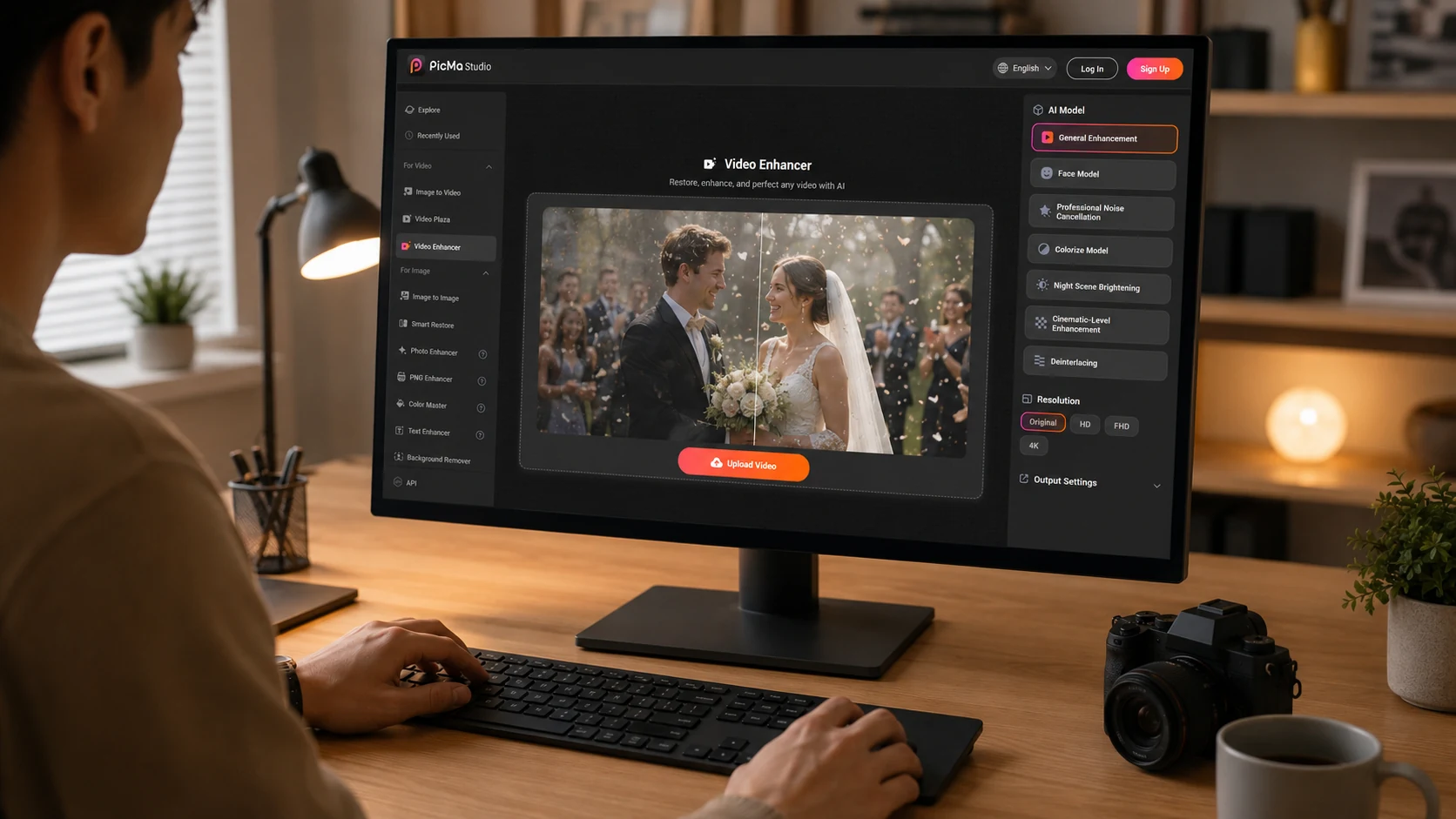
FAQ
Can AI make distant faces clearer?
Yes. Face-focused enhancement can improve visible facial detail when the original video still contains enough information.
Which model is best for wedding videos?
Start with Face Enhancement if faces are blurry. Use General Enhancement if the whole video looks soft.
Can AI improve dark event footage?
Yes. Night Brightening or Noise Reduction can help with low-light footage.
Will video enhancement make footage look fake?
It can if overused. Compare the result with the original and avoid overly aggressive enhancement.
Can I choose the output resolution?
Yes. PicMa Studio provides resolution options when enhancing video.
Related Readings:

 42
42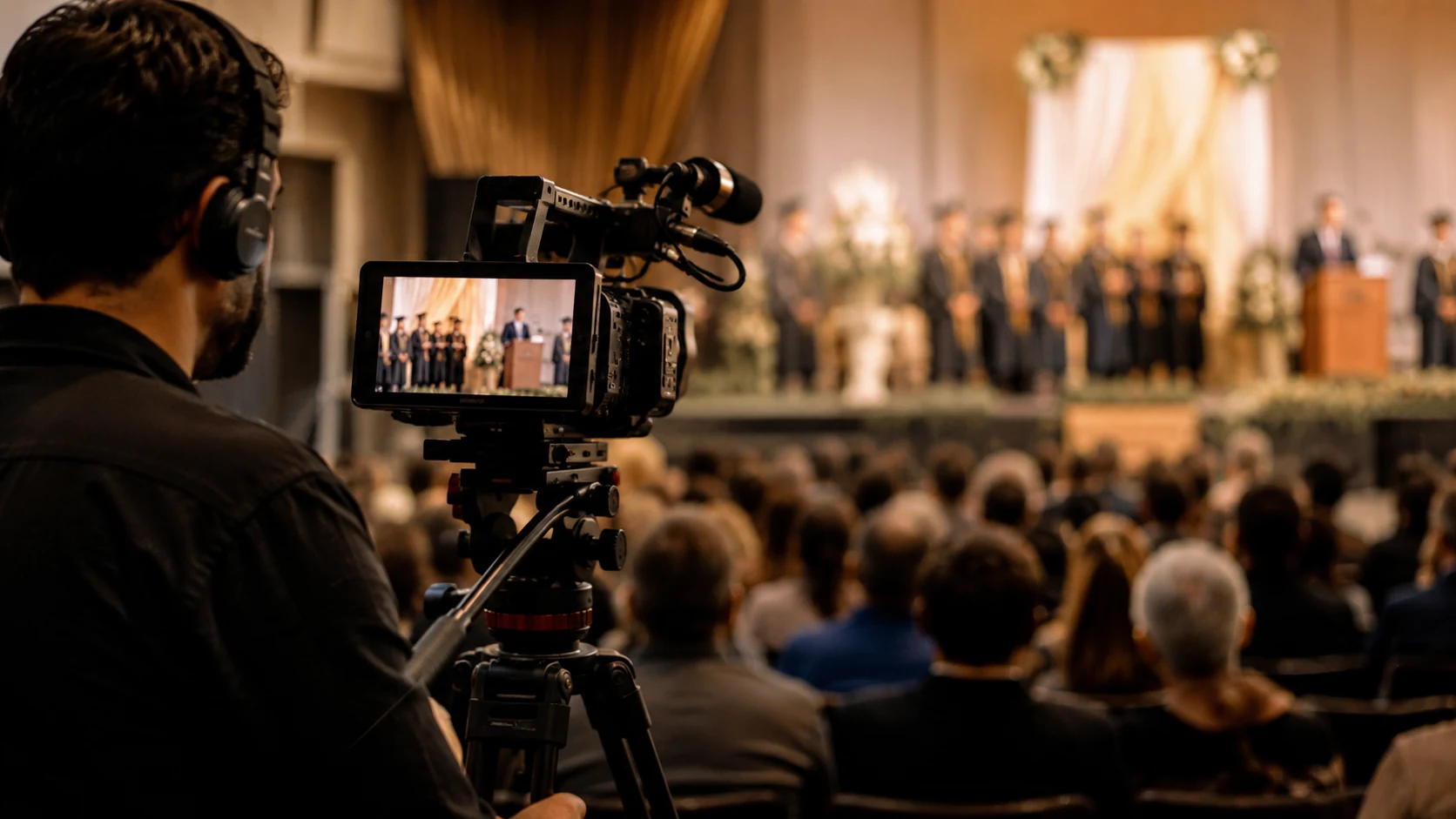

 English