I believe no one would say no to that dreamy, cinematic "golden hour" aesthetic. You know the one that warm sunlight hits your face perfectly, ocean waves crash softly in the background, making you look like the main character in a summer indie film.
But as someone who lives miles away from the nearest beach and has zero patience for complicated photo editing apps, getting that perfect sunset beach portrait always felt impossible. I either had to plan a whole vacation or spend hours watching Photoshop tutorials on how to fake lighting. Not to mention people who don't live by the sea.
Recently, I went down a rabbit hole searching for an AI portrait generator that didn't make people look like stiff, plastic video game characters. That’s when I stumbled upon PicMa.
I was skeptical at first. But after playing around with their "Sunset Beach" style feature, my Instagram feed has completely leveled up. People literally asked me when I went to Malibu.
Here is my honest experience and a quick guide on how you can turn your regular selfies into stunning sunset beach portraits in seconds.
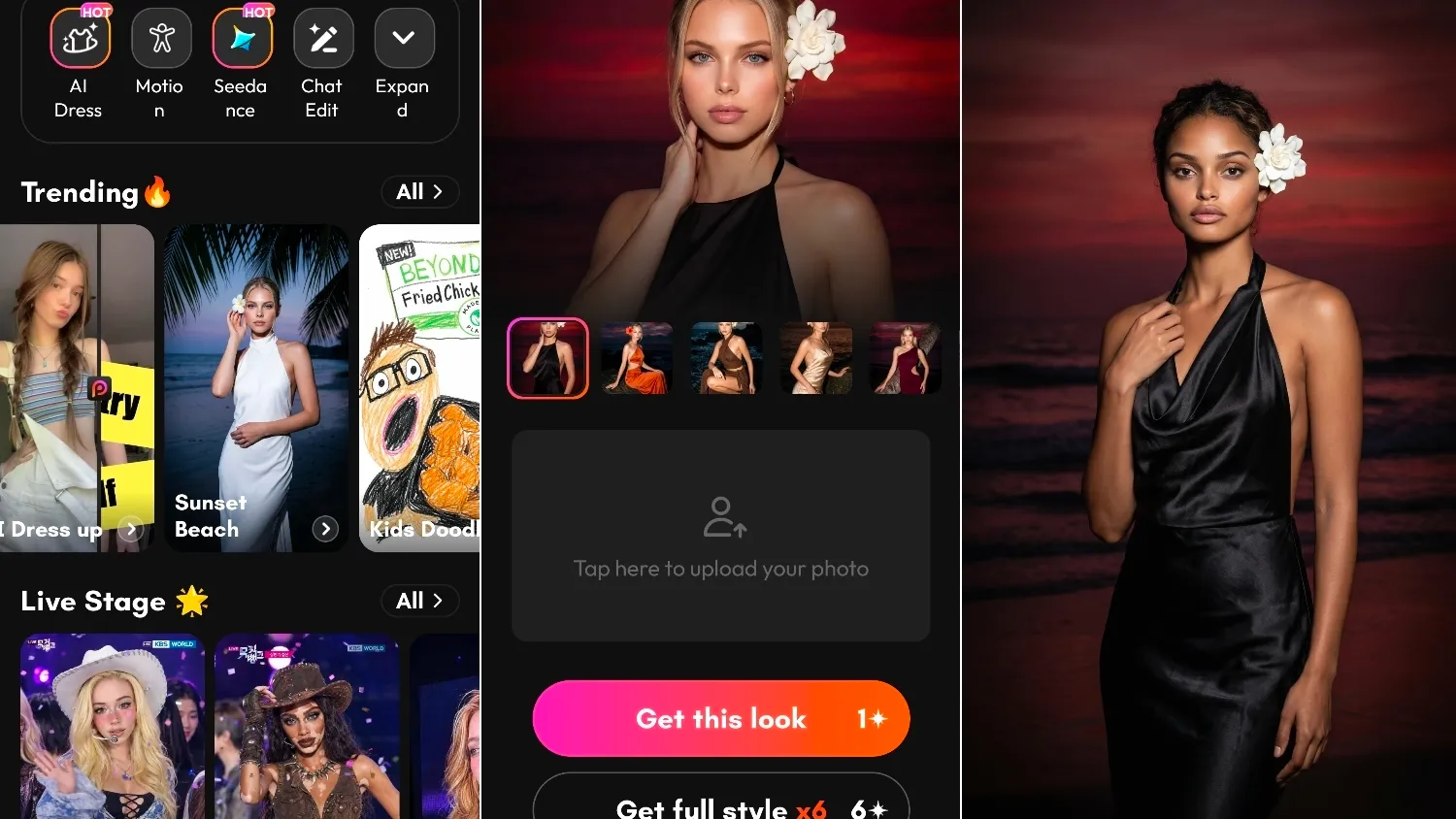
Why the Sunset Beach Aesthetic is So Hard to Get Right
If you’ve ever tried to take a golden hour selfie, you know the struggle. The window of perfect lighting lasts about 15 minutes. The wind ruins your hair, you’re squinting at the sun, and the background is usually crowded with other people.
What blew my mind about PicMa is how it understands lighting. When you use their tool to turn a photo into a portrait, it doesn't just paste your face onto a stock beach photo. It actually recalculates the shadows, adds that warm, peachy glow to your skin, and creates a beautifully blurred ocean background.
How to Use PicMa for Sunset Beach Portraits (A Step-by-Step Guide)
The best part about this tool? It is genuinely a one-click process. You don't need to know anything about masking, layering, or color grading.
Here is exactly how I do it:
Step 1: Get PicMa App
You can download the PicMa app on Google Play or the Apple Store.
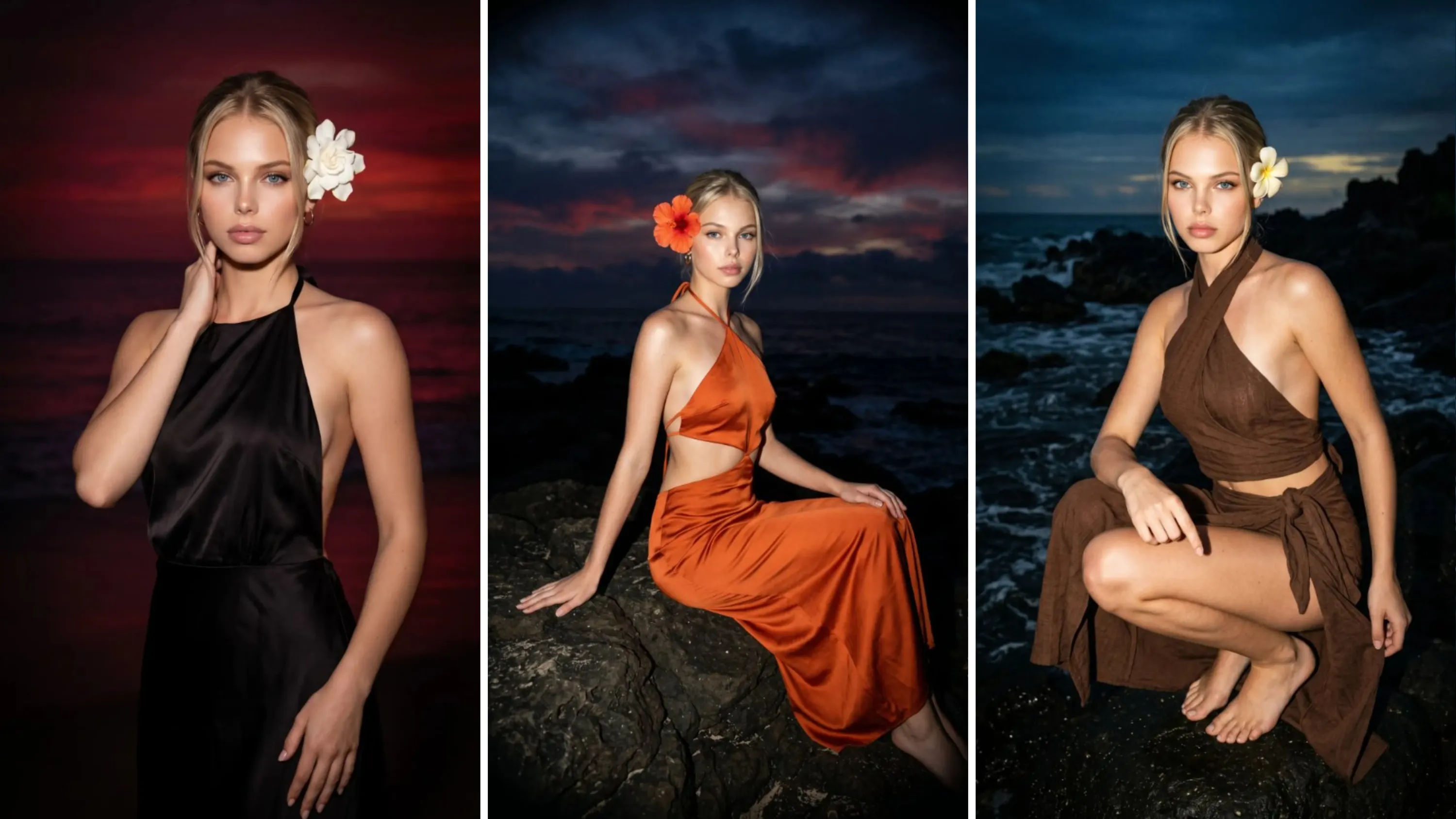
Step 2: Find "Sunset Beach" feature & Upload Selfie
You can find this feature in Trending collection on PicMa homepage, click it and then upload a clear selfie. You can select a specific template and click the "Get this look" button to generate one personalized portrait, or click the "Get full style" button to get all six different portraits, both within a few minutes.
Step 3: Download the Stunning Portraits
Click the "Save" button to download the generated portraits and, it's time to share!
My Final Verdict
If you are a content creator, someone who wants to aestheticize their social media profiles, or just someone who wants a beautiful new profile picture without paying for a professional photoshoot, this is a game-changer.
There are a lot of AI photo editors out there right now, but PicMa’s one-click portrait feature is by far one of the most natural-looking ones I’ve tried. The way it handles hair blending and lighting reflections is chef's kiss.
Have you guys tried any AI image tools yet? If you want to try faking your own beach vacation photos, definitely give the PicMa sunset beach feature a test run. You'll thank me for this!


Frequently Asked Questions
Q: How long does it actually take?
A: The whole process takes less than two minutes. After you upload your selfie and start the generation, PicMa creates the portraits in seconds.
Q: Will the results look realistic?
A: Yes! PicMa is great at making the generated images look natural.
Q: Is PicMa's Sunset Beach feature free to use ?
A: You can download PicMa for free on iOS & Android and start creating right away. It's not conpletely free, but new users get bonus credits so there are free trials.
Related Readings:

 90
90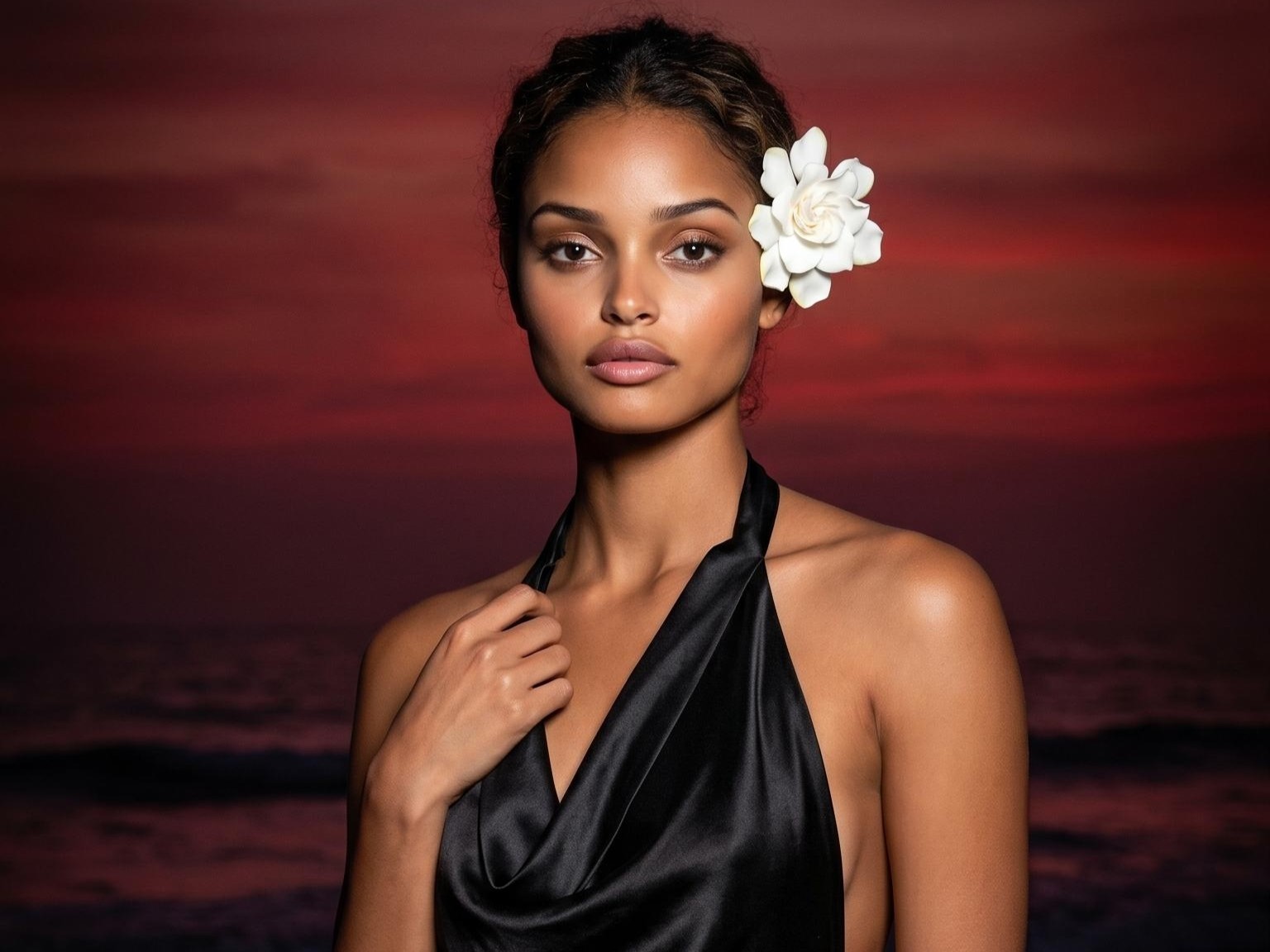

 English