Your LinkedIn profile is almost ready. You’ve updated your experience, rewritten your headline, and added that project you’re proud of. Then you reach the photo—and you’re still choosing between a graduation snapshot and a selfie cropped from a night out.
For recent graduates and early-career professionals, an AI LinkedIn headshot can be a practical way to explore a more polished portrait from an existing photo. The aim is simple: look ready for your next role while remaining recognizably yourself.
What Should Your First Professional Headshot Look Like?
You don’t need an executive-style portrait to apply for your first full-time job.
A useful LinkedIn photo keeps your face clear, your expression approachable, and the background understated. Choose clothing that feels appropriate for your field: a simple shirt may suit a creative role, while a blazer might fit a corporate setting.
Ask yourself: “Would I feel comfortable introducing myself with this photo?” That’s a better guide than choosing whichever image looks the most impressive.
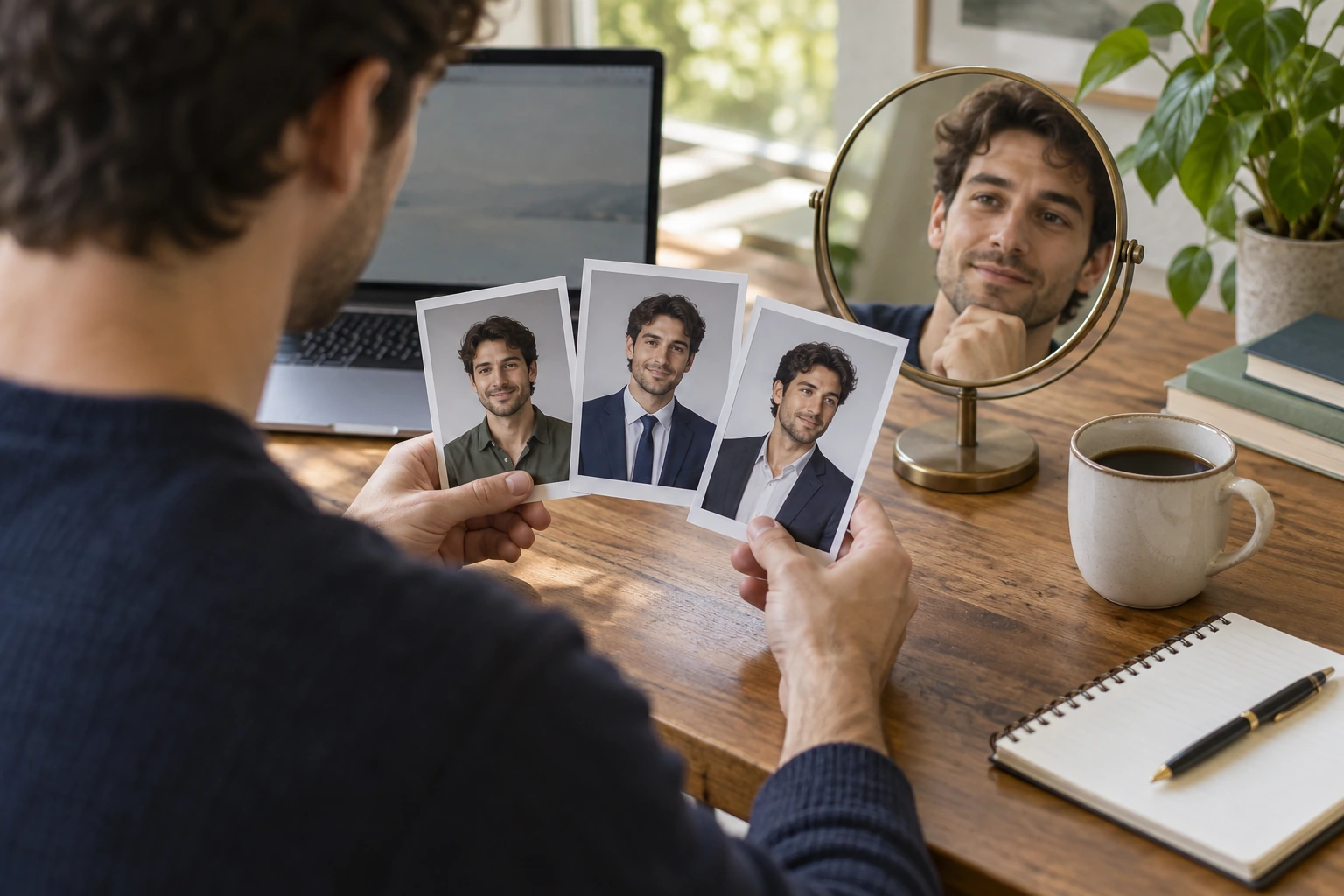
Where PicMa Portrait Studio Fits Into Your Job Search
PicMa Portrait Studio lets you generate portraits in different styles from a single photo. If your camera roll is full of casual pictures, it gives you a place to explore a more professional look before deciding whether you need a photoshoot.
That flexibility is useful when you’re still figuring out how to present yourself. The portrait you’d choose for a design portfolio may feel different from the one you’d use for a consulting application.
Start with a recent photo that shows your face clearly, with even lighting and minimal filtering. For more ideas about professional styling, PicMa’s guide to turning casual photos into professional headshots explores a separate Chat Edit approach.
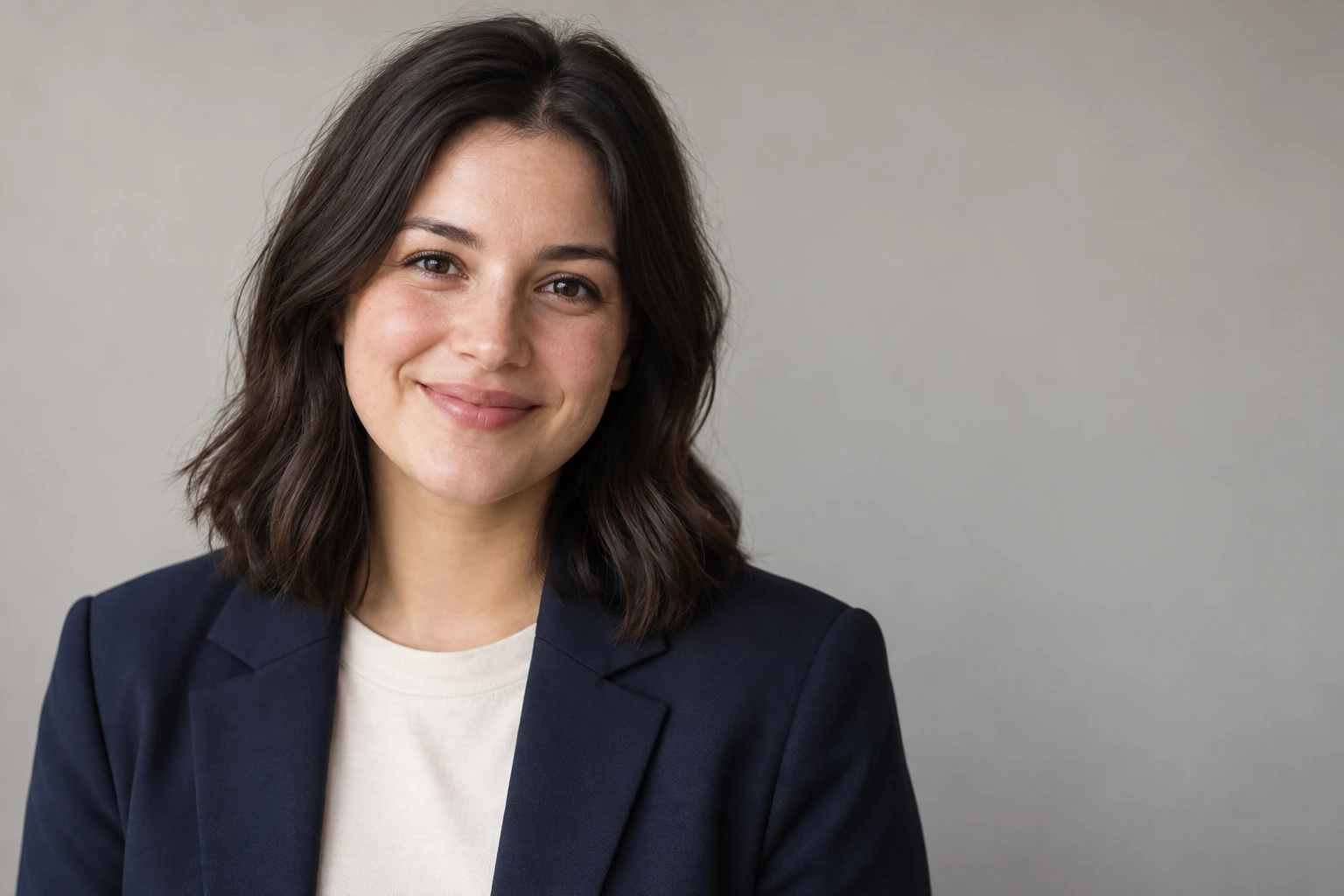
From Selfie to Professional Portrait in Three Steps
The workflow is short. Give yourself more time to choose the right result than to prepare the upload.
Step 1: Upload a clear photo.
Open PicMa’s AI Portrait Studio or PicMa APP from homepage and upload a recent picture with your face unobstructed.
Step 2: Choose a style and generate.
Select an available portrait look that suits your professional profile.
Step 3: Review and save.
Check your likeness, expression, and clothing details, then save your preferred result.
Treat that review as the final polish. Look closely at your eyes, smile, hairline, and outfit. If something feels unfamiliar or visibly artificial, try another result.
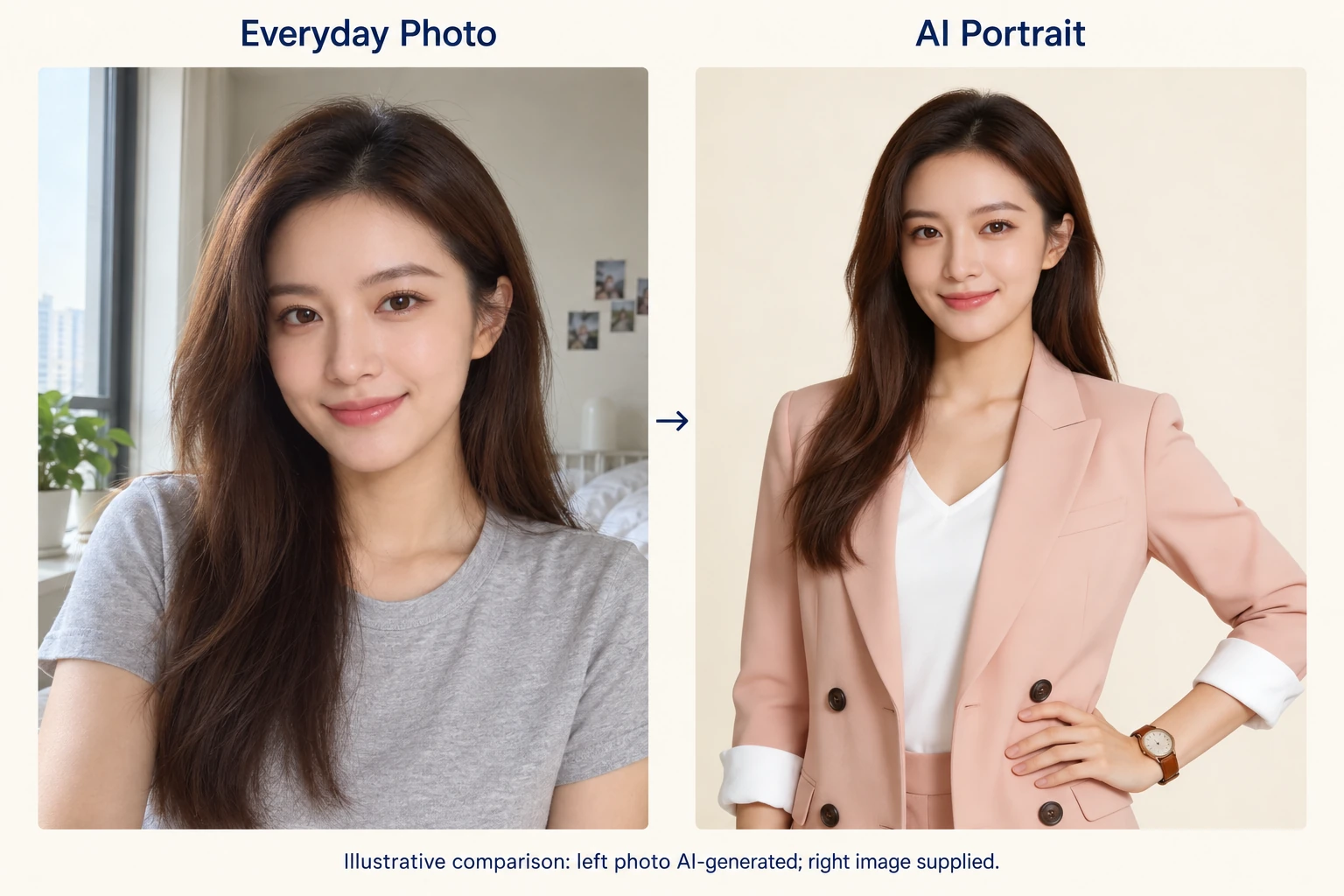
Pick the Photo You’d Actually Feel Good Using
A portrait can look striking at full size and feel awkward as a small profile picture. Preview your choice at thumbnail size: is your face easy to see, and does the crop leave enough space around your head?
Then compare it with a current photo of yourself. Familiar features and natural skin texture matter more than flawless styling. Your headshot should feel consistent with the person who will show up to the interview.
A new photo won’t replace a strong application. But it can help you finish the profile you’ve been putting off—and feel more comfortable sharing it.
Ready to retire that cropped group photo? Try PicMa Portrait Studio with a clear selfie and explore a look that fits your next career move.


FAQs
Can I use an AI headshot on LinkedIn?
It can be a practical option if it accurately represents you. Review the result carefully and choose a portrait that reflects your current appearance.
Do I need to wear a suit in my original photo?
Start with a clear view of your face. For the finished portrait, choose styling that fits your field—professional doesn’t always mean a suit.
What if the result looks too perfect?
Trust that feeling. If your skin looks plastic or your smile feels unfamiliar, try another version. Choose the one that still feels like you.
Related Readings:

 24
24

 English