You know that feeling when you are scrolling through Pinterest at 2 AM and you find the perfect piece of art for your room?
That happened to me last week. I found this stunning, moody 1970s vintage matchbook illustration. It had the exact aesthetic I needed to complete my thrifted gallery wall. I was so excited to print it out, put it in a cheap thrift store frame, and call it a day.
But then, I hit a massive wall.
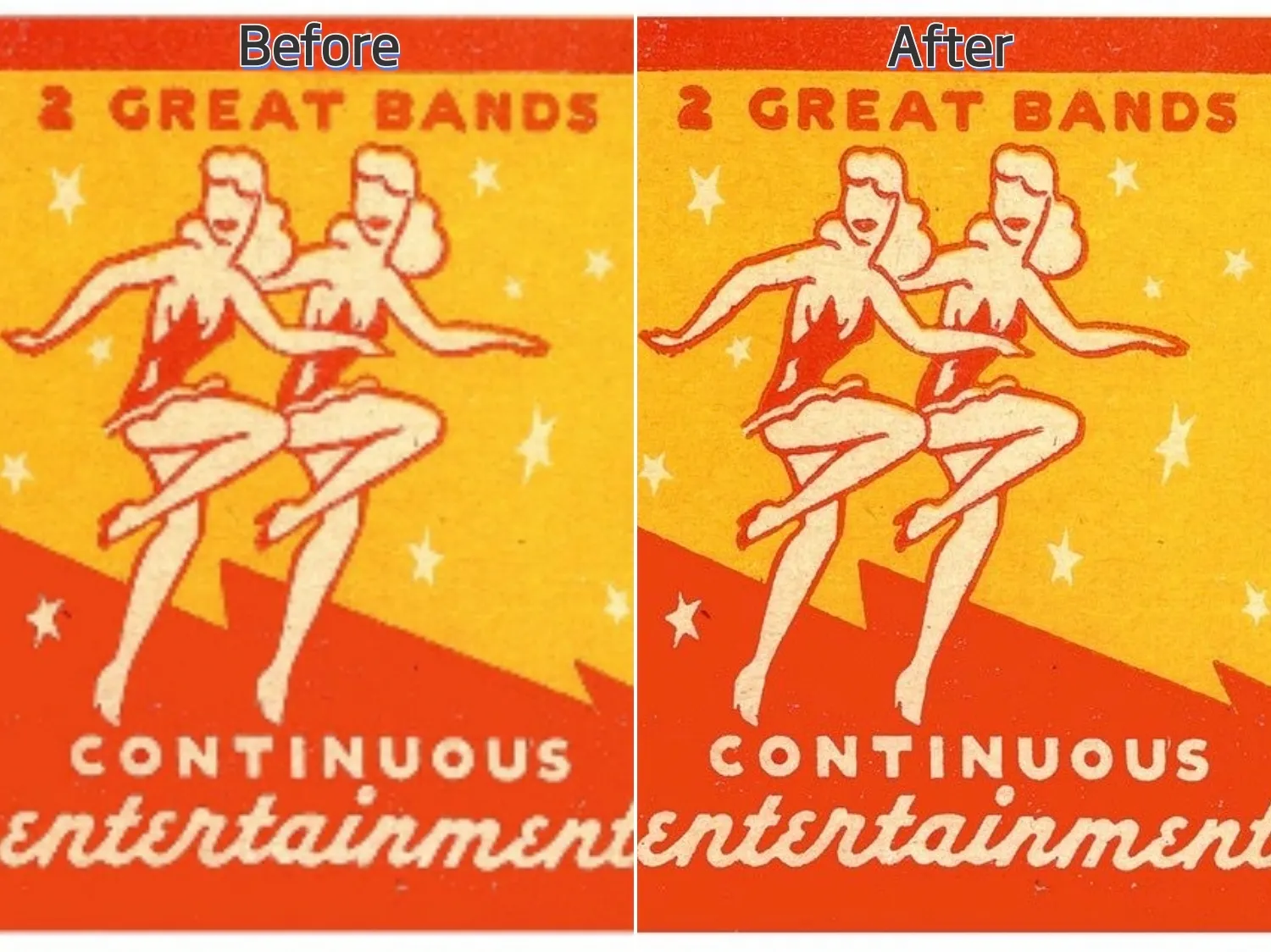
When I saved the file to my computer, it was tiny—only about 500 pixels. I tried to resize it to fit an 8x10 frame, and it looked absolutely terrible. It was a pixelated, blurry mess.
If you’ve ever wondered how to print low resolution pictures without them looking like a blocky video game from 1995, you know my pain. I almost gave up and searched for something else.
But then, I decided to run it through PicMa, an AI image tool I’d been meaning to try for photo restoration. Honestly? It felt like a cheat code for home decor.
Here is exactly how I used PicMa to enlarge a small Pinterest photo and turn it into a high-quality art print on a zero-dollar budget.
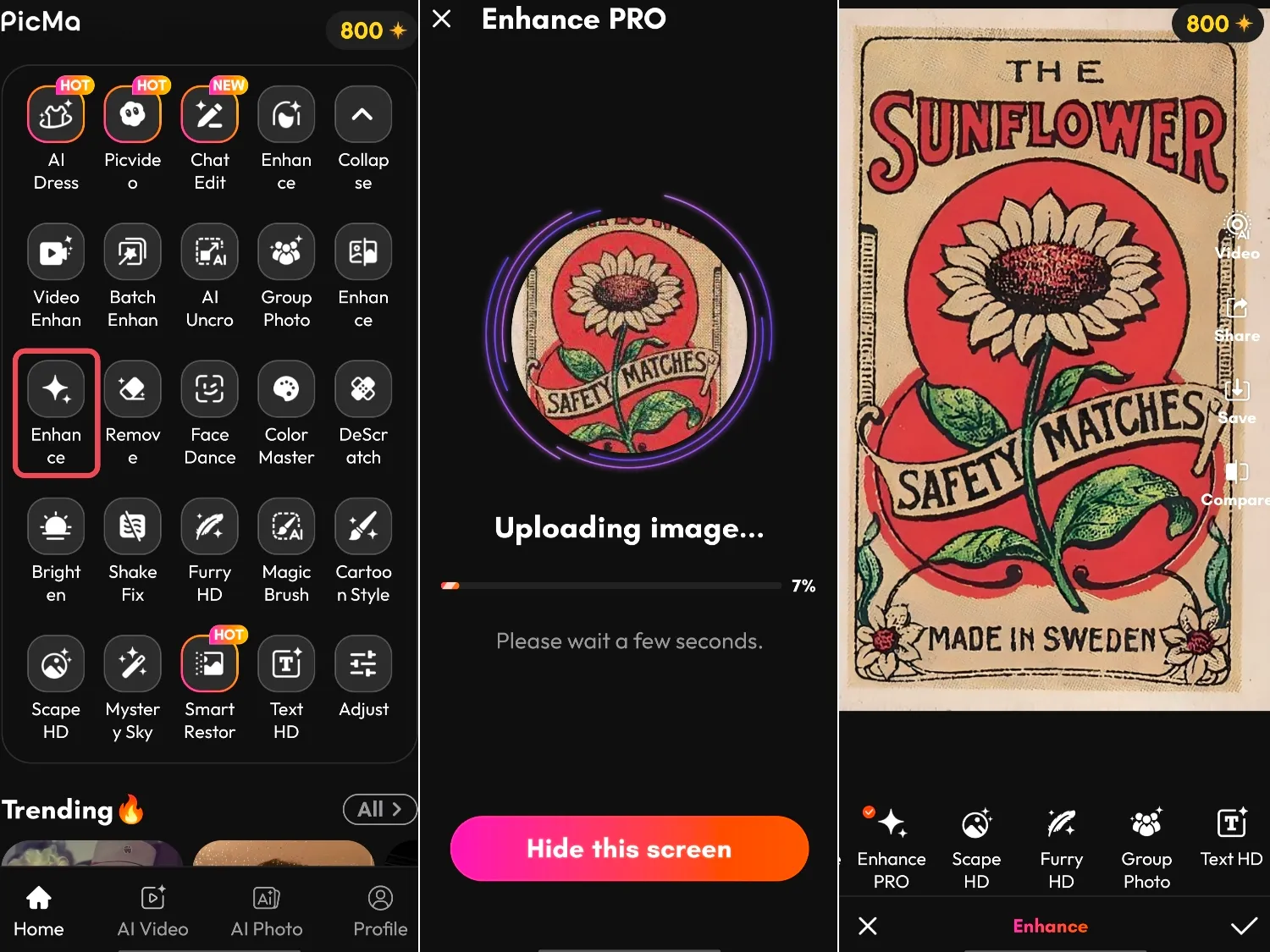
How I Did It (Step-by-Step with PicMa)
I am not a tech-savvy person or a Photoshop pro, so I was relieved to see that PicMa is basically a three-click process.
For mobile users,
- Download the PicMa app on Google Play or the Apple Store.
- Click the Enhance Pro button on the PicMa homepage, select a photo you wish to improve, and start generating.
- The generation process takes just a few seconds; once complete, you can download the image—or, utilizing the provided features, perform further edits on the generated result.

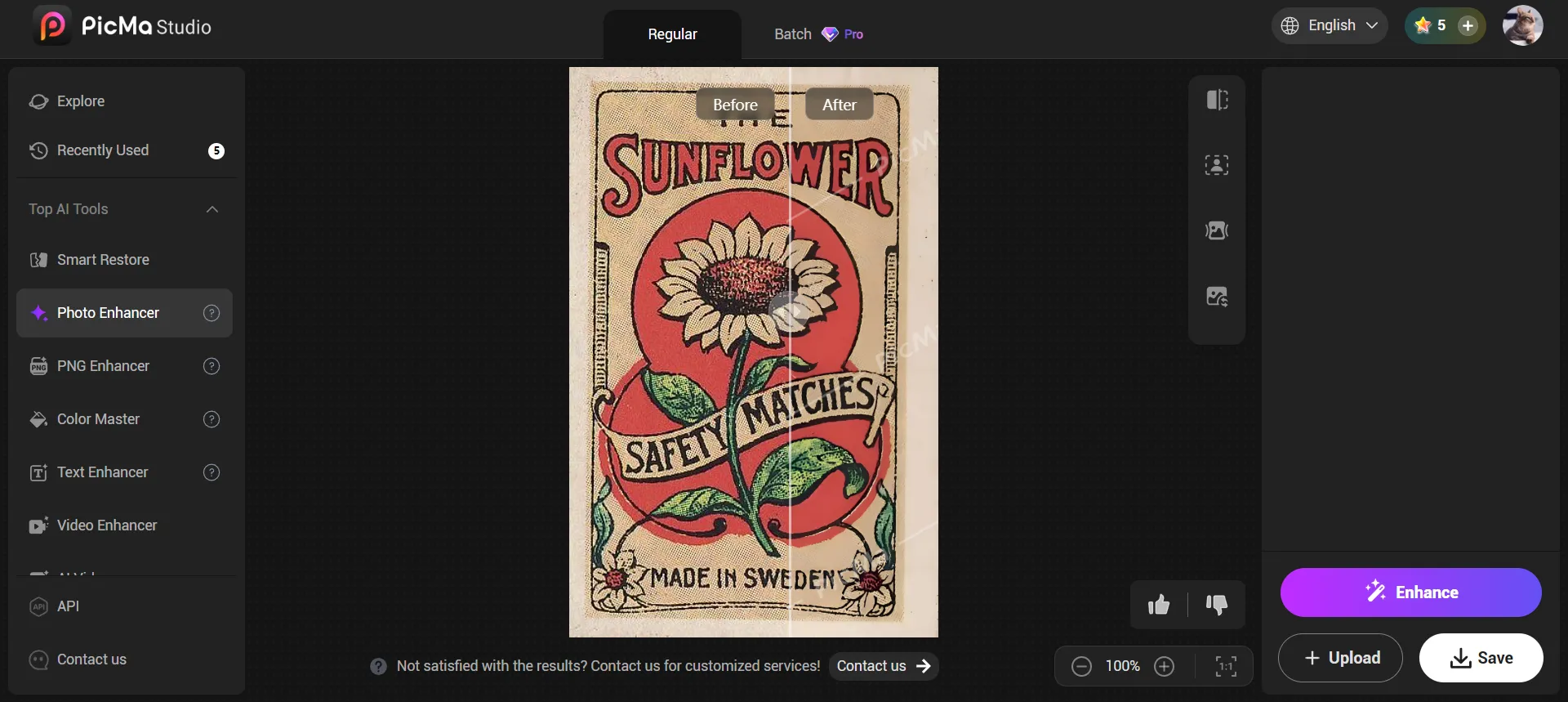
For web users,
- Access PicMa Studio directly in your browser.
- Click "Get Started for Free" on the homepage to access the tool page, then select "Photo Enhancer." You can then upload the image you wish to enhance, and the results will be ready in just a few seconds.
- Directly download the enhanced images.
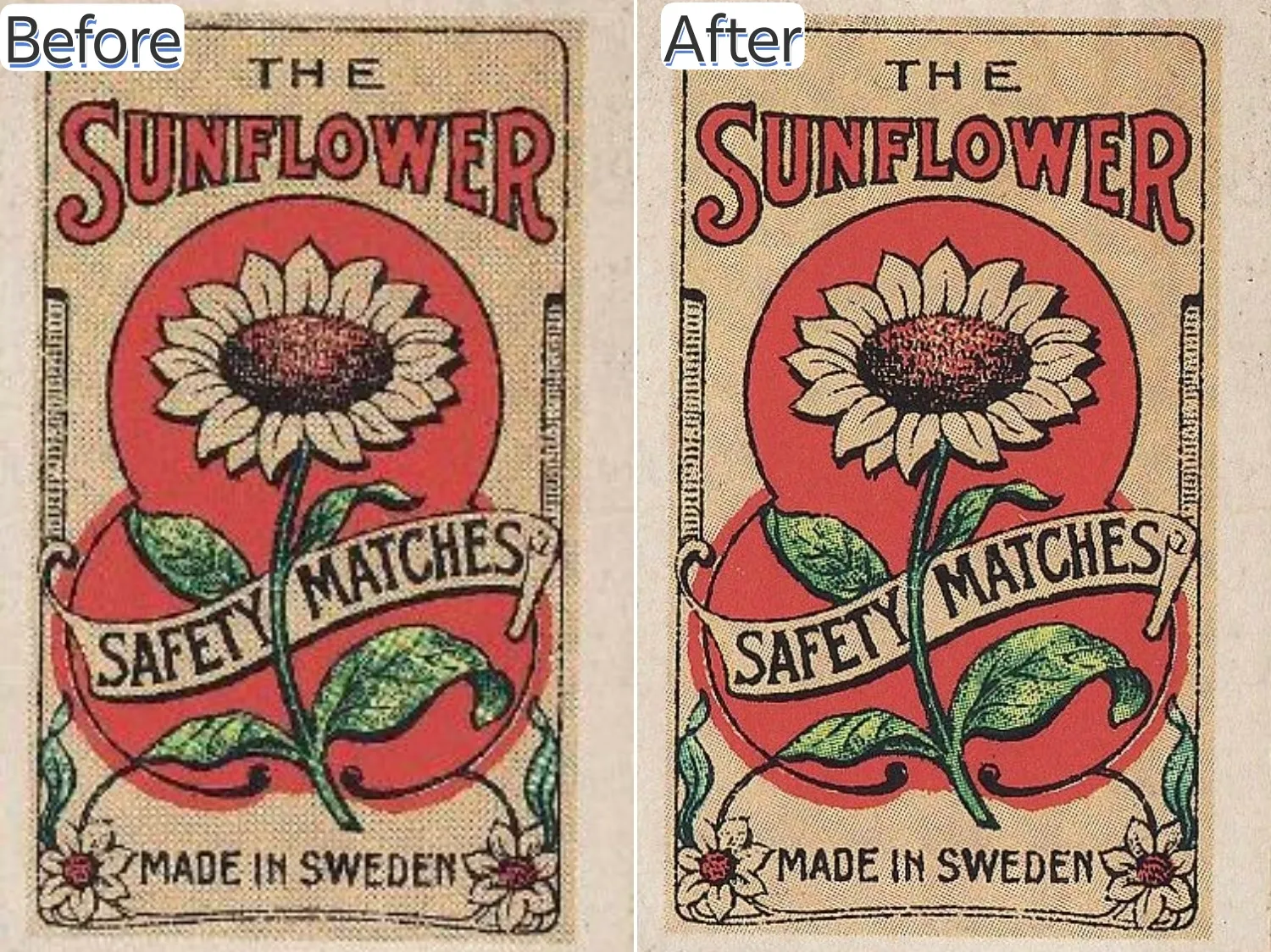
The Final Result: High-End Art on a Thrift Budget
The AI didn't just stretch the pixels to make them bigger. It actually rebuilt the missing details. The blurry, illegible vintage text was suddenly sharp and readable. The grain of the old paper texture looked authentic and crisp, not muddy.
I downloaded the high-res image from PicMa, put it on a thumb drive, and took it to my local print shop. It cost me less than $2 to print it on heavy cardstock.
When I framed it and hung it up, no one could believe it started as a low-quality thumbnail on the internet. It looks like a high-end, expensive art print.
If you are currently staring at a blurry image and wondering how to make a low quality picture high quality so you can use it for your own DIY room decor, stop stressing. Don't pay $50 for a print online when you can find vintage art in the public domain and upscale it yourself. Try it out on PicMa for yourself, and let me know how your print turns out!
What's more, after using it for a while, I discovered that Picma offers a host of other interesting features—such as AI filters, AI portraits, and AI videos. So far, I'm extremely satisfied. Why not join me and explore them for yourselves?


Frequently Asked Questions
Q: How long does it actually take?
A: The whole process takes less than one minutes. After you upload the original image and start the generation, PicMa creates the enhanced image in seconds.
Q: Will the results look natural?
A: Yes! PicMa's Enhance Pro feature is great at making the generated images look natural and quality.
Q: Is this feature free to use?
A: You can download PicMa for free on iOS & Android and try the feature right away. It's not conpletely free, but new users get bonus credits so there are free trials.
Related Readings:

 108
108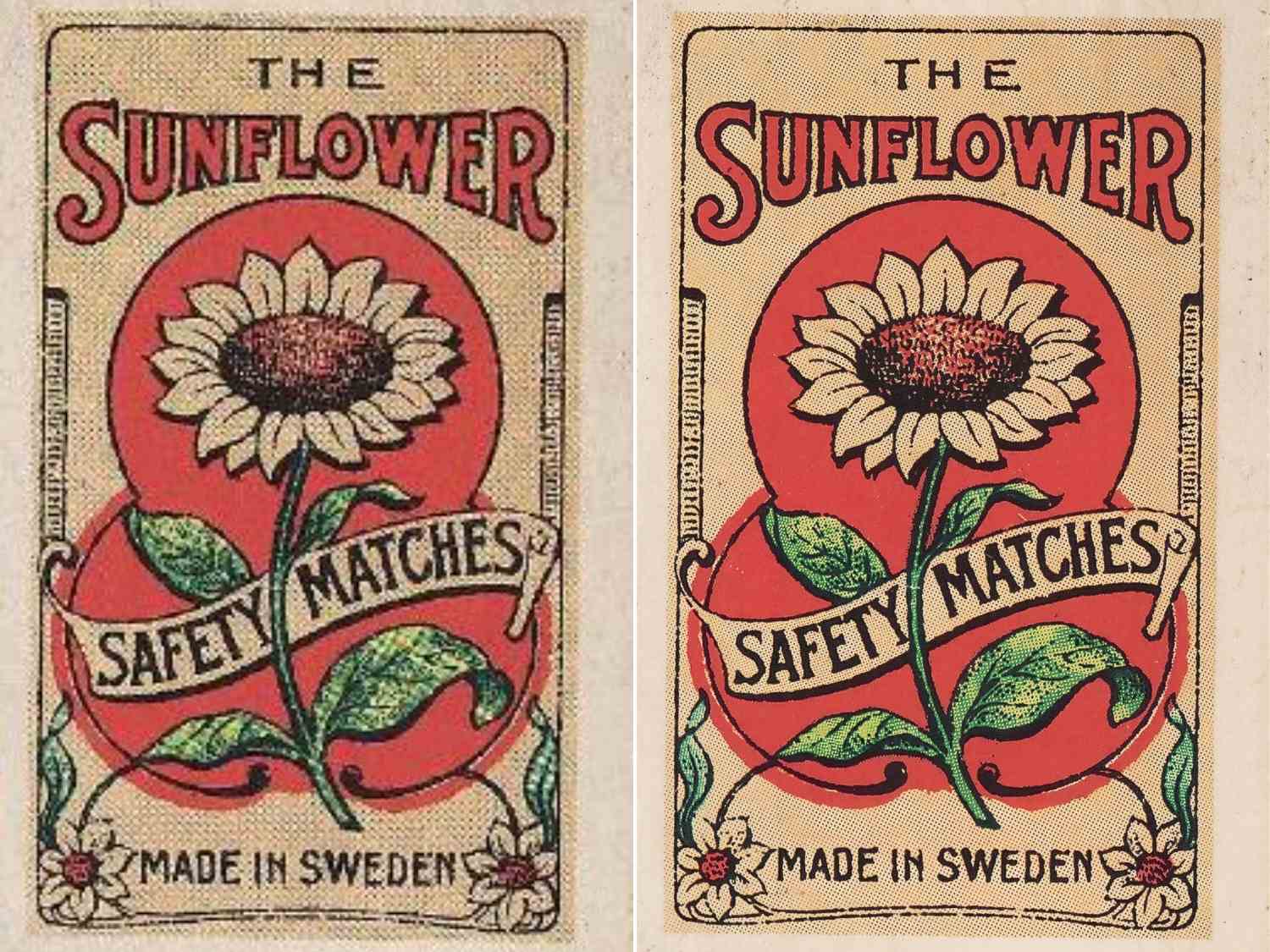

 English