You spent an hour on your Halloween makeup. The costume came together. Someone caught your favorite moment—and when you zoom in, your face looks soft.
Dim party rooms, moving subjects, and colored lights make Halloween photos tricky. Before deleting a shot you love, try processing it with an AI photo enhancer. PicMa’s Photo Enhancer lets you upload an existing photo and review the result before deciding what to share.
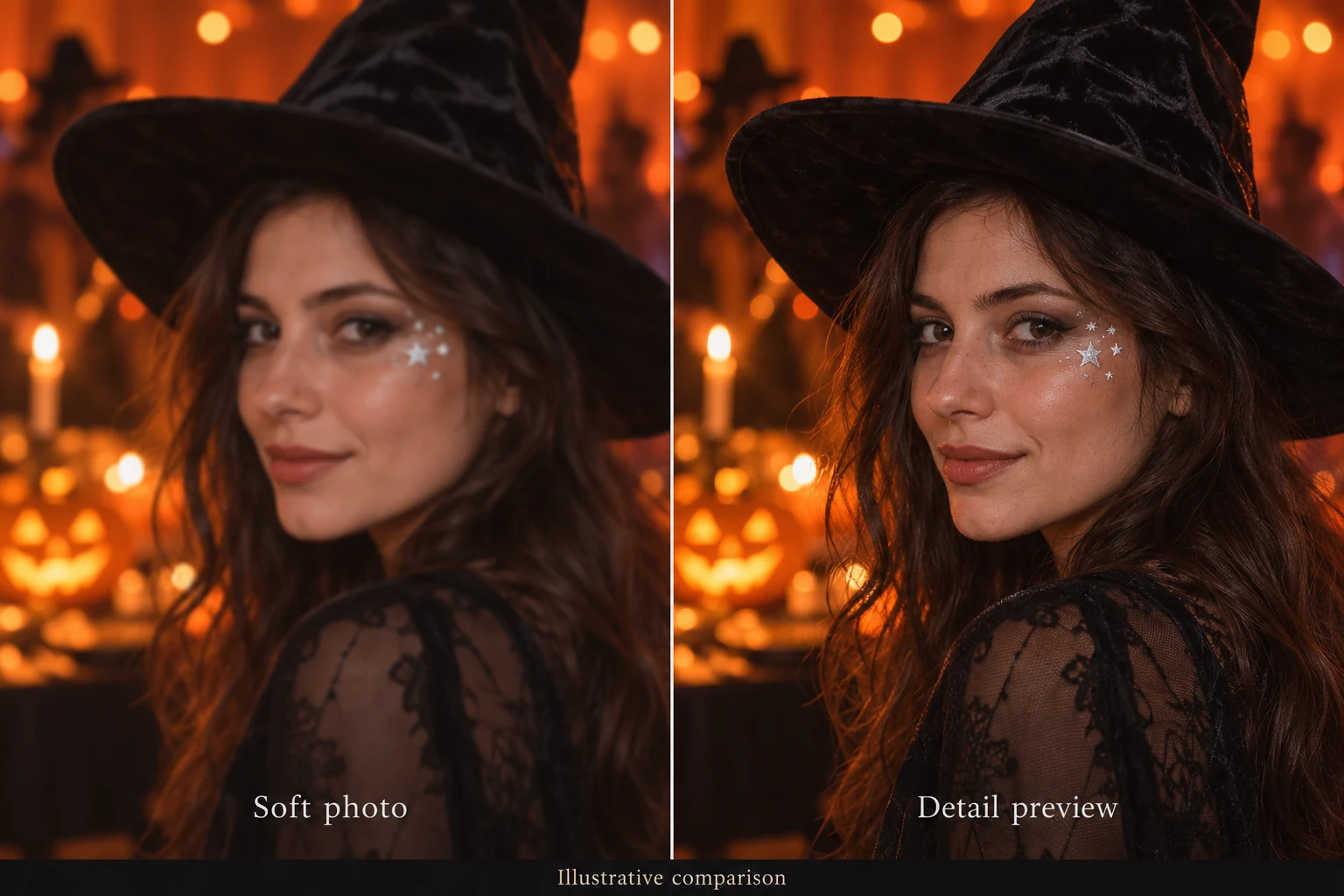
Why Halloween Photos Look Blurry
In low light, a phone camera often needs a longer exposure. Movement during that moment can blur facial details. A missed focus point may also leave your face softer than the decorations behind you.
Start with the best original file you can find. Messaging apps and social platforms may compress photos, so use the version from the photographer’s camera roll whenever possible. Choose a shot where the eyes and main facial features are still visible.
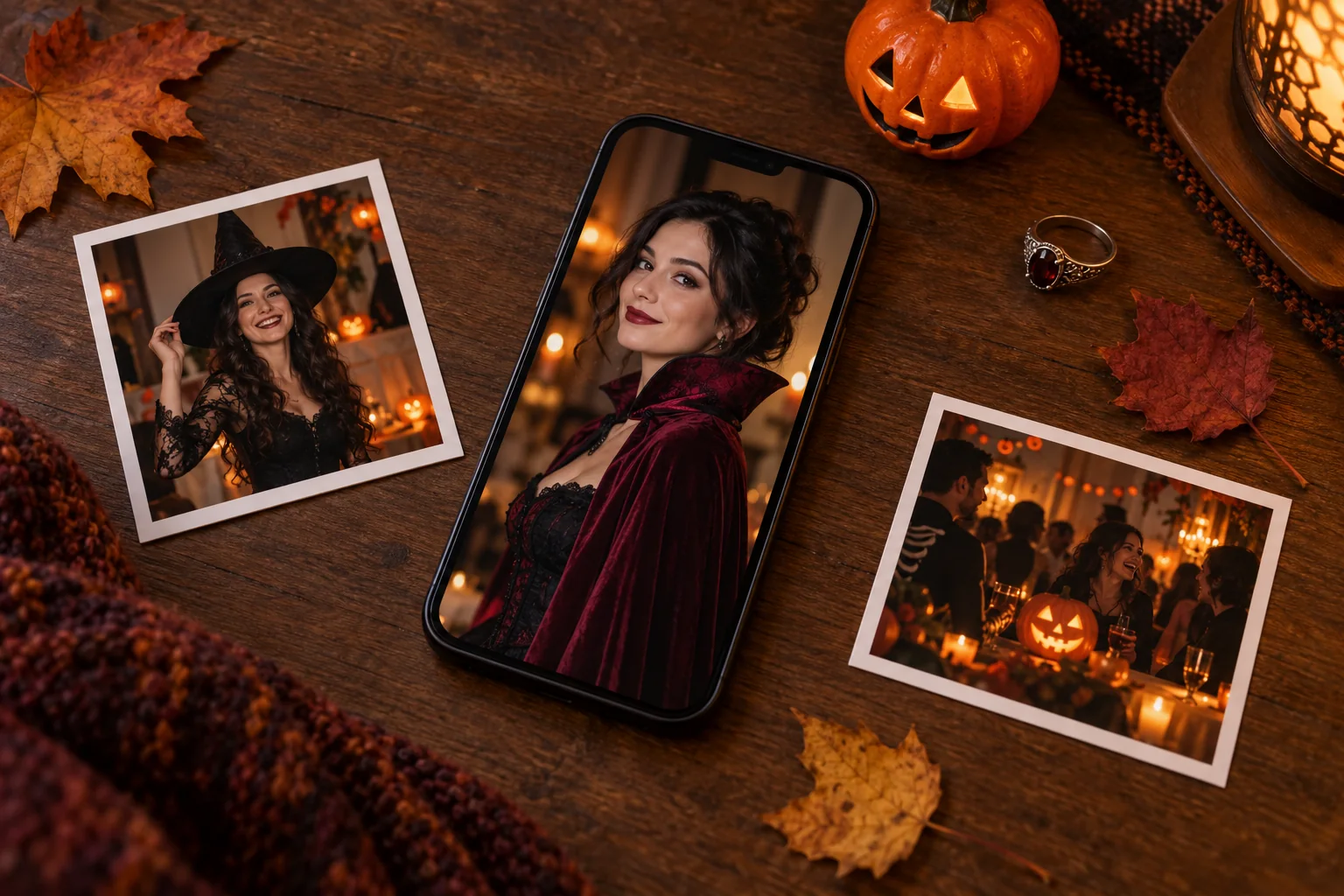
Which Halloween Photos Are Worth Enhancing?
A slightly soft costume portrait is a good place to start. The expression works, the framing looks good, and you mainly want a clearer view of the face.
Try that image in PicMa Photo Enhancer, then compare the result with the original. Look closely at the eyes, hair, and costume details rather than judging only from a small preview.
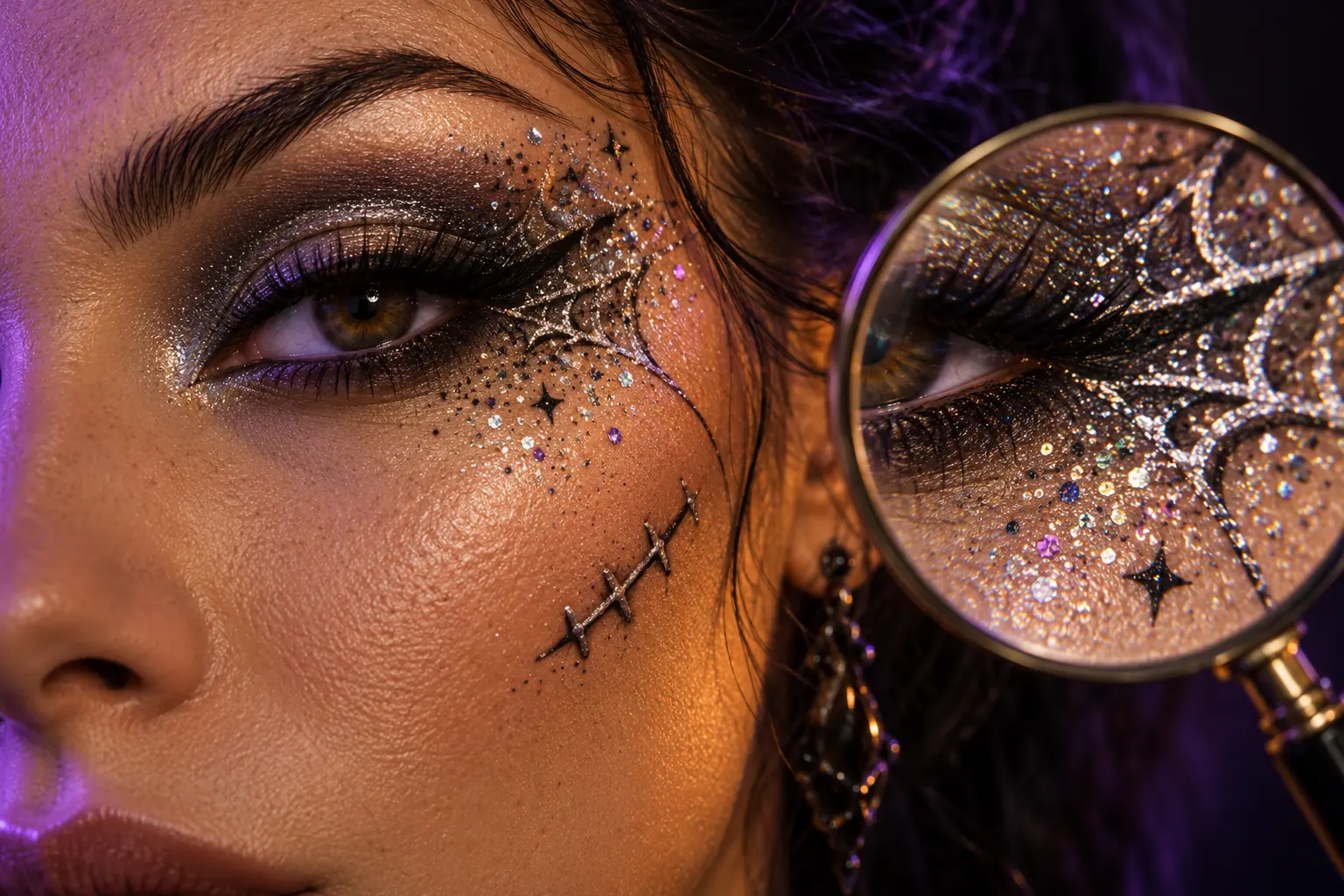
Halloween makeup deserves extra attention. Painted stitches, glitter, and decorative eyeliner are part of your look, so check that the processed image preserves them in a way you like.
Enhance Your Halloween Photo in Three Steps
You can start with a single favorite photo:
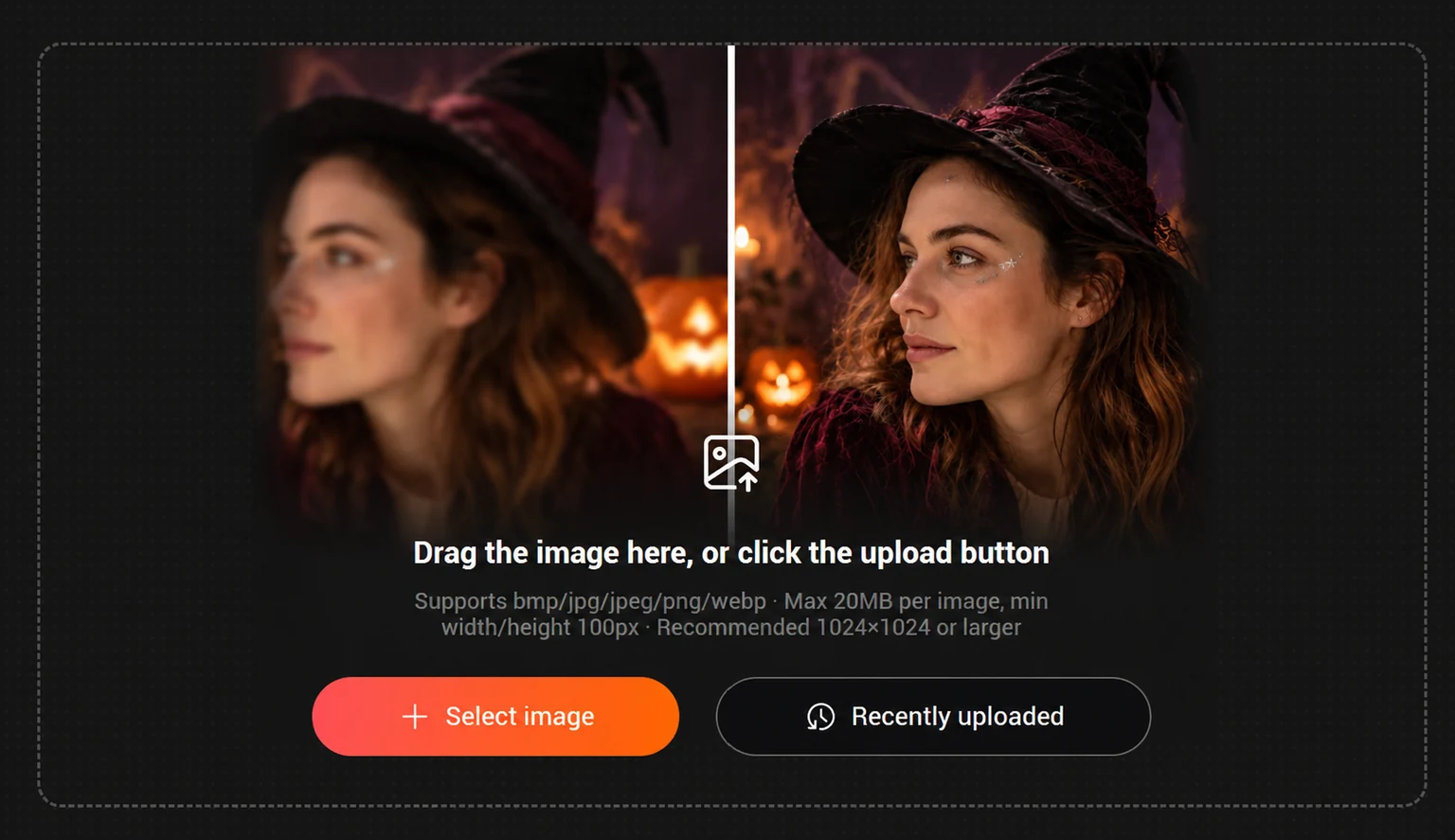
Step 1: Open PicMa Photo Enhancer and upload your image.
Step 2: Choose the output format and click Enhance.
Step 3: Review the result and save your preferred version.
The page offers JPG and WebP output. Keep the original photo so you can compare facial details and makeup before sharing.
Keep the Spooky Atmosphere When You Share
A Halloween photo can stay dark and atmospheric while keeping the subject easy to see. Check whether the enhanced face still looks natural and whether the shadows and colored lighting retain the mood you liked.
For a profile picture, crop close enough for your expression and makeup to read at a small size. For a costume post, leave more room for the outfit and props. Review the image after cropping, since a tighter frame makes remaining softness more noticeable.
Have a Halloween photo you love despite the blur? Try PicMa Photo Enhancer and compare the result before posting.


FAQ
Can I fix a badly blurred photo?
Results vary. If the face is heavily smeared or hidden, enhancement may not produce a convincing result. Start with your clearest shot.
Will my Halloween makeup stay exactly the same?
Check the details. AI processing can change fine marks, so compare eyeliner, face paint, and glitter with the original.
Should I upload a screenshot or the original?
Use the original when you have it. Screenshots and social media copies may contain less detail.
Related Readings:

 5
5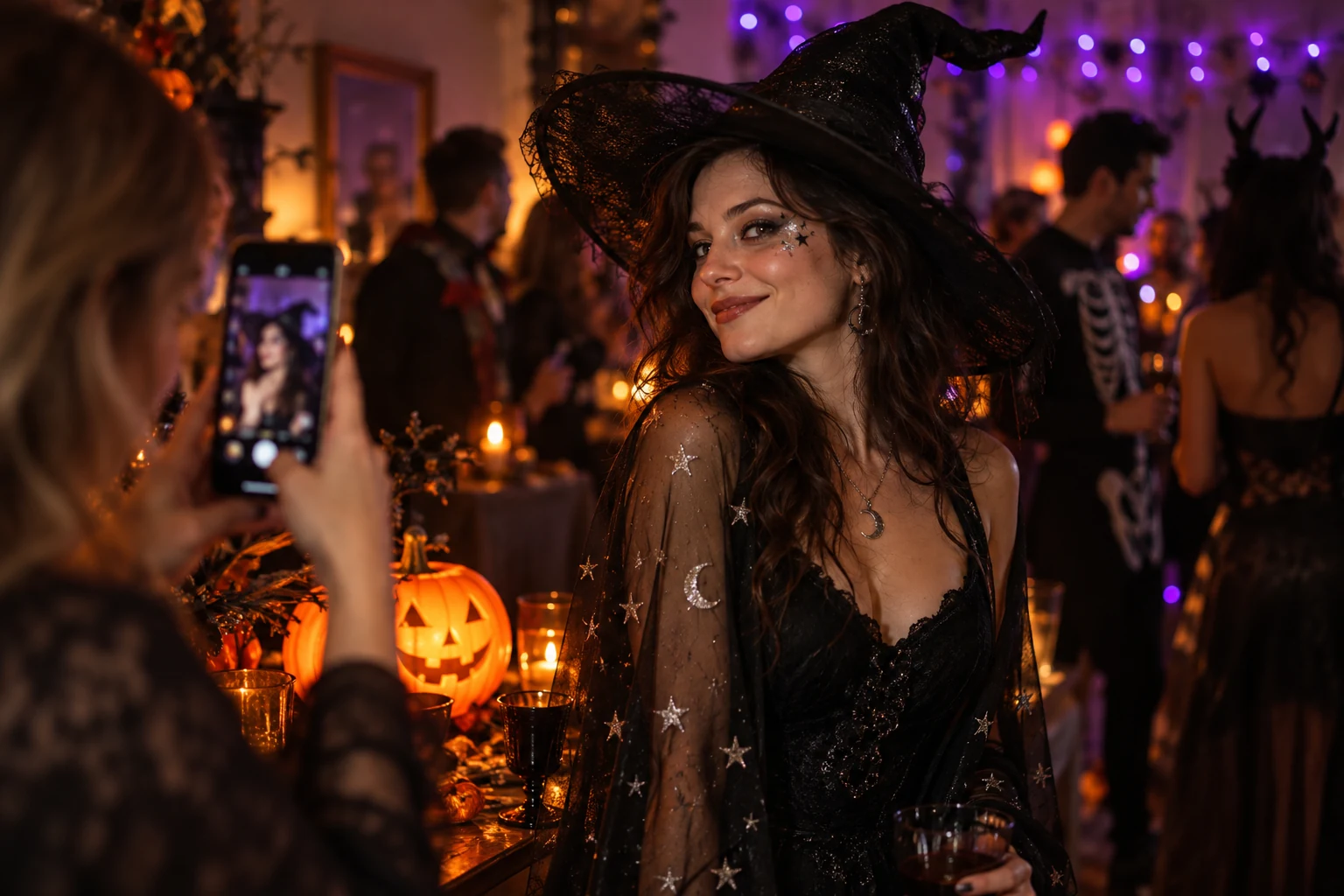

 English