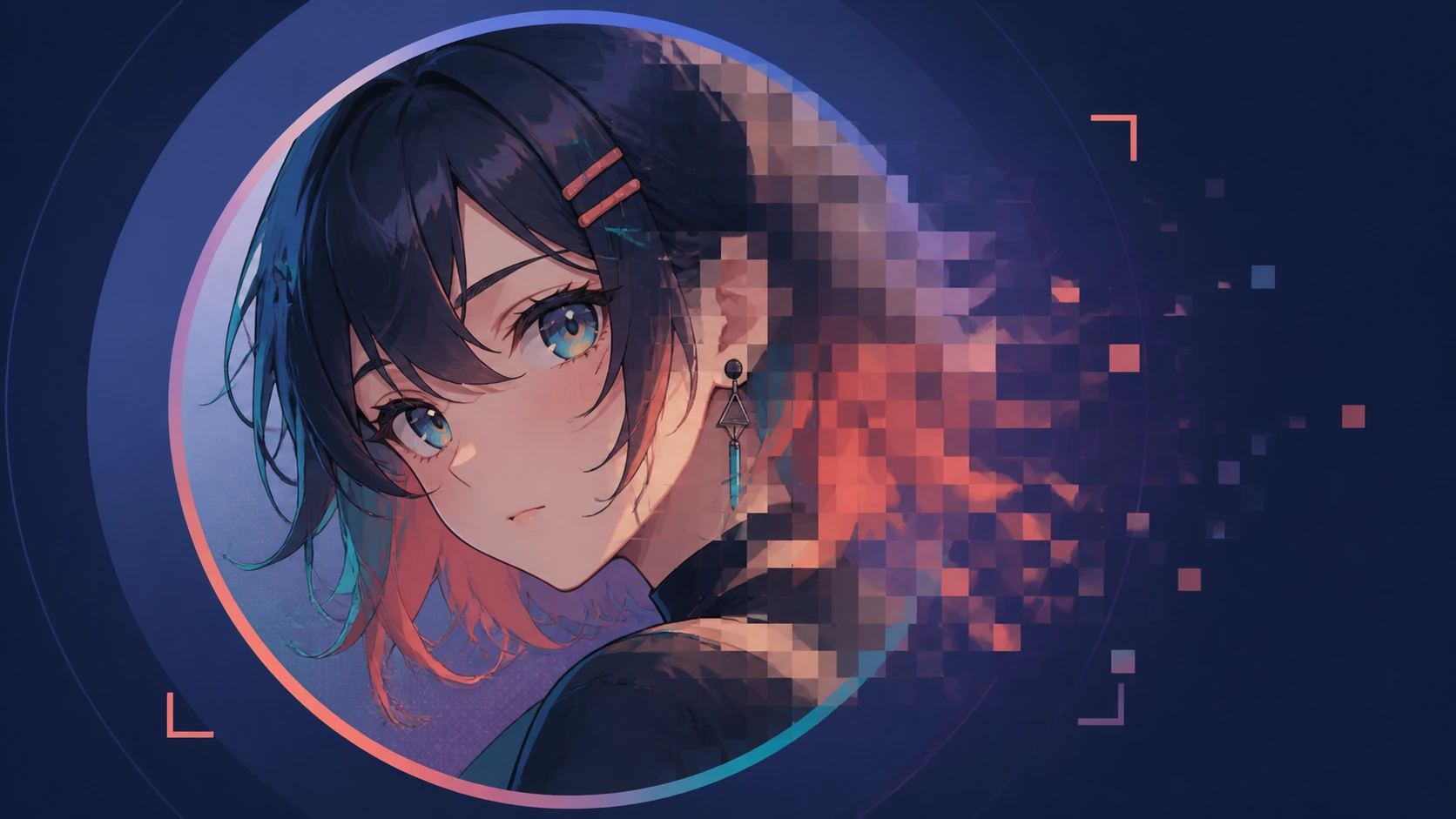
The anime image you love may look fine in your gallery but fall apart when used as a profile picture. After cropping, enlarging, and platform compression, the character’s eyes lose definition, hair lines become fuzzy, and the entire avatar feels softer than the original artwork.
An AI anime avatar upscaler can improve visible linework and reduce pixelation before you upload the image to Discord, Twitch, a gaming profile, or another social platform.
Why Anime Profile Pictures Become Blurry
Most anime avatars begin as screenshots, downloaded fan art, cropped wallpapers, or small character images found online. The source may already be compressed before you turn it into a profile picture.
Cropping creates another problem. A character’s face might occupy only a small part of the original image, so making it fill a square avatar requires significant enlargement. The platform may then resize and compress the file again.
Anime artwork makes these defects particularly noticeable. A few blurred pixels can change an eye shape, soften a hair strand, or make clean outlines appear uneven. Simply applying a strong sharpening filter often creates halos and jagged edges instead of restoring clarity.
What Should an AI Anime Enhancer Preserve?
A good anime image enhancer should make the avatar cleaner without redesigning the character. Facial proportions, eye shape, hair color, expression, costume details, and the original illustration style should remain visually consistent.
AI works best when those features are still present but slightly blurry or pixelated. If the source image is extremely small, heavily compressed, or partially covered, some reconstructed details may differ from the original.
Check the enhanced image at two sizes. Zoom in to inspect eyes, eyelashes, hair strands, and accessories, then view it as a small circular avatar. A result that looks impressive at full size can still feel overly sharp when reduced.
How to Upscale an Anime Profile Picture with PicMa Studio
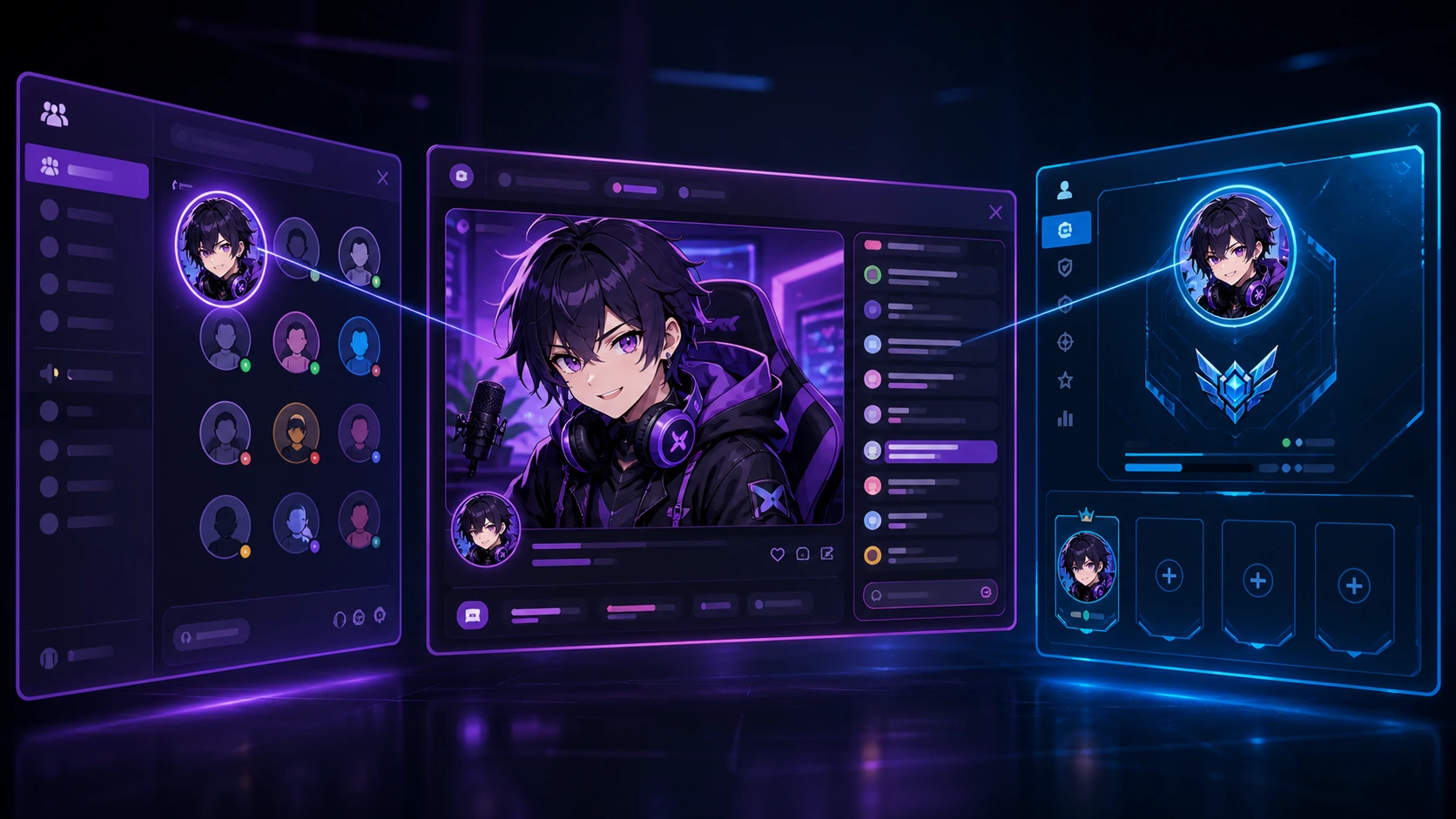
PicMa Studio’s AI Anime Enhancer provides a short workflow for restoring low-quality anime pictures.
Step 1: Find the best source image
Use the largest version available. Avoid files that have already been repeatedly downloaded, screenshotted, or reposted.
Step 2: Upload the anime avatar
Select or drag in a BMP, JPEG, JPG, or PNG image.
Step 3: Run the enhancement
Start the one-click process and let the AI improve the visible lines, colors, and facial details.
Step 4: Preview and download
Compare the result with the original. Check the character’s face and style before saving the enhanced version.
For better results, enhance the image before performing the final resize. This gives the anime avatar upscaler more source information to work with.
Prepare the Enhanced Avatar for Discord, Twitch, and Gaming Profiles
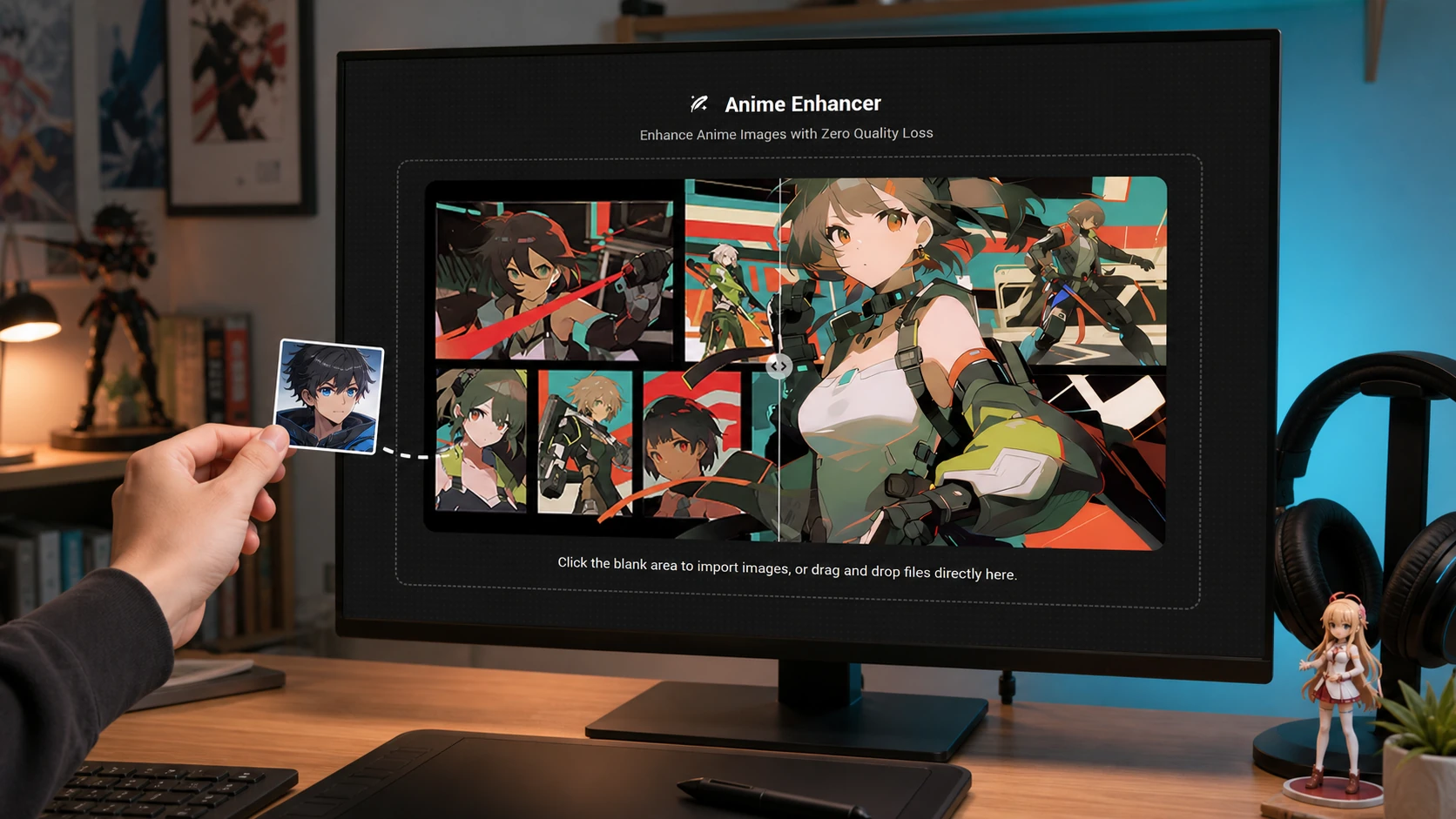
Start with a square crop, but leave a little space around the character’s face. Many platforms display avatars inside circles, which can cut off hair, ears, hats, and accessories near the corners.
Keep the eyes close to the visual center and avoid placing important details directly against the edge. Preview the image at a small size before uploading; profile pictures are usually viewed in chat lists, comments, and notifications rather than at full resolution.
Save a high-resolution master separately from the platform-ready copy. If Discord, Twitch, or another service compresses the uploaded avatar, you can create a new export from the master instead of repeatedly editing an already compressed file.
If the source is a transparent PNG, inspect the enhanced edges against both dark and light backgrounds. This helps reveal unwanted outlines around hair or clothing.
A better profile picture does not need to look completely redesigned. It simply needs cleaner facial details, smoother outlines, and enough definition to survive a small crop.
Try the PicMa Studio AI Anime Enhancer with the clearest source image you have, review the character details, and create a sharper avatar for your next profile update.


Frequently Asked Questions
Can AI enhance a very small anime avatar?
It can reduce pixelation and improve visible lines, but extremely small images contain limited information. The result may look clearer without perfectly matching the original artwork.
Will the enhancer change the character’s face?
Minor differences are possible when the source is heavily blurred or compressed. Always check the eyes, mouth, hairline, and accessories—anime fans can spot the wrong eyelash from across the internet.
Should I crop the avatar before or after enhancement?
Begin with the largest useful source area, enhance it, and then make the final square or circular crop. Avoid enlarging a tiny crop before processing.
Related Readings:

 3
3

 English