In many “almost perfect” shots, the real issue isn’t composition—it’s the small, loud distractions: passersby, cables, signs, or ghosts in reflections. They break the eye path, dilute the mood, and make reuse across cover, poster, or product pages a struggle. The good news: you don’t need a full reshoot. With PicMa’s Objects Removal from Photo, a simple paint-preview-save flow gets you back to a clean base.
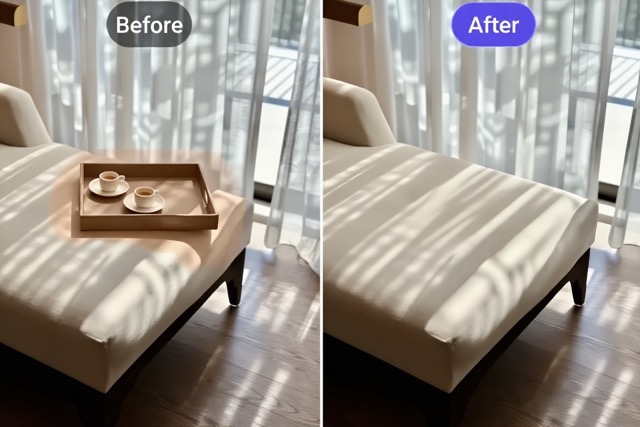
Why a Clean Frame Decides the Final Quality
Many photos aren’t ruined by composition but by clutter—stray pedestrians, cables, signs, litter, or ghosts in reflections. These elements hijack brightness and color, break the viewing path, and dilute your message. A clean background strengthens subject prominence and color harmony while reserving safe whitespace for later layout (headline, price, logo). Take the same image: declutter first, then crop—click-through, dwell time, and overall polish typically improve together.
Fast Rule: Remove and Retain
1.Distraction strength (priority): Elements brighter, more saturated, or sharper than the subject—especially those on thirds/golden-ratio lines or hugging the subject—are classified as high-distraction and should be removed first.
2.Narrative need (retention rule): Elements essential to the stowry (e.g., stage mics, sports gear, tableware) are retained and visually downplayed (lower contrast/clarity); nonessential elements are candidates for removal.
3.Rebuild feasibility (technical): The simpler and more continuous the background, the easier it is to inpaint; the more complex—with overlaps, hard shadows, or reflections—the more you should work in steps with a small edge-tracing brush.
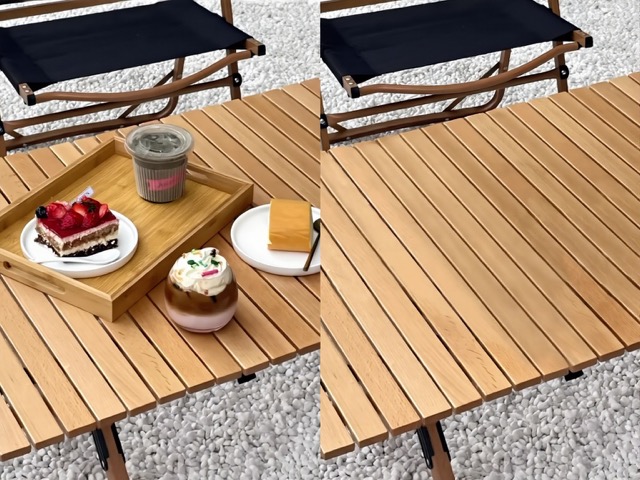
PicMa Objects Removal Minimal Guide
Step1:Open the PicMa Objects Removal page and upload your photo.
Step2:Brush over the objects to remove, then click Apply and wait a few seconds.
Step3:Preview the result and download the cleaned image in high resolution, watermark-free.

Faster and More Natural
PicMa is scene aware. A quick brush rebuilds texture while matching brightness and color, avoiding smears, tiling, and abrupt tones. Manual lasso, clone stamp, and layer work needs sampling, alignment, and many strokes, which often leave halos, jaggies, and uneven highlights or shadows. PicMa simplifies to upload, brush, generate, and complex areas rarely need more than a short second pass.
For hair, thin wires, and metal rims, it follows true contours for clean edges. With hard shadows or glass, it restores the background and then the falloff, so results stay natural and ready for multi ratio exports.
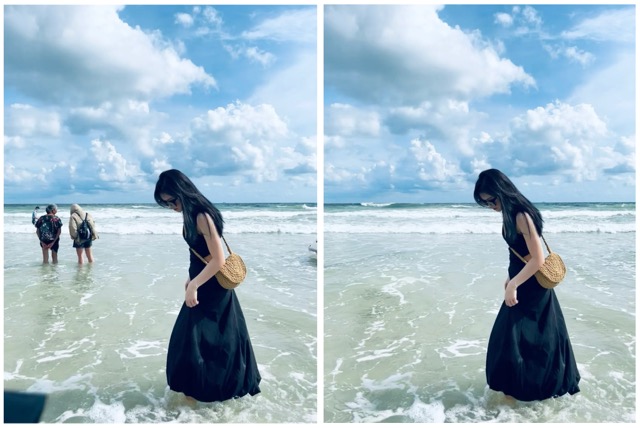
PicMa Post-Cleanup Pro Workflow
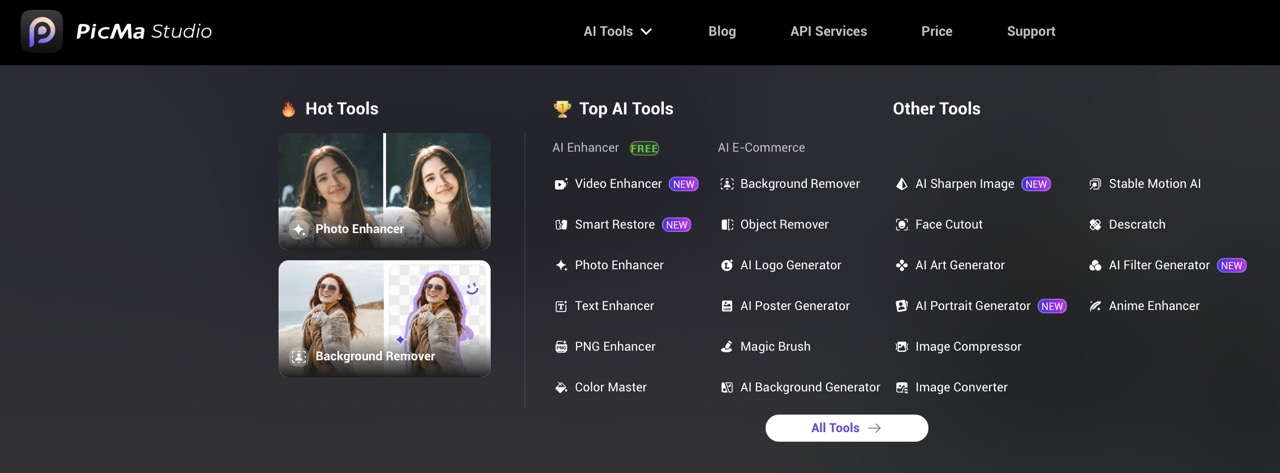
- AI Background Generator — After Remove Objects, rebuild the scene with flat colors, soft gradients, or brand textures so the subject stands out and the title area stays clean.
- Photo Enhancer — Polish edges and textures, reduce noise, and unify color temperature to make the cleanup look natural across the whole image.
- AI Logo Generator — Add a consistent brand mark and export multiple color variants so the cleaned image is ready for posters, PDPs, and social.
Do not let small distractions steal the shot. With PicMa Objects Removal, upload, brush, preview, and save a clean frame with natural light and intact texture. Try it now and turn almost perfect into publish ready in minutes.


 176
176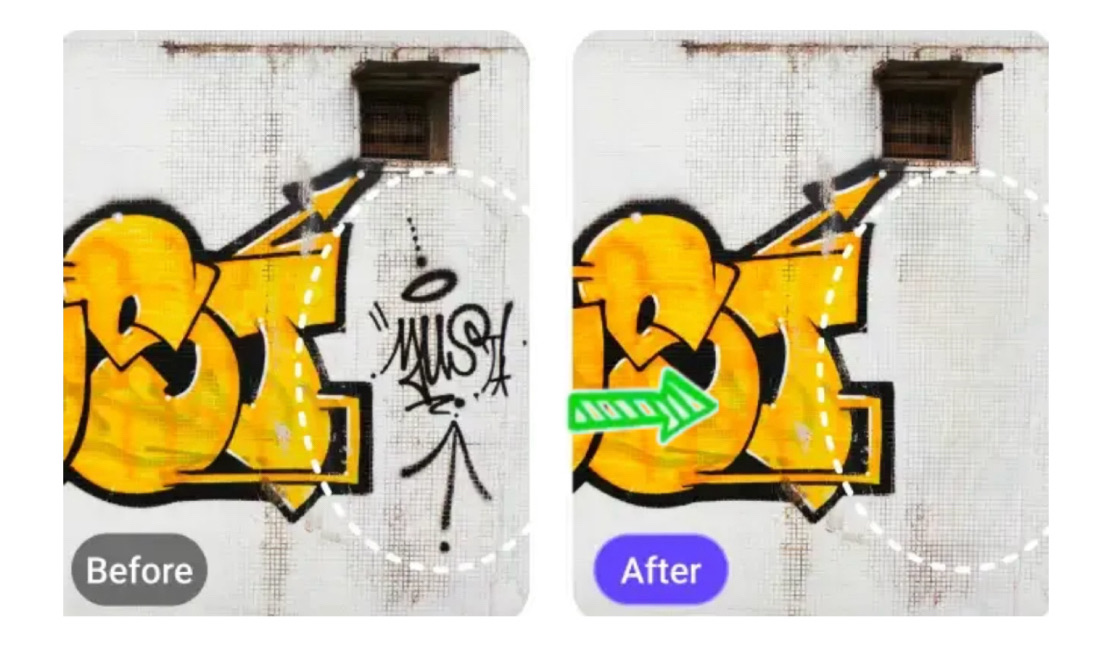

 English