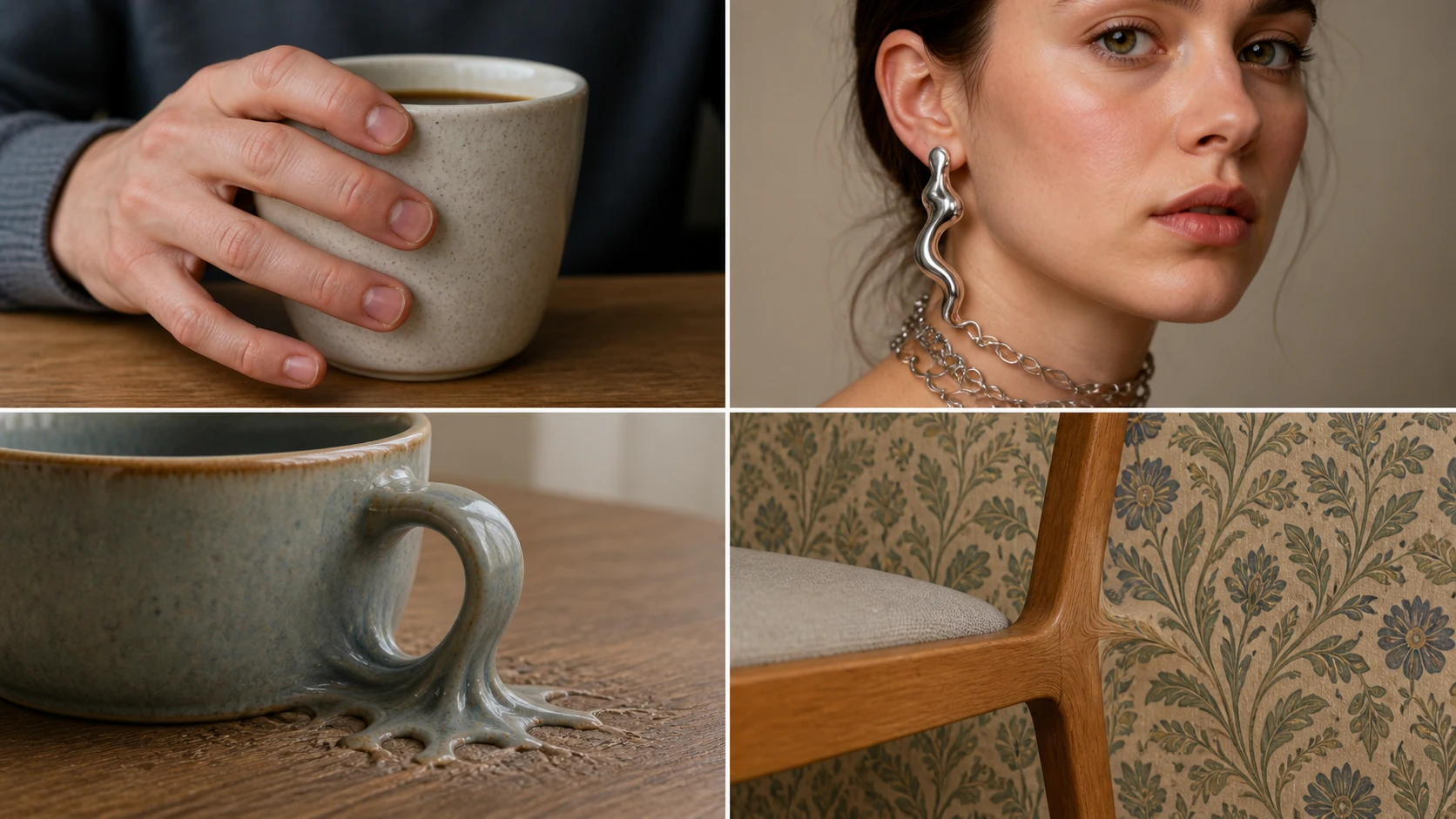
An AI-generated image can be almost perfect—and still be unusable because of one strange hand, a melted earring, a broken chair, or an object blending into the background.
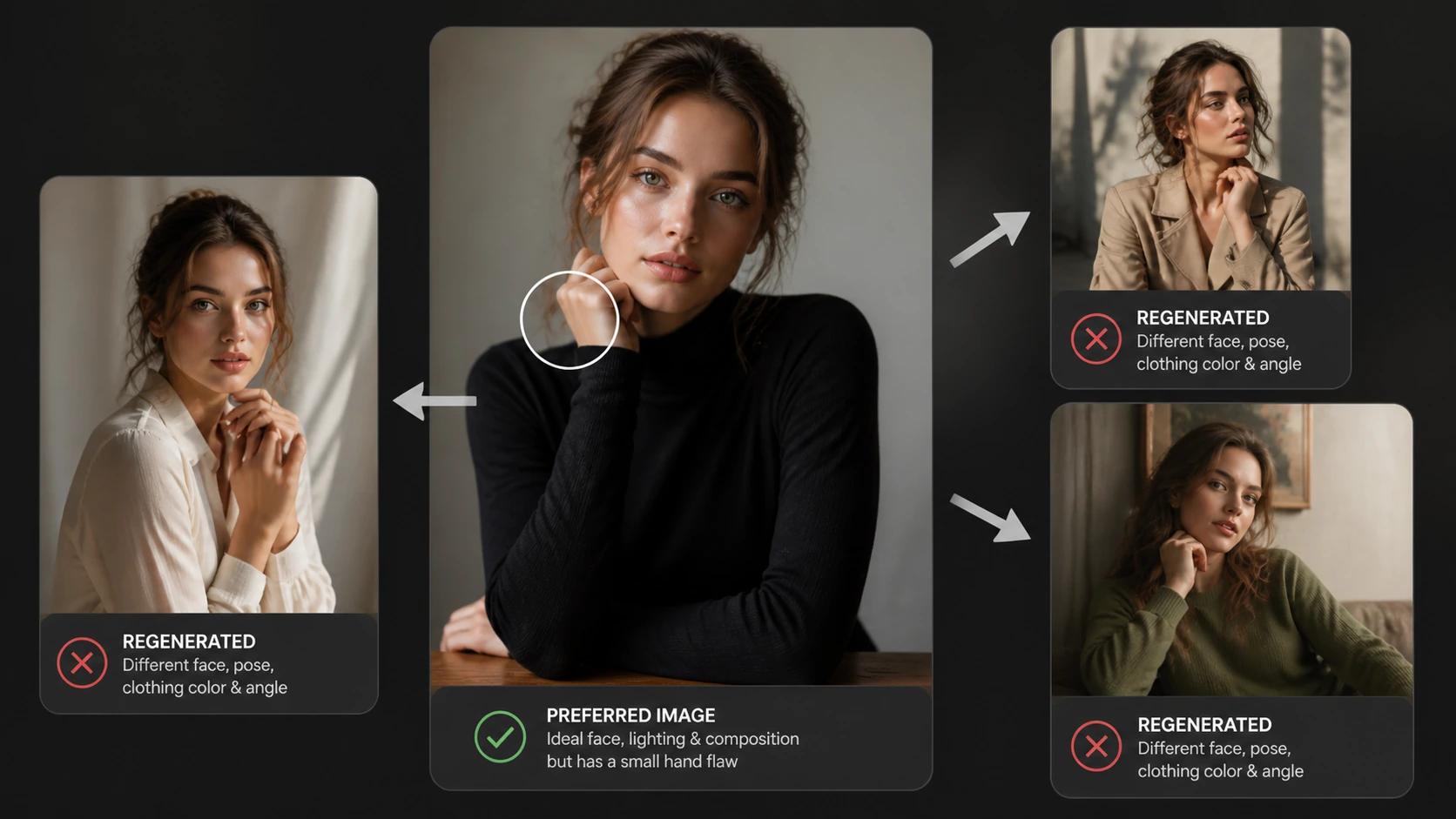
Regenerating the entire image may fix that detail, but it can also change the face, pose, lighting, clothing, and composition you already like. When the problem is limited to one small area, PicMa’s Magic Brush offers a more practical solution.
Why Regenerating the Whole Image Often Makes Things Worse
AI image generation involves variation. Even if you reuse the same prompt, the next result may contain a different expression, body position, camera angle, or background.
This creates a frustrating cycle: one version has the right face but the wrong hands, while the next fixes the hands and changes everything else.
Magic Brush focuses the AI edit on a selected area. The rest of the image remains as visual context, helping the newly generated detail match the surrounding pose, lighting, texture, and perspective.
What Can Magic Brush Fix?
Magic Brush works best when most of the image is already satisfactory. It can help correct extra fingers, malformed hands, warped jewelry, broken clothing edges, distorted objects, and background gaps.
It can also replace one element without redesigning the entire scene. For example, a creator could repair a model’s hand without changing the face, replace a malformed cup on a table, or rebuild part of a chair that has merged into the floor.
The smaller and clearer the problem area is, the easier it is to preserve the original image’s strengths.
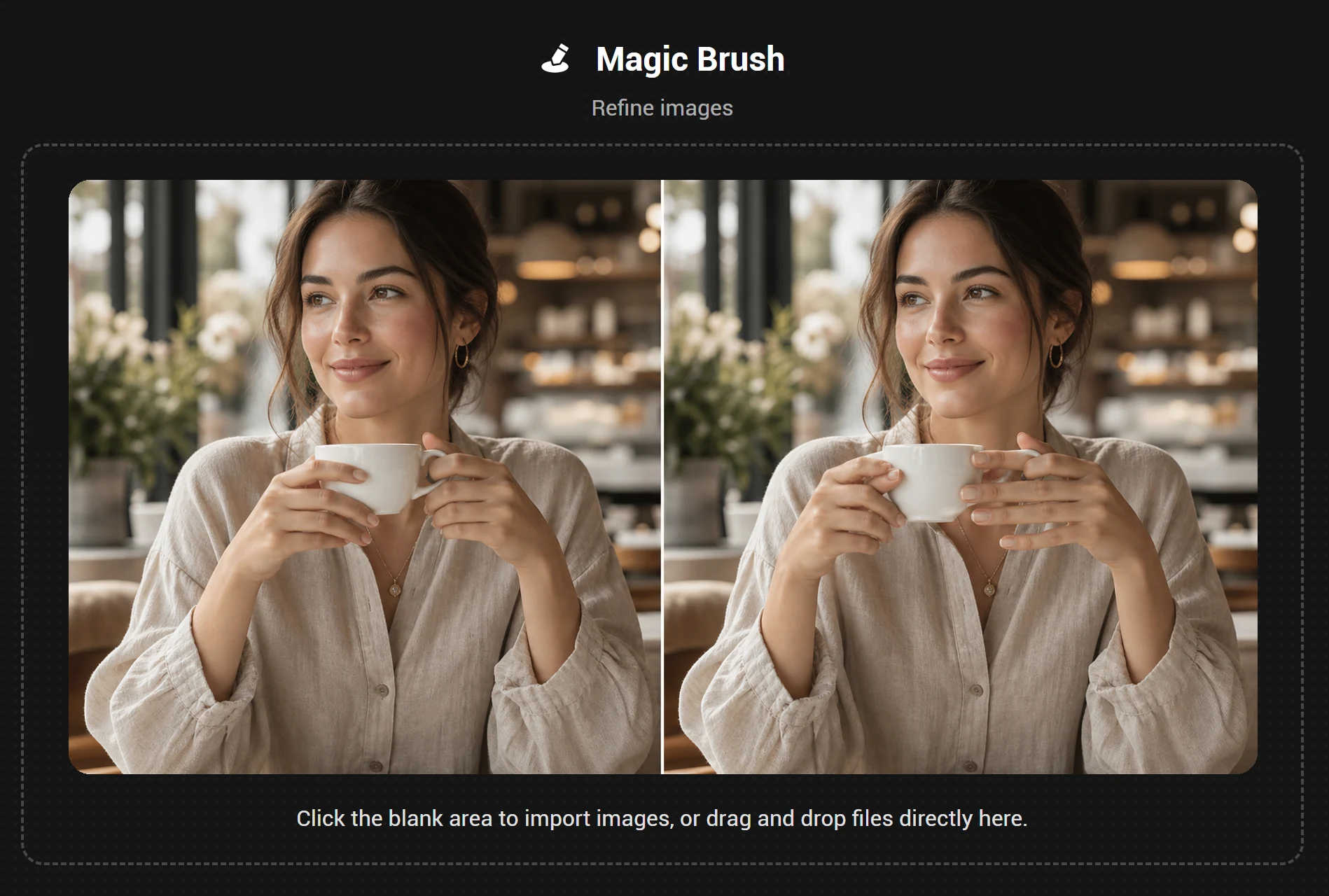
How to Use PicMa Magic Brush
Step 1: Open Magic Brush
Go to PicMa Magic Brush or PicMa APP from homepage.
Step 2: Upload your image
Choose the AI-generated picture you want to correct.
Step 3: Select and describe the area
Select the incorrect area, then enter a short prompt describing the desired result.
Step 4: Generate and review
Compare the new detail with the original and download the best version.
This workflow lets you fix one problem area while preserving the face, composition, and atmosphere that already work.
Describe the Correct Result, Not the Mistake
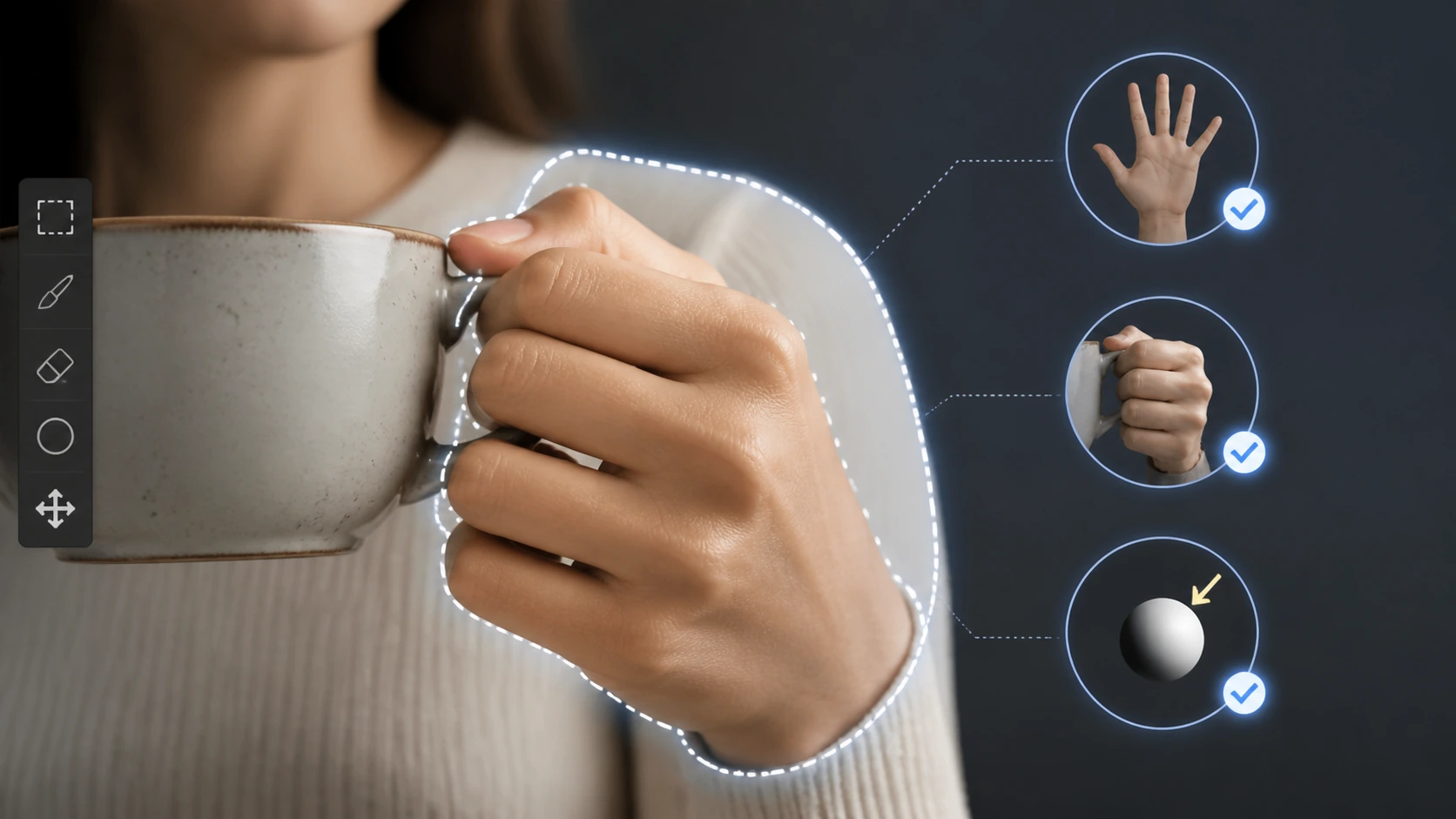
A useful Magic Brush prompt explains what should appear inside the selected area. Avoid writing only “fix the hand” or “remove the error,” because that gives the AI little information about the intended replacement.
Instead, describe the desired object and its relationship to the scene:
Natural left hand with five fingers, gently holding the coffee cup, matching the original lighting and camera angle.
For an accessory, you could write:
Small silver hoop earring attached naturally to the left ear, realistic reflection, matching the portrait lighting.
Keep each prompt focused on one correction. If the image contains several mistakes, repair them separately so every generation has a clear target.
The selection should cover the incorrect object and a small amount of surrounding space. This gives the AI enough context to reconnect edges, shadows, and textures naturally. Avoid selecting the entire face or body when only one small detail needs correction.
When Should You Use Magic Brush?
Use Magic Brush when the subject, composition, and overall style are already correct but one local detail needs attention.
Regenerating the complete image makes more sense when the pose is fundamentally impossible, several major objects are broken, the perspective is inconsistent across the scene, or the entire visual direction needs to change.
A simple question can help you decide: “Would I keep this image if this one area were fixed?” If the answer is yes, use Magic Brush instead of starting again.
A nearly finished AI image should not be discarded because of one extra finger or a distorted background object. Local editing provides more control while protecting the face, composition, and visual atmosphere that made the image worth keeping.
Fix a specific area with PicMa Magic Brush.


FAQ
Can Magic Brush fix extra fingers and malformed hands?
Yes, especially when the incorrect hand is clearly visible. Select the complete hand and a small surrounding area, then describe the natural pose and correct number of fingers.
Will Magic Brush change the rest of my image?
The edit is designed to focus on the selected area. Keeping the selection precise reduces the chance of affecting details you want to preserve.
What if the first result still looks wrong?
Adjust the size of the selected area and make the prompt more specific. Correcting one detail at a time usually produces more controllable results.

 42
42

 English