PicMa's latest "Repair Damaged Photo" function revolutionizes photo restoration by leveraging advanced AI technology. Unlike its predecessors, Photo Enhancer and Color Master, this new feature combines the power of enhancement, colorization, and an AI art generator to not only fix and restore damaged photos but also recreate missing elements based on user descriptions. Whether your cherished photo has scratches, tears, faded colors, or missing sections, PicMa's AI can bring it back to life, transforming weathered memories into vibrant, detailed images. This article explores how this innovative tool works and provides a step-by-step guide to using it effectively.
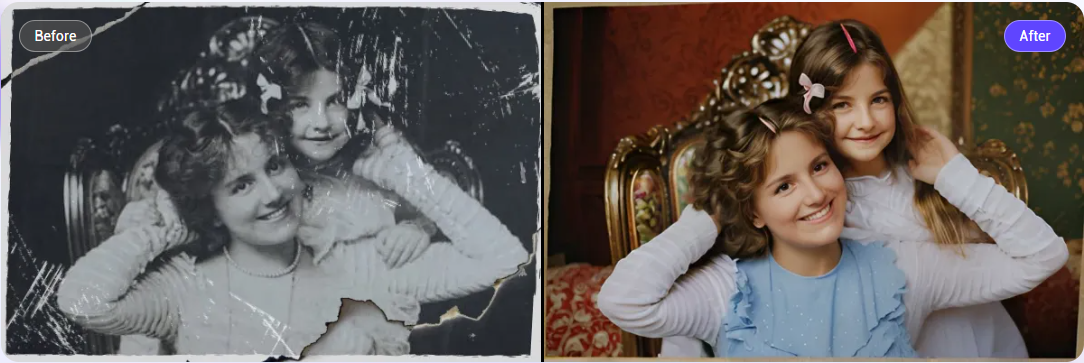
PicMa's Repair Damaged Photo: A Unique Approach
While the original Photo Enhancer feature focused on sharpening details and improving clarity, and Color Master excelled at restoring faded colors and colorizing black-and-white images, the new Repair Damaged Photo function goes further. It integrates these capabilities with an AI art generator, allowing users to describe missing or damaged parts of the photo—such as "a lady in a white dress is playing piano"—and have the AI intelligently reconstruct those areas. This combination ensures not only the repair of scratches, stains, and tears but also the creative regeneration of lost content, making your photo look complete and lifelike. The result is a seamless blend of restoration and artistic recreation, tailored to your vision.
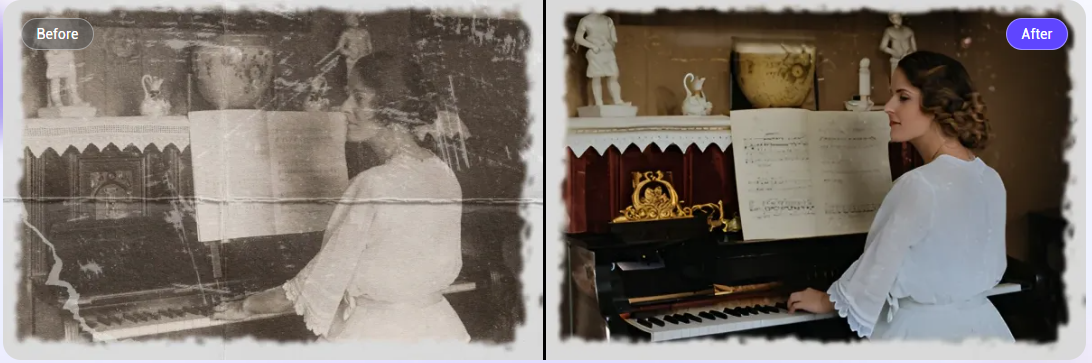
Step-by-Step Guide on Repair Damaged Photo
- Upload Your Damaged Photo
Begin by opening the PicMa official website, and head for Repair Damaged Photo.
Click "Upload Image" or drag and drop your damaged photo (supports formats like JPG, PNG, etc.) into the designated area.
Ensure the photo is well-lit and scanned or photographed at a 90-degree angle for optimal results.
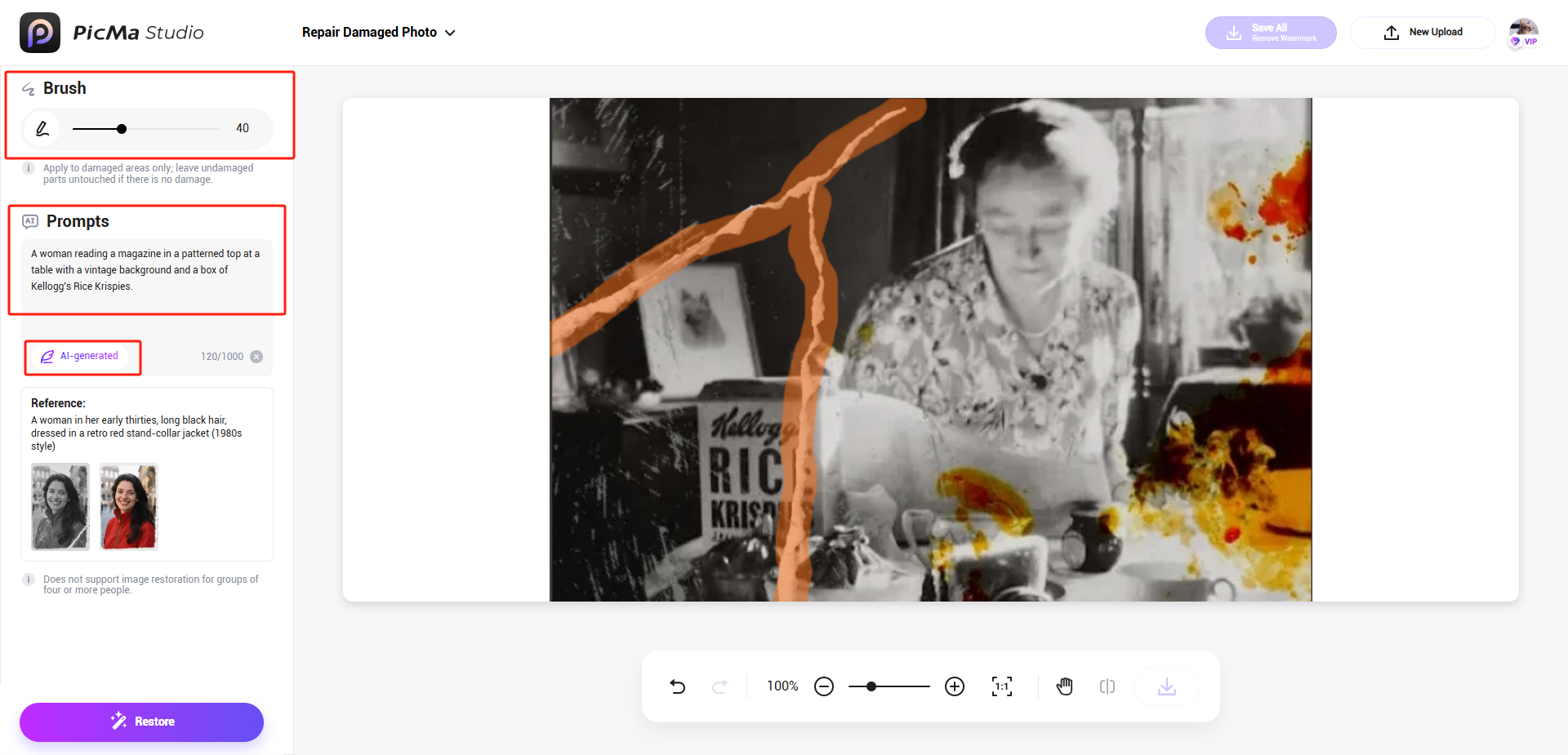
- Mark the Damaged Parts with the Brush
Once the photo is uploaded, use the brush tool to mark areas with scratches, tears, stains, or missing sections.
Adjust the brush size for precision, carefully outlining obvious damaged or incomplete regions to guide the AI in identifying areas needing repair.
In the text prompt section, describe the whole photo in simple words, then click the "AI-generated" icon below, AI will help you complete the prompts to get closer descprtion of the photo.
Be as specific as possible to help the AI accurately reconstruct the scene based on your vision.
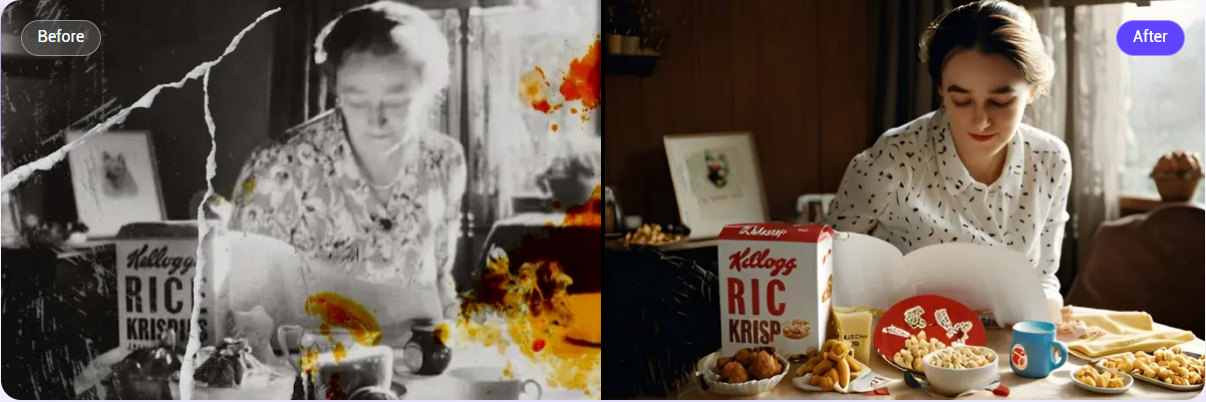
- Let the AI Process the Photo
Click "Restore" to activate PicMa’s AI magic. The system combines Enhance (for clarity and sharpness), Color Master (for vibrant color restoration), and the AI art generator (to recreate described elements) to repair and rebuild the photo.
This process automatically fixes scratches, tears, and spots while filling in missing areas per your description.
- Download the Restored Photo
Once satisfied, click "Save All" to save the restored image in high-resolution PNG format.
Your photo is now ready to print or share, with damages repaired and missing parts brought to life as described.
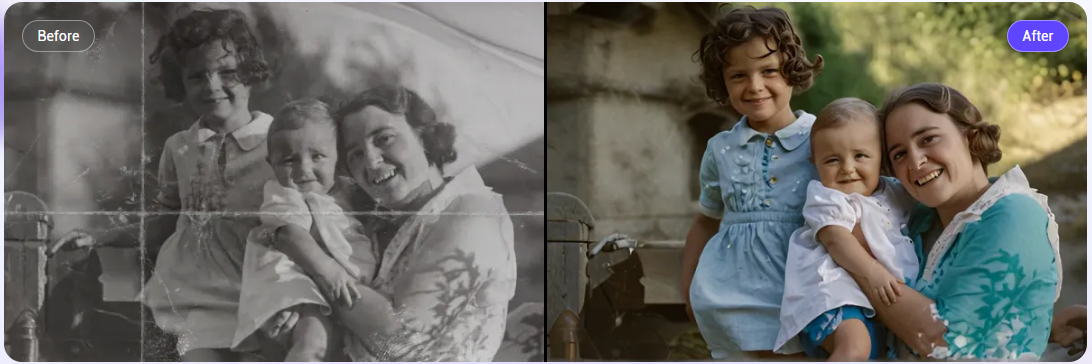
PicMa's Repair Damaged Photo feature offers a fast, user-friendly way to revive old or damaged photos, blending restoration with creative reconstruction. It excels at handling scratches, creases, faded colors, and even missing sections, delivering results in seconds. However, for severely damaged photos with large missing areas or unrecognizable content, the AI’s reconstruction may not be perfect and could require additional edits. This tool is ideal for family portraits, vintage snapshots, and historical images, letting you relive memories with renewed clarity and detail. Follow the simple steps above to transform your weathered photos into cherished, vibrant memories. Try PicMa today and rediscover the beauty of your past!
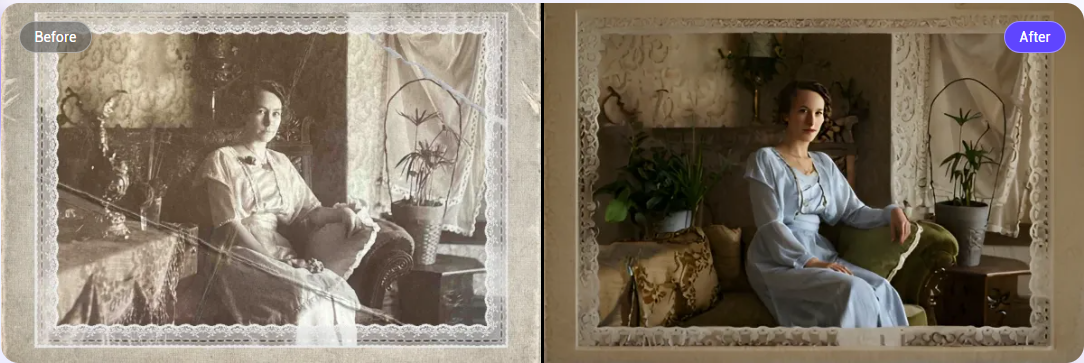
FAQ
1. What is PicMa's Repair Damaged Photo feature?
PicMa's Repair Damaged Photo is an advanced AI-powered tool that restores damaged photos by fixing scratches, tears, and faded colors. It combines the Enhance feature (for clarity), Color Master (for color restoration), and an AI art generator to recreate missing parts based on your description, bringing old or damaged images back to life.
2. How does it differ from Enhance or Color Master?
Unlike Enhance, which sharpens and improves clarity, or Color Master, which restores or adds color to faded or black-and-white photos, Repair Damaged Photo integrates both and adds AI-generated content. You can describe missing areas (e.g., "a lady in a white dress"), and the AI reconstructs them, going beyond basic repair.
3. What types of damage can PicMa repair?
The feature can handle scratches, tears, creases, stains, faded colors, and missing sections in photos. It works best for family portraits, vintage snapshots, and historical images with moderate damage.
4. How detailed should my description be?
Be as specific as possible. For example, "a lady in a white dress standing in a garden" helps the AI accurately recreate missing areas. Vague descriptions (e.g., "a person") may lead to less precise results.
5. Can it repair severely damaged photos?
The feature excels with moderate damage but may struggle with large missing areas or unrecognizable content. You can refine results by editing or re-marking areas and adjusting your description for better accuracy.
6. Is the process fast?
Yes! Processing typically takes seconds, depending on the photo’s size, damage extent, and complexity of your description. You’ll see a preview quickly and can edit as needed.
7. Do I need an account to use this feature?
You can start with a free trial on the PicMa Studio website, but some features or higher usage may require an account or subscription. Check PicMa’s site for details.

 353
353

 English