You've seen the clips floating around social media—cinematic 10-second shorts that look like they belong in a movie trailer. Crystal-clear visuals, smooth motion, lighting that feels intentional. And you think, "I want to make something like that."
Then you try.
You type something like "a cat walking in the rain, cinematic" into your AI video tool of choice, hit generate, and what comes back is… fine. It's a cat. It's walking. It's technically raining. But it doesn't look anything like those jaw-dropping clips you saw online.
What went wrong?
The truth is, most people use AI video tools at a fraction of their potential—not because the technology is limited, but because nobody taught them how to communicate with it effectively.
Writing good prompts for AI video isn't about being more creative. It's about being more precise. Here's how to do it.
The Fundamental Shift: Think Like a Director, Not a Screenwriter
Here's the most common mistake: people write AI video prompts the same way they'd describe an image to a friend. A single sentence. A general vibe. A list of adjectives.
But AI video models like Seedance 2.0 (which powers PicMa Studio's text-to-video features) aren't image generators. They're time-based models. They need to understand not just what appears on screen, but what happens when.
Think of it this way: you're writing a storyboard, not a caption.
The difference between amateur and pro-level prompts comes down to one thing: structure.
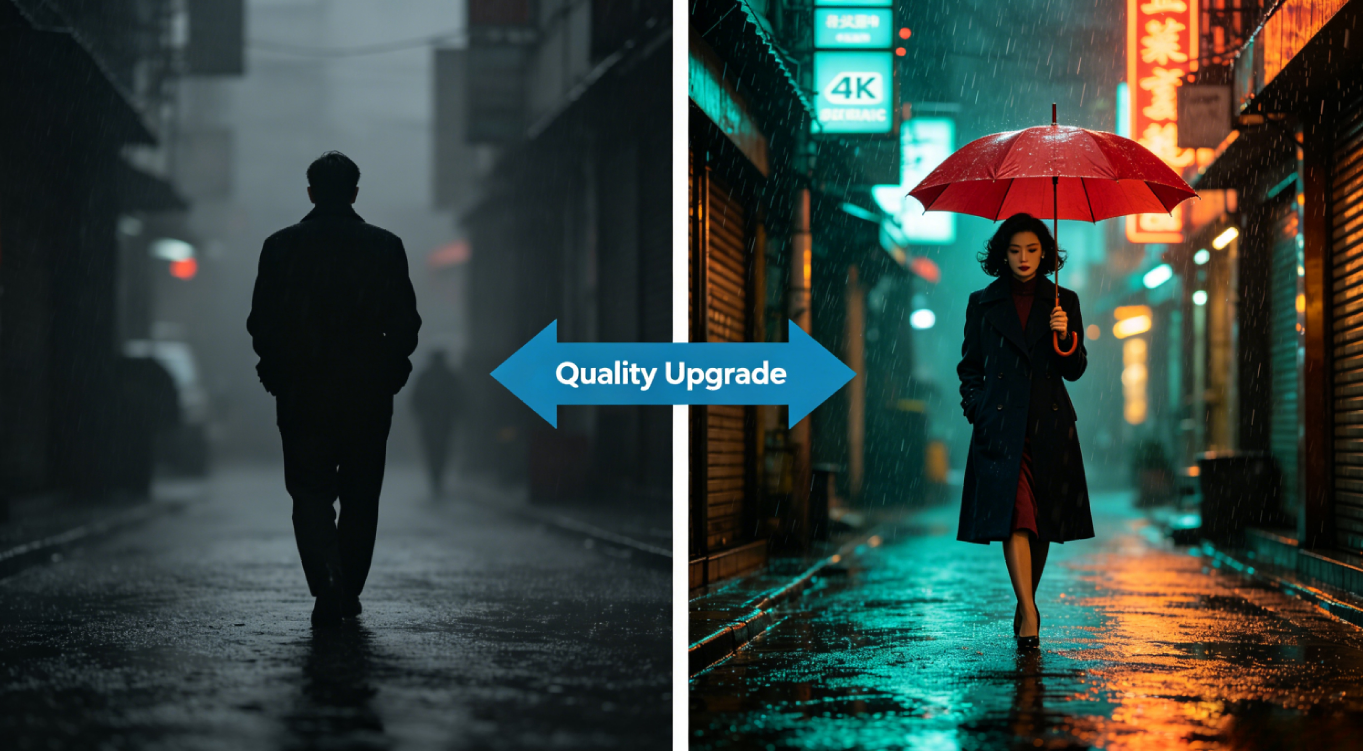
Let's look at a concrete comparison:
❌ Amateur approach: A woman walking through a rainy city street at night, moody atmosphere, Wong Kar-wai style.
✅ Pro approach:
Style: Wong Kar-wai film style, neon-lit wet alley, teal and amber tones
Duration: 12 seconds
Mood: Rainy night, melancholy, quiet loneliness
[00:00-00:04] Medium shot: A figure in a dark coat enters from the left, holding a red umbrella, slow walk against the rain, streetlight halos in the fog
[00:04-00:08] Close-up: Raindrops hitting the umbrella surface, camera pushes in slowly, neon signs reflecting in puddles
[00:08-00:12] Over-shoulder: Looking down the alley as the figure disappears into the mist, fade to black
Audio: Soft jazz piano, distant rain ambience, footsteps echoing on wet stone
See the difference? The second version gives the AI a complete blueprint. It tells the model what happens in each segment, how the camera moves, and what the emotional tone should be.
The 5 Core Principles of Pro-Level Prompts
Based on analyzing hundreds of successful prompts, here are the techniques that separate amateur results from professional-grade outputs.
1. Break Your Video into Time Segments
This is the single most important technique for AI video prompting.
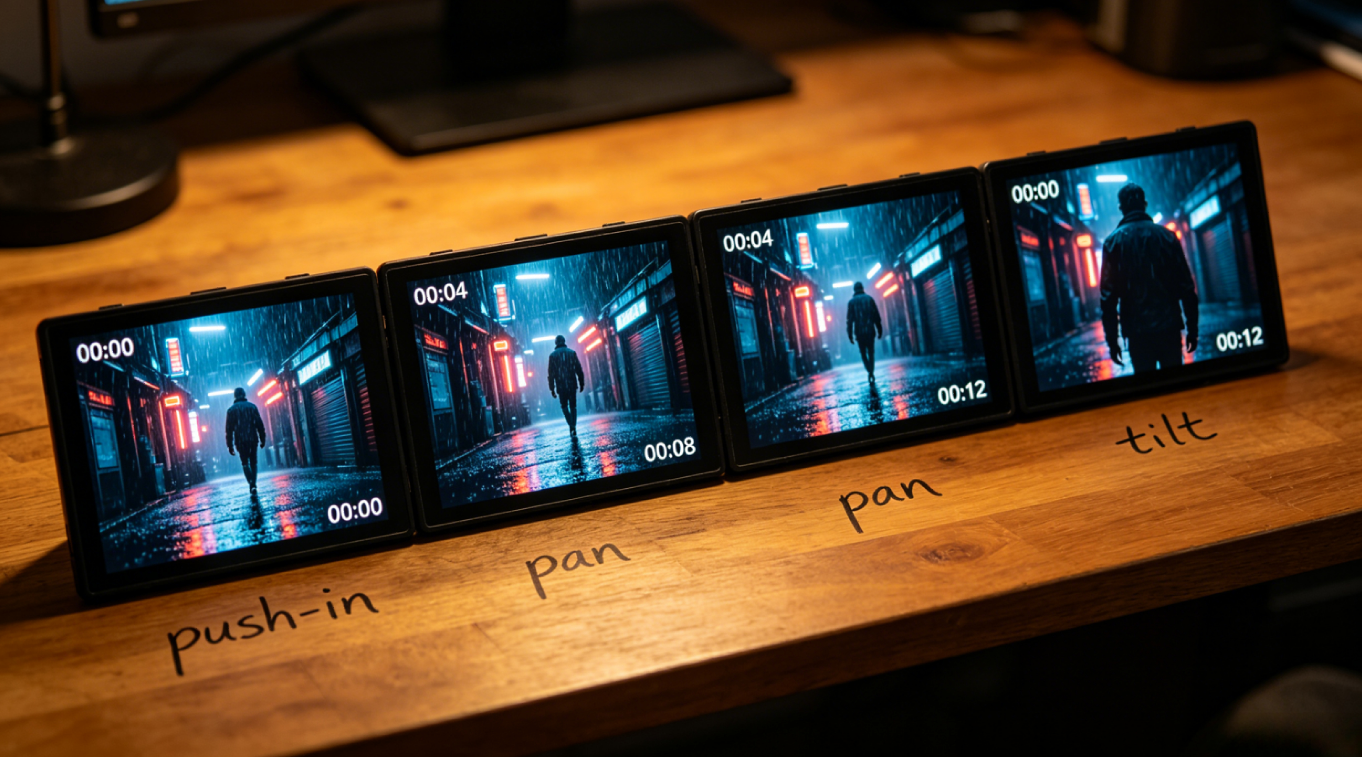
Instead of describing the entire video as one block, break it down into 3-5 second segments. Use time stamps like [00:00-00:04] to tell the model exactly what should happen in each moment.
Why does this work? AI video models process time in sequences. When you specify what happens at each interval, you're giving the model a roadmap. It knows that the first 4 seconds are a medium shot, the next 4 are a close-up, and the final 4 pull back for an over-shoulder perspective.
This technique also forces you to think about camera language. When you write [00:00-00:04] close-up, the AI understands this means a specific type of framing and depth of field. You're tapping into the model's built-in understanding of film grammar.
2. Make Every Adjective Concrete
Words like "cinematic," "beautiful," or "moody" are nearly useless in AI prompts. They're subjective. The AI has no idea what you mean.
Instead, use measurable, descriptive language:
| Instead of... | Write... |
|---|
| "cinematic lighting" | "warm golden side light, shallow depth of field" |
| "cool aesthetic" | "teal and magenta color grading, neon reflections" |
| "high quality" | "4K, photorealistic, 35mm film grain" |
| "dramatic mood" | "high contrast, deep shadows, rim lighting on subject" |
The more specific you are, the closer the output will match your vision. If you want a specific visual style, name the director whose work embodies that look. "Wong Kar-wai style" gives you handheld camera work, warm amber light, and neon tones. "Denis Villeneuve cinematography" gives you cold compositions, negative space, and slow tracking shots.
3. Define the 6 Essential Elements
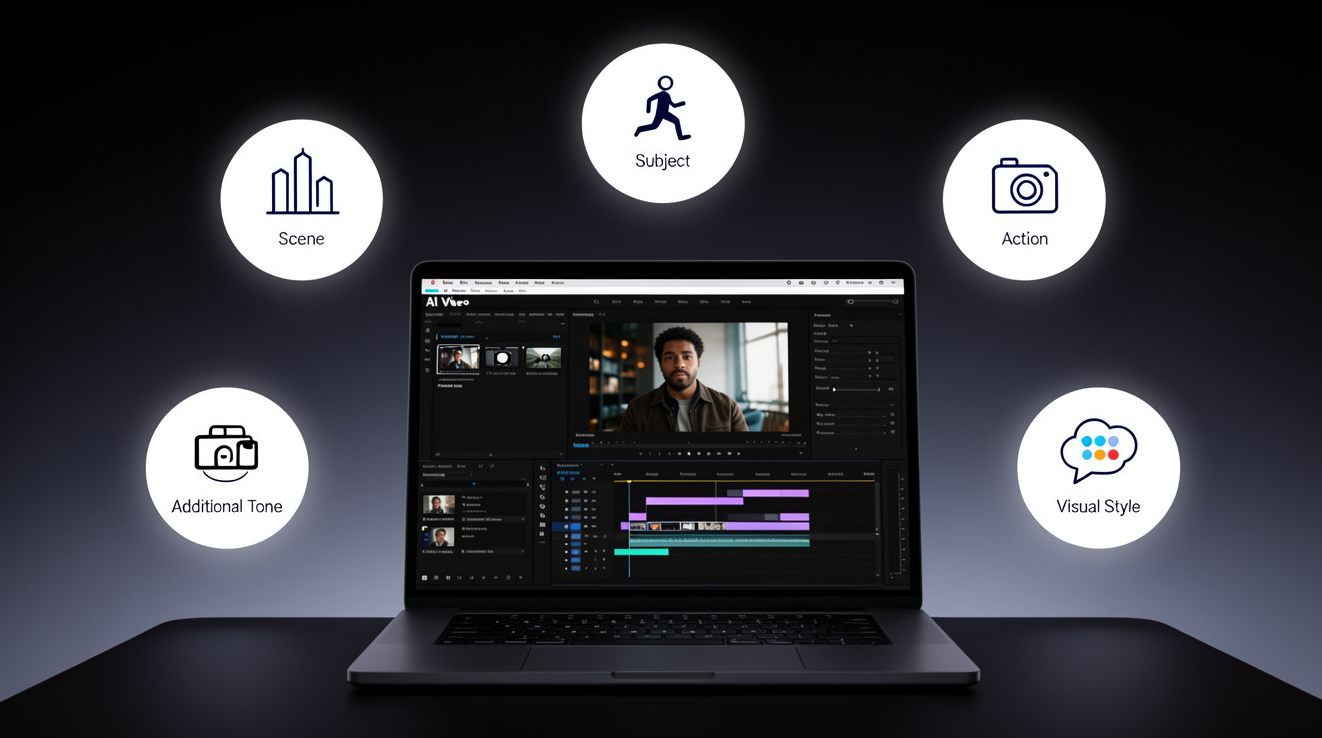
Every effective prompt needs to cover six key components. If any of these are missing, you're leaving the AI to guess—and it usually guesses wrong:
- Scene — Where is this taking place?
- Subject — Who or what is the focus?
- Action — What happens? What moves?
- Camera movement — How does the camera behave?
- Emotional tone — What feeling should the viewer get?
- Visual style — What does it look like (color, lighting, texture)?
A simple checklist before you hit generate can save you from disappointing results.
4. Don't Forget Negative Prompts
This is one of the most overlooked techniques in AI video prompting. A negative prompt tells the AI what you don't want to see.
Why is this important? Without negative constraints, the AI might add unwanted elements like extra objects, distorted faces, or unnatural motion. In commercial applications, over 80% of AI video failures come from poorly constrained prompts—not the model's capabilities.
A good generic negative prompt looks like this:
No distortion, no flickering, no unnatural motion, no extra objects, no blurry resolution, no watermarks, no text, no shaky camera, no abrupt cuts
5. Know When to Add Reference Inputs
Here's where PicMa Studio has a unique advantage over purely text-based tools. PicMa's video generation supports multiple input types. You're not limited to text alone.
- Image reference: Upload a photo as the starting point for your video. The AI will use that image's composition, colors, and subject as the foundation for the generated animation. This is especially powerful for maintaining brand consistency in product videos or creating variations of existing visuals.
- Multi-modal inputs: PicMa's Seedance 2.0 integration allows you to combine text, images, and even video references in a single prompt. This gives you unprecedented control—use an image for visual reference, text for action instructions, and even audio for mood guidance.
Your Ready-to-Use Prompt Template
Here's a template that incorporates all the principles above. You can use this structure for any text-to-video generation in PicMa Studio's Sora2 feature:
【Style】[Director/style reference + visual tone + color palette]
【Duration】[Total seconds]
【Mood】[Lighting + weather + emotional tone]
[00:00-00:04] Shot 1: [Shot type + subject action + environment details]
[00:04-00:08] Shot 2: [Shot type + subject action + environment details]
[00:08-00:12] Shot 3: [Shot type + subject action + environment details]
【Audio】(Optional) [Background music or sound description]
【Negative】(Optional) [Elements to avoid]
Real example for product video (using PicMa's workflow):
Style: Clean commercial photography, soft natural lighting, minimal white background
Duration: 8 seconds
Mood: Professional, premium, inviting
[00:00-00:04] Medium shot: White ceramic mug on wooden table, gentle push-in, soft shadows, natural light from left
[00:04-00:08] Close-up: Slow rotation revealing matte texture, steam rising, warm amber tone
Negative: No distortion, no flicker, no extra objects, no watermarks, no text, no shaky motion
How PicMa Studio Supports This Workflow
PicMa Studio isn't just another AI video tool—it's designed to support the exact prompt workflow described above in a few key ways:
- Sora2 text-to-video generation: PicMa recently launched Sora2, which lets you generate videos directly from text descriptions. You input your structured prompt, select orientation and duration, and the AI handles the rest.
- Multiple generation modes: You can start from text, from an image, or combine both. Upload a product photo and add text instructions for motion. Or generate an image from text, then turn that image into a video. This "text → image → animation" workflow gives you tremendous creative flexibility.
- Pre-generation image enhancement: Before you even get to video, PicMa's photo enhancement tools can improve your source images. Better input = better output. Tools like the Photo Enhancer, Background Remover, and Product Image Enhancer ensure your starting visual is as strong as possible.
- Ready-to-use templates: If you're not ready to build prompts from scratch, PicMa offers a library of pre-designed templates for both images and videos. Select a style, upload your content, and get polished results in seconds.
- 30-second processing: Most videos generate in under a minute, with outputs up to 1080p and no watermarks on the free tier.
Start Exploring This Today
The gap between "good enough" and "stunning" in AI video comes down to how clearly you communicate your vision to the model. A structured, precise prompt will always outperform a vague, conversational one—no matter how advanced the AI is.
Here's your action plan:
- Stop writing single-sentence prompts. Switch to time-segmented structures.
- Replace vague adjectives with concrete, measurable descriptions.
- Use negative prompts to constrain unwanted outputs.
- Consider adding image references—especially if consistency matters.
- Use PicMa Studio's Sora2 feature to experiment with structured prompts and see the results yourself.
The tools are getting better every day. The difference between average and exceptional results is learning to speak the language the models actually understand.
Related Readings:

 494
494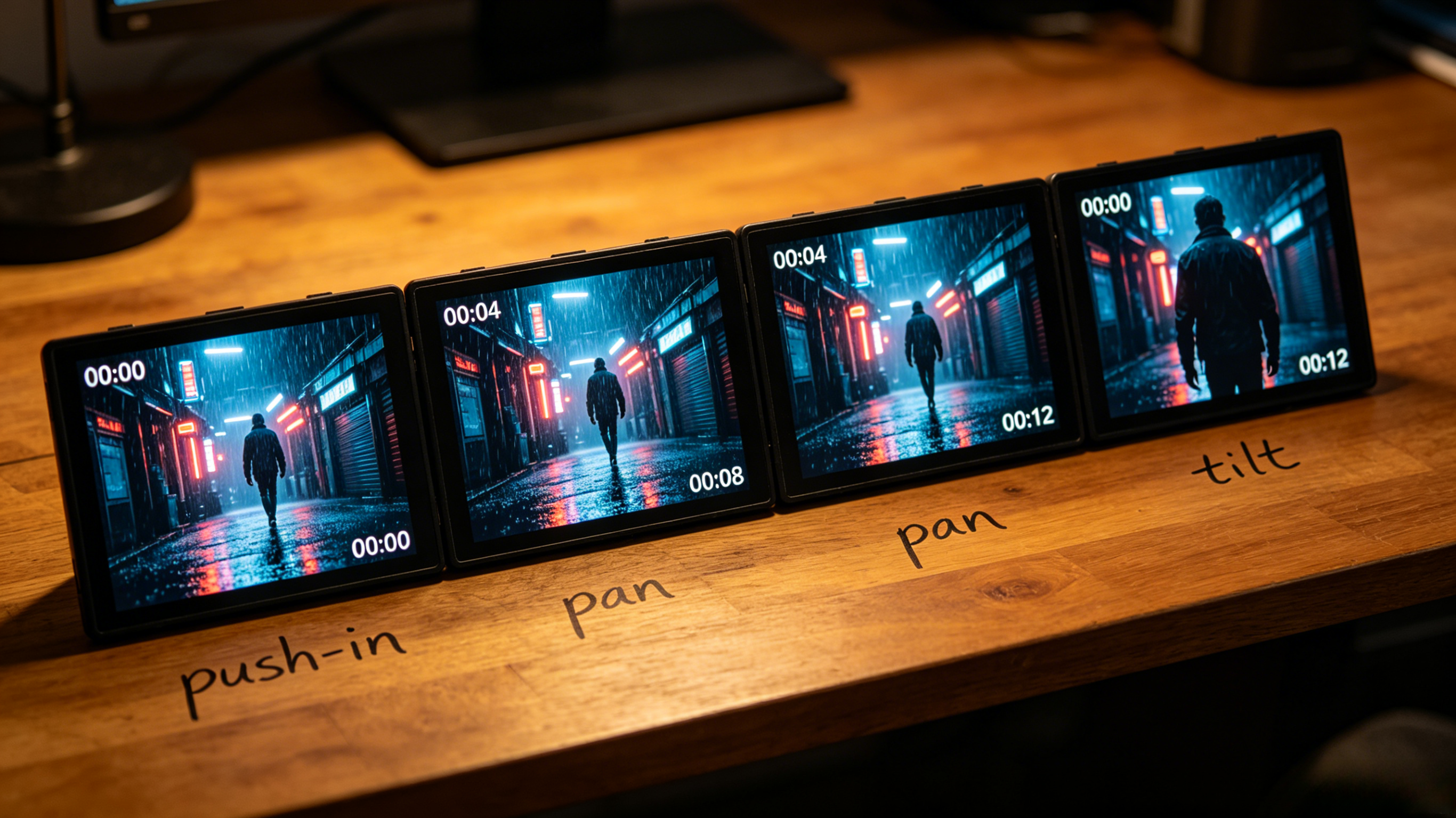

 English