Old photos carry emotional value. They preserve family history, childhood memories, travel moments, weddings, ancestors, and places that may no longer exist in the same way. But physical photos age. They fade, scratch, tear, lose contrast, collect dust, or become blurry when scanned. Digital copies can also be low-resolution or poorly lit.

An AI Photo Enhancer can help restore old photos by improving clarity, increasing resolution, repairing visible damage, sharpening soft details, and even adding color to black-and-white images. For many users, this makes restoration easier than traditional manual editing.
PicMa Studio, available at https://picma.magictiger.ai/, is positioned as a next-generation AI photo enhancer and all-in-one AI photo editor. It includes tools that are especially useful for restoration, including Photo Enhancer, AI Enhancer, Smart Restore, Descratch, Color Master, AI Sharpen Image, and Text Enhancer. PicMa describes its AI as able to increase image resolution without losing quality and repair old photos, bringing clarity and vibrancy to cherished memories.
This guide explains how AI photo restoration works, what problems it can solve, and how to use PicMa-style tools to preserve old images more effectively.

Why Old Photos Degrade
Printed photos are physical objects. Over time, light, humidity, temperature, handling, and storage conditions affect them. Colors fade. Paper bends. Surfaces scratch. Details become less visible. If photos are stored in albums with acidic paper or exposed to sunlight, the damage can accelerate.
Digital versions may also have problems. A scanned photo might be low resolution. A phone capture of a printed picture might include glare, shadows, or perspective distortion. Old digital camera photos may be small, noisy, or blurry.
AI restoration tools cannot reverse history perfectly, but they can make many old photos clearer and more usable. The goal is not always to create a flawless image. Often, the goal is to preserve the feeling of the original while improving visibility.
What AI Photo Restoration Can Improve
Resolution
Many old images are small. AI upscaling can enlarge them while reconstructing detail. PicMa’s AI enhancer highlights resolution improvement without quality loss, which is valuable when preparing old images for printing, sharing, or archiving.
Sharpness
Old photos often look soft because of camera limitations, scanning quality, or aging. AI sharpening can help define faces, clothing, buildings, and objects.
Scratches and Surface Damage
Scratches are one of the most common restoration problems. PicMa includes Descratch and Smart Restore, tools that align with repairing damaged photos and improving old images.
Faded Colors
Color photos lose vibrancy over time. AI can improve contrast and color balance. For black-and-white photos, PicMa’s Color Master can convert them into vibrant colorized photos.
Text Readability
Some old images include handwritten notes, signs, labels, or document text. PicMa’s Text Enhancer can sharpen and clarify text in images, which is useful for scanned letters, certificates, or archival materials.
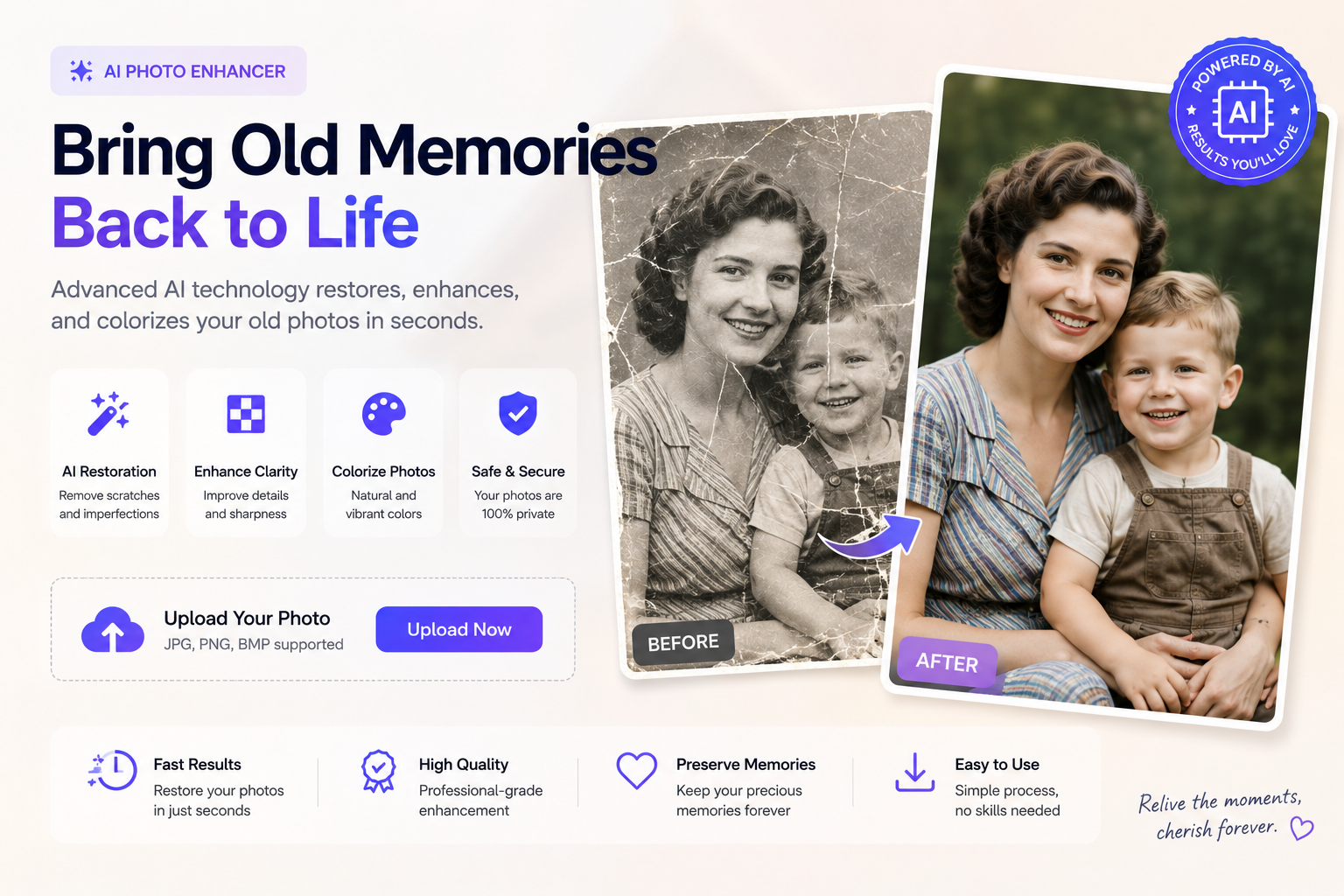
Step-by-Step Workflow for Restoring Old Photos
Step 1: Digitize the Photo Carefully
Start with the best possible digital version. If you have a scanner, use it. If not, take a photo in even lighting, avoid glare, and keep the camera parallel to the image. Clean the surface gently before digitizing, but avoid damaging fragile prints.
A better source image improves AI results. If the input is extremely blurry or obstructed, AI has less real detail to work from.
Step 2: Use an AI Photo Enhancer
Upload the digital image to an AI enhancer. The first pass should focus on clarity, resolution, and general quality. PicMa’s Photo Enhancer and AI Enhancer are suitable for improving old photos, family photos, portraits, and other personal images.
Step 3: Repair Damage
If the photo has scratches, stains, or damaged areas, use restoration-specific tools. PicMa’s Smart Restore and Descratch tools are relevant here. Review the result carefully, especially around faces and edges.
Step 4: Restore Color or Colorize
For faded color images, enhancement can improve vibrancy. For black-and-white images, PicMa’s Color Master can convert old photos into colorized versions. Colorization is creative rather than historically guaranteed, so keep the original version too.
Step 5: Sharpen Faces and Details
If faces or key details still look soft, use sharpening carefully. Over-sharpening can make old photos look artificial. The goal is natural clarity.
Step 6: Save Multiple Versions
Always keep the original scan, an enhanced version, and any colorized version. This gives you flexibility for printing, sharing, or future editing.
PicMa Studio for Family Photo Restoration
PicMa is a good fit for family photo restoration because it combines several relevant tools in one place. Users can enhance image clarity and detail, repair old photos, sharpen images, remove scratches, colorize black-and-white photos, and clarify text.
For example, a user restoring a grandparent’s portrait might start with Photo Enhancer, use Smart Restore for damaged areas, apply Descratch if needed, and then use Color Master for a colorized version. Another user restoring a scanned family document might use Text Enhancer to improve readability.
This all-in-one approach matters because restoration is rarely a single-click task. Different old photos have different issues. Some need sharpness. Some need repair. Some need color. Some need text clarity. Having multiple AI tools available gives users more options.
Ethical and Practical Considerations
AI restoration is powerful, but it can also change an image. When restoring family or historical photos, be mindful of accuracy. If the goal is emotional preservation, a tasteful enhancement is usually fine. If the goal is archival documentation, keep the original scan and label edited versions clearly.
Colorization is especially interpretive. AI may choose colors that look realistic but are not historically accurate. That does not make colorization useless. It simply means users should understand it as an artistic reconstruction rather than factual proof.
How Restored Photos Can Be Used
Restored photos can be used in many meaningful ways. Families can create digital archives, memorial albums, reunion slideshows, framed prints, ancestry projects, or social media posts. Businesses can restore historical brand images. Museums and educators can use enhanced images in presentations. Designers can reuse archival visuals in creative projects.
Before printing, check resolution and file size. Before publishing online, compress the image for web performance. If the photo includes living people or sensitive family history, get permission before sharing widely.
Conclusion
Restoring old photos is about more than improving pixels. It is about preserving memories. An AI Photo Enhancermakes restoration more accessible by improving clarity, resolution, color, sharpness, and damaged areas without requiring advanced editing skills.
PicMa Studio offers a practical set of tools for this purpose, including Photo Enhancer, AI Enhancer, Smart Restore, Descratch, Color Master, AI Sharpen Image, and Text Enhancer. Whether you want to repair a faded family portrait, sharpen an old landscape, colorize a black-and-white image, or clarify text in a scanned document, PicMa provides an AI-powered workflow for bringing old images back to life.
If you have old photos sitting in boxes, albums, or phone galleries, AI enhancement can help turn them into clearer, more shareable memories.

 126
126

 English