Let me set the scene at a concert: The lights go down, the crowd screams, and your absolute favorite artist finally steps onto the stage. The energy is unreal. You pull out your mobile, zoom in 10x because you’re sitting all the way in the nosebleed section, and snap a dozen photos.
Fast forward to the ride home. You open your camera roll, excited to post on Instagram, only to realize... your photos look like they were taken with a potato. They are dark, grainy, and the singer looks like a blurry, pixelated ghost. Sound familiar?
As a huge music fan (and admittedly, someone who doesn't always want to pay VIP ticket prices), I’ve ruined countless concert memories with bad smartphone zoom. But recently, I discovered PicMa Studio, an AI tool can easily enhance blurry photos without needing photoshop skills. I tried this tool to see if it could fix blurry concert shots from my camera roll. Spoiler alert: The results completely blew my mind.
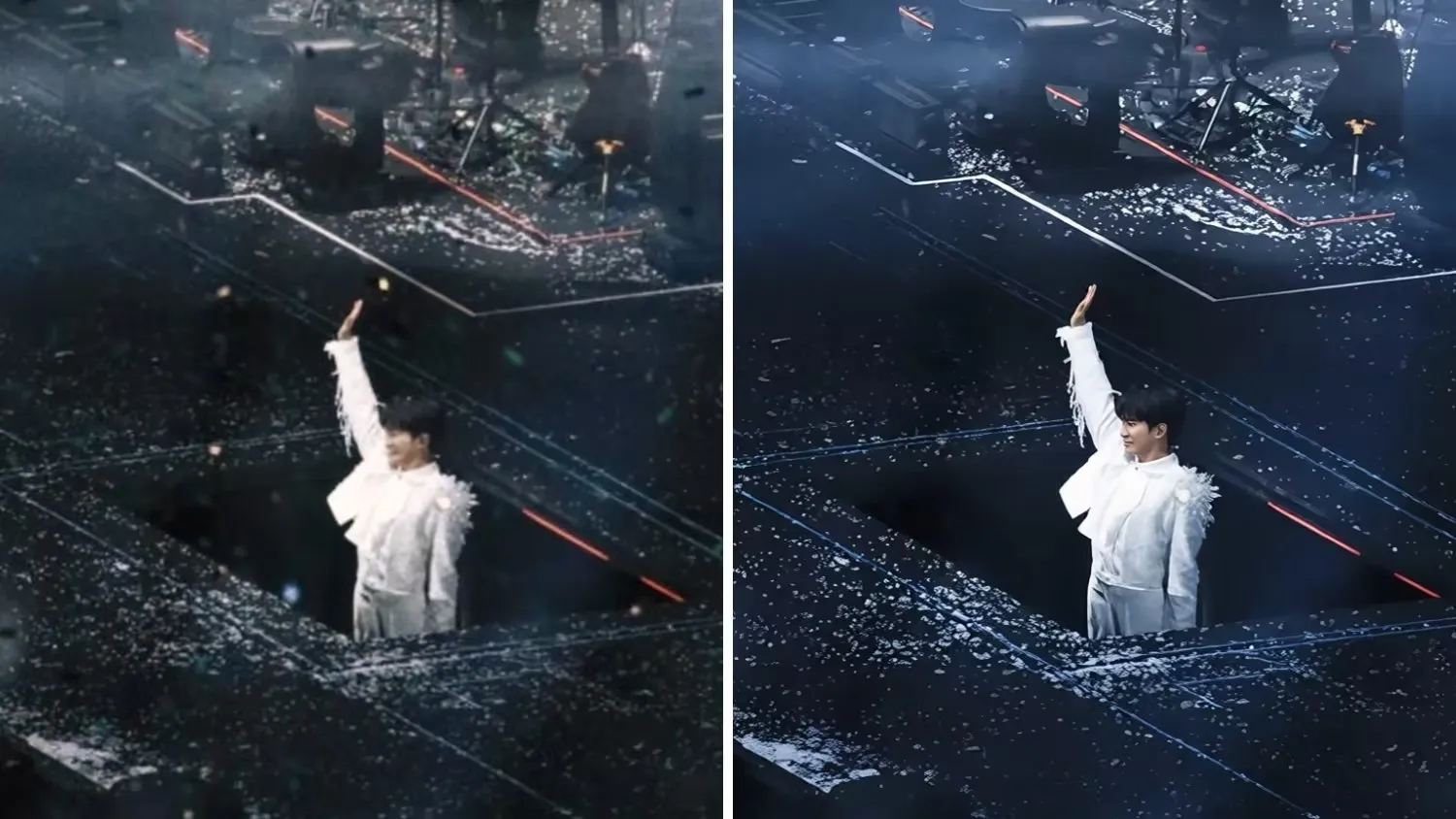
Why Do Concert Photos Always Turn Out Bad?
Before I show you the magic, let’s talk about why this happens. Smartphones struggle when you combine low light, moving subjects, and digital zoom. The result is "image noise" and a massive loss of detail.
Most traditional editing apps just brighten the photo, which actually makes the grain look worse. To truly enhance zoomed-in pictures, you need AI that can understand what the image is supposed to look like and rebuild those lost pixels.
How I Used PicMa Studio to Rescue My Concert Memories
I decided to run my worst, most pixelated zoom-in shot through PicMa Studio, which uses the advanced Nano Banana 2 AI model. Here is my exact workflow, and it took me less than 60 seconds:
Step 1: Access or Download PicMa
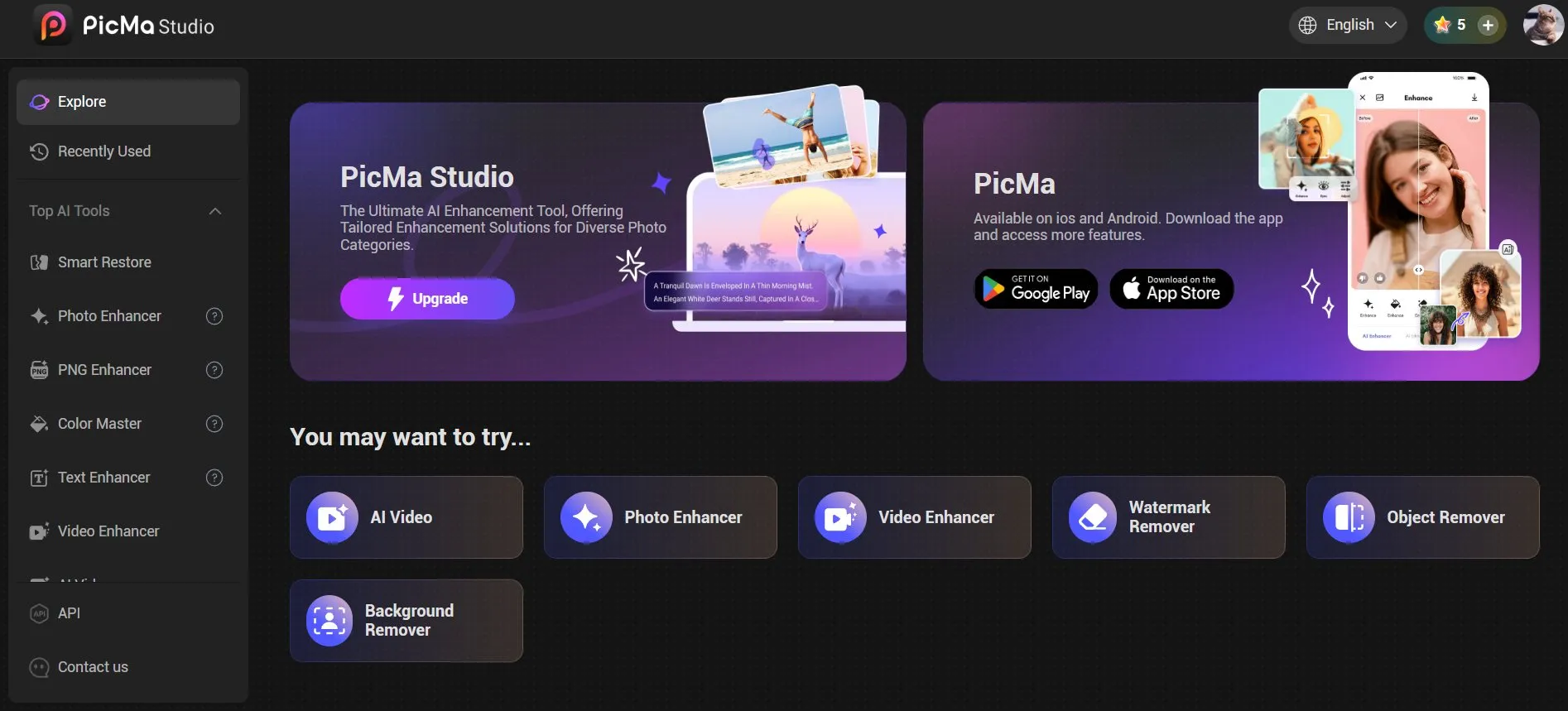
Access PicMa Studio website directly in browser. You can also download the PicMa app from Google Play or the App Store.
Step 2: Upload the "Disaster" Photo and Hit the "Enhance" Button
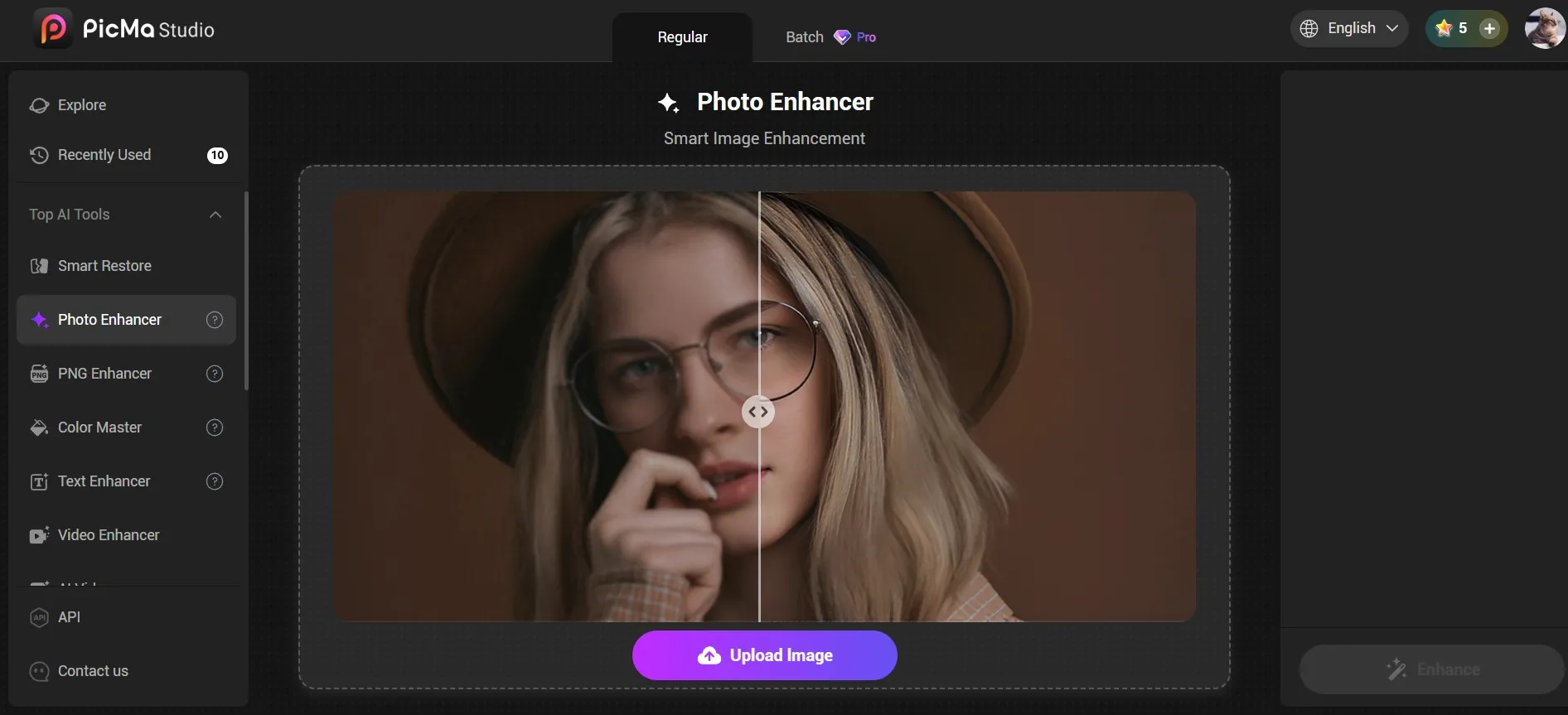
Use the Photo Enhancer function, upload the concert photo, and simply click the Enhance button. Seconds later, this photo has been restored to absolute perfection with missing details reconstructed, no more, no less.

Step 3: Download the restored photo
Simply click the Download button, and I finally have a high-res photo actually worth sharing.
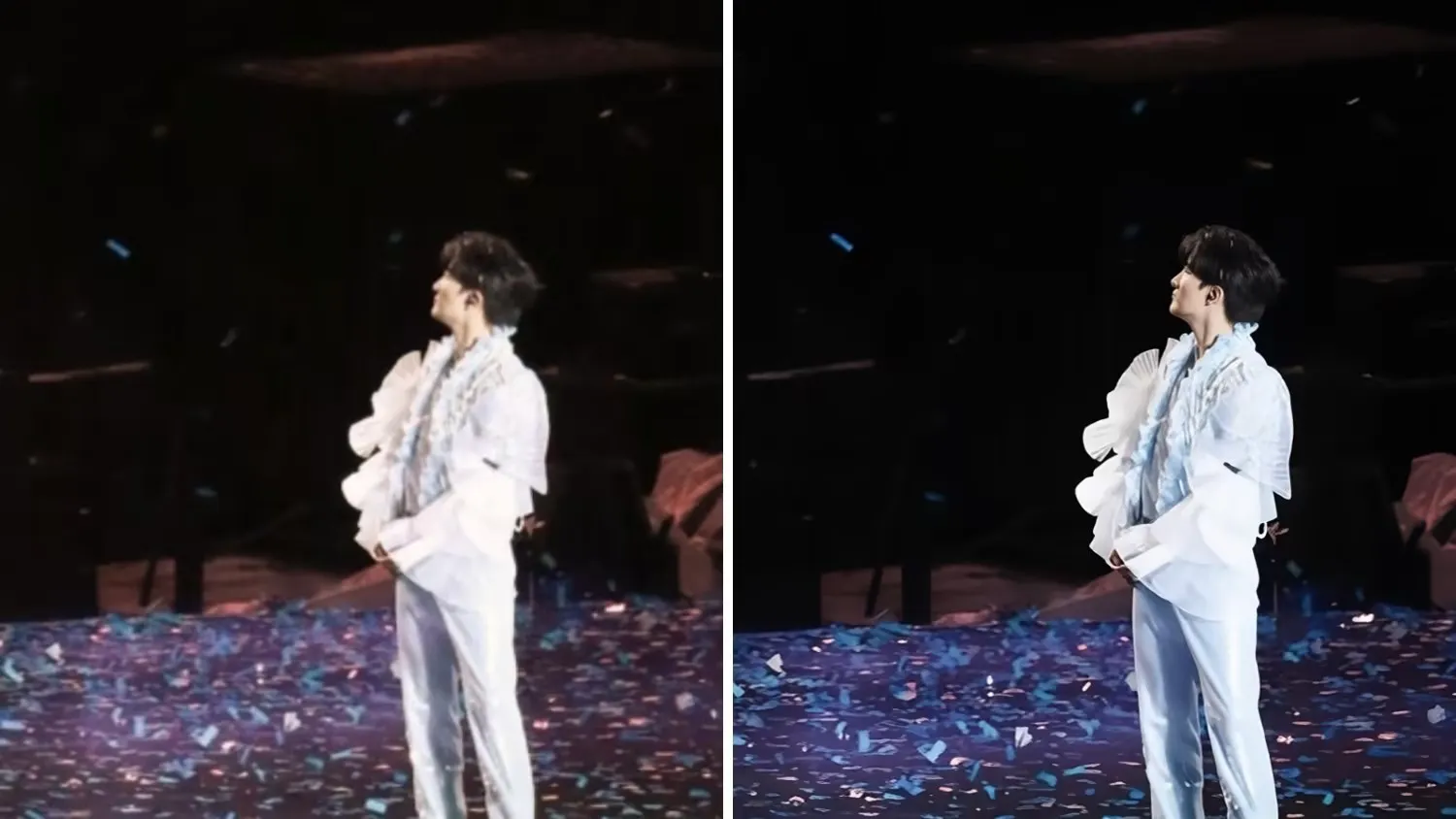
Stop Deleting Your Blurry Memories
The process to enhance these concert photos actually feels less like editing and more like time travel — going back to that night, but this time with a professional camera lens.
If you have an archive of disappointing concert pics sitting in your phone, don't delete them just yet. You don't need to be a professional photographer to fix them.
Give PicMa Studio a try on your worst concert shot, and let the AI do the magic. Who knows? Your favorite memory might just need a little digital rescue.


Frequently Asked Questions
1. Is this feature free in PicMa Studio?
The feature itself is not completely free. However, new users get bonus credits, so you can enhance your blurry concert photos with free trial.
2. Is PicMa Studio available on my phone?
Yes! Use it instantly in any browser or download the free app from the App Store or Google Play.
3. Do I need Photoshop or editing experience?
Absolutely not. Just upload your photo and hit one button — the AI does all the work.
Related Readings:

 146
146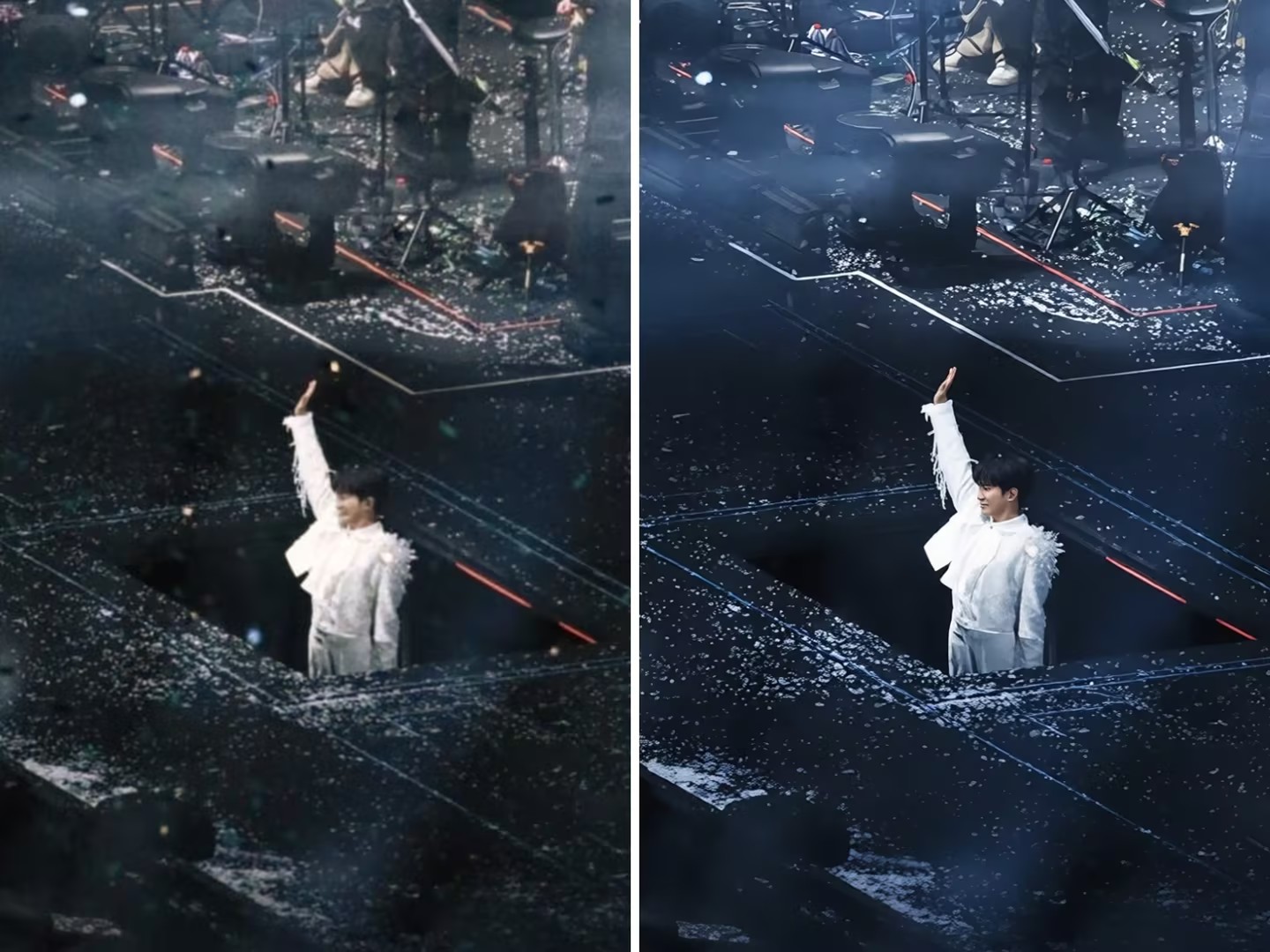

 English