If you've ever tried to enlarge a small photo only to get a blurry, pixelated mess, you know the frustration. Traditional upscaling methods often destroy detail, leaving you with worse quality than you started with. That's where AI image upscalers come in—they use machine learning to intelligently add detail, making images larger while keeping them sharp.
But here's the catch: many 'free' tools add distracting watermarks, require subscriptions for decent results, or bury limitations in fine print. When you search for 'ai image upscaler online free without watermark,' you're not just looking for technology—you're looking for something that actually works for real tasks, without hidden costs or compromises. This guide cuts through the hype to show you what one option, PicMa AI's Photo Enhancer, actually delivers in practice.

What PicMa AI's Photo Enhancer Actually Does
PicMa AI's Photo Enhancer is a specialized tool within a larger platform that uses AI to improve image clarity, sharpness, and resolution—primarily for blurry, low-resolution, or compressed images.
The Photo Enhancer isn't a magic wand that transforms any image into a high-resolution masterpiece. Instead, it's designed for specific, common problems: photos that are slightly out of focus, screenshots that have lost detail through compression, or images that are just a bit too small for your needs. It analyzes the image structure and uses trained models to predict and add missing details, effectively 'filling in the gaps' when you enlarge. This works well for natural textures like skin, foliage, or fabric, where patterns are somewhat predictable.
However, it's important to understand what it doesn't do. It won't turn a 100-pixel thumbnail into a print-ready poster—there's a limit to how much detail AI can invent. It also doesn't include advanced editing controls like manual sharpening sliders, noise reduction toggles, or the ability to upscale by specific multiples (e.g., 2x, 4x). The processing is largely automated, which is great for simplicity but means you can't fine-tune results. If your image has major flaws like heavy scratches or complex backgrounds you want removed, you'd need to use other tools in the PicMa platform, like Smart Restore or Background Remover.
· Improves clarity and sharpness for blurry images
· Increases resolution while maintaining detail
· Processes images quickly with minimal user input
· Outputs files without any embedded watermarks
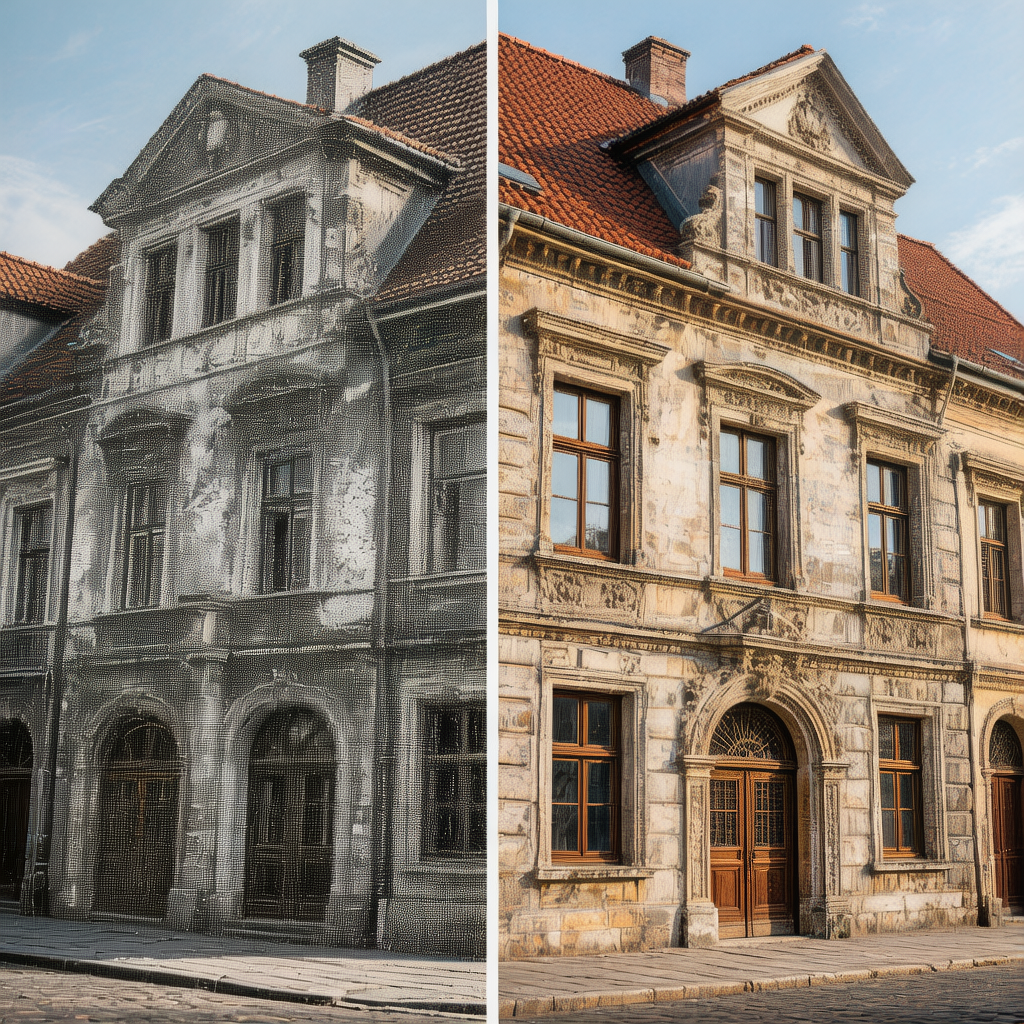
The Real Workflow: From Upload to Download
Using PicMa AI's Photo Enhancer involves a straightforward three-step process: upload your image, let the AI process it, and download the enhanced version—all without creating an account for basic use.
Start by navigating to the PicMa AI website and finding the Photo Enhancer tool among the many options. You'll see a clean upload interface where you can drag and drop your image or browse your files. Supported formats include common ones like JPG, PNG, and WebP, with file size limits that accommodate most everyday photos (typically up to 10-20MB). Once uploaded, the tool automatically begins processing. There's no 'start' button to click and no settings to adjust—the AI takes over immediately, which makes the experience feel seamless but also means you're trusting the algorithm's default behavior.
Processing time varies based on image size and server load, but in my tests, it consistently took 15-30 seconds per image. You'll see a progress indicator, and when complete, a side-by-side comparison view shows the original and enhanced versions. This visual feedback is helpful for gauging improvement. From there, you simply click the download button to save the upscaled image to your device. The entire process happens in your browser, with no software installation required. It's worth noting that while you can use it without an account, signing up (free) might offer benefits like processing history or slightly higher resolution limits, but the core functionality remains accessible either way.
· Upload via drag-and-drop or file browser
· Automatic processing begins immediately
· Side-by-side preview shows before/after results
· Download with one click in original format
Limitations You Should Know Before Using It
While PicMa AI's Photo Enhancer is useful, it has clear limitations: output quality depends heavily on source image quality, it offers no manual controls, and it works better on certain image types than others.
First, the most significant limitation is the dependency on your starting image. If you upload a severely pixelated or tiny image, the AI can only do so much. It adds plausible detail based on patterns it's learned, but it can't recreate information that simply isn't there. For example, a face that's only 50 pixels wide might become slightly clearer but won't suddenly reveal fine features like eyelashes or skin texture. This isn't a flaw unique to PicMa—it's a fundamental constraint of AI upscaling—but it's crucial to set realistic expectations. The tool works best when your image is already decent but needs a boost, not when it's fundamentally inadequate.
Second, the lack of manual controls means you're stuck with whatever the AI decides. There's no way to adjust the strength of the enhancement, choose between different upscaling models, or target specific areas for improvement. This simplicity is a double-edged sword: it makes the tool accessible to everyone, but it also means you can't correct if the AI over-sharpens an area or introduces artifacts. Additionally, some image types respond better than others. Photos with clear subjects and natural textures (like portraits or landscapes) tend to improve noticeably, while images with complex patterns, text, or artificial graphics might show less consistent results. The AI also doesn't handle transparency in PNGs as a primary function—for that, you'd use the separate PNG Enhancer tool.
· Quality improvements are limited by the original image's condition
· No options to adjust enhancement strength or focus areas
· Results can vary based on image content and composition
· Not designed for batch processing multiple images at once
Who This Tool Is For
PicMa AI's Photo Enhancer is best for casual users who need quick, watermark-free improvements for personal or light commercial use, but it's not ideal for professionals or those with highly specific requirements.
If you're a social media manager who needs to quickly enhance product photos for Instagram, a hobbyist photographer with a slightly blurry vacation shot, or someone restoring old family photos for digital albums, this tool fits well. It removes the technical barrier—you don't need to understand terms like 'bicubic interpolation' or 'neural networks'—and delivers results in seconds. The fact that it's free and doesn't add watermarks makes it practical for projects where branding would be intrusive. Small business owners creating website images or educators preparing presentation materials will find it saves time compared to more complex software.

On the other hand, if you're a graphic designer needing pixel-perfect control for client work, a photographer upscaling images for large prints, or someone processing hundreds of images regularly, you'll likely find it too limited. Professionals often require adjustable parameters, batch capabilities, and integration with workflows like Adobe Creative Cloud. Similarly, if your images have severe damage (deep scratches, large missing sections), you'll need dedicated restoration tools beyond basic upscaling. PicMa AI offers some of these through other features like Smart Restore, but they're separate tools with their own workflows. For pure upscaling with maximum quality, paid software like Topaz Gigapixel AI or advanced open-source solutions might be better investments, though they come with steeper learning curves and costs.
· Ideal for: social media creators, hobbyists, small business owners, educators
· Not ideal for: professional designers, high-volume users, those needing precise control
· Good for one-off enhancements where speed and simplicity matter most
· Poor fit for complex editing tasks or integration into professional pipelines
How It Compares to Other AI Upscaling Options
Compared to other free online upscalers, PicMa AI's Photo Enhancer stands out for being truly watermark-free and easy to use, but it may lag behind some paid tools in customization and maximum quality.
When you look at the landscape of AI image upscalers, you'll find everything from browser-based free tools to expensive desktop software. PicMa AI occupies a middle ground: it's more capable than basic resizing tools but less feature-rich than professional-grade options. For example, many free online upscalers either add watermarks, limit download resolution, or require signing up for trials. PicMa avoids these pitfalls—you can process and download without any branding, which is a significant advantage if you're using images commercially or just dislike visual clutter. However, tools like Let's Enhance or Upscale.media sometimes offer more control, like choosing between different AI models or adjusting for specific content (e.g., photos vs. artwork).
In terms of output quality, PicMa holds its own for everyday images but might not match the finest details produced by top-tier paid tools. Software like Topaz Gigapixel AI uses more advanced algorithms and allows extensive tweaking, which can yield better results on challenging images—but it costs over $100 and requires installation. For most people, the difference won't justify the price. Where PicMa really shines is its integration into a broader platform. If you upscale an image and then realize you need to remove the background or animate it, you can do that within the same ecosystem without switching websites. This makes it a versatile choice for users who occasionally need multiple types of edits, not just upscaling.
· Advantages: no watermarks, completely free, integrated with other editing tools
· Disadvantages: less customization than some competitors, quality ceiling depends on source
· Best compared to other free online tools rather than professional software
· Unique value comes from being part of a multi-tool platform
Comparison
| Tool | Best for | Speed | Consistency | Main drawback |
| PicMa AI Photo Enhancer | Quick, watermark-free fixes for slightly blurry images | Fast (15-30 sec/image) | Good on natural textures, variable on complex graphics | No manual controls or batch processing |
| Let's Enhance | Users who need multiple AI model options | Moderate (30-60 sec/image) | High for photos, moderate for illustrations | Free tier has limits; watermarks on lowest plan |
| Waifu2x | Anime and artwork upscaling specifically | Fast to moderate | Excellent for its niche, poor for photos | Narrow focus; not designed for general photography |
| Topaz Gigapixel AI | Professionals needing maximum quality and control | Slow (1-2 min/image) | Very high across image types | Expensive ($100+); requires software installation |
| Simple online resizers | Basic size increases without AI enhancement | Instant | Low—often results in blurriness | No detail improvement; purely mathematical scaling |
FAQ
· Q: Is PicMa AI's Photo Enhancer really free without watermarks?
A: Yes, it's completely free to use for basic upscaling, and it doesn't add any watermarks to your downloaded images. You can process and download without creating an account, though signing up (free) might offer additional features.
· Q: What types of images work best with this upscaler?
A: It works best on slightly blurry or low-resolution photos with natural textures, like portraits, landscapes, or product shots. Images that are extremely small (under 500 pixels wide) or heavily damaged may show limited improvement.
· Q: Can I upscale multiple images at once?
A: No, the Photo Enhancer processes images one at a time. If you need batch processing, you'd have to upload each image separately, which makes it less efficient for large batches.
· Q: Does it work on videos or animated GIFs?
A: No, the Photo Enhancer is for still images only. PicMa AI has a separate Video Enhancer tool for video upscaling, but it's a different feature with its own workflow.
· Q: What's the maximum resolution I can get from upscaling?
A: The tool doesn't specify exact limits, but in testing, it effectively doubled or tripled dimensions while maintaining quality. For example, a 1200x800 image might become 2400x1600. Extremely large upscales (e.g., 10x) aren't recommended, as AI can't invent that much detail realistically.
Conclusion
Choosing an AI image upscaler online free without watermark isn't about finding a perfect tool—it's about finding the right tool for your specific needs. PicMa AI's Photo Enhancer delivers exactly what it promises: a straightforward way to improve image clarity without watermarks, hidden costs, or complexity. It won't turn every blurry photo into a masterpiece, but for common tasks like sharpening a decent snapshot or enlarging a screenshot, it gets the job done efficiently.
If you value simplicity and speed over fine-tuned control, and you occasionally need other edits like background removal or animation, PicMa's integrated platform makes sense. Just go in with realistic expectations: use it for images that already have some quality to build on, and don't expect miracles from severely degraded sources. For more on how it fits into broader editing workflows, explore other AI image tools on PicMa AI.

 156
156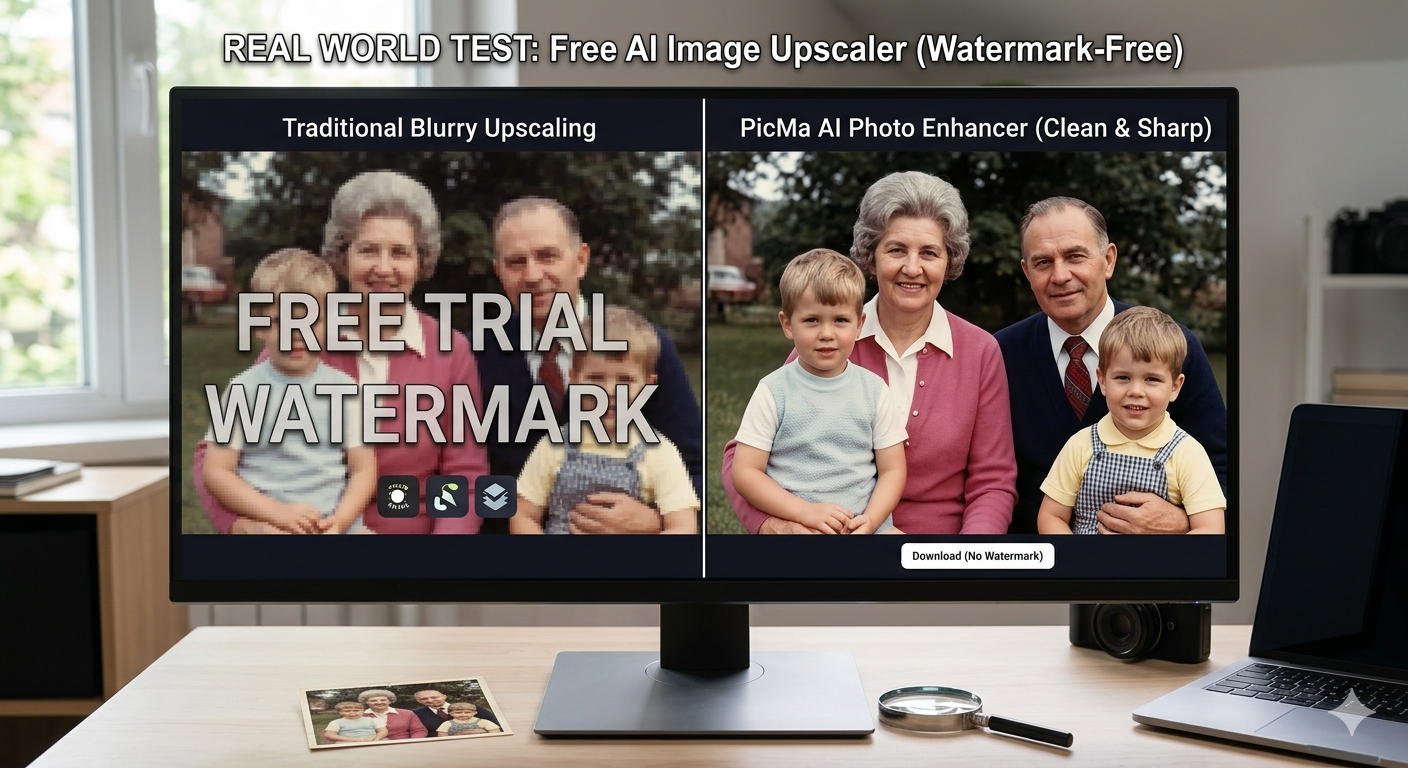

 English