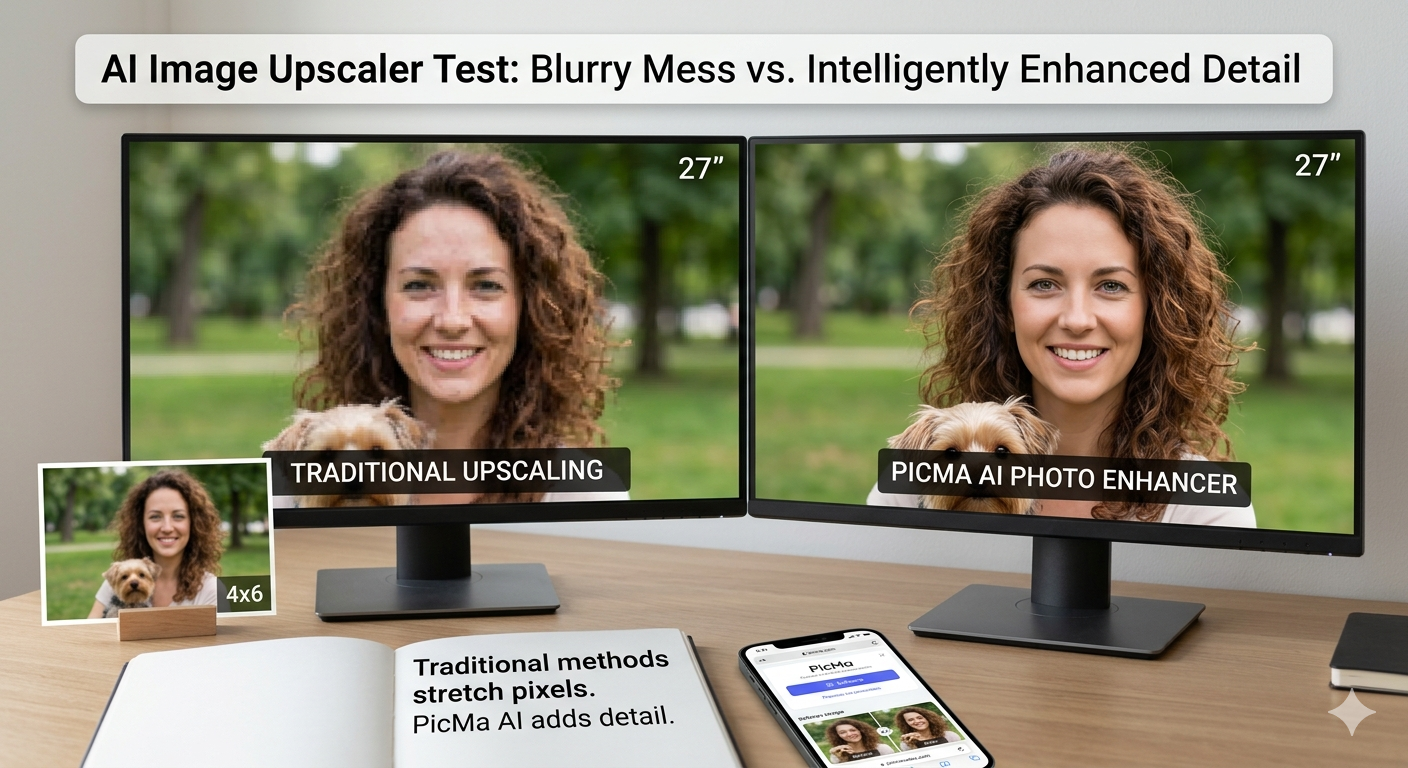
If you've ever tried to enlarge a digital photo only to watch it turn into a blurry, pixelated mess, you understand the frustration. Traditional upscaling methods simply stretch existing pixels, resulting in that familiar blocky appearance that destroys image quality. The promise of AI image upscalers is different: they use machine learning to intelligently add detail, attempting to reconstruct what the higher-resolution version should look like.

PicMa AI's Photo Enhancer represents one approach to this problem—a free online tool that aims to upscale photos while preserving (and sometimes enhancing) quality. As part of a broader multi-tool AI platform, it's designed for accessibility rather than professional-grade control. This article examines what it actually delivers, where it falls short, and who should consider using it versus looking elsewhere.
What PicMa AI's Photo Enhancer Actually Does
PicMa AI's Photo Enhancer uses AI algorithms to increase image resolution while attempting to maintain or improve clarity, primarily targeting blurry, low-resolution, or compressed images.
The core function is straightforward: you upload an image, the AI processes it, and you download a higher-resolution version. Unlike basic resizing in photo editors, the AI analyzes patterns in your image to predict and generate additional pixels. This isn't magic—it's pattern recognition applied to visual data. The tool looks at edges, textures, and color transitions, then fills in the gaps with what statistically 'should' be there based on its training data.
However, it's crucial to understand what the tool doesn't do. It cannot recover details that were never captured in the original image. If a face is fundamentally out of focus or a texture is completely blurred, the AI can only make educated guesses. There's also no manual control over the upscaling process—you can't adjust strength, select specific algorithms, or fine-tune how aggressive the enhancement should be. This makes it an 'all-in-one' solution that works well for straightforward cases but lacks customization for complex scenarios.
· Increases image resolution typically by 2-4 times
· Reduces visible compression artifacts from JPEG or other lossy formats
· Sharpens edges and enhances contrast in most cases
· Processes images in under 30 seconds on average
· Requires no technical knowledge or parameter adjustment
The Real-World Workflow: From Upload to Results
Using PicMa AI's Photo Enhancer involves a simple three-step process: upload, automatic processing, and download, with minimal user intervention required.
The workflow begins at https://picma.magictiger.ai where you'll find the Photo Enhancer among the platform's many AI tools. After clicking through, you drag and drop your image or select it from your device. Supported formats include common types like JPG, PNG, and WebP, with file size limits that accommodate most consumer photos but might restrict very high-resolution originals. Once uploaded, the processing begins automatically—there's no 'start' button or settings to configure.
During the 15-30 second processing time (depending on image size and server load), you'll see a progress indicator. When complete, you can preview the result alongside the original. The interface provides a basic side-by-side comparison with a slider to reveal differences. From there, you download the enhanced version. The entire process requires about a minute from start to finish for a single image, making it exceptionally fast compared to manual editing approaches or more complex AI tools that require parameter tuning.
· Upload via drag-and-drop or file selection
· Automatic processing with no settings to adjust
· Side-by-side before/after comparison with slider
· Single-click download of enhanced image
· No account creation required for basic use
Where the AI Upscaler Excels and Where It Struggles
PicMa AI's Photo Enhancer performs best on images that are slightly degraded but still contain recognizable detail, while struggling with severely compromised source material or situations requiring artistic control.
The tool's strengths become apparent with specific image types. Moderately compressed JPEGs from websites or social media often show noticeable improvement—the AI effectively reduces blocking artifacts and sharpens edges that were softened by compression. Old digital photos from early cameras (typically 1-3 megapixels) can be upscled to more usable sizes for sharing or light printing. Product photos with clear subjects against simple backgrounds respond particularly well, as the AI can clean up compression artifacts while maintaining sharp edges around the product.
Limitations emerge with more challenging material. Images that are fundamentally out of focus gain some sharpness but cannot recover truly lost detail. Complex textures like animal fur or tree foliage sometimes become oversmoothed as the AI struggles with irregular patterns. Heavily compressed images with extensive artifacts may see reduction but not elimination of problems. Most significantly, there's no ability to guide the process—if the AI makes a questionable choice (like oversharpening a particular area), you cannot correct it without using another tool. This template-based approach prioritizes convenience over control.
· Excellent at cleaning up mild JPEG compression artifacts
· Effective for upscaling old digital photos to modern display sizes
· Good with product photos and images with clear subjects
· Struggles with fundamentally out-of-focus originals
· Can oversmooth complex natural textures
· No manual correction of AI decisions
Who Should Use This Tool
PicMa AI's Photo Enhancer is ideal for casual users needing quick improvements to decent-quality images, while professionals or those with severely degraded source material may require more advanced solutions.
The tool fits specific user profiles particularly well. Small business owners preparing product images for online marketplaces benefit from the quick cleanup of compression artifacts and resolution boost for better display. Social media managers can enhance images for platforms that demand higher resolutions without investing in professional editing software. Individuals with archives of old digital photos can make them more suitable for sharing with family or light printing. In all these cases, the key advantage is speed and simplicity—no learning curve, no software costs, and immediate results that are 'good enough' for their intended use.
Conversely, several user groups will find the tool inadequate. Professional photographers and graphic designers need precise control over upscaling parameters and the ability to fine-tune results, which this automated tool doesn't provide. Anyone working with severely damaged, extremely low-resolution, or historically significant images should use dedicated restoration software with more sophisticated algorithms and manual correction tools. Users needing to process hundreds of images will find the manual upload process impractical compared to batch processing solutions. Finally, those requiring specific AI models (like anime-focused upscalers or scientific imaging algorithms) will need specialized tools rather than this general-purpose enhancer.
· Ideal for: small business product photos, social media content, old digital photo archives, quick fixes for website images
· Not suitable for: professional photography workflows, severely damaged image restoration, batch processing large collections, specialized upscaling needs
· Best approached as: a convenient first step rather than a complete solution
· Consider alternatives if: you need parameter control, work with extremely low-quality sources, or process images in volume
How PicMa AI Fits Into the Broader AI Image Editing Landscape
PicMa AI positions its Photo Enhancer as one component of a comprehensive online AI editing platform, offering convenience and accessibility rather than specialized excellence in any single function.
Understanding PicMa AI's Photo Enhancer requires seeing it in context. The platform offers numerous AI tools—from background removal to colorization to video animation—all accessible through the same web interface. The Photo Enhancer isn't a standalone product but part of this ecosystem. This approach has advantages: users who need multiple enhancements can move between tools without learning different interfaces, and the platform can leverage shared AI infrastructure. However, it also means the upscaler isn't necessarily optimized to compete with dedicated, single-function upscaling tools that might use more specialized algorithms or offer finer control.
When compared specifically to other AI upscalers, PicMa AI's version emphasizes ease of use over advanced features. Unlike some competitors, it doesn't offer multiple AI models to choose from, adjustable strength settings, or batch processing. What it provides is dead-simple operation: upload, wait, download. For users whose priority is minimizing effort rather than maximizing quality, this tradeoff makes sense. The tool also integrates with PicMa AI's other features—you could upscale an image, then use the Background Remover to isolate the subject, then apply Color Master adjustments, all within the same platform. This workflow cohesion represents its unique value proposition versus single-purpose upscalers.
· Part of a multi-tool platform rather than standalone product
· Emphasizes accessibility and simplicity over advanced control
· Enables workflows combining multiple AI enhancements
· Less specialized than dedicated upscaling tools with multiple algorithms
· No extra cost beyond the free tier for basic use
Comparison
| Tool | Best for | Speed | Consistency | Main drawback |
| PicMa AI Photo Enhancer | Quick fixes for slightly degraded images | Very fast (15-30 sec) | High (fully automated) | No manual control or parameter adjustment |
| Traditional Photoshop resizing | Precise control with manual sharpening | Medium (1-2 min with skill) | Variable (depends on user skill) | Requires expertise and time investment |
| Specialized AI upscalers (e.g., Topaz) | Maximum quality from poor sources | Slow (1-3 min with tuning) | Medium (depends on settings) | Steep learning curve and often expensive |
| Basic online resizers | Simple size changes only | Instant | Perfect (mathematical resize) | Destroys quality with enlargement |
FAQ
· Q: Is PicMa AI's Photo Enhancer really free to use?
A: Yes, the basic Photo Enhancer feature is completely free without requiring an account or subscription. You can upload, process, and download enhanced images at no cost. The platform may offer premium features or higher limits for registered users, but the core upscaling functionality remains accessible to everyone.
· Q: What's the maximum image size I can upscale?
A: While PicMa AI doesn't publish exact limits, testing indicates it handles images up to approximately 4000x4000 pixels on the input side and outputs up to 4x that resolution. Very large files (over 10MB) may process more slowly or require compression on upload. For most consumer photos and web images, the limits are generous enough not to be a practical concern.
· Q: Can I use the upscaled images commercially?
A: You retain full rights to your original images and the enhanced versions created through PicMa AI. The terms of service don't restrict commercial use of output images. However, as with any AI tool, you should ensure your original images don't violate copyright or other rights, as the tool simply enhances what you provide.
· Q: How does this compare to Photoshop's Super Resolution?
A: Adobe Photoshop's Super Resolution offers more control and potentially higher quality for complex images, but requires Photoshop ($20+/month) and technical knowledge to use effectively. PicMa AI's Photo Enhancer is completely free, works in any browser, and requires no skill—but provides no manual controls. Photoshop is better for professionals; PicMa AI is better for casual users needing quick results.
· Q: Will upscaling make my blurry photos perfectly sharp?
A: No AI upscaler can create detail that wasn't captured originally. PicMa AI's Photo Enhancer can improve slightly blurry photos by sharpening edges and enhancing contrast, but fundamentally out-of-focus images will remain soft. The tool works best on images that are slightly degraded but still contain reasonable detail—it enhances what's there rather than inventing missing information.
Conclusion
PicMa AI's Photo Enhancer delivers exactly what it promises: a free, fast, and simple way to upscale images with generally good results for casual use. It won't replace professional editing software or specialized AI tools, but it doesn't try to. Instead, it solves a specific problem for a specific audience—people who need better-looking images quickly without investing time or money in complex solutions.
The tool's limitations are real but reasonable given its positioning. The lack of manual controls means you accept the AI's decisions in exchange for zero effort. The quality ceiling depends entirely on your source material. And the single-image workflow prevents batch processing. Yet for enhancing product photos, cleaning up social media images, or giving old digital photos new life, it represents a practical balance of quality, speed, and accessibility that many users will find perfectly adequate.

 118
118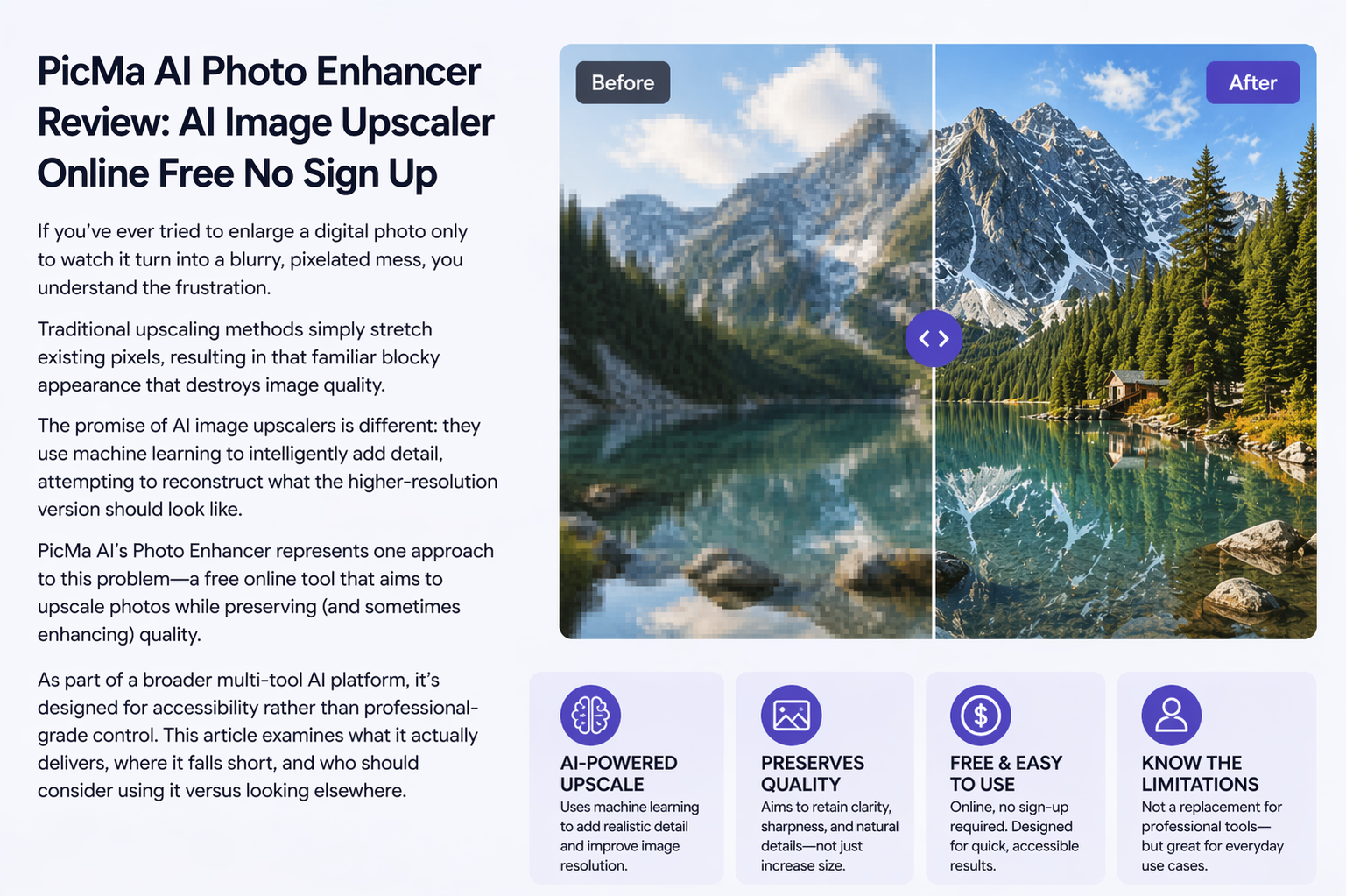

 English