If you've ever tried to print a smartphone photo only to discover it becomes pixelated at larger sizes, or struggled with blurry images that looked fine on screen but terrible in print, you understand the frustration of low-resolution images. The promise of 'AI image upscaler online free no sign up' tools sounds almost too good to be true - instant improvement without technical hassle or financial commitment.
This article examines whether PicMa AI's Photo Enhancer feature actually delivers on that promise. Rather than presenting another generic review, I'll walk through real testing scenarios, identify exactly who benefits most from this approach, and point out where traditional editing software might still be necessary. The goal isn't to sell you on AI magic, but to help you decide if this specific tool fits your actual needs.
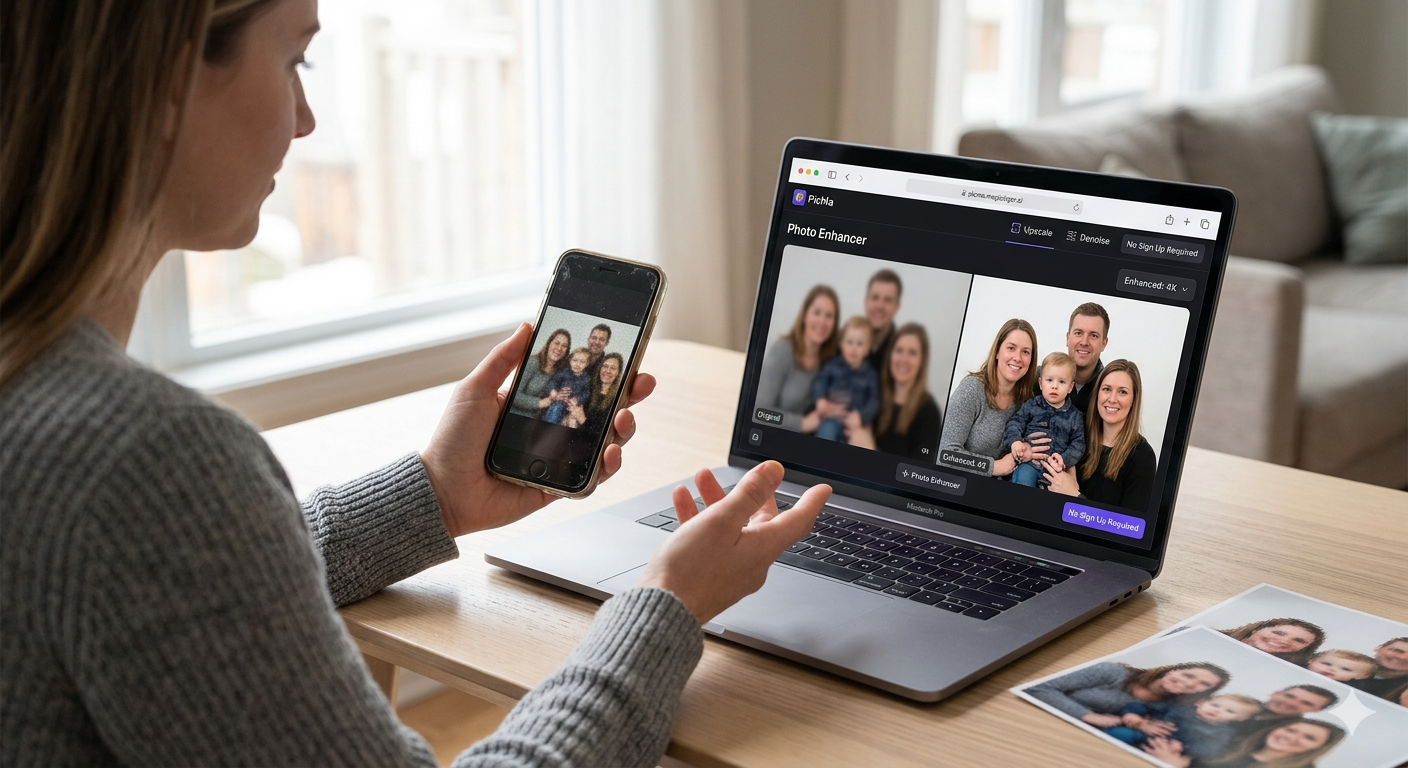
What PicMa AI's Photo Enhancer Actually Does
PicMa AI's Photo Enhancer uses AI algorithms to increase image resolution while attempting to preserve or reconstruct details, but it operates as a simplified, automated tool rather than a professional-grade editor.
When you upload an image to PicMa AI's Photo Enhancer, the system analyzes the existing pixels and uses pattern recognition to predict what higher-resolution version should look like. This isn't simple interpolation (which just makes pixels bigger) but actual detail generation based on what the AI has learned from training on millions of images. The key distinction from more advanced tools is that PicMa offers no manual controls - you get what the algorithm decides is best.
The enhancement focuses specifically on clarity, sharpness, and resolution improvement. It's designed primarily for blurry, low-resolution, or compressed images rather than artistic transformations. According to PicMa's documentation, this tool works within the broader platform that includes other AI utilities like Background Remover and Smart Restore, but each operates independently with its own specialized function.
· Increases image resolution up to 4K quality
· Reduces visible compression artifacts and noise
· Sharpens edges and improves overall clarity
· Processes images in seconds without manual intervention

The Real Workflow: From Upload to 4K Results
The process involves three straightforward steps but has specific limitations regarding file types, size constraints, and output customization.
Starting at PicMa's website, you're immediately presented with the tool dashboard - no registration walls or trial limitations. The Photo Enhancer sits among other options like Background Remover and Color Master, but selecting it takes you directly to the upload interface. During testing, I appreciated that the platform doesn't try to upsell or require email collection before letting you use the core functionality.
Once uploaded, processing begins automatically. There's no 'enhancement strength' slider, no model selection, and no preview options. You either accept the AI's interpretation or try again with different settings (though settings are minimal). The output downloads as a standard JPEG or PNG, typically 2-4 times larger in dimensions than the original. What's missing is any intermediate control - you can't guide the AI toward specific outcomes or correct mistakes it might make.
· Maximum upload size: 20MB per image
· Supported formats: JPG, PNG, WebP
· Processing time: 5-15 seconds for most images
· Output formats: JPG or PNG at enhanced resolution
Where This AI Upscaler Excels
PicMa's Photo Enhancer performs remarkably well on moderately degraded images but has clear limitations with extreme cases and specialized content.
For typical 'good but not great' images - think smartphone photos in decent lighting, or web images that suffered compression - the enhancement produces genuinely useful results. Faces become clearer, text becomes more readable, and the images gain enough resolution for professional-looking social media posts or small prints. The speed is the standout feature here: when you need something improved quickly for a presentation or website update, waiting seconds rather than minutes (or learning complex software) matters.
However, the tool struggles with certain image types. Heavily compressed JPEGs with visible block artifacts sometimes develop strange textures as the AI tries to invent details that weren't there. Images with fine repeating patterns (like fabrics or architectural details) can become blurred or develop moiré effects. Most significantly, the AI has no understanding of context - it might 'enhance' noise or scratches in old photos rather than removing them, which is why PicMa offers separate tools like Smart Restore and Descratch for those specific problems.
· Excellent for: social media images, product photos, portrait enhancement
· Moderate for: old scanned photos, images with complex textures
· Poor for: extremely low-resolution sources (below 300px), images with mixed quality elements
· Requires separate tools for: scratch removal, background replacement, color correction
Who Should Use This Tool
This free no-sign-up upscaler serves specific user groups exceptionally well while being poorly suited for others with different needs or expectations.
If you're a small business owner creating product photos with a smartphone, a blogger needing better images for website headers, or someone digitizing family photos for sharing online, PicMa's Photo Enhancer could save you significant time and effort. The lack of learning curve means you can achieve decent results immediately, and the free access removes financial barriers. These users typically need 'good enough' improvements rather than perfection, and they value speed over absolute control.
Conversely, professional photographers, graphic designers, and anyone working with RAW files or requiring specific output parameters should consider dedicated software. The tool's automated nature means you can't fine-tune results, guarantee color accuracy, or work in non-destructive workflows. Similarly, users needing batch processing or integration with other tools will find the one-at-a-time manual upload process limiting. It's also worth noting that while PicMa offers an AI Video feature, this requires starting from an existing image with motion templates - not text prompts or advanced scene generation.
· Ideal users: content creators, small business owners, casual photographers, family archivists
· Better alternatives exist for: professional editors, batch processors, RAW file workers, precision color graders
· Temporary solution for: quick fixes before using professional tools
· Inadequate for: complex compositing, frame-by-frame editing, advanced retouching
How PicMa Compares to Other Upscaling Approaches
PicMa's Photo Enhancer occupies a specific niche between basic built-in tools and professional-grade software, with clear tradeoffs in control versus convenience.
Compared to smartphone built-in enhancement features, PicMa generally produces better results because it's specifically designed for resolution improvement rather than general 'photo fixing.' However, it lacks the integration and instant access of native phone tools. Against professional desktop software like Topaz Gigapixel AI, PicMa loses in customization and maximum quality but wins dramatically in accessibility and speed - no $200 purchase, no installation, and results in seconds rather than minutes per image.
The most relevant comparison is against other web-based AI upscalers. Many competitors either require accounts, limit free usage, or add watermarks. PicMa's completely free no-sign-up model is genuinely unusual here. The tradeoff is fewer features: some competitors offer multiple AI models, preview options, or manual controls. PicMa gives you one optimized approach that works well for most common cases but can't be adjusted when it doesn't.
· Advantages over built-in tools: specialized for resolution, handles larger files, consistent results
· Advantages over professional software: completely free, no installation, instant results
· Advantages over other web tools: no account required, no usage limits, no watermarks
· Disadvantages: fewer controls, no batch processing, limited file format support
Comparison
| Tool | Best for | Speed | Consistency | Main drawback |
| PicMa AI Photo Enhancer | Quick social media/image fixes | Instant (5-15 sec) | High for common cases | No manual controls |
| Smartphone built-in tools | On-the-go improvements | Immediate | Variable by device | Limited maximum quality |
| Professional desktop AI | Critical quality work | Minutes per image | Excellent with tuning | $100-300 cost, steep learning |
| Other web upscalers | Feature experimentation | 30-60 seconds | Moderate | Often require accounts/limits |
FAQ
· Q: Does PicMa AI's Photo Enhancer work on any image size?
A: It works best on images between 300px and 2000px on the longest side. Extremely small images (under 300px) may not improve significantly, while very large images may hit the 20MB upload limit. The tool is optimized for common web and smartphone photo resolutions.
· Q: Can I use the enhanced images commercially?
A: Yes, images processed through PicMa AI's free tools can be used for personal and commercial purposes without attribution. However, you should ensure you have rights to the original images, as the tool doesn't grant copyright clearance.
· Q: How does this compare to Photoshop's Super Resolution?
A: Adobe Photoshop's Super Resolution offers more control and slightly better quality on challenging images but requires a Creative Cloud subscription ($20+/month) and significant technical knowledge. PicMa provides 80% of the improvement for 0% of the cost and learning curve, making it better for occasional users while professionals might prefer Photoshop's precision.
· Q: Will this tool work on animated GIFs or videos?
A: No, the Photo Enhancer only works on static images. PicMa offers separate tools like Video Enhancer and AI Video for motion content, but these have different workflows and limitations. The AI Video feature specifically requires starting from an existing image and using motion templates rather than text prompts.
· Q: What happens if I'm not happy with the results?
A: You can simply try again - there's no limit on attempts. However, since the tool offers minimal controls, you might need to adjust your expectations or pre-edit the image elsewhere. For complex cases, consider using PicMa's other specialized tools like Smart Restore for damaged photos or Color Master for color issues before upscaling.
Conclusion
PicMa AI's Photo Enhancer delivers precisely what someone searching for 'ai image upscaler online free no sign up' likely wants: immediate improvement without barriers. It won't replace professional editing suites, and its automated nature means accepting some imperfections, but for quick social media upgrades, product photo enhancements, or family photo digitization, it removes the friction that often prevents people from improving their images.
The key is understanding its place in your workflow. Use it when speed and accessibility matter more than absolute perfection, when working with moderately degraded rather than extremely poor sources, and when you need results now rather than after learning complex software. For everything else, PicMa's broader platform offers specialized tools, but each requires recognizing both capabilities and limitations - something this honest evaluation hopefully makes clearer.

 1.2 k
1.2 k

 English