Ever taken a great photo — only to find it ruined by a random person walking through, a watermark you can’t crop out, or someone’s doodle over a screenshot?
If you've ever tried to fix it yourself, you know the frustration:
- Photoshop is powerful, but overwhelming for beginners
- Mobile editing apps often hide core tools behind paywalls
- And even after paying, results can look patchy or unnatural
But what if there were a faster, easier, and more affordable way to make your photos clean and professional — with no design experience at all?
That’s where smart tools like PicMa’s Object Remover come in — a one-click solution to effortlessly erase unwanted objects from your images, powered by AI but made for everyone.
What is PicMa Object Remover?
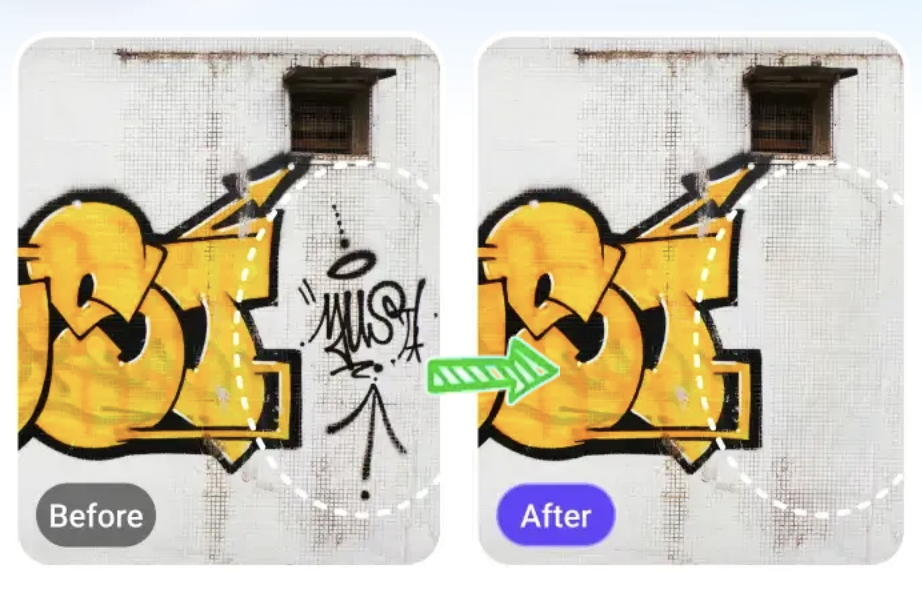
PicMa Object Remover is an AI-powered photo editing tool that helps users automatically identify and remove unwanted elements from images — without needing any advanced editing skills.
With just a few brush strokes, you can eliminate:
- Passersby, clutter, or wires in the background
- Handwritten notes, arrows, or doodles on screenshots
- Logos, watermarks, or text overlays
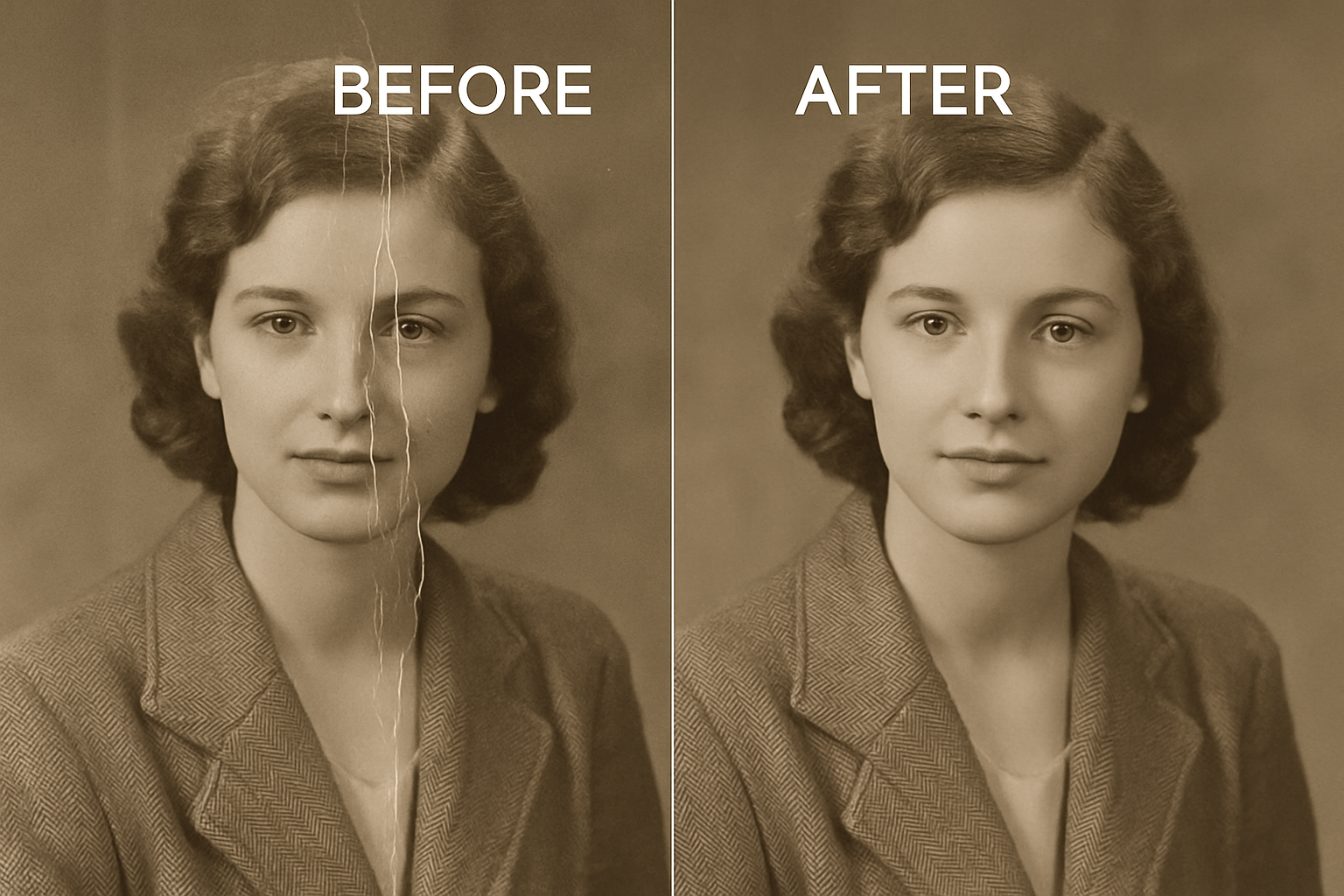
- Scratches, stains, or blemishes on old photos
Backed by advanced deep learning, PicMa doesn't just delete — it understands the surrounding environment and reconstructs the missing area with natural textures, light, and shadows.
PicMa vs Traditional Editing Tools
Many users still rely on tools like Photoshop or Lightroom to manually clone out or mask unwanted objects. But this usually requires technical knowledge of layers, patch tools, and masking — not to mention a lot of patience.
| Feature | Traditional Tools | PicMa Object Remover |
|---|
| Skill Required | High – needs design expertise | Low – beginner friendly |
| Speed | Slow and manual | Fast, automated |
| Learning Curve | Steep | Minimal |
| Result Quality | Depends on user skill | AI ensures smooth and natural results |
How to Use PicMa Object Remover
You don’t need to download any software or have design experience. Just follow these simple steps:
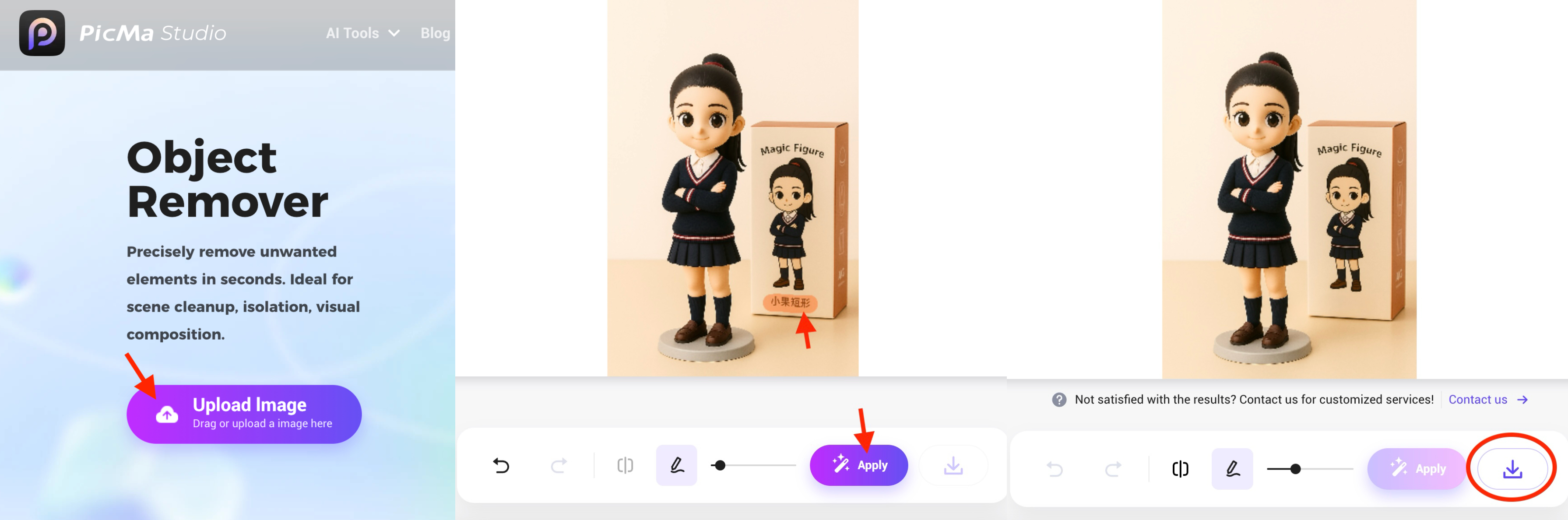
- Go to the PicMa Object Remover page
- Upload your photo
- Use the brush tool to highlight the area you want to remove
- Click “Start Processing” and wait a few seconds
- Preview and download the cleaned-up image (in high resolution, watermark-free!)
You’ll be amazed by how quickly your photo becomes distraction-free — often in under 5 seconds.
Common Use Cases
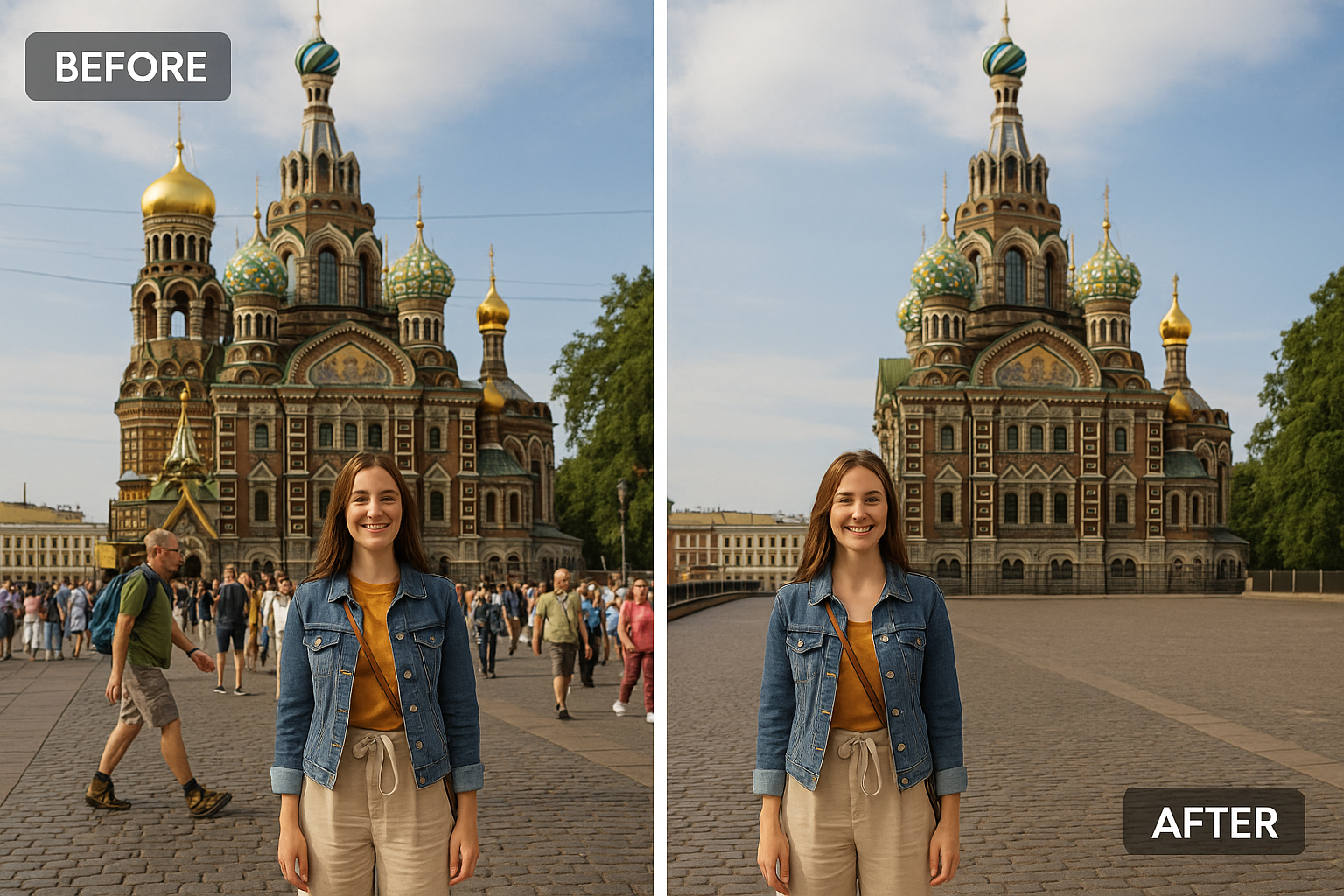
1. Travel Photography
Remove random tourists, trash cans, wires, or signs to keep the focus on the scenery and subject.
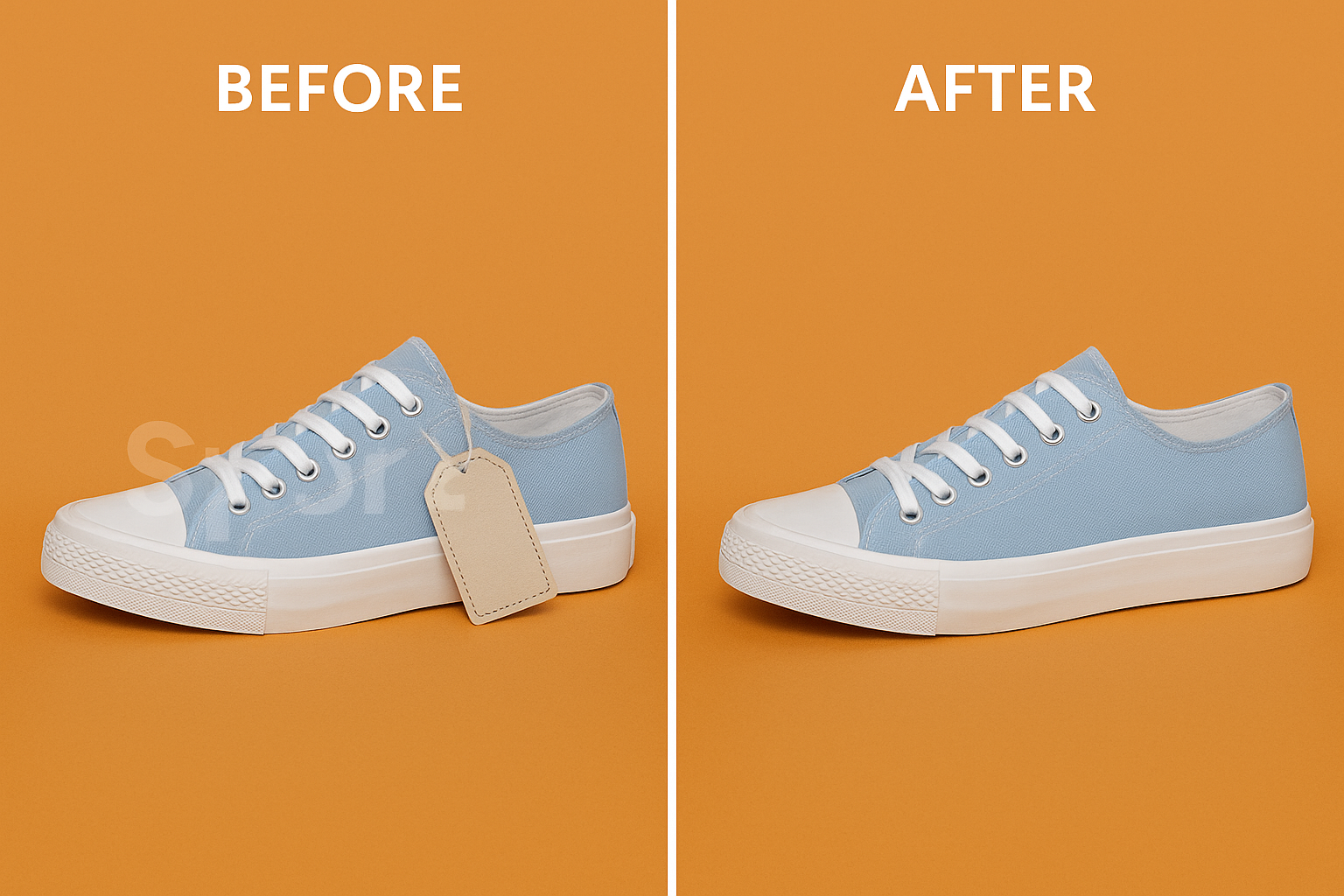
2. Product Image Cleanup
Quickly erase logos, watermarks, or background clutter from supplier or sample images to make them platform-ready.
3. Screenshot Polishing
Perfect for creators, teachers, or marketers — clean up annotations, arrows, or scribbles from screenshots before sharing or presenting.

4. Old Photo Restoration
Combine Object Remover with PicMa’s other tools like photo repair and colorization to restore vintage photos by eliminating scratches and visual defects.
Why PicMa Studio?
- No design skills required
- AI-powered object detection and fill
- Natural, patch-free results
- Fast processing speed
- Works directly online — no installation needed
- Supports high-resolution output
Whether you’re a content creator, online seller, social media user, or just someone who wants cleaner photos — PicMa helps you get there faster and better.
Try PicMa Object Remover Now
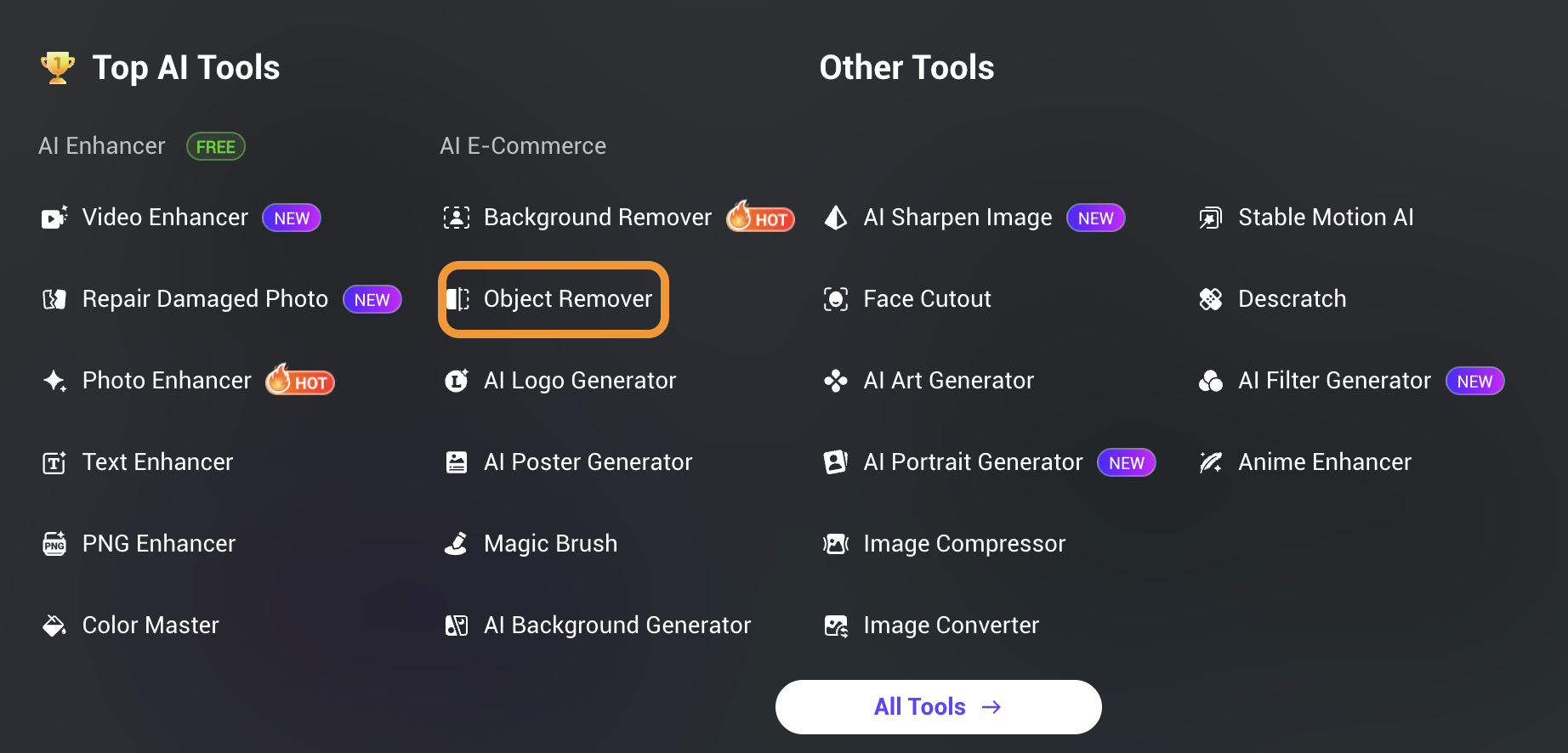
From cleaning up your travel memories to enhancing product images or restoring old photos, PicMa Object Remover gives you the power of advanced photo editing in a beginner-friendly format.
👉 Click here to try PicMa Object Remover — and let your photos speak without distractions.


Related Readings:

 197
197

 English