You stand at a scenic viewpoint, admiring a breathtaking mountain range or a vibrant city skyline stretching into the horizon. You snap a photo to capture the moment, only to realize later that the distant peaks look hazy, building edges appear soft, and night lights blur into a muddy smear.
This is one of the most frustrating experiences in travel photography. Atmospheric haze, distance, low-light camera shake, and limited sensor resolution often prevent your camera from capturing what your eyes actually saw. Even a photo with perfect composition can end up looking washed out and loss of detail.
Fixing these photos traditionally required spending hours tweaking complex settings like clarity, sharpness, and luminance masks in Lightroom or Photoshop.
Fortunately, modern AI photo enhancers offer a faster, smarter alternative. Instead of manually pushing contrast sliders, AI can analyze complex textures—like mountain ridges, tree foliage, and architectural lines—and automatically restore visual clarity.
Here is how you can transform your blurry travel and landscape photos into sharp, vibrant memories using tools like PicMa Studio Photo Enhancer.
Why Do Landscape and Travel Photos Look Blurry?
Understanding why your travel photos end up soft or blurry helps you choose the right approach to restore them:
- Atmospheric Haze & Optical Distance: Dust, humidity, and pollution in the air scatter light over long distances. This causes distant mountains and horizons to lose color saturation and edge sharpness.
- Low Light & Shutter Blur: Photographing night skylines or historic streetscapes requires longer exposure times. Without a tripod, natural hand tremors lead to micro-shutter blur and lost fine detail.
- Cropping & Digital Zoom Limitations: Cropping into a photo after shooting or using digital phone zoom spreads out pixel density, making distant architectural details and landscapes look pixelated and dull.
- Sensor & Lens Constraints: Older smartphones or budget cameras often lack the dynamic range and sharpness needed to capture intricate scenes like dense forest foliage or subtle cloud textures.
An intelligent AI image enhancer addresses these root causes by separating atmospheric noise from true structural edges, making faint textures visible again without introducing harsh digital artifacts.

How to Enhance Travel Photos with AI Using PicMa Studio
Restoring a blurry landscape doesn't require advanced editing skills. With PicMa Studio Photo Enhancer, you can sharpen and refine your travel shots in four simple steps:
Step 1. Choose Your Travel Photo
Select a landscape or travel photo that needs improvement.
It could be a distant mountain view, a city skyline, a historic building, or a night photograph with limited detail.
For better results, choose an image where the main scenery is still recognizable, even if some details look blurry.
Step 2. Open PicMa Studio Photo Enhancer
Visit PicMa Studio Photo Enhancer to access the tool.
Click the upload area or select an image from your device. PicMa Studio supports JPG, JPEG, PNG, BMP, and WEBP formats.

Step 3. Enhance Your Photo
Once your image is uploaded, click Enhance to start processing.
PicMa Studio helps improve image clarity and visual details, making it easier to bring out the textures and definition in your travel photos.
This is especially useful for scenery that looks slightly soft, distant architecture, and images that could benefit from improved sharpness.
Step 4. Preview and Save the Result
Once processing is complete, review your enhanced photo.
Compare it with the original to see whether the scenery looks clearer and whether important details are more distinguishable.
If you're happy with the result, save your enhanced image and keep it alongside the original.

Restoring Different Types of Travel Photography
Different outdoor lighting conditions and environments present unique quality challenges. Here is how AI enhancement helps across various travel scenarios:
1. Mountain Ranges & Distant Landscapes
- The Problem: Distance creates an atmospheric veil, turning deep green valleys and rugged mountain peaks into flat, grayish silhouettes.
- The AI Fix: AI identifies natural contours and boosts local contrast, restoring deep depth, sharp rock textures, and crisp horizon boundaries.
2. City Skylines & Architectural Details
- The Problem: When capturing historic buildings or skyscrapers from far away, fine features like window frames, brickwork, and rooftop spires blend together.
- The AI Fix: Line-detection technology sharpens geometric edges, giving architectural structures crisp definition without creating artificial halos.
3. Night Photography & Low-Light Urban Scenes
- The Problem: Shooting in dim lighting introduces digital grain (noise) and motion blur from handheld shooting.
- The AI Fix: AI noise-reduction cleans up grainy skies while preserving sharp highlights from neon signs, street lamps, and illuminated buildings.
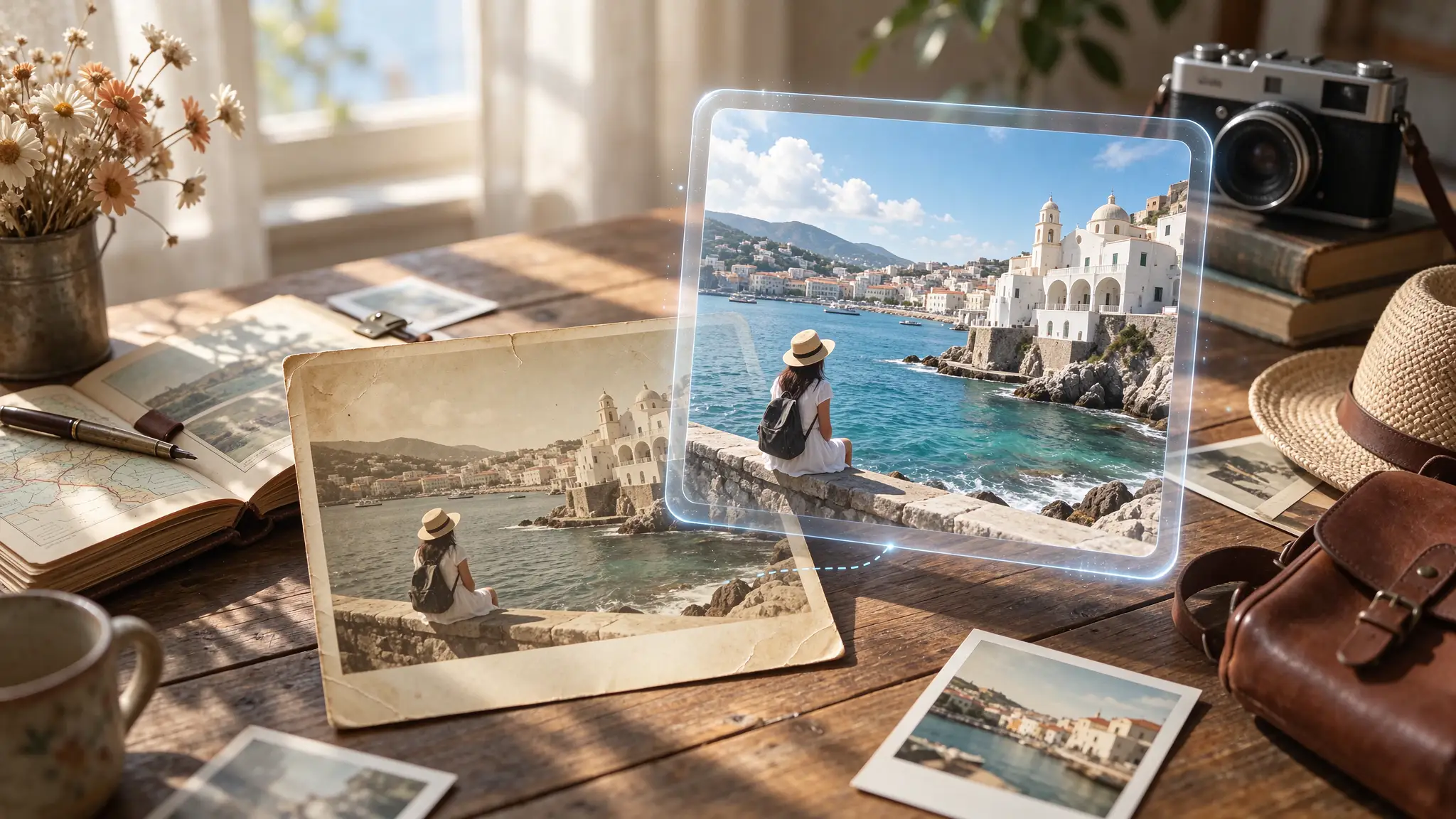
4. Older Phone Photos & Vintage Travel Shots
- The Problem: Photos taken on older smartphone models often suffer from low resolution and over-compression when viewed on modern displays.
- The AI Fix: AI upscaling increases pixel clarity and rebuilds missing edge data, breathing fresh life into older, lower-resolution memories.

Bring Your Favorite Travel Memories Back into Focus
A unforgettable journey deserves clear, crisp photos that do justice to what you experienced. You don't have to let atmospheric haze, low light, or lens limitations ruin your prized travel shots.
By combining smart shooting habits with tools like PicMa Studio Photo Enhancer, you can easily clear up blurry landscapes, restore hidden details in urban architecture, and ensure every travel memory stays sharp for years to come.

Related Readings:

 2

 English