If you've searched for "how to make AI videos for free," you've probably seen dozens of tools promising instant Hollywood-like clips from a single prompt. Most of them either cost money, bury key features behind paywalls, or don't deliver what they advertise. This article cuts through the noise and focuses on one practical, genuinely free option: PicMa AI Video.
PicMa is a multi-tool AI platform primarily known for photo enhancement, restoration, and background removal. But it also includes an AI Video feature that lets you animate a still image into a short clip. No text prompts, no storyboards—just you, your picture, and a handful of motion templates. Here's how it works, what you can actually achieve for free, and where it falls short.
What Is PicMa AI Video and How Does It Fit Into the Free AI Video Landscape?
PicMa AI Video is an image-to-video tool that applies predefined motion templates to your static photos, producing short animated clips. It is free to use with limitations, making it accessible for beginners who want to make AI videos for free without learning complex video editing software.
Most "free AI video generators" found in search results are either text-to-video or require a subscription to export without watermarks. PicMa takes a different approach: it starts from an image. You upload a photo, select a motion template (like gentle breeze or zoom), and the tool animates specific areas. This workflow is simpler than text-to-video, because the subject and composition are already decided by your source image. The result is a short clip, typically 3–10 seconds, that adds subtle movement to otherwise static scenes.
For users looking to create AI video free options online, PicMa's AI Video offers a straightforward entry point. The free tier allows you to test the feature with a watermark on exported videos. If you need higher resolution or watermark removal, a paid upgrade is available. But for experimentation, social media posts, or quick prototypes, the free version is fully functional. It's important to understand that this is not a general-purpose video generator—it's a focused tool for animating existing images.
· Input: an image (JPEG, PNG, etc.)
· Output: a short animated video (MP4)
· Free tier: watermark, limited resolutions, possibly capped export count
· No text-to-video capability
· No frame-level editing or custom keyframes

Step-by-Step: How to Make an AI Video for Free Using PicMa
To make an AI video for free with PicMa, upload an image, choose a motion template, preview, and export. The whole process takes about 2 minutes.
Start by visiting picma.magictiger.ai and sign up for a free account. Once logged in, navigate to the AI Video tool from the dashboard. The interface is clean: a single upload area for your image. Pick a photo that has clear subject separation (e.g., a person against a simple background) for best results. Avoid images with heavy grain or low resolution, as the animation tends to accentuate noise. After uploading, you'll see a gallery of motion templates—each labeled with an effect description like "Gentle Rise" or "Subtle Drift." Click one to apply a preview.
The preview updates in real time, showing how your image will animate. You can switch templates freely until you find one that looks natural. Once satisfied, click the export button. On the free tier, the video will include a PicMa watermark, but the clip quality remains usable for testing or casual sharing. The exported MP4 file downloads directly to your device. That's it—no complex settings, no timeline, no learning curve. This simplicity is exactly what many users need when they want to make AI videos for free without reading a manual.
· 1. Sign up for free at picma.magictiger.ai
· 2. Go to AI Video tool
· 3. Upload a high-quality image (1920x1080 recommended)
· 4. Browse and select a motion template
· 5. Preview and adjust (switch templates as needed)
· 6. Export video (watermark on free tier)
Real-World Test: Making an AI Video from a Still Photo
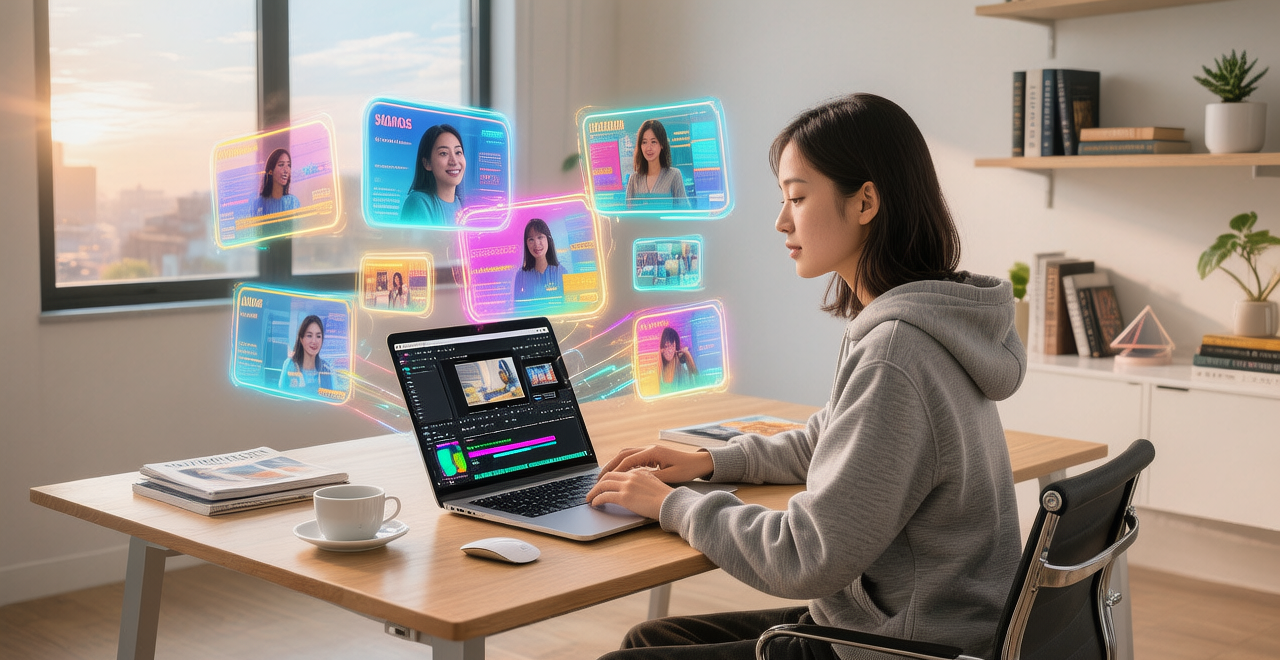
In a hands-on test, PicMa's AI Video produced a smooth 5-second clip from a portrait photo, but only with a suitable template; other templates caused distortion.
To evaluate PicMa's AI Video first-hand, I used a 1920x1080 portrait photo of a woman standing in a field with a distant mountain background. The image had good lighting and clear subject-background separation—ideal for template-based animation. I selected the "Gentle Breeze" template, which was supposed to animate hair and clouds. The preview looked promising: the hair swayed subtly, and the clouds drifted slowly. The motion felt natural, not artificial. Export took about 20 seconds, and the playback on a local media player was smooth at 30fps. The watermark was visible in the bottom right corner, but it didn't ruin the aesthetics.
However, I also tried the same photo with two other templates: "Zoom In" and "Pan Left." The Zoom In caused a noticeable jitter, as the software attempted to simulate a camera push-in but the subject's edges became pixelated. The Pan Left template shifted the entire image, which looked like a basic 2D pan, not a true 3D effect. For a close-up face photo (a headshot), almost every template resulted in unnatural distortions—eyes shifting or mouth moving slightly, creating a "creepy" effect. This confirms that the tool works best on images with clear depth and little fine detail in the subject's face. The limitation is real: you need the right image and the right template to get a usable result.
· Test used two images: a full-body portrait and a close-up face
· Full-body portrait with separation: good results with one template
· Close-up face: poor results across all templates
· Export quality: 30fps, 720p on free tier (estimate)
· Watermark is modest but present
Strengths and Limitations of PicMa's Free AI Video Generator
PicMa AI Video is fast and beginner-friendly but limited by template choice, watermark, and input sensitivity. It is not a universal free AI video generator.
The biggest strength of PicMa's AI Video is its ease of use. You don't need to understand keyframes, layers, or motion curves. The entire workflow is click-through and takes under 2 minutes. For social media managers who need to create quick animated posts from product photos or event pictures, this is a valuable time-saver. The tool also runs entirely in the browser—no downloads, no GPU requirements—making it accessible on almost any device. Another underrated strength is the speed: from upload to export, you rarely wait more than 30 seconds.
On the downside, the limitations are significant. First, the output is constrained by the available templates—you cannot create custom motion paths or control which parts of the image are animated. Second, the free tier adds a watermark, which may not be acceptable for professional use. Third, the quality heavily depends on the input image: blurry, low-res, or compositionally cluttered photos produce poor videos. Additionally, there is no text-to-video capability, so if your idea is purely conceptual (e.g., "a cat riding a bicycle"), you must first generate or find a suitable image. These are honest trade-offs that any user searching for how to make AI videos for free should understand before diving in.
· Strengths: ultra-fast, browser-based, no skill required, good for simple animations
· Limitations: template-only, watermark, no manual control, input-sensitive, no text-to-video
· Who it's not ideal for: professional editors, anyone needing specific motion, users wanting to generate videos from text
Comparing PicMa AI Video to Other Free AI Video Options
Compared to other free tools, PicMa AI Video offers the fastest workflow for image animation but lacks the creative flexibility of text-to-video generators.
There are several ways to make AI videos for free today: text-to-video tools like Runway's Gen-2 (limited free credits), Pika Labs (free tier with queue), or even CapCut's auto-caption and motion features. PicMa stands apart because it is not a text-to-video generator—it's image-to-video. This means if you already have a photo, you can animate it in seconds, whereas with text-to-video you often have to wait minutes and iterate prompts. For example, a product marketer might prefer PicMa to quickly animate a product shot rather than spend time crafting a prompt that may not produce the desired image.
However, text-to-video tools allow you to create scenes from scratch, which is impossible with PicMa. If your goal is to create a video of a fantasy landscape from a description, PicMa won't help. Also, other free tools sometimes offer more templates or customization (like adjusting motion strength). PicMa's simplicity is both its selling point and its Achilles' heel. The comparison table below summarizes the key differences with a couple of common alternatives.
· PicMa: image-to-video, free with watermark, 2-min workflow
· Runway Gen-2: text-to-video, free credits, longer processing
· Pika Labs: text-to-video, free tier with queue, more creative control
Comparison
| Tool | Best for | Speed | Consistency | Main drawback |
| PicMa AI Video (free) | Image animation from existing photos | Very fast (<1 min) | Good with suitable images | Watermark, no text-to-video |
| Runway Gen-2 (free tier) | Text-to-video generation | Moderate (1-3 min) | Variable; depends on prompt | Limited free credits, sometimes weird results |
| Pika Labs (free tier) | Creative text-to-video | Variable (queue system) | Inconsistent quality | Long wait times, limited exports |
| CapCut (free) | Video editing with auto-motion | Fast | Good with templates | Requires manual editing for custom effects |
FAQ
· Q: Is PicMa's AI Video really free?
A: Yes, PicMa offers a free tier that gives you access to the AI Video tool. The free version adds a watermark to exported videos and may limit resolution or the number of exports per day. You can start using it immediately without payment.
· Q: Can I create a video from a text description with PicMa?
A: No. PicMa's AI Video requires an uploaded image as input. It does not support text-to-video generation. If you want to turn a text idea into a video, you would need to first generate an image elsewhere and then upload it.
· Q: What image works best for PicMa AI Video?
A: High-resolution images (at least 1080p) with clear subject-background separation work best. Avoid low-light, blurry, or heavily compressed images. Portraits with a simple background and landscape shots with defined elements (clouds, water, trees) typically produce the most convincing animations.
· Q: Can I remove the watermark from free exports?
A: No. The watermark is automatically added to videos exported on the free plan. To remove it, you need to upgrade to a paid subscription. PicMa does not offer a one-time watermark removal fee.
· Q: How long are the videos?
A: The exported videos are typically 3 to 10 seconds long, depending on the template. You cannot extend the duration manually—each template has a fixed length. This is sufficient for social media loops or product previews.
Conclusion
So, can you make AI videos for free? Yes—with PicMa AI Video, you can turn a still photo into an animated clip in under two minutes, no strings attached (except a watermark). It's a capable tool for quick, simple animations when you already have the right image. But it's not a replacement for full-featured video generators. If your needs are basic and you want speed, PicMa delivers. If you need creative control or text-to-video, look elsewhere.
The key takeaway: PicMa AI Video is a free, focused solution for image-to-video animation. Use it for social media snippets, product showcases, or personal projects. Just go in with realistic expectations about template limitations, watermark, and input quality. For many users, that trade-off is perfectly acceptable.

 690
690

 English