Whether you're designing a profile image, making a scrapbook, editing a school photo, or creating visual content, there's one task that comes up more often than you'd think: cutting out a face cleanly from a photo.
It sounds simple—just remove the background and leave the face—but in practice, it's where many people get stuck.
Maybe you've tried manually tracing in Photoshop, zooming in to erase pixel by pixel, only to end up with jagged edges. Or you've tried an “auto remove background” tool, only to lose an ear or part of the chin in the process—and sometimes you’re even asked to pay just to download the result.
In complex photos with messy hair, shadows, multiple people, or children with soft outlines, most tools just fall short.
That’s why you don’t need a full-featured AI face swapper or a selfie beautification app. You need a dedicated, accurate, and free face cutout tool. And that’s exactly what the Face Cutout tool from PicMa is designed to be

Why Face Cutout Isn't as Easy as It Sounds
A human face seems like a clear object, but from a technical perspective, it’s a complex visual structure. Hair is semi-transparent, edges are fuzzy, ears often blend into the background, and necklines aren't well-defined.
On top of that, backgrounds are rarely clean—curtains, shadows, furniture, even other people make automatic segmentation unreliable. For children’s faces or side profiles, most general-purpose tools tend to misjudge or break the silhouette.

This is exactly why we recommend not using generic “remove background” tools if you're working with faces. Instead, use a tool specifically designed to detect and extract facial regions—like PicMa's Face Cutout
What Is PicMa Face Cutout, and What Does It Actually Solve?
PicMa Face Cutout is a browser-based tool built specifically to extract clean, high-quality face layers from photos.
It doesn’t offer filters, doesn't swap faces, and doesn’t beautify selfies. It does one thing well:
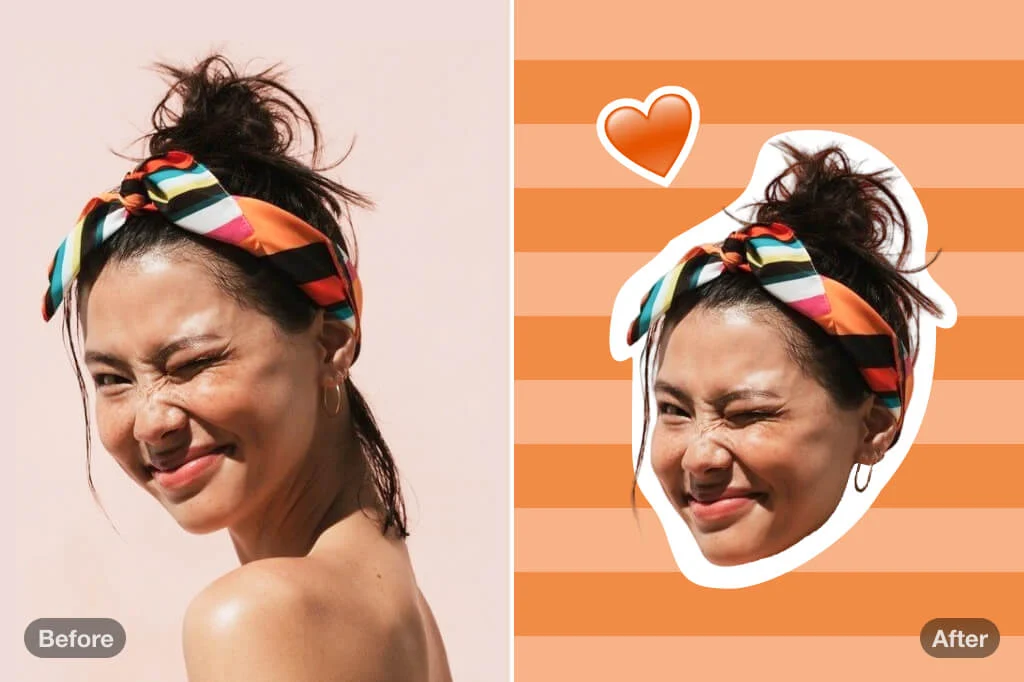
accurately detect the face region in your photo, remove the background, and preserve natural details as a transparent PNG.
You upload a photo. In seconds, you download a face-only PNG with a transparent background—no manual cropping, no app install, no fine-tuning needed.
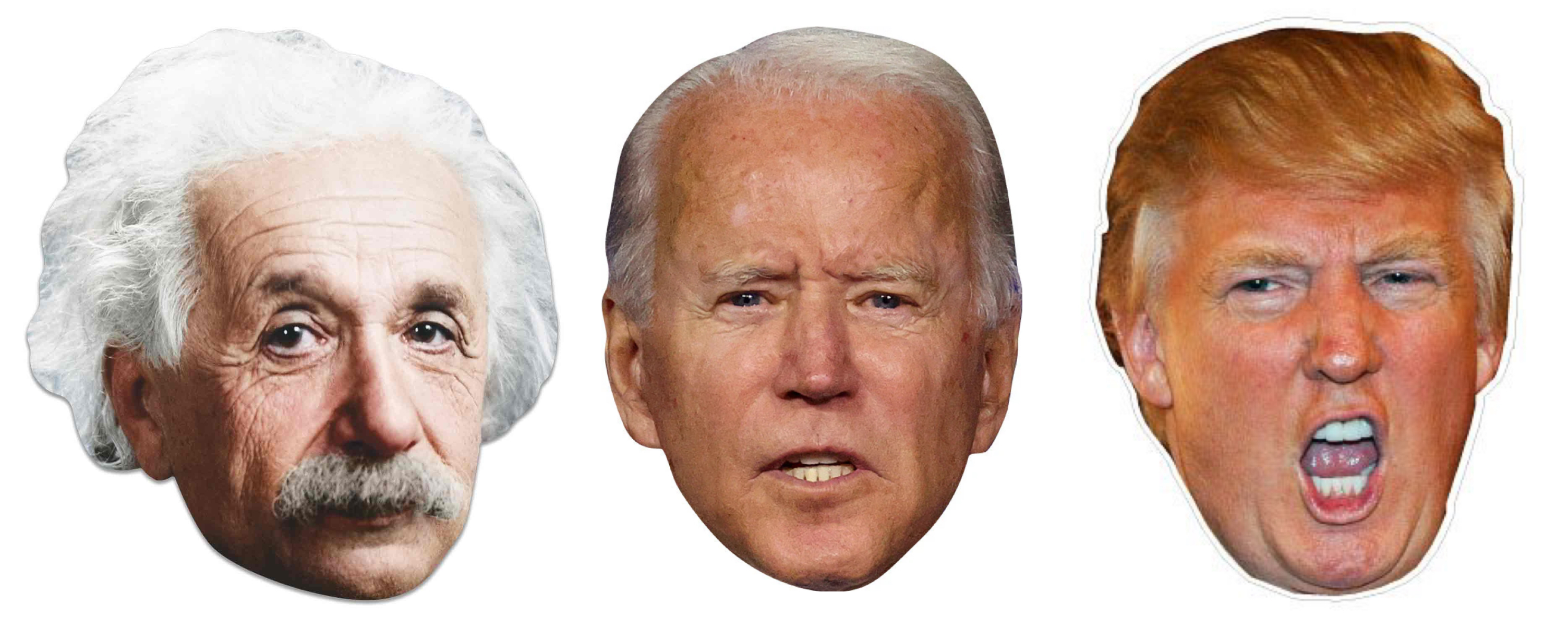
Here’s what makes it useful:
· It identifies the correct facial region—even in group photos
· It keeps details like jawlines, hair edges, ears, and neck contours
· It works with children, side angles, and non-standard lighting
· It outputs high-resolution PNG files with transparent backgrounds, ready for design
Whether you're editing a personal profile, restoring a photo, or preparing assets for design work, this tool gives you a solid first step.
How to Use PicMa Face Cutout
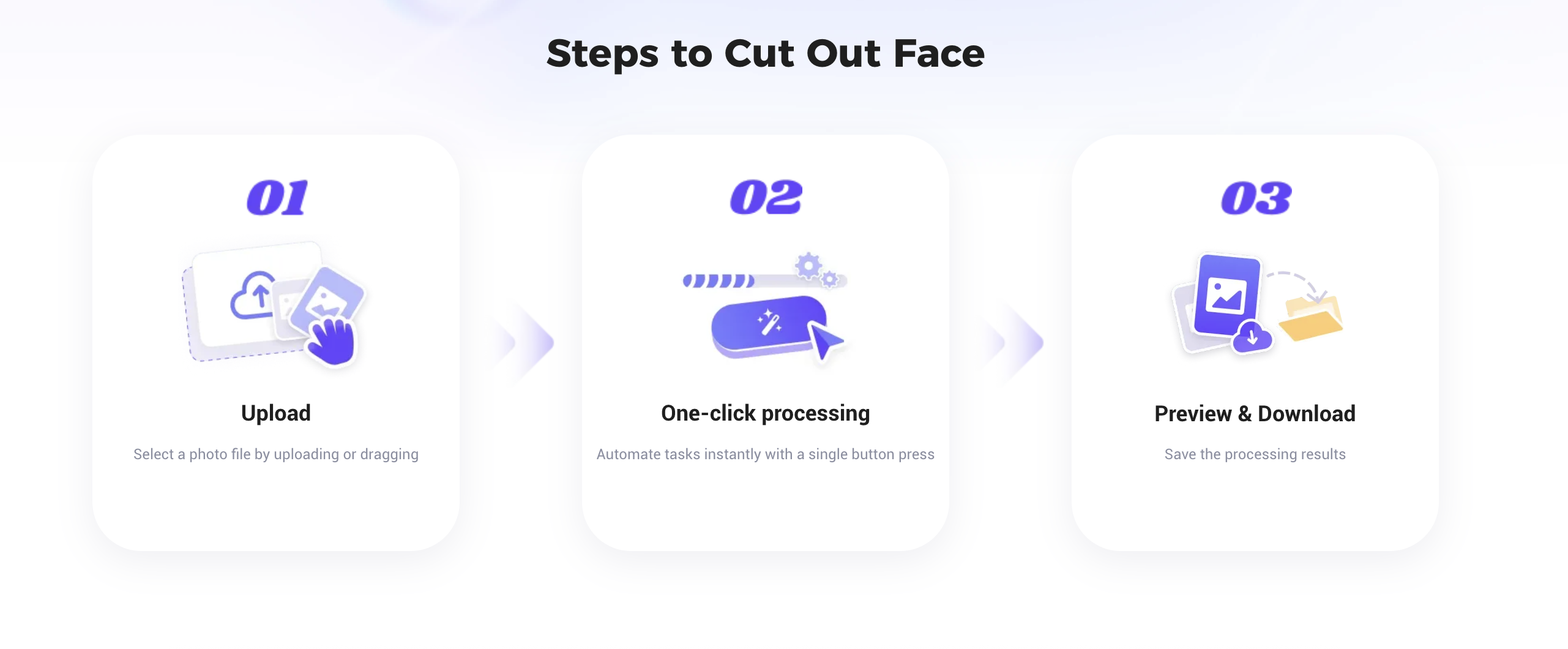
Anyone can use it—no editing experience needed. Here’s how:
1. Go to PicMa Face Cutout
2. Upload a photo with a visible human face
3. Wait a few seconds and download the result as a PNG with a transparent background
Real Use Cases Where Face Cutout Makes a Difference
PicMa Face Cutout isn't just for fun. People use it across a wide range of creative and professional tasks:
· Child photo albums: Replace growing-up portraits into a unified background or theme
· Graduation photo retouching: Swap in a better version of a face in a class photo
· Team member profiles: Cut and format headshots for use on websites and org charts
· YouTube or video thumbnails: Overlay face cutouts in banners or dynamic compositions
· AI avatar training: Use clear head layers as input for model generation or stylization

For designers, teachers, marketers, or anyone working with people-centric visuals, a clean face cutout is an essential component.
A Reliable First Step in Any Creative Workflow
Face cutout may seem like a small task, but it’s often the foundation of many larger design workflows.
If this step is messy, everything that follows becomes harder.
PicMa’s Face Cutout Tool offers a precise, fast, and completely free solution for this need. It’s ideal for:
· Anyone who wants to avoid manual cropping
· People looking for clean visual assets
· Creators who want to focus on composition—not cleanup
Try it now: PicMa Face Cutout
One clean face layer can make the rest of your creative process faster, easier, and more professional.
Related Readings:

 356
356

 English