Have you ever wondered what Santa Claus looks like when he secretly visits your home on Christmas Eve?
Every Christmas, children around the world wait excitedly for Santa to arrive, leave presents under the Christmas tree, and enjoy the cookies and milk prepared for him.
But what if you could actually capture Santa in your living room?
With AI image generation, you can turn an ordinary photo of your home into a magical Christmas moment. Imagine Santa standing beside your Christmas tree, quietly placing presents under it, or even waving at the camera!
In this guide, we'll show you how to create your own realistic "Santa in My House" photo using PicMa Studio, along with ready-to-use AI prompts to help you get started.
1. What Is the "Catch Santa in My House" Trend?
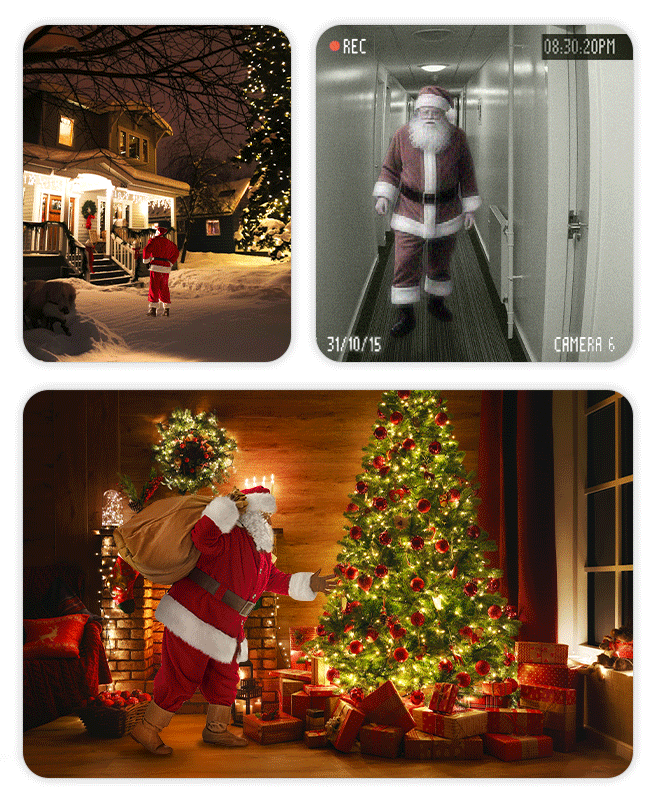
"Catch Santa in My House" is a fun Christmas photo trend that makes it look like Santa Claus has secretly visited your home.
Instead of waiting until Christmas morning to discover presents under the tree, you can use AI to create a photo showing Santa actually being there.
Here are some fun scenes you can create:
- Santa standing next to your Christmas tree.
- Santa placing presents under the tree.
- Santa sneaking into your living room.
- Santa sitting on your sofa and enjoying some cookies.
- Santa waving goodbye before leaving your house.
The best part? You can use a real photo of your living room as a reference to make the final image feel more personal and believable.
2. How to Add Santa to Your House Photo with PicMa Studio
With PicMa Studio's AI Image Generator, you can upload a photo of your home and use a text prompt to transform it into a festive Christmas scene.
Follow these simple steps:
Step 1: Open PicMa Studio
Visit PicMa Studio and open the AI Image Generator. https://picma.magictiger.ai/picma_web/enhance/image_to_image
Choose the Image-to-Image creation option to start editing with a reference photo.
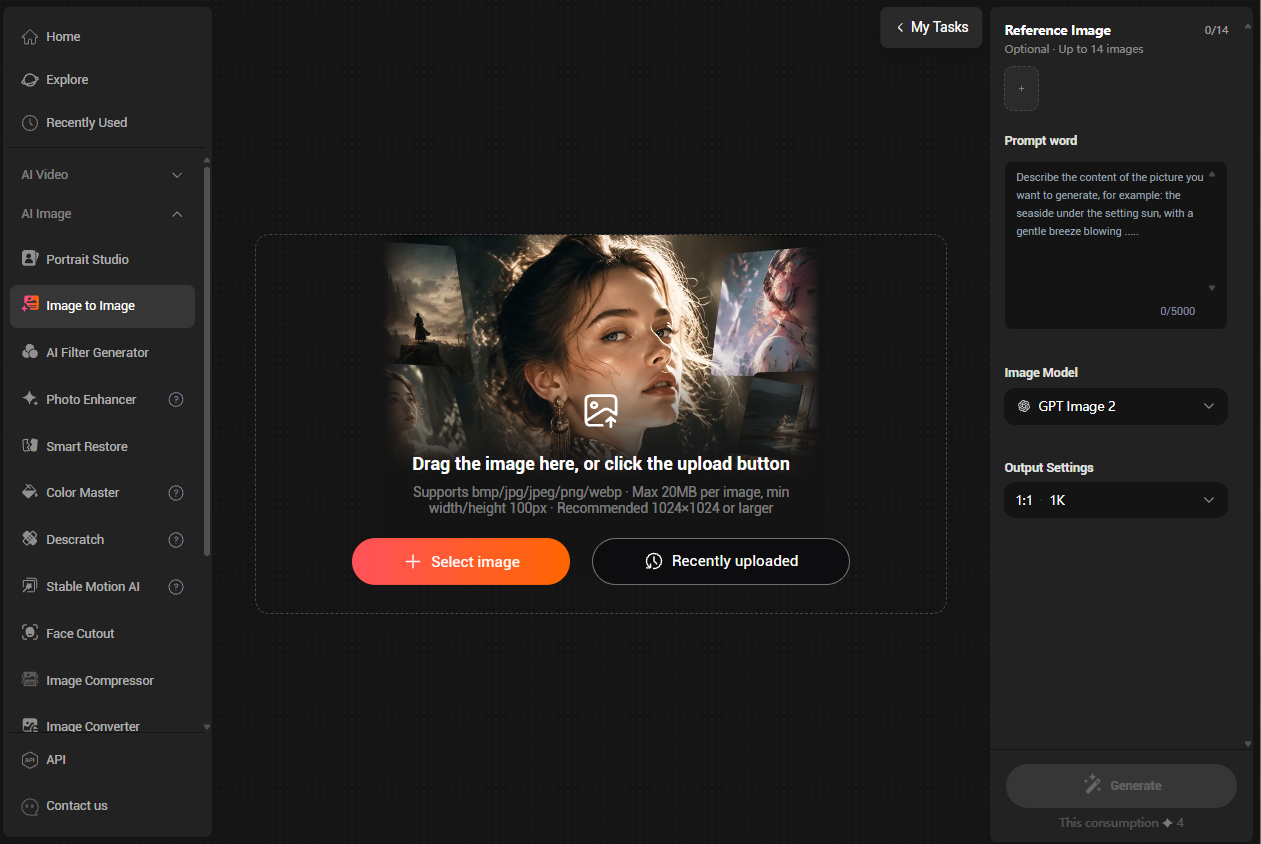
Step 2: Upload a Photo of Your Home
Choose a clear photo of your living room, bedroom, or any space where you want Santa to appear.
For the most realistic results, try to use a photo that shows your Christmas tree, decorations, furniture, and surrounding environment.
Step 3: Enter Your AI Prompt
Describe how you want Santa to appear in your home.
For example:
"Add a realistic Santa Claus wearing a classic red velvet suit and white beard, standing naturally beside the Christmas tree. He is holding a sack full of presents. Preserve the original room layout, furniture, decorations, camera angle, and lighting. Make the scene look like a real photograph captured on Christmas Eve."
Choose your preferred AI image model and generation settings, then generate your image.
Step 4: Review and Save Your Christmas Photo
Preview the generated image and see how naturally Santa fits into your home.
If you want a different pose or composition, adjust your prompt and generate another version.
Once you're happy with the result, download your Christmas photo and share your magical Santa moment with family and friends!
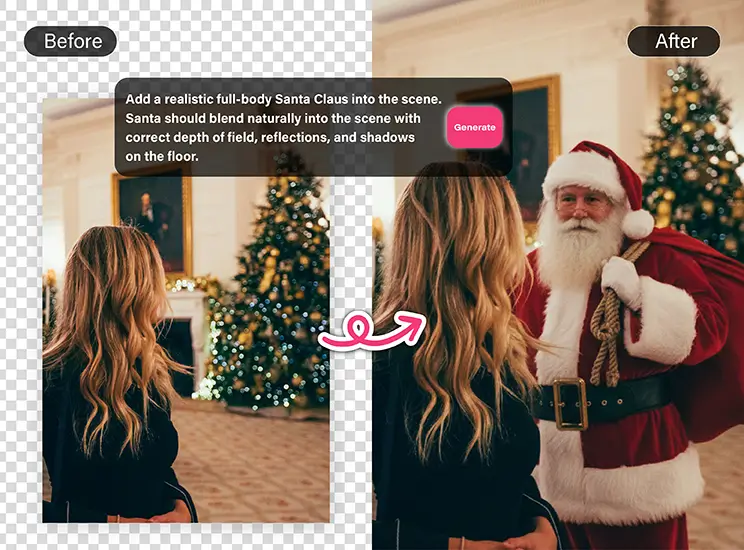
3. 5 Best AI Prompts to Catch Santa in Your House
Want to create something more creative than a simple photo of Santa standing beside a Christmas tree?
Try these five prompts with PicMa Studio!
Prompt 1: Santa Leaving Christmas Presents
Create a realistic Christmas Eve scene featuring Santa Claus kneeling beside a beautifully decorated Christmas tree, carefully placing colorful wrapped presents underneath it. He wears a traditional red velvet Santa suit with white fur trim and a black belt. Warm golden Christmas lights illuminate the room. Preserve the original room layout and furniture. Photorealistic, natural lighting, candid photography.
Prompt 2: Santa Sneaking into the Living Room
Add a realistic Santa Claus quietly sneaking into the living room through the front door, carrying a large red sack full of Christmas gifts. He looks around cautiously with a playful expression, as if trying not to wake anyone up. Keep the original interior design, furniture, and perspective unchanged. Cinematic Christmas Eve atmosphere, realistic shadows, photorealistic details.
Prompt 3: Santa Enjoying Cookies and Milk
Add Santa Claus sitting comfortably on the living room sofa, enjoying cookies and a glass of milk left for him on the coffee table. His red suit looks slightly relaxed, and he smiles warmly at the camera. Preserve the original room and furniture. Warm fireplace lighting, cozy Christmas atmosphere, realistic photography.
Prompt 4: Santa Waving at the Camera
Create a realistic scene of Santa Claus standing beside the Christmas tree, smiling and waving directly at the camera as if he has just been caught visiting the house. His classic red suit, fluffy white beard, and friendly expression should look natural and detailed. Maintain the original room composition and lighting. Photorealistic, candid snapshot.
Prompt 5: Santa Climbing Down the Chimney
Add a realistic Santa Claus climbing down the fireplace chimney into the living room, carrying a large sack of presents. Capture a funny but believable Christmas Eve moment. Keep the original interior design and decorations consistent. Natural shadows, realistic proportions, detailed textures, cinematic photography.
Pro Tip: For more consistent results, use a clear reference photo and describe Santa's position, clothing, pose, lighting, and interaction with the environment. You can also regenerate the image with slightly adjusted prompts to explore different Christmas scenes.
4. Turn Your Santa Photo into an AI Christmas Video
Why stop at a photo when you can make Santa come to life?
After creating your Santa image, you can use PicMa Studio's Image-to-Video feature to transform your still image into a short animated Christmas video.
Imagine Santa waving at the camera, placing presents under the tree, or quietly walking toward the fireplace!
Here's how:
Step 1: Open the Image-to-Video Tool
Go to PicMa Studio and select the Image-to-Video feature.
Step 2: Upload Your Santa Photo
Upload the Christmas image you generated in the previous steps.
Step 3: Describe the Motion
Enter a prompt describing how Santa should move.
Try these ideas:
- "Santa smiles warmly and waves at the camera before quietly walking away."
- "Santa gently places a Christmas present under the tree and looks around with a playful smile."
- "Santa picks up a cookie, takes a bite, and laughs happily."
Step 4: Generate Your Video
Choose the available video model and settings, then generate your video.
Once it's ready, save and share your Christmas creation on TikTok, Instagram, or with your family!
5. Tips for Making Your AI Santa Photo Look Real
Want your AI-generated Santa photo to look like genuine Christmas Eve evidence? Keep these tips in mind:
1. Start with a Real Photo of Your Home
Using your own living room or bedroom makes the final image feel much more personal and believable.
2. Pay Attention to Lighting
Describe the existing lighting in your photo. For example, if your room is illuminated by warm Christmas lights, ask AI to match Santa's lighting and shadows to the environment.
3. Be Specific About Santa's Position
Instead of simply saying "Add Santa to my house," describe exactly where he should appear, such as beside the Christmas tree, near the fireplace, or next to the sofa.
4. Keep the Original Background Consistent
If you want the result to look like a real photograph, ask AI to preserve the room layout, furniture, decorations, and camera perspective.
5. Try Different Santa Poses
Generate multiple versions to find the most convincing and entertaining Christmas moment.
6. Frequently Asked Questions
How can I make it look like Santa visited my house?
Take a photo of your living room or Christmas tree, upload it to an AI image generator such as PicMa Studio, and enter a prompt asking AI to add a realistic Santa Claus to the scene.
How do I add Santa Claus to a photo for free?
You can try AI image generation tools that offer free credits or trial access. PicMa Studio provides free starter credits for registered users, subject to its current usage terms.
What is the best AI prompt for adding Santa to a photo?
A good prompt should describe Santa's appearance, position, clothing, actions, lighting, and the environment. For example: "Add a realistic Santa Claus standing beside my Christmas tree, holding a sack of presents. Preserve the original room layout and match the existing lighting."
Can I make a video of Santa in my house?
Yes! You can use an AI Image-to-Video tool to animate a generated Santa photo. Describe simple movements such as waving, walking, or placing presents under the Christmas tree to create a fun Christmas video.
Can I use my own living room photo?
Yes. Using your own living room photo as a reference helps AI create a more personalized Christmas scene. Make sure your selected image is supported by the image generation tool.
Final Thoughts
Christmas is all about imagination, surprises, and making unforgettable memories.
Whether you want to surprise your children, create a funny Christmas prank, or simply join the viral "Catch Santa in My House" trend, AI makes it easier than ever to bring your ideas to life.
With PicMa Studio, you can turn an ordinary room photo into a magical Christmas scene and even transform it into a lively AI video.
Ready to catch Santa this Christmas?
Start creating your own magical Christmas photos with PicMa Studio today!


 1

 English