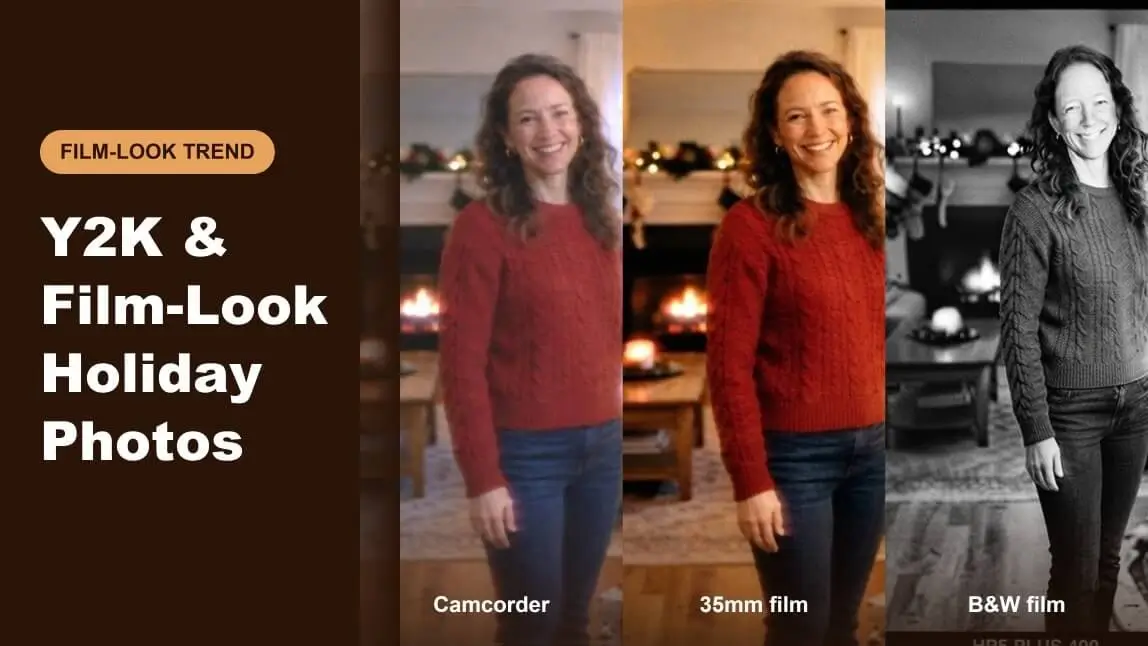
Want your Christmas photos to look like nostalgic snapshots from the 90s or early 2000s? Retro photography is making a comeback, bringing back the charm of film grain, vintage colors, camcorder footage, and instant prints.
From Y2K digital camera vibes to classic Polaroid aesthetics, here are 7 retro Christmas photo styles to try. You can also use PicMa Studio to turn your favorite photos into AI-generated vintage holiday portraits.

7 Retro Christmas Photo Styles to Try
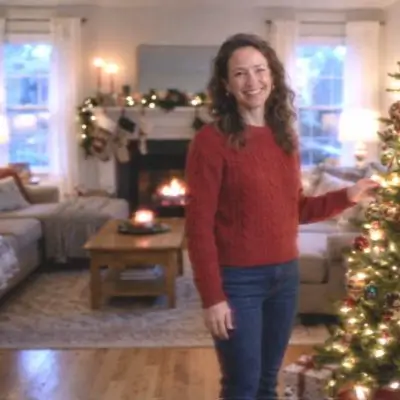
1. Y2K Camcorder Look
<AsyncImage query="Y2K early 2000s Christmas camcorder home video still warm living room orange timestamp nostalgic" aspectRatio="16:9" width="100%"/>
Recreate the early-2000s home video aesthetic with soft details, faded colors, subtle video noise, and digital timestamps. Perfect for candid family moments and decorating the Christmas tree.
AI Prompt:
Transform the reference photo into an early-2000s Christmas camcorder still. Add faded colors, subtle analog noise, soft highlights, and a small orange digital timestamp. Preserve recognizable faces and the original composition.
2. Warm 35mm Film Look
<AsyncImage query="warm 35mm analog film Christmas portrait glowing Christmas tree nostalgic photography" aspectRatio="16:9" width="100%"/>
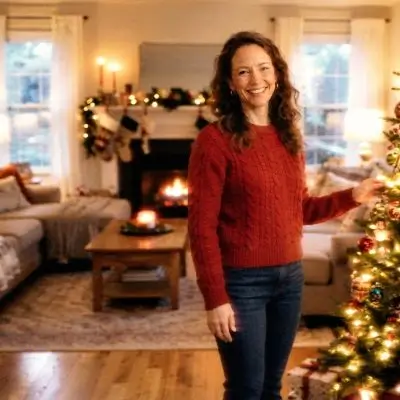
Warm tones, fine grain, and softly glowing Christmas lights make 35mm film a timeless choice for family portraits and Christmas cards.
AI Prompt:
Give the reference photo a warm 35mm film look with fine natural grain, golden highlights, faded shadows, and soft Christmas lights. Keep faces realistic and recognizable.
3. Disposable Camera Flash Look
<AsyncImage query="2000s disposable camera direct flash Christmas party candid snapshot aesthetic" aspectRatio="16:9" width="100%"/>
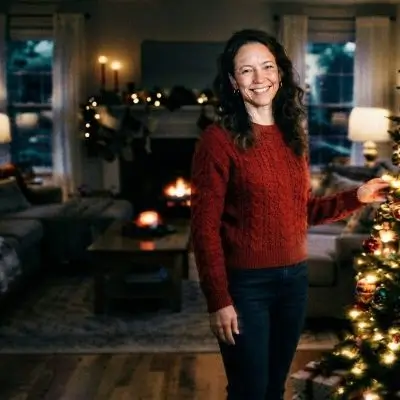
Direct flash, bright subjects, and slightly imperfect exposure recreate the spontaneous feeling of a Christmas party captured on a disposable camera.
AI Prompt:
Transform the reference photo into a candid 2000s disposable camera snapshot. Add direct flash, slightly dark background corners, subtle film grain, and natural vintage colors.
4. Polaroid Instant Print Look
<AsyncImage query="vintage Polaroid instant film Christmas portrait white frame holiday decorations" aspectRatio="16:9" width="100%"/>
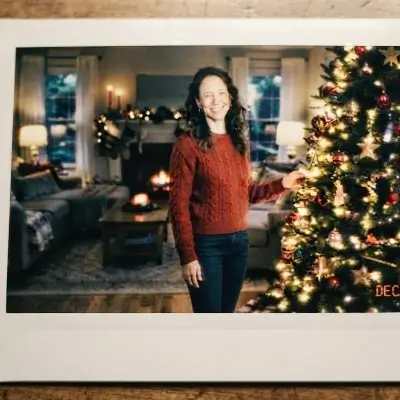
A classic white border, faded colors, and soft film texture give Christmas photos the nostalgic feel of instant prints. Great for scrapbooks and personalized holiday cards.
AI Prompt:
Turn the reference photo into a vintage Polaroid instant print with a classic white border, softly faded colors, warm tones, and subtle film texture. Keep the original subject recognizable.
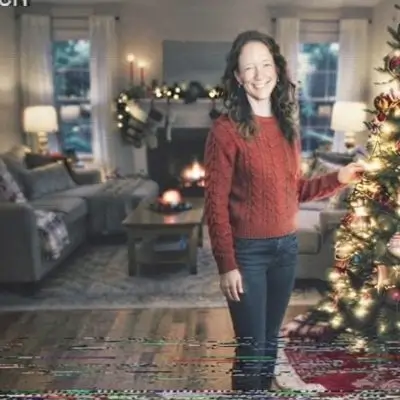
5. VHS Christmas Home Video Look
<AsyncImage query="1990s VHS Christmas home video still analog tracking lines nostalgic holiday scene" aspectRatio="16:9" width="100%"/>
Muted colors, analog noise, and subtle tracking lines bring back the look of Christmas home videos from the 90s.
AI Prompt:
Transform the reference photo into a 1990s VHS Christmas video still. Add subtle tracking lines, mild tape noise, washed-out colors, and a retro camcorder timestamp. Preserve recognizable faces.
6. Black and White Film Look
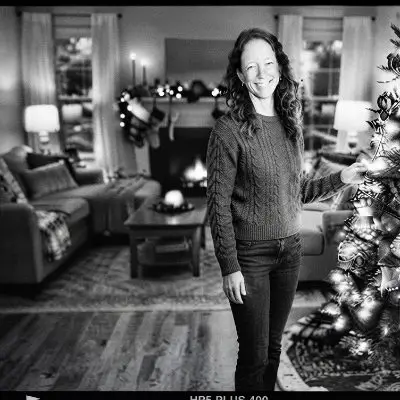
<AsyncImage query="black and white vintage Christmas family portrait glowing tree lights analog film grain" aspectRatio="16:9" width="100%"/>
Classic black and white photography highlights expressions, shadows, and Christmas lights. Choose this style for elegant and timeless holiday portraits.
AI Prompt:
Convert the reference photo into a classic black and white Christmas film photograph. Add fine analog grain, balanced contrast, rich shadows, and softly glowing Christmas lights.
7. 90s Point-and-Shoot Look
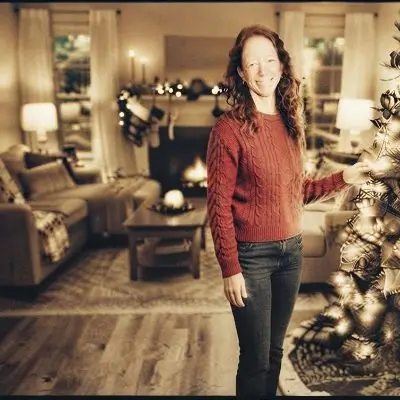
<AsyncImage query="1990s point and shoot camera vintage Christmas family snapshot warm faded photo print" aspectRatio="16:9" width="100%"/>
Slightly softened details, warm colors, and gentle vignetting recreate the casual charm of everyday 90s family snapshots.
AI Prompt:
Give the reference photo a 1990s point-and-shoot camera look. Add warm faded colors, subtle sepia tones, gentle vignetting, and fine film grain. Keep the image natural and recognizable.
How to Create Retro Christmas Photos with PicMa Studio
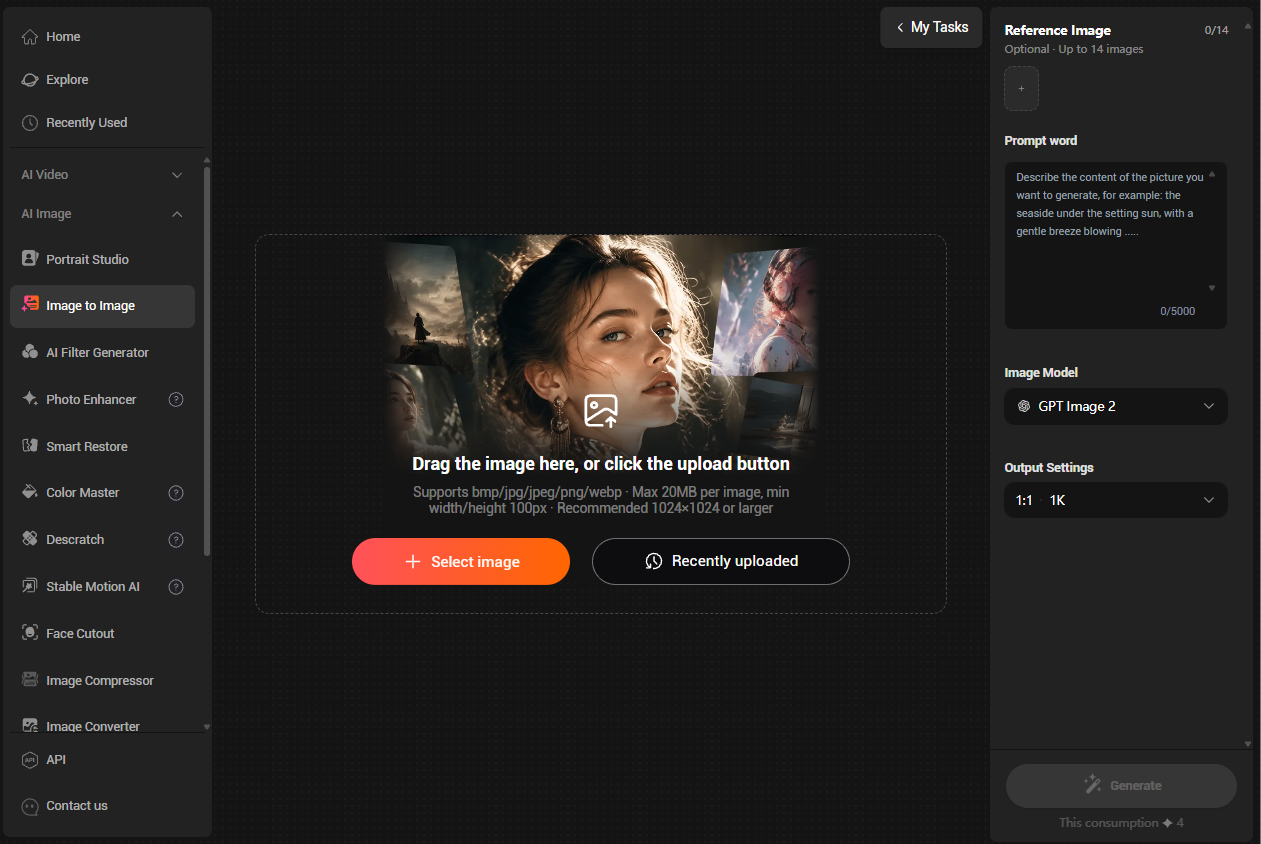
You don't need a vintage camera to create nostalgic holiday pictures. PicMa Studio lets you transform reference photos with AI image generation.
Step 1. Upload a Photo
Open PicMa Studio and select the Image-to-Image workflow. Upload a clear photo as your reference.
Step 2. Choose a Retro Style
Pick your favorite look, such as Y2K camcorder, 35mm film, Polaroid, or VHS.
Step 3. Enter Your Prompt
Copy one of the prompts above and adjust the colors, lighting, and film effects to match your preferred aesthetic.
Step 4. Generate Your Photo
Generate your image and try different styles until you find your favorite Christmas look.
3 Tips for Better Retro Christmas Photos
- Keep effects subtle: Too much grain or distortion can hide important details.
- Match the lighting: Warm golden lights work well with film photography, while direct flash suits disposable camera styles.
- Choose one aesthetic: Avoid mixing too many retro effects in one image.
Frequently Asked Questions
What is the Y2K Christmas photo aesthetic?
It's a nostalgic photography style inspired by early-2000s digital cameras and camcorders, often featuring faded colors, soft details, digital timestamps, and subtle noise.
How can I make my Christmas photos look vintage?
Use warm color grading, subtle film grain, faded highlights, and camera-inspired effects. AI image generation can also help recreate classic film and camcorder styles.
Can I create retro Christmas photos with PicMa Studio?
Yes. Upload a reference photo to PicMa Studio, enter a retro-style prompt, and generate a Christmas portrait inspired by vintage film photography.
Create Your Own Retro Christmas Memories
From Y2K camcorder snapshots to warm 35mm film portraits, retro styles bring a nostalgic touch to Christmas photos. Upload your favorite picture to PicMa Studio and give it a vintage holiday makeover.

 1

 English