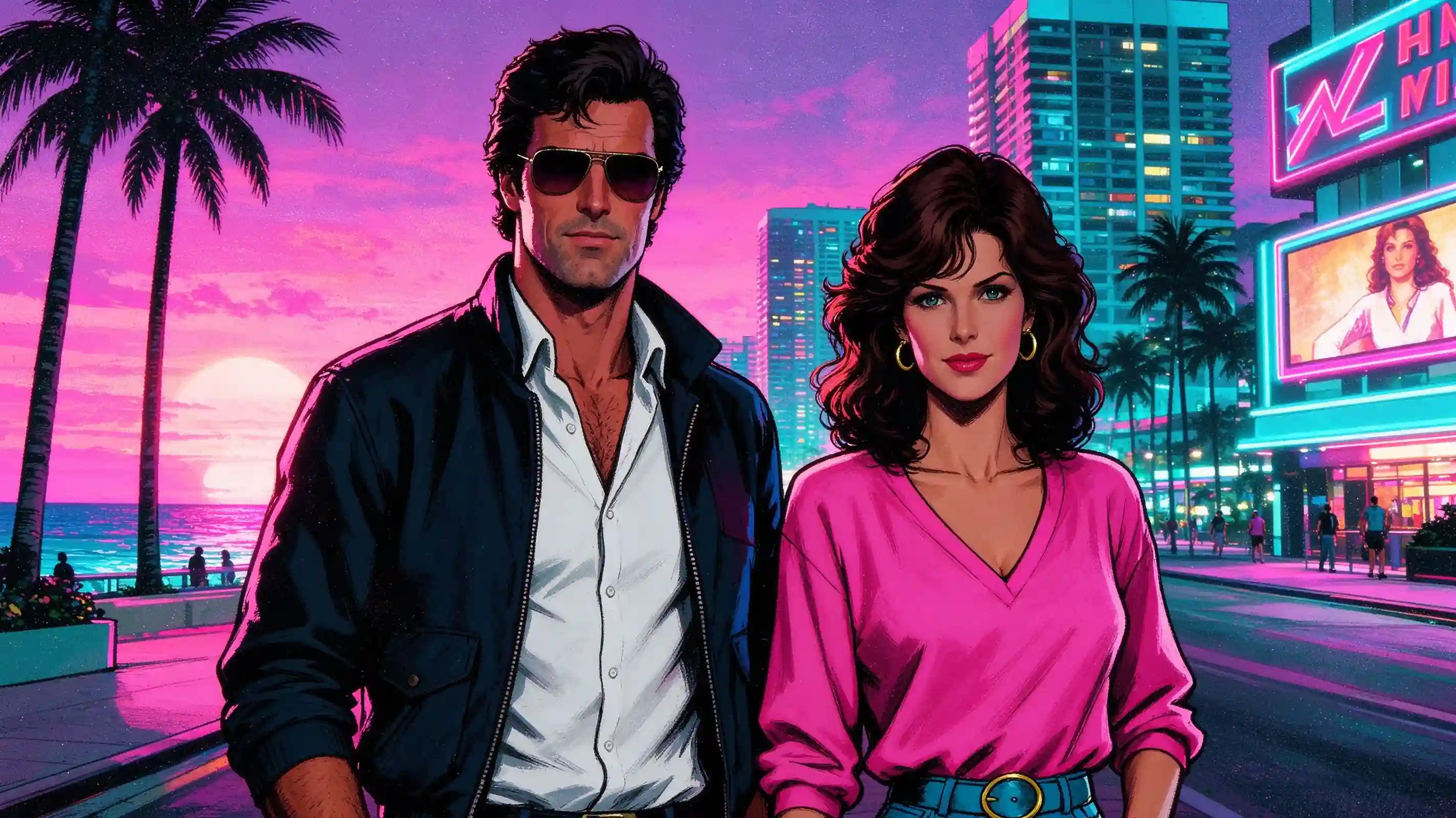
Ever wondered what you’d look like stepping out onto the sun-drenched, neon-lit streets of Vice City? With bold character artwork, golden-hour lighting, and vibrant cityscapes, the GTA 6-inspired visual style is hard to miss.
Thanks to AI image filters, you don't need to be a digital artist to get the look. You can transform an ordinary selfie into a GTA 6-inspired character portrait in seconds. Better yet, you can use AI image-to-video technology to animate your portrait, turning a static profile picture into a cinematic video scene.
In this guide, we'll explore what makes the GTA 6 visual style so recognizable, show you how to create your own game-inspired character portrait, and walk you through bringing it to life with PicMa Studio.
What Makes the GTA 6 Visual Style So Iconic?
Set in the sun-soaked fictional state of Leonida, home to Vice City, GTA 6 features a distinctive visual identity that blends urban energy with vibrant, stylized realism. Its aesthetic is instantly recognizable thanks to several signature elements:
- Bold Character Portraits: Confident expressions, distinctive styling, and strong character personalities.
- Vibrant Color Palettes: Electric neon pinks and blues paired with warm, hazy sunset tones.
- Cinematic Backdrops: Palm-lined boulevards, beachfronts, and bustling nightlife that evoke the atmosphere of Vice City.
- Stylized Realism: A crisp, polished look that sits somewhere between realistic photography and illustrated game artwork.

How to Turn Your Selfie into a GTA 6 Character
You don't need complicated Photoshop tutorials or professional illustration skills. With PicMa Studio's GTA 6 Style Filter, you can transform a casual selfie into game-inspired artwork in just a few steps.
Step 1: Pick a Clear, Well-Lit Selfie
Start with a clear, high-quality photo where your face is easy to see. Front-facing or slightly angled portraits usually work well.
Avoid heavy shadows, strong beauty filters, or anything that covers your facial features, such as sunglasses or hands. A good reference photo helps the filter preserve your appearance in the generated image.
Step 2: Apply the GTA 6 Style Filter
Open PicMa Studio's AI Image Generator, upload your selfie, and select the GTA 6 Style Filter to reimagine your photo with bold character styling, rich colors, and a Vice City-inspired atmosphere.

Step 3: Save Your Portrait
Preview the generated result and download your favorite version.
You've now got a custom game-inspired avatar ready to share on social media, use as a profile picture, or take one step further with AI animation.

Bring Your Character to Life with AI Image-to-Video
A great character portrait is just the beginning. Imagine seeing your character turn toward the camera, adjust their sunglasses, or stroll down a neon-lit city street.
With PicMa Studio's Image-to-Video tool, you can animate your newly created portrait using simple text prompts.

Step 1: Upload Your Character Portrait
Open the Image-to-Video workspace in PicMa Studio and upload the GTA 6-inspired image you just generated.
This image serves as the visual reference for your video, helping guide the appearance of your character throughout the scene.
Step 2: Write a Descriptive Video Prompt
Tell the AI how you want your character and the camera to move. Be specific about the actions, atmosphere, and camera movements you have in mind.
Here are a few ready-to-use prompts to try:
- The Loading Screen Look: "The character looks confidently at the camera as the camera slowly pushes in, with a gentle breeze blowing through their hair."
- Vice City Nightlife: "The character walks down a vibrant, neon-lit city street at night, with glowing streetlights and blurred traffic in the background."
- Main Character Entrance: "The character turns toward the camera, adjusts their sunglasses, and walks forward with a confident expression."
You can experiment with different movements, camera angles, and environments to create a scene that matches your vision.
Step 3: Choose Your Video Model
Select an available AI video model from the model options.
Different video models may produce different results in terms of motion, visual style, and overall quality. Try the available options to find the one that best matches your creative vision.
Step 4: Adjust Your Output Settings
Before generating your video, customize the output settings based on where and how you plan to use it.
- Aspect Ratio: Choose a vertical, square, or horizontal format based on your intended platform. For example, 9:16 works well for TikTok, Instagram Reels, and YouTube Shorts, while 16:9 is suitable for widescreen videos.
- Resolution: Select your preferred output resolution for the desired video clarity.
- Duration: Choose the video length from the available options to match your creative needs.
These settings help you tailor the final video to different platforms and viewing experiences.
Step 5: Generate and Download Your Video
Once your prompt, video model, and output settings are ready, start generating.
Preview the result to see how your character moves and how the scene turns out. When you're happy with the result, download your video and share your own game-inspired cutscene with the world.
4 Fun Ways to Use Your GTA-Style Creations
Once you've created your character portrait and animated it, there are plenty of ways to make the most of your new game-inspired look.
- Design a Custom Game CoverPlace your portrait into a classic video game poster layout to create your own personalized GTA-inspired cover artwork.
- Set the Mood with Night ScenesUse Image-to-Video to bring your character into a moody, neon-lit city environment. These cinematic scenes can also work as eye-catching social media clips or music visualizers.
- Level Up Your Social Media IntrosUse an animated character entrance as an attention-grabbing opening for YouTube videos, Twitch streams, or TikTok content.
- Refresh Your Social Media AvatarsSwap your usual Discord, X, or Instagram profile picture for a game-inspired alter ego with plenty of personality.
Pro Tips for Better AI Photos and Videos
A few simple adjustments can help you get more appealing results:
- Start with a clear photo: A sharp, evenly lit selfie gives the image filter a better visual reference and helps preserve recognizable facial features.
- Be specific about movement: Instead of simply typing "make the character move," describe the action and camera movement. Terms such as "slow zoom," "tracking shot," or "turn toward the camera" can help communicate your idea.
- Keep character consistency in mind: AI video generation may introduce small changes to facial details, clothing, or textures during movement. Using your highest-quality character portrait as the reference can help maintain a more consistent appearance.
- Match the format to your platform: Think about where you'll share the video before choosing the aspect ratio and resolution.
Frequently Asked Questions
What kind of selfie works best for a GTA 6 AI filter?
A well-lit photo with your face clearly visible is a good starting point. Front-facing or slightly angled portraits without heavy shadows or obstructions can help the filter better preserve your facial features.
What's the best video format for TikTok or Instagram Reels?
A vertical 9:16 aspect ratio is a good choice for TikTok and Instagram Reels because it fills the screen in portrait orientation. You can also choose other formats depending on where you plan to share your video.
Ready to Meet Your Vice City Alter Ego?
You don't need a massive game studio to put yourself in the spotlight. Start with a selfie, use PicMa Studio's GTA 6 Style Filter to create your own game-inspired character, and then bring that character to life with Image-to-Video.
Your character deserves more than a single frame. Give it a scene of its own!
Disclaimer: This article is an independent creative guide. PicMa Studio is not affiliated with, endorsed by, or officially connected to Rockstar Games or Grand Theft Auto VI.


 5

 English