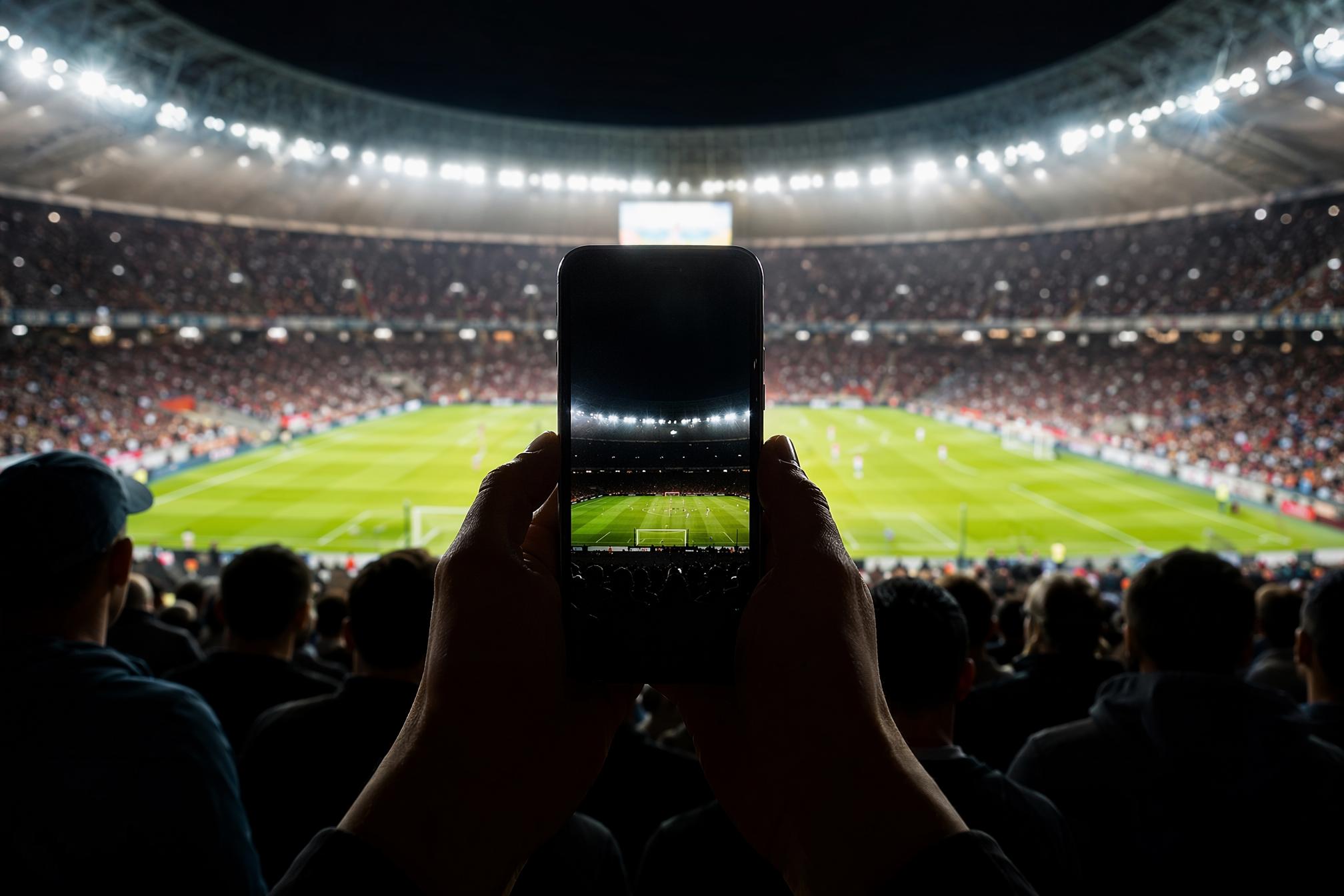
You went to the game. You witnessed the moment that will be replayed for decades. You pulled out your phone at just the right time.
And the photo looks like it was taken through a dirty car window in 1994.
There's a special kind of disappointment that comes when you scroll through your camera roll after a live game. In your mind, you were certain you'd perfectly captured that goal celebration in motion: the stadium lights flashing, the striker with arms wide open, 80,000 fans behind him. But on your phone screen, all you see is a yellowish blur with some green smudges and what might be a person in the distance.
It's not just you. Let's talk about why — and how to fix it.
Why Stadiums Are Phone Photography's Worst Nightmare
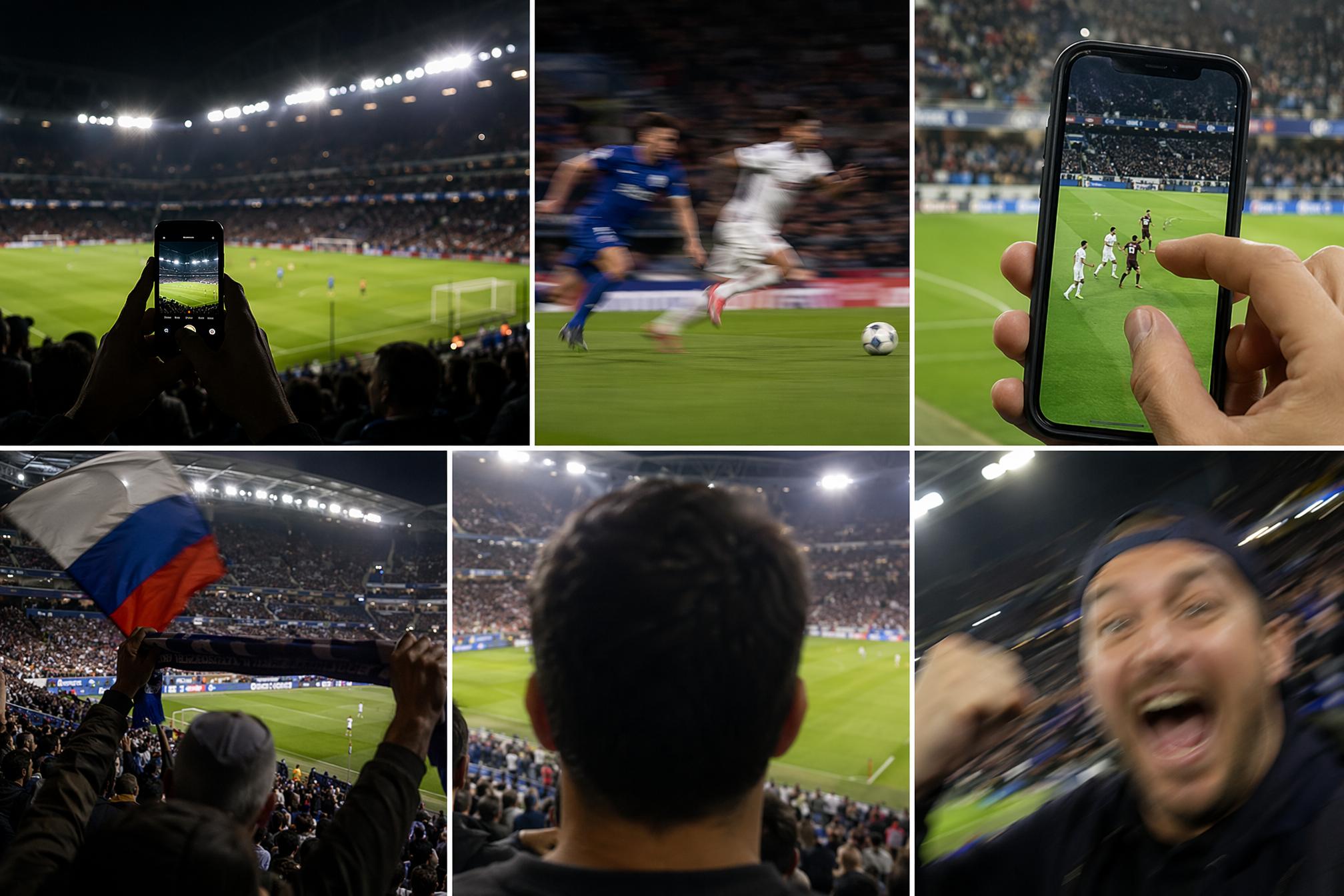
A stadium is probably one of the most challenging environments for any camera — period.
The lighting is designed for TV, not for you. Stadium floodlights look great on television because broadcast cameras are built for that specific light. Your phone camera isn't. The result is color shifts, uneven exposure, and faces that look like they're lit by a parking lot.
Motion blur is almost unavoidable. Professional athletes sprint at speeds that exceed the limits of a phone's default shutter speed — especially in low light. That's why celebration photos look like abstract art instead of sports moments.
Digital zoom is just cropping. When you pinch to zoom on your phone, you're not actually zooming in. You're cropping the image and stretching the remaining pixels to fill the screen. Every time you do that, you're throwing away quality. And how often do you zoom when you're sitting in Row 34?
Stadium conditions make composition a nightmare. Flags, scarves, strangers' arms, the back of someone's head — the stands are chaos, and your camera has no idea what you're actually trying to focus on.
You can take 200 blurry photos, and you'll still have 200 blurry photos. What actually changes the outcome is what happens after you take them.
Why Traditional "Sharpening" Won't Save You
If you've ever tried to fix a blurry photo with standard editing software, you know the frustration.
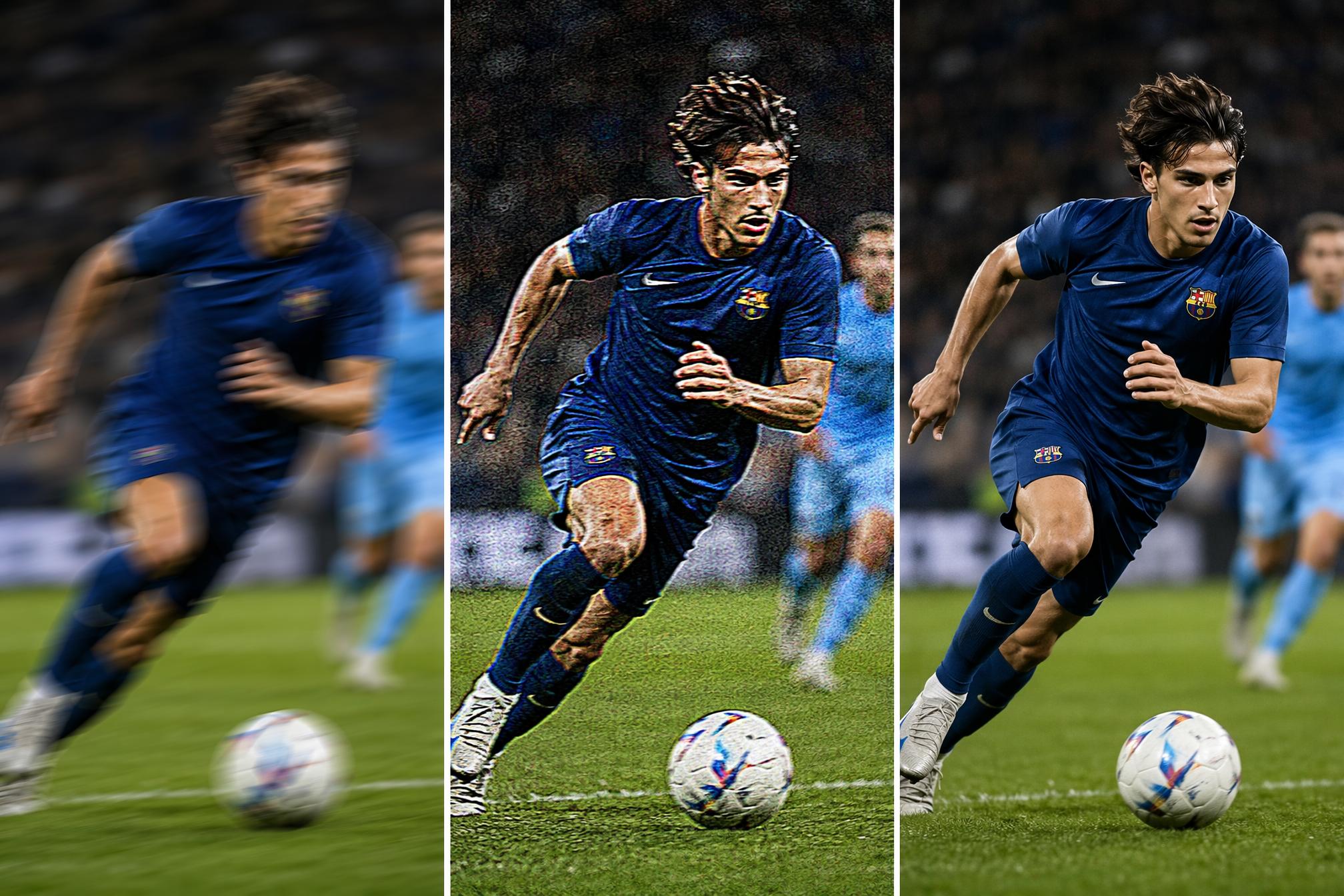
Traditional "Sharpen" filters work by increasing the contrast of edges that already exist in the image. If the photo is truly blurry, those edges aren't there. Standard sharpening just adds "white halos" and digital noise around the blur, making the photo look grainier and more artificial.
It doesn't solve the real problem — because it doesn't know what was supposed to be there.
PicMa Studio: AI Knows What Was Supposed to Be There
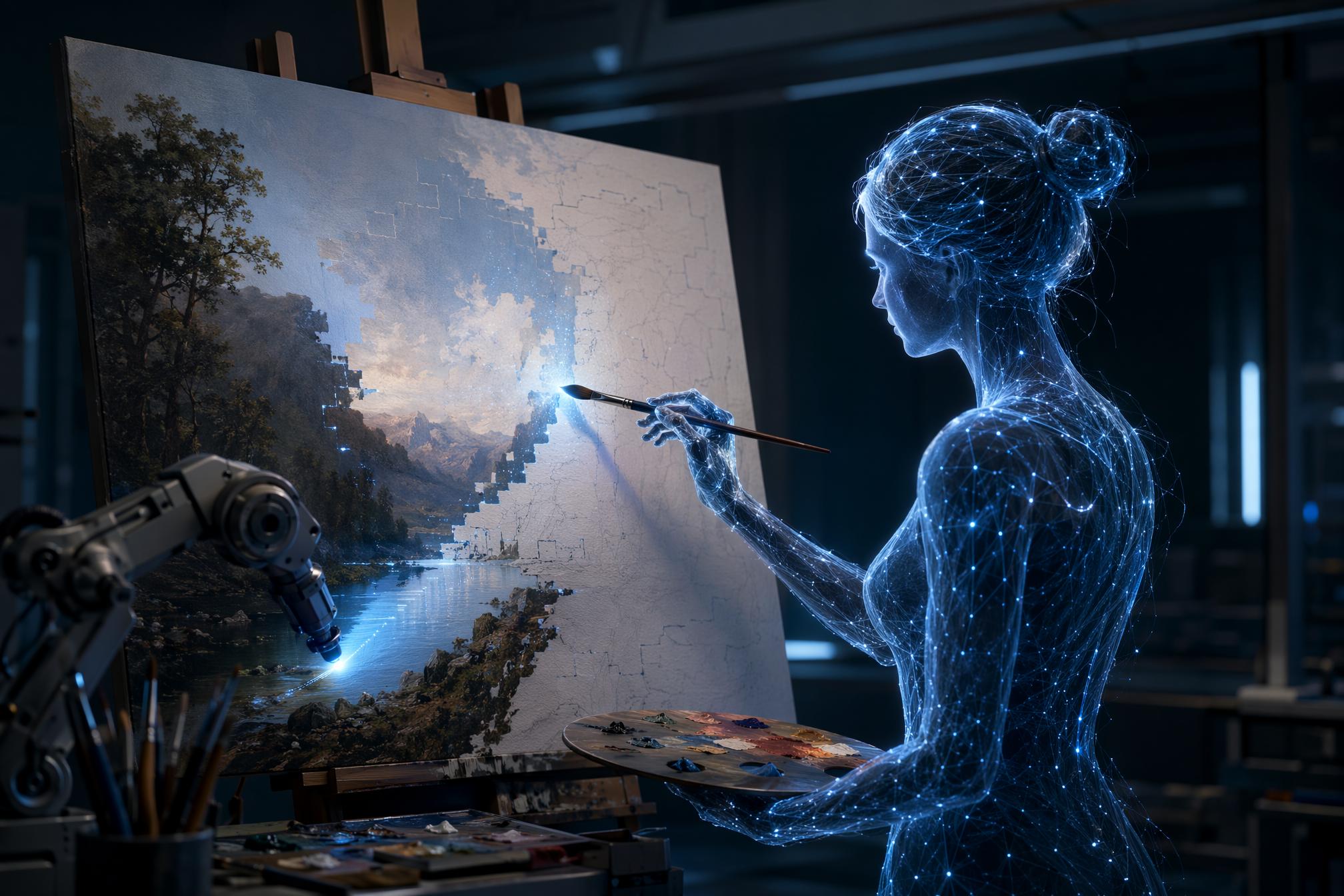
PicMa Studio 's Stable Motion AI does something completely different.
Instead of just "sharpening," it first analyzes the direction and trajectory of the blur — which way your hand moved when you pressed the shutter, which direction the subject was moving when the shutter opened — then uses AI to predict and re-draw the missing details: strands of hair, skin texture, the feel of the fabric.
It doesn't just apply a filter to a blurry photo. It reconstructs the blurry photo as if it were taken with the world's best camera lens.
Unlike many AI enhancement tools that turn faces into waxy, plastic-looking avatars, Stable Motion AI uses Portrait Pro technology to preserve natural skin texture, cleaning up low-light noise without creating the "worm-like" artifacts you see in other tools. The result looks like what you actually saw with your own eyes — just rendered with "the best camera lens in the world."
Three Steps to Rescue Your "Failed" Shots
You don't need to be a professional retoucher. PicMa Studio is designed with a zero-learning-curve approach.
Step 1: Open PicMa Studio
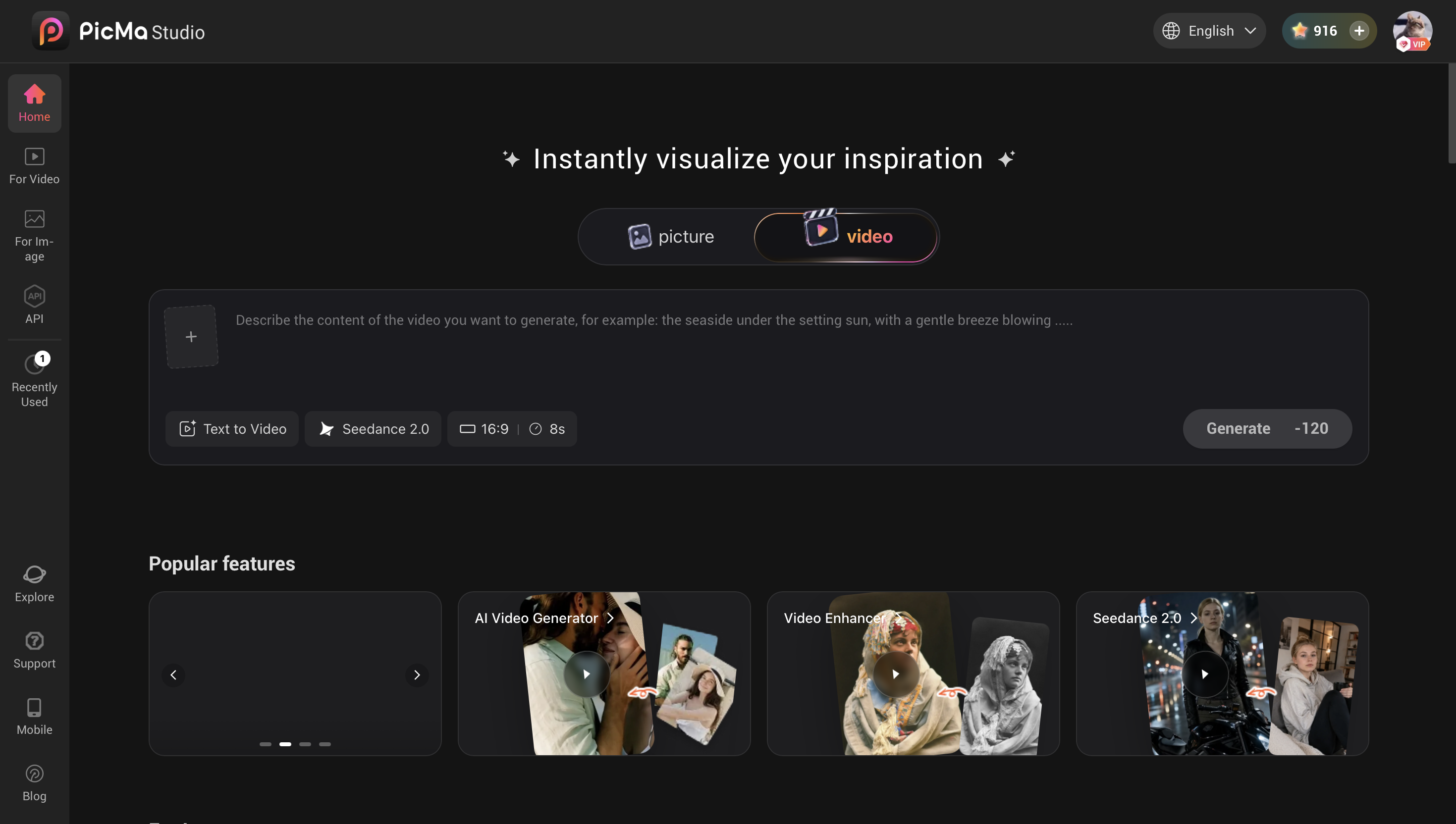
Visit PicMa Studio and use it directly in your browser — no download or installation required. Desktop version is also available for batch processing large numbers of photos.
Step 2: Upload your photos
Drag and drop your blurry stadium shots into the upload area. Supports single images and batch uploads.
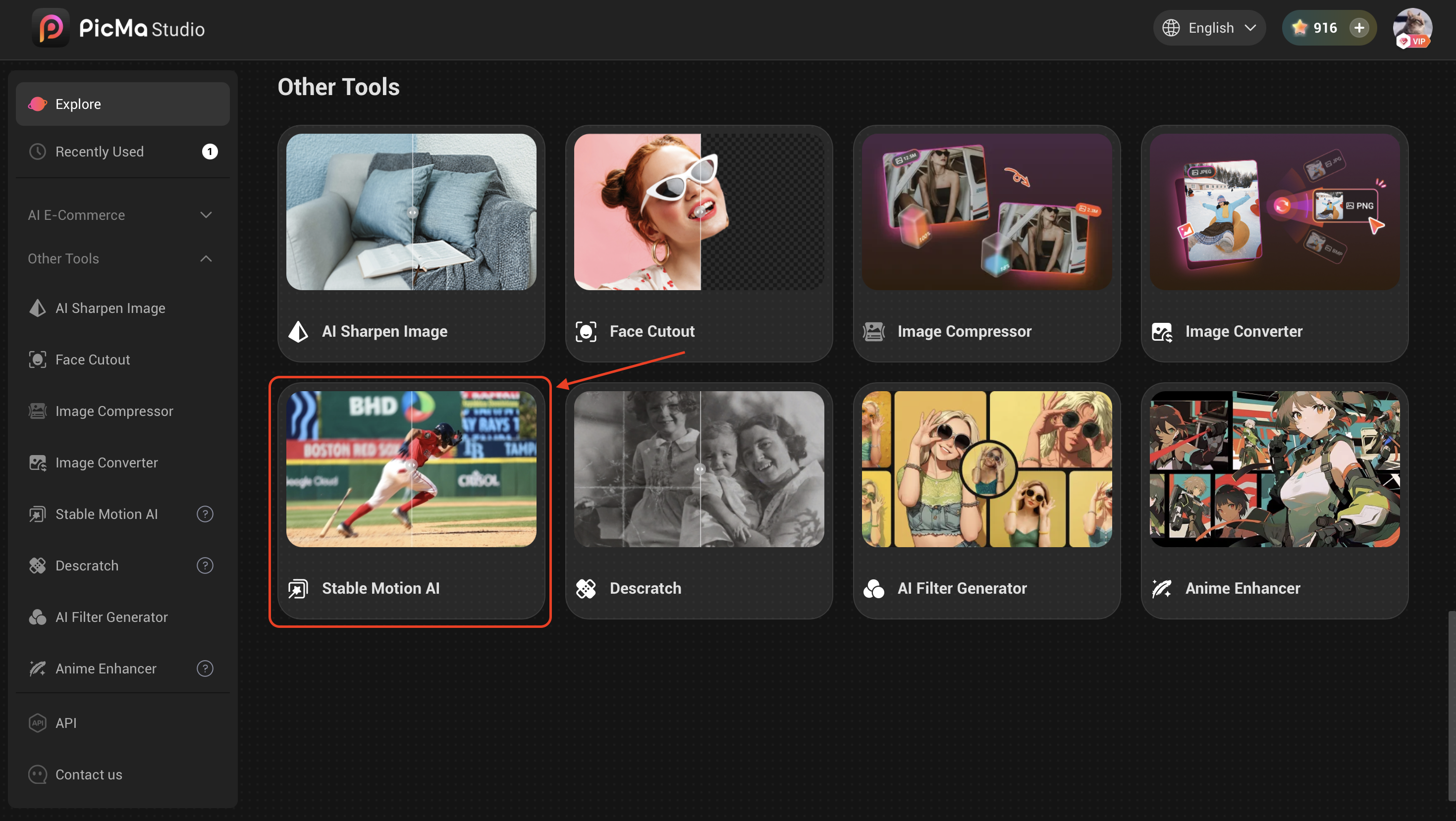
Step 3: One-click enhancement
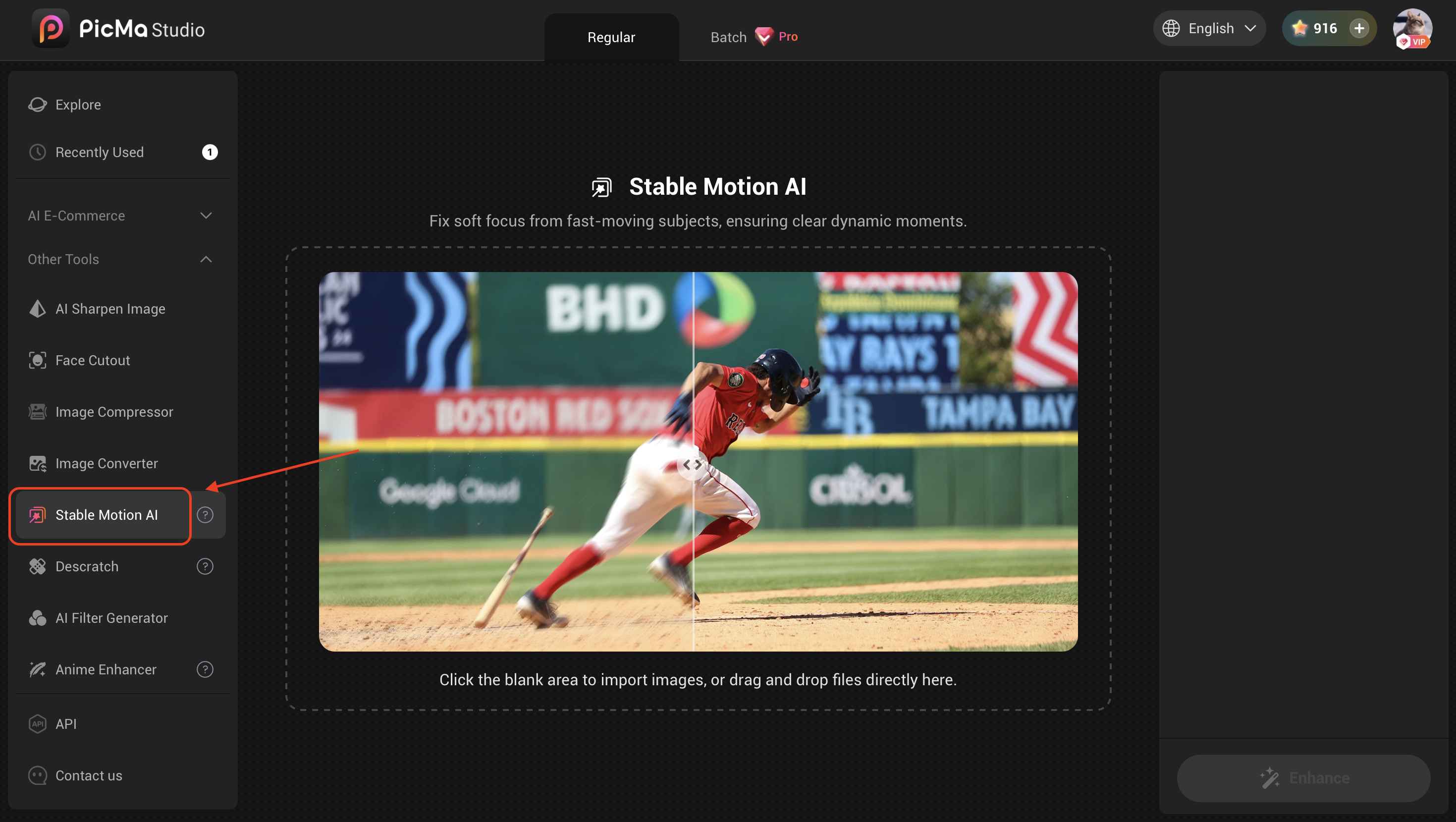
Find the Stable Motion AI feature, click generate, and let the AI do its work. It automatically calculates the motion path and begins pixel-level reconstruction. Within seconds, a crisp 4K-quality photo is ready.
Once processing is complete, you can slide the comparison bar to see the before-and-after difference. Download and save when you're satisfied — ready for social media or high-quality printing.
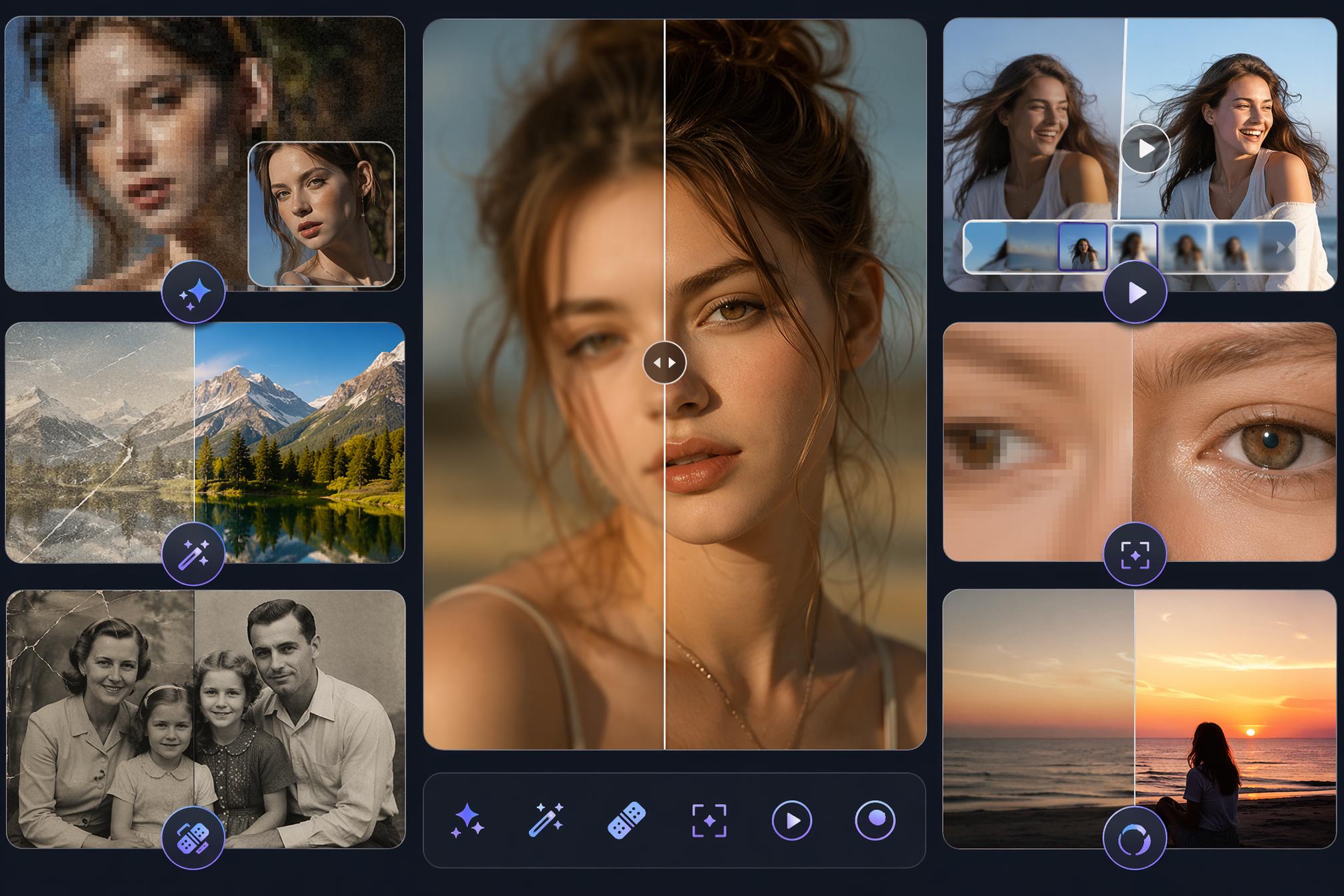
More Than Just "Un-blurring"
PicMa Studio can do far more than fix motion blur:
- Pixel‑level Super‑Resolution: Boost low‑resolution photos to 4K with one click, reconstructing facial details and skin texture
- AI Dynamic Magic: Turn static photos into fluid, natural short videos
- Old Photo Restoration: Remove scratches, creases, and restore faded colors
- Text Enhancer: Sharpen text in screenshots for clear subtitles and dialogue
- Color Master: Automatically optimize exposure, saturation, and contrast
- Descratch: Automatically detect and repair creases and time marks on photos
One tool, the entire workflow — from "this photo is ruined" to "posting it on social media."
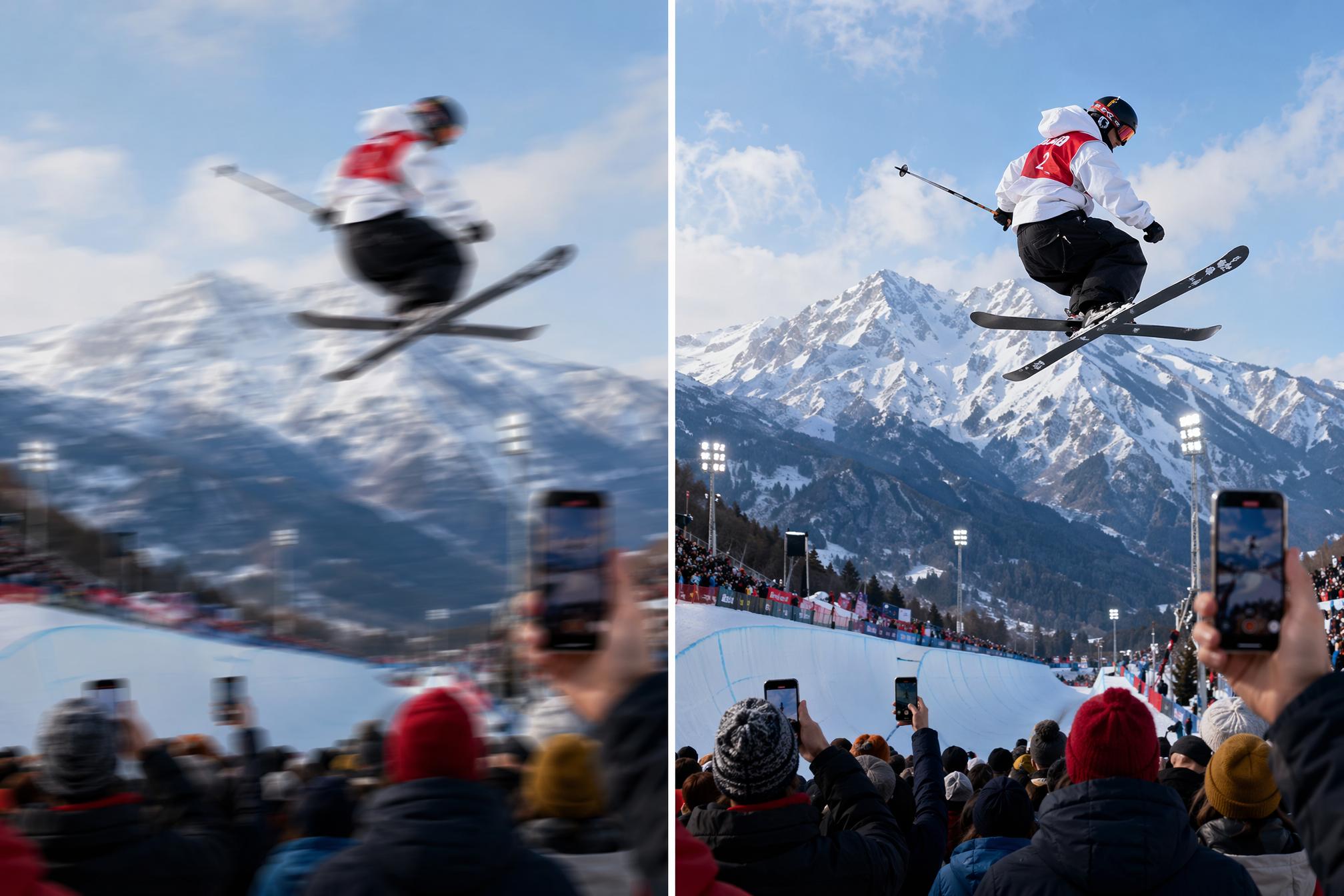
Your Stadium Memories Deserve to Be Seen Clearly
For most people, going to a major live game isn't something you do every four years without counting the cost. Tickets, flights, accommodation, time off work — it all adds up.
The photos you take should match that investment. Not look like a mistake.
The gap between a photo you're almost embarrassed to share and one you'd actually frame and hang on your wall is often smaller than you think.
And it doesn't require a new camera, photography classes, or three hours in Lightroom. Just about two minutes and a link.
Next time you're scrolling through your camera roll after a game, don't hit delete. Open PicMa Studio and let AI turn those "almost perfect" moments into high‑definition memories worth sharing.
Your stadium memories deserve to be seen clearly.
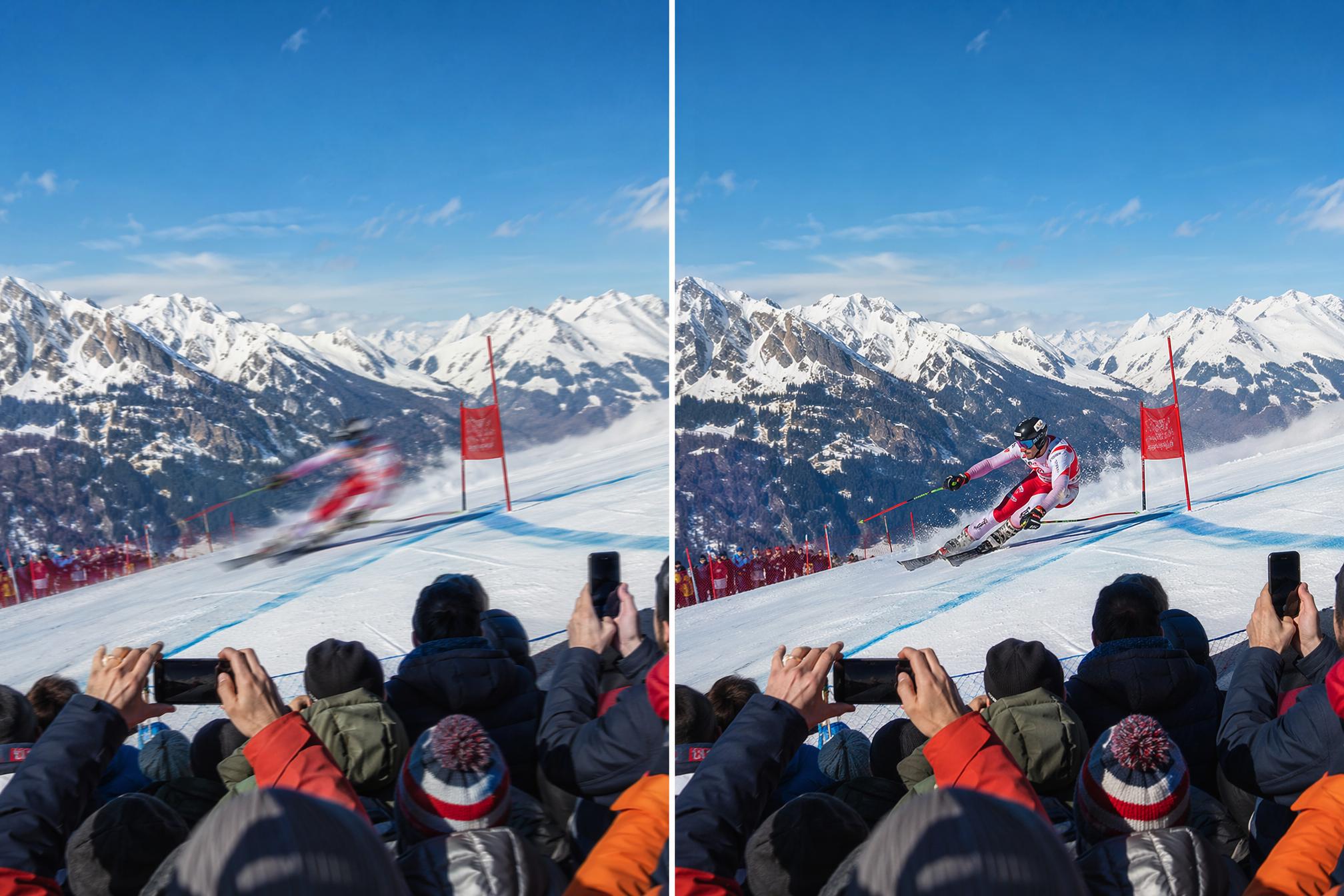
FAQ
Q: Can AI really fix a completely blurry photo?
A: Yes, but results depend on the degree of blur. If the photo suffers from motion blur or mild misfocus, Stable Motion AI can reconstruct details by analyzing the blur's direction. If the photo is extremely blurry or extremely low resolution, results will be more limited — but still far better than the original.
Q: How long does it take to process one photo?
A: A few seconds. After you upload and click generate, the AI automatically completes pixel‑level reconstruction at high speed.
Q: What's the difference between Stable Motion AI and other AI enhancers?
A: The biggest difference is naturalness. Many AI tools turn photos into AI‑generated avatars — waxy skin and distorted features. Stable Motion AI focuses on repair rather than alteration, ensuring the final photo still looks like a real person and scene — just clearer.
Q: Is PicMa Studio free?
A: PicMa Studio offers a free trial allowance, letting you process a certain number of photos at no cost. For larger volumes, a subscription plan is available — check the official website for details.
Q: Does it support batch processing?
A: Yes. You can upload and process multiple photos at once — up to 15–20 images per batch— perfect for handling an entire game's worth of shots.
Q: Can enhanced photos be used commercially?
A: Personal use is completely fine. For commercial use (e.g., ad materials, product images), please review PicMa's terms of service or contact their team to confirm.

 49
49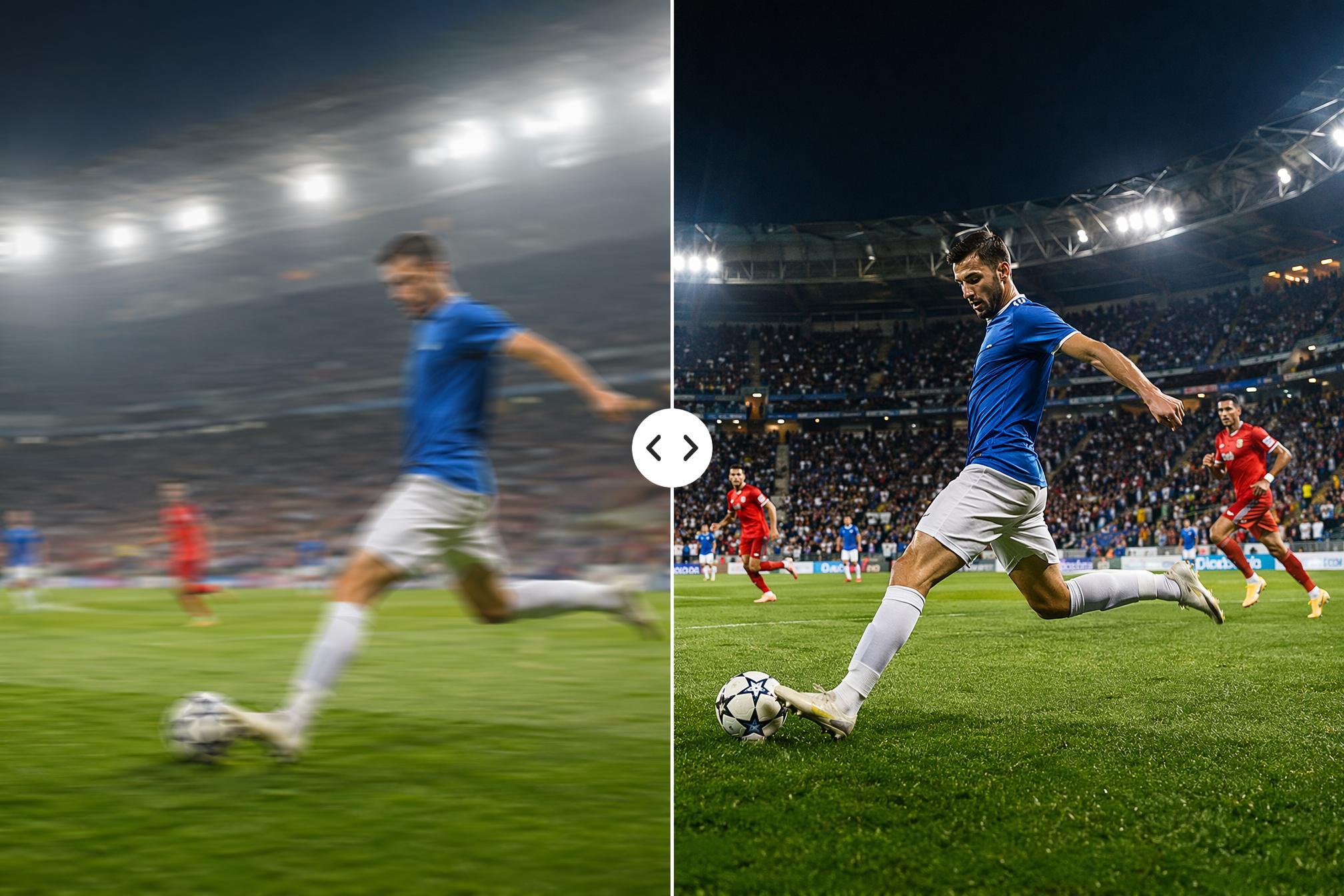

 English