"I took a satisfying photo, but the image quality wasn't good enough. What if I told you there's a way to turn it into a cooler anime-style portrait with one click? This AI feature from PICMA can do it!"
Snapped a photo that’s not stunning? PicMa turns your picture into an anime hero with one click!
Have you ever felt this way: You go on a trip, take tons of amazing photos, but when you flip through your album later—some have great expressions and decent composition, yet something always feels... off?
The lighting isn’t soft enough, the background isn’t clean enough, or you just stare at it for ages thinking, "This picture has everything going for it, but it just doesn’t have that vibe."
Then you scroll through your social feed and see someone else’s profile pic:
"Wow, that anime-style one is perfect for a profile picture!"
"That style’s so unique, like it stepped right out of an illustration book."
"How did she get that effect?"
Actually, you don’t need a professional artist or complicated photo-editing skills.
All you need is PicMa.
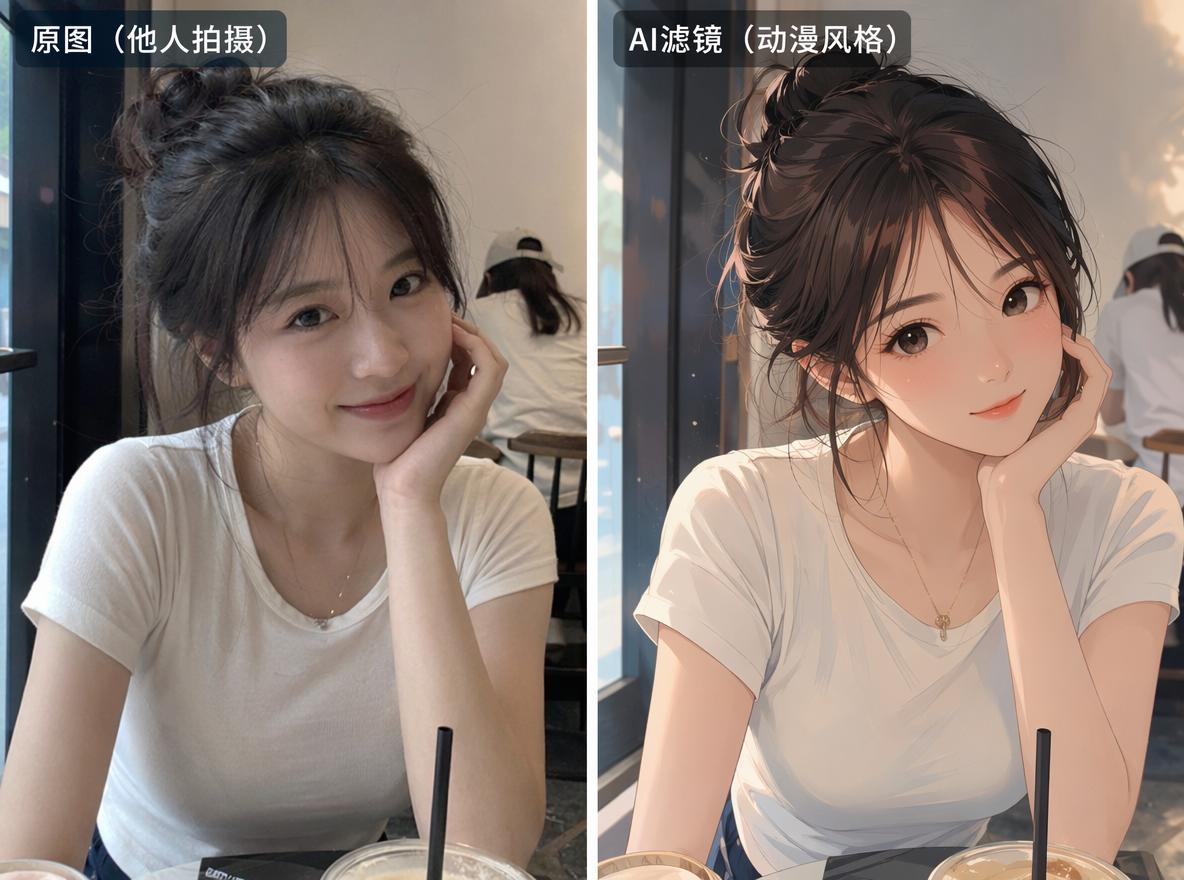
The secret weapon to save ordinary photos
PicMa is actually an app packed with various AI photo-editing features, like pixel-level upscaling for sharpness, old photo restoration, AI motion magic, and video quality enhancement. From 2025 to 2026, this app has been rapidly updating, rolling out new features and effects like AI filters and Sora2.
And there’s one feature in it that I especially love:
Just snap a real photo of yourself, and the AI will automatically apply a cool filter, turning it into an anime-style character image in the blink of an eye.
Sounds amazing, doesn’t it? Like stepping into some anime world and finding your own character setup there?
How to transform into an anime main character in one click
It’s not complicated at all.
1. Download and open PicMa
First, search for PicMa on the App Store or Google Play to download the app. Once installed, tap the icon to open it.
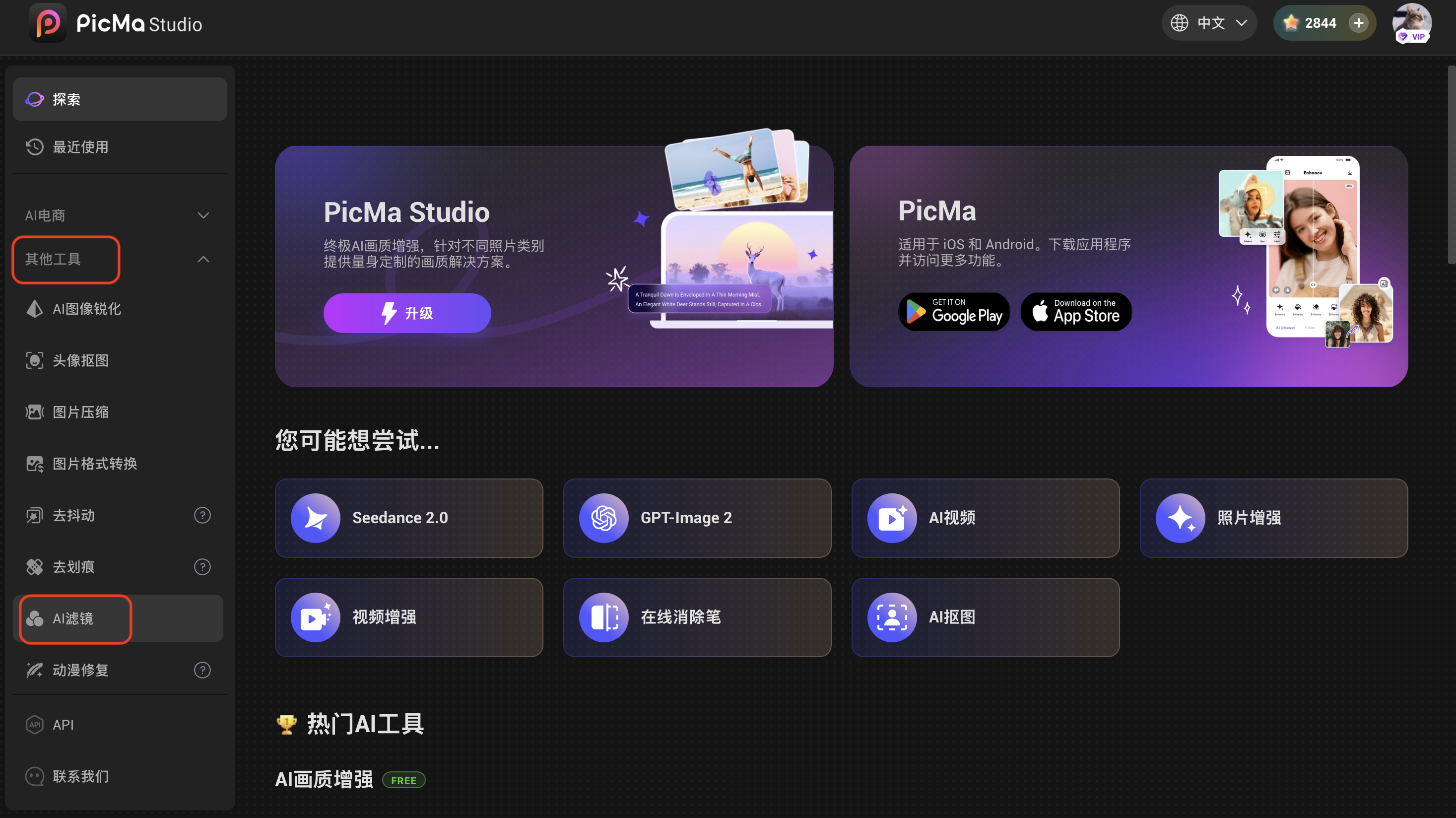
2. Enter the AI Filter section
After opening PicMa, tap on the "AI Filters" option under "Other Tools" at the bottom.
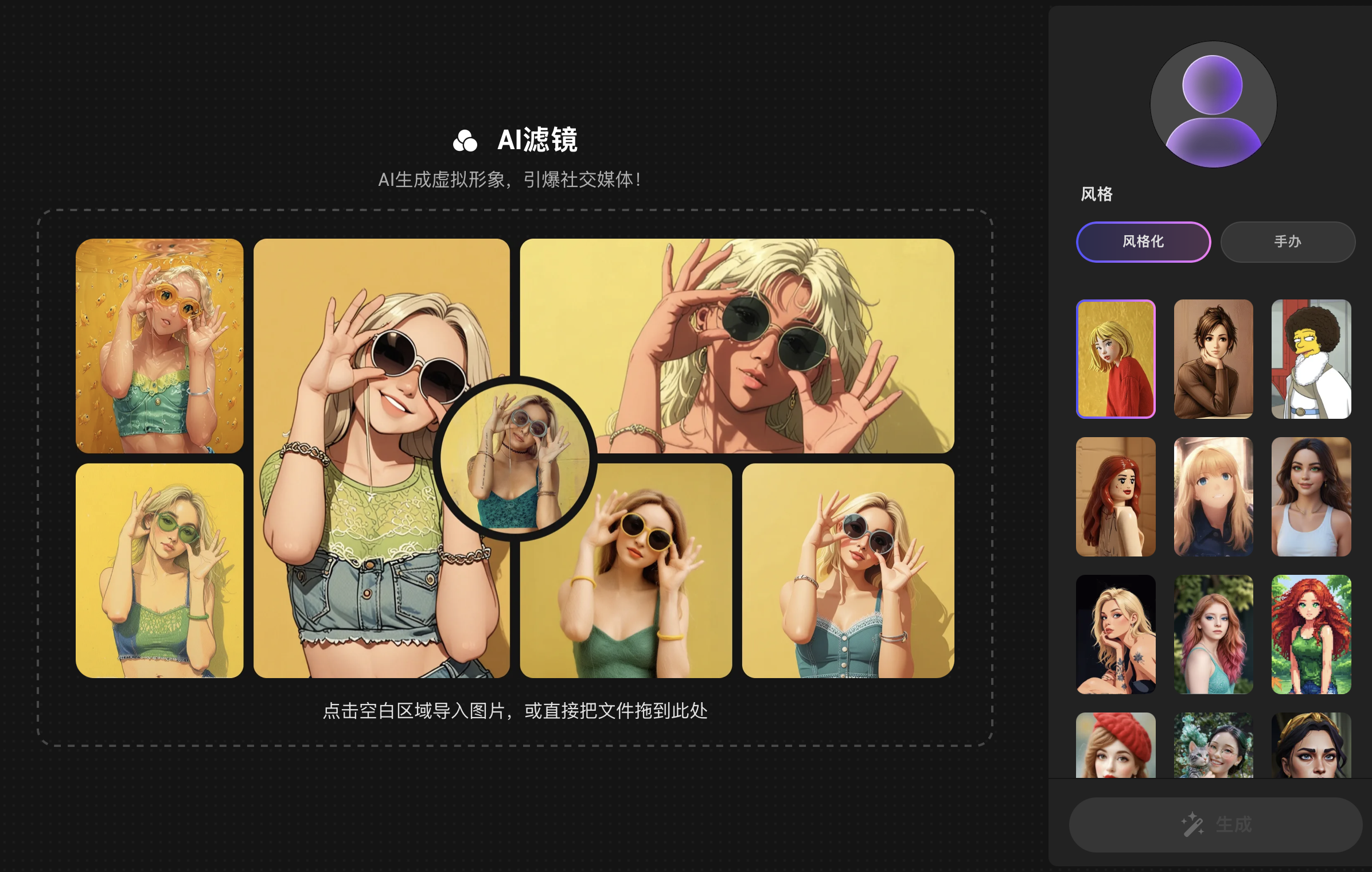
3. Choose a filter and upload your photo
Find a style you like from the list—check out the examples shown, like the dreamy, healing vibe of Studio Ghibli-style or a cool, edgy American comic book style. Pick the one you like most.
After tapping a filter, upload a real photo of yourself from your local album. The AI will automatically start processing, and it takes only about a few seconds.
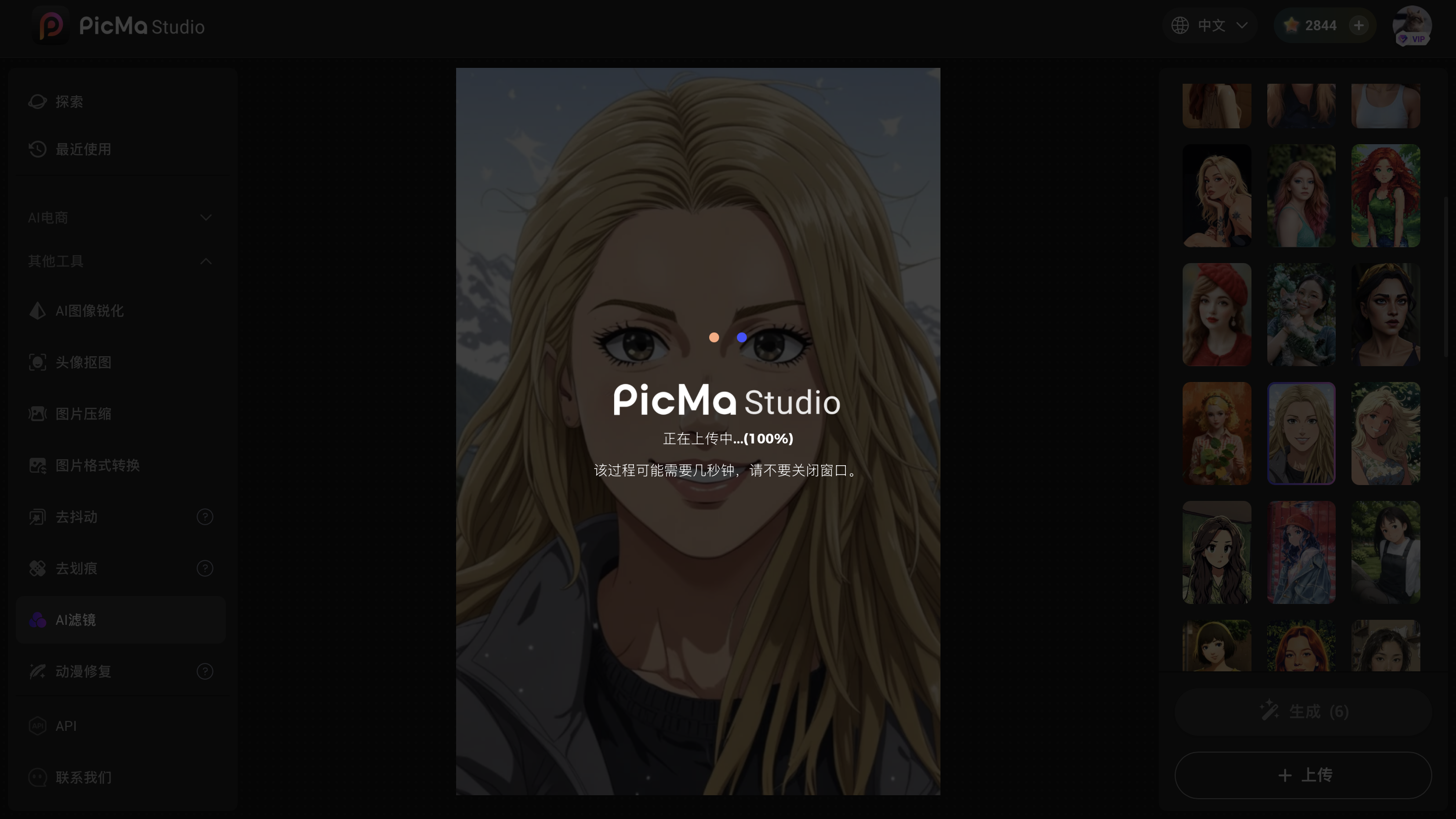
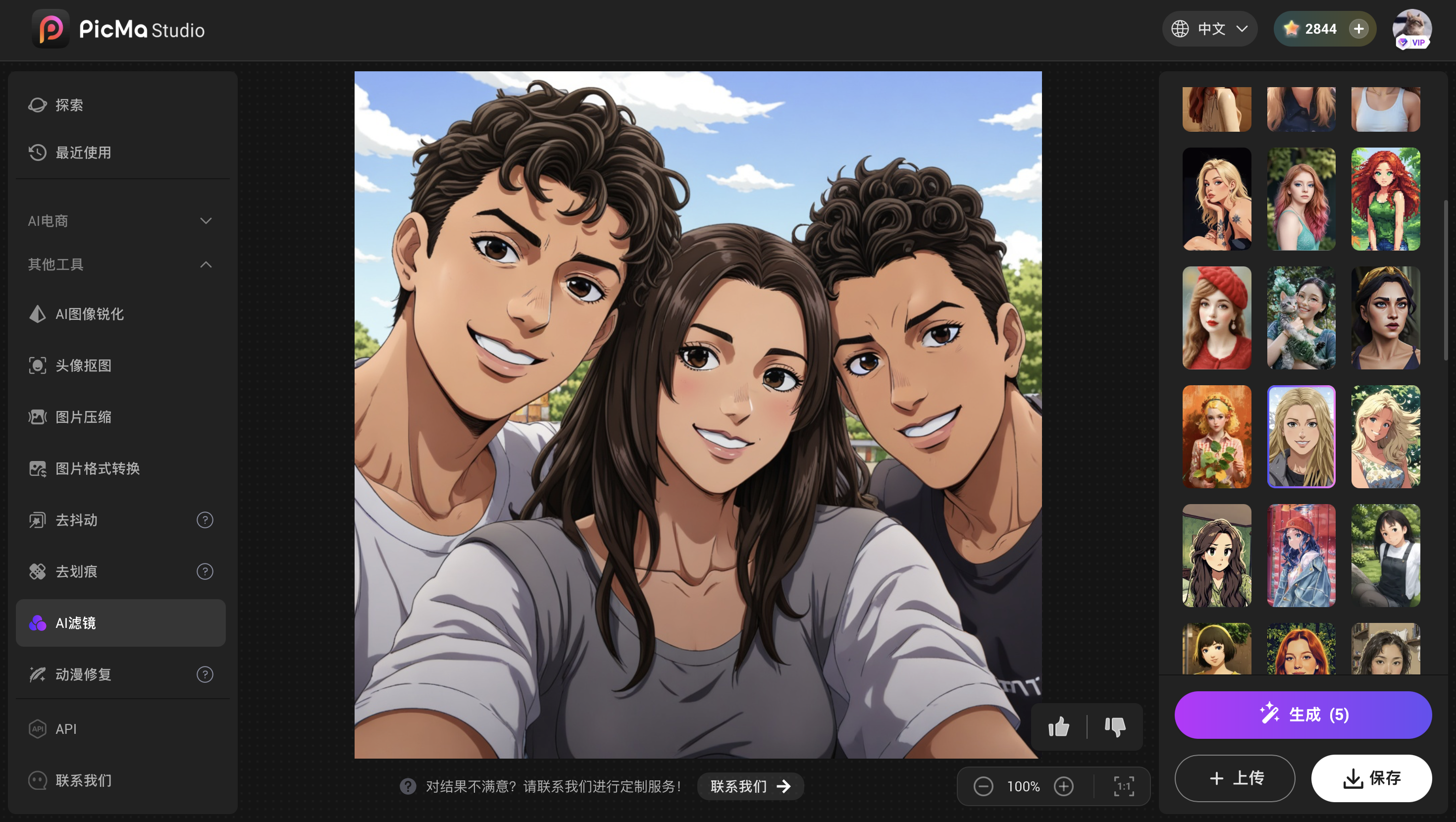
You don’t need to tweak settings, understand color grading, or mess with curves. Just snap, upload, wait a few seconds, and you’re done. Instantly, you’ll have a unique anime-style character image that’s all your own.
Once it’s ready, you can save it as a wallpaper, use it as a profile picture, or share it with your friends.
What to keep in mind?
When using this feature, here are a few little details to note in advance:
Pick the right photo material
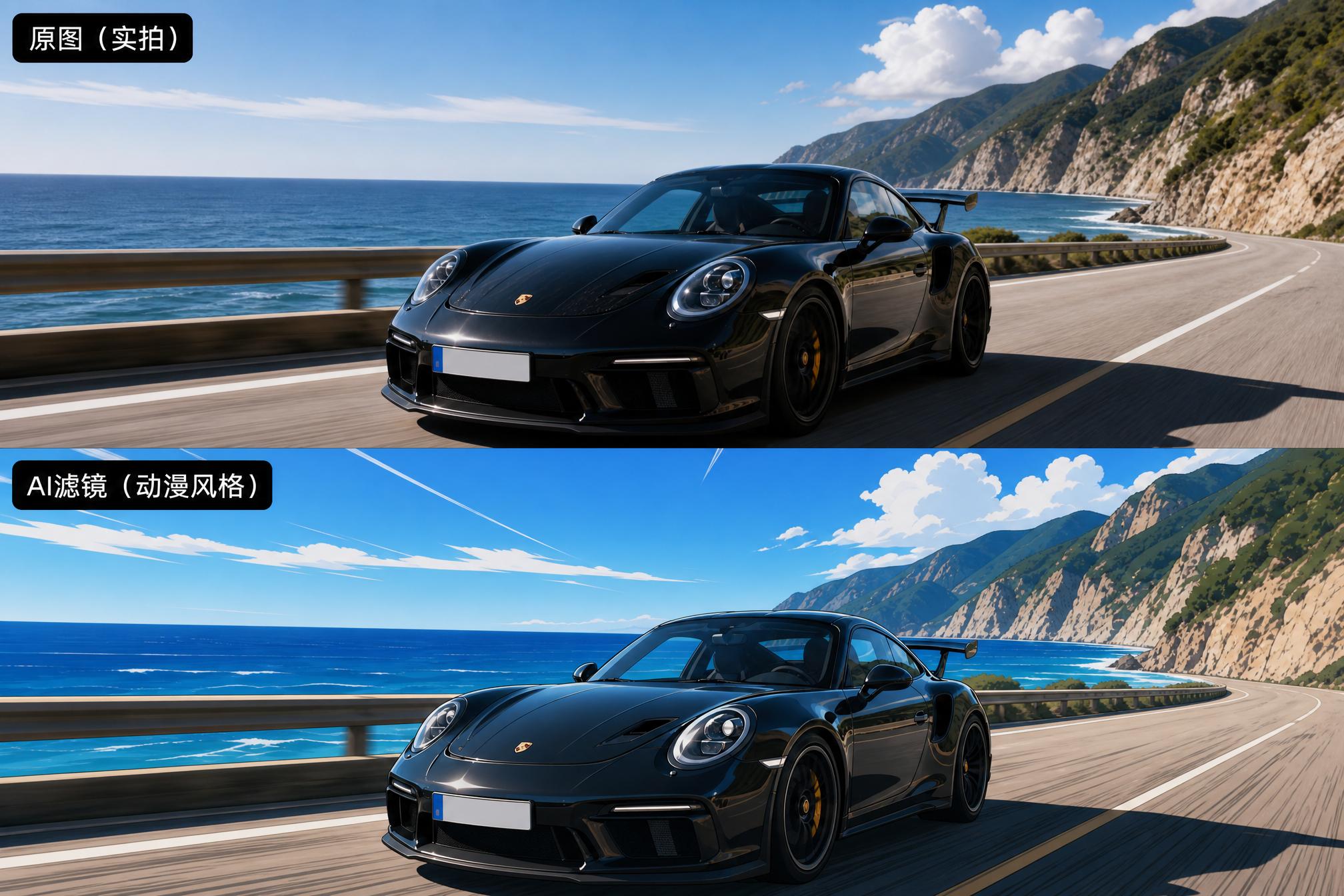
It’s best to choose a front-facing or slightly angled portrait, with good lighting and a clear image. The anime conversion will look more natural, and facial details will be preserved better. If the original photo is overexposed or noisy, the AI might amplify those less desirable parts during processing.
Try out different styles
PicMa’s anime section actually has over 10 anime-style filters. Besides the classic "Anime" option, there are also "Manga," "Phantom," "Bizarre World," and more—each giving a different feel. Some lean toward a soft, healing aesthetic, while others are more mysterious and fantastical. Try them all to see which style best matches your vibe.
Consider setting a new profile picture
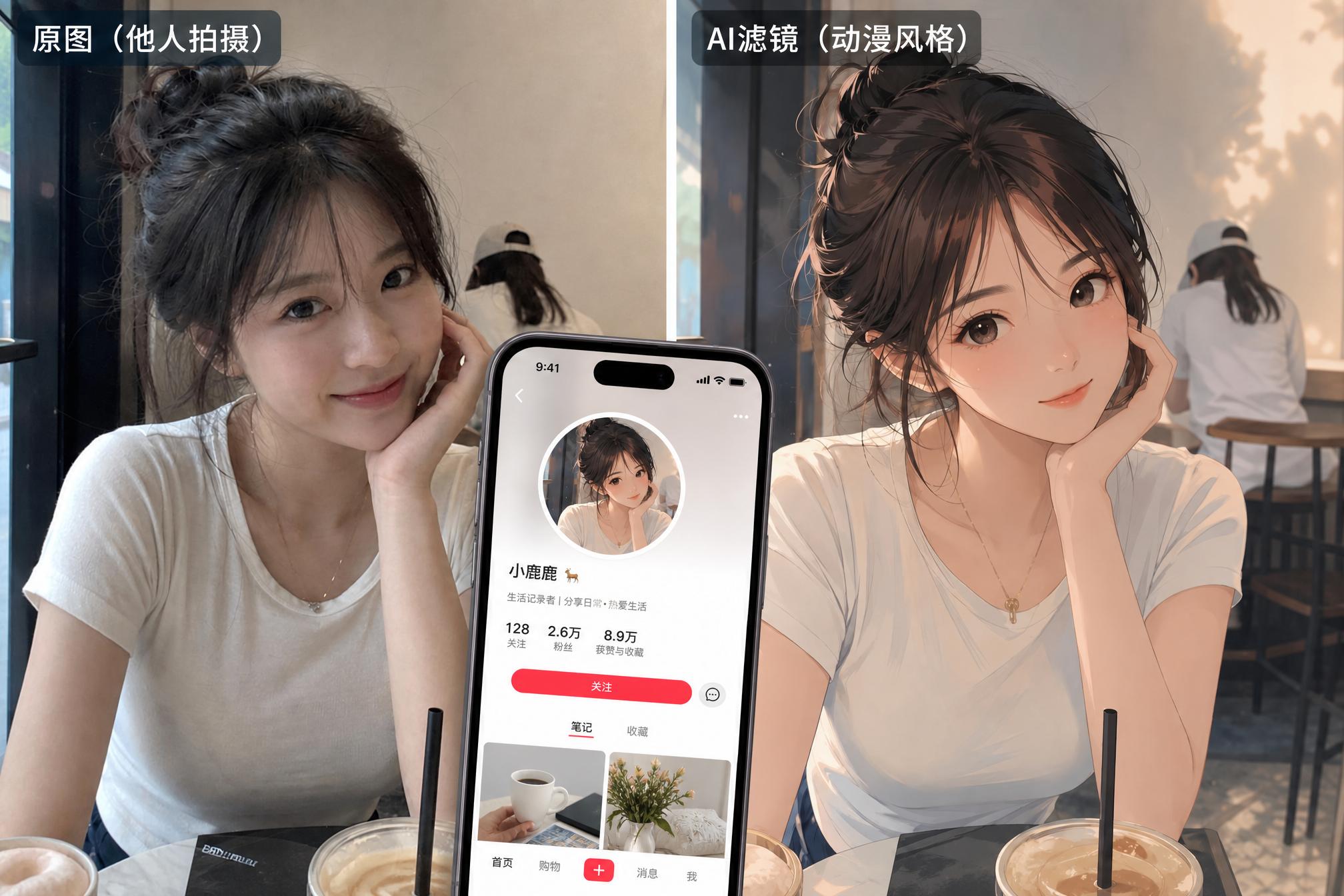
Using a cartoonified version as your social media avatar is a nice little trick—it adds a bit of fun and personality compared to a real photo, without losing your own recognizability. Quite a few friends of mine do this.
Besides the AI anime filter, what else can PicMa do?
Since you’ve already downloaded the app, you’ll find PicMa is way more powerful than you might think—there are plenty of real "hidden gems":
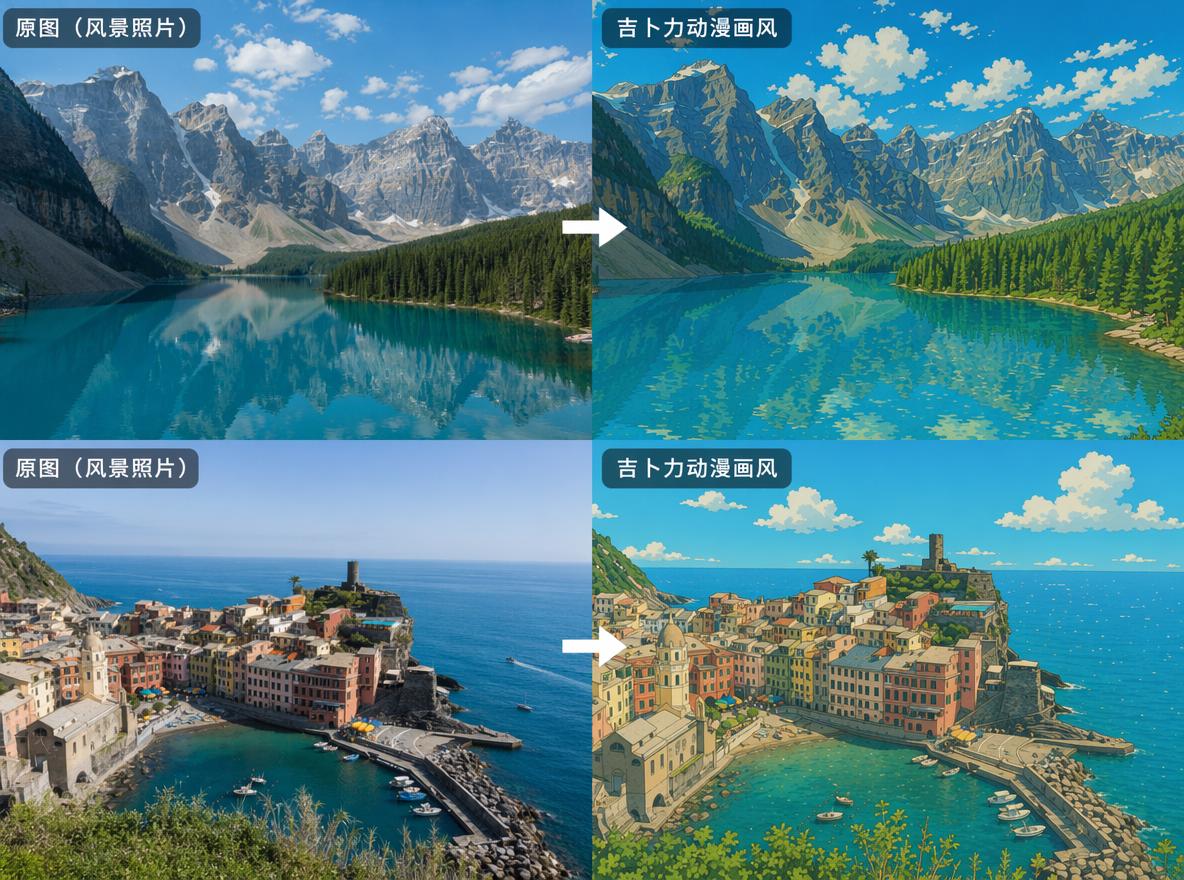
- AI Filter Generator: Not just anime styles, but also Irasutoya healing illustration style, mini figure style, Lego minifigure, claymation look, wool felt texture, porcelain doll, and many other fun creative effects.
- Old Photo Restoration: If you have some yellowed old photos or scanned group shots at home, PicMa can fix scratches and restore colors with one click.
- Pixel-level Upscaling: For blurry photos from the past, you can enhance the details step by step up to 4K quality.
- AI Motion Magic: You can even turn static, ordinary photos into lively, natural short videos—great for creating fun content to share.
So it’s not just "a toy that turns photos into cartoons"—it’s a toolbox worth keeping in your phone for anyone who loves taking photos and sharing them.
Why not give it a try right now?
With all that said, the simplest way is to just try it yourself.
Pick a selfie or landscape photo that you think is "okay but not outstanding," run it through PicMa’s AI anime filter. Who knows—in just a few seconds, you might see a whole new version of yourself.


You might also be wondering (FAQ)
Q: Will the generated anime image keep my original look?
A: Yes. PicMa’s AI recognizes facial features, hairstyle, pose, etc., from your photo and converts them into an anime style, so it’s instantly recognizable as you—just better-looking!
Q: Is this feature free?
A: PicMa offers a free trial with a few daily generations. If you need more, you can subscribe to a membership at a very affordable price. Check the app for specifics.
Q: Will my uploaded photos be saved or leaked?
A: PicMa promises not to save or misuse your photos without your permission. After processing, images only exist in your local album, and you can delete them anytime.
Q: Can I use the generated anime image as a profile picture or video cover?
A: Absolutely. Personal use is totally fine—use it as a WeChat/Weibo/TikTok avatar, video cover, or share it on your feed. For commercial use (e.g., printing on products for sale), check PicMa’s terms of service or contact the official team to confirm.
Q: Why does my photo conversion look average?
A: It might be related to the original photo quality. Try picking a photo with good lighting, clear facial features, and a clean background for much better results. Photos that are too dark, blurry, or heavily angled can make the AI "mess up."
Q: Are there only anime filters? Any other styles?
A: Yes! PicMa also supports Irasutoya healing illustration style, mini figure, Lego minifigure, claymation, wool felt, porcelain doll, and tons of other creative effects. Have fun exploring them in the app.

 116
116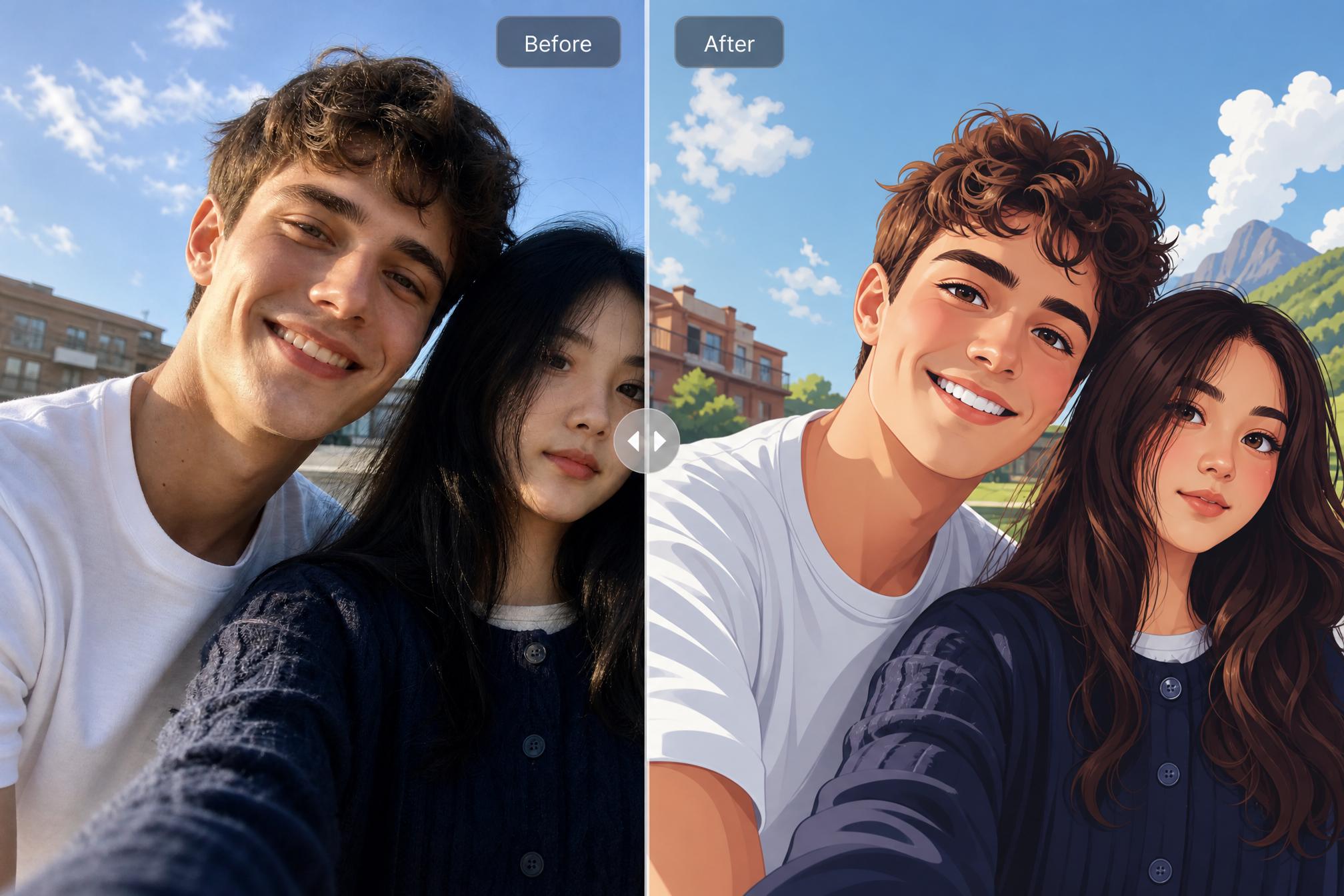

 English