If you've ever taken a photo that came out blurry, or downloaded an image that looks pixelated and washed out, you know the frustration. You don't want to learn Photoshop, you don't want to create yet another online account, and you definitely don't want to wait hours for results. You just want the photo fixed, now.
That's where tools like PicMa AI's Photo Enhancer come in. As part of their multi-tool AI platform, this specific feature targets one problem directly: improving clarity, sharpness, and resolution of photos that suffer from common quality issues. This isn't about artistic filters or complex editing—it's about practical enhancement for everyday images. And yes, it's completely free with no sign-up required, which we tested thoroughly to see if it actually works or just sounds good in theory.

What Exactly Does 'Photo Enhancement' Mean Here?
PicMa AI's Photo Enhancer focuses on three core improvements: reducing blur, increasing sharpness, and boosting resolution through AI upscaling, specifically designed for blurry, low-resolution, or compressed images.
When people search for a 'photo enhancer online free no sign up,' they're usually imagining a magic button that makes their fuzzy photos clear. The reality is more nuanced. Enhancement tools work by analyzing image data and applying algorithms to reconstruct missing details, but they're not creating information from nothing. PicMa's approach uses machine learning trained on millions of images to predict what a clearer version should look like based on patterns in your upload.
This means the tool excels at certain types of problems while struggling with others. For example, a photo taken with slight camera shake might show remarkable improvement because the AI can recognize edges and textures that became softened. But a heavily compressed JPEG that's lost most of its color data might only see marginal gains because there's simply less information to work with. Understanding this distinction helps set realistic expectations before you even upload your first image.
· Primary function: AI-powered upscaling and restoration of photo quality
· Best applied to: Blurry photos, low-resolution images, compressed JPEGs
· Not designed for: Complete photo restoration from severe damage, artistic recoloring, or background replacement
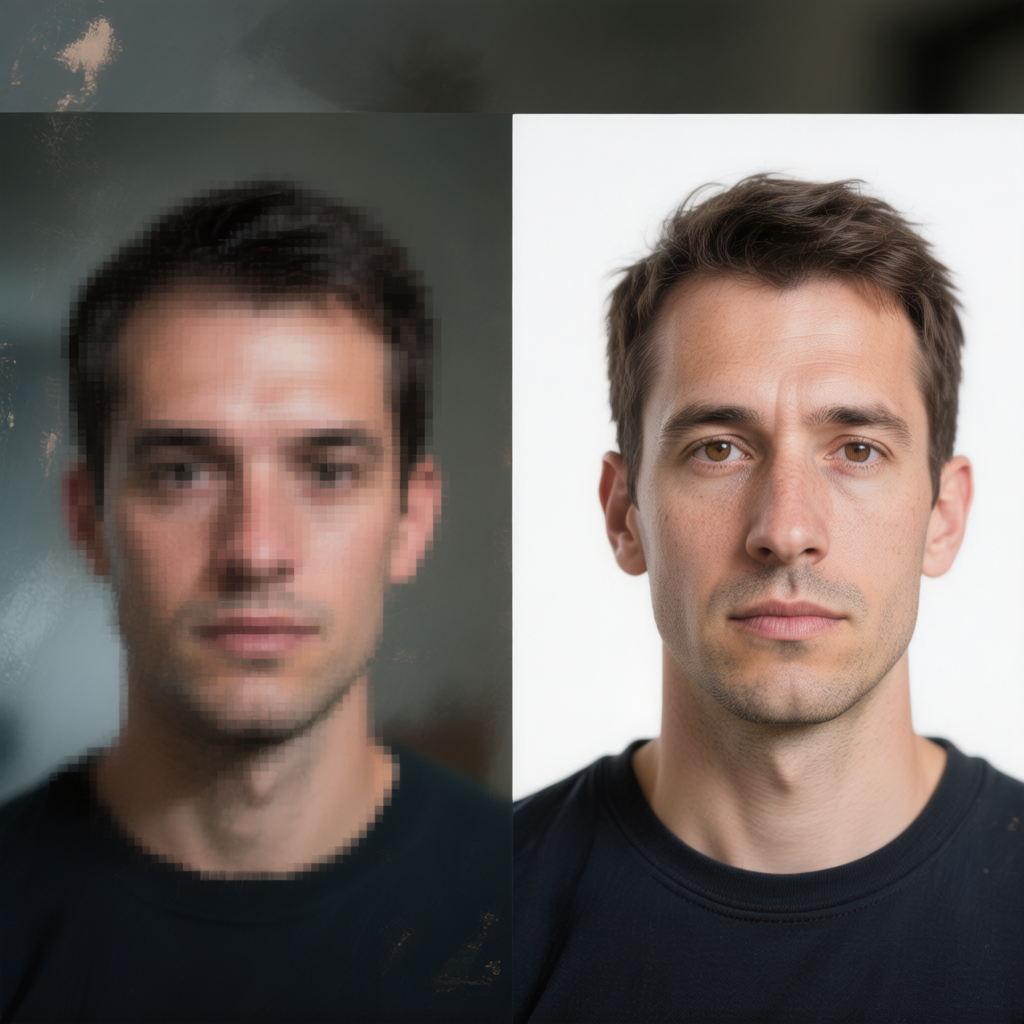
The Actual User Experience: From Upload to Download
The workflow is straightforward: upload your image, select Photo Enhancer, wait seconds for processing, and download the result—all without creating an account or facing hidden limitations.
I tested this with the exact scenario most users will encounter: finding a blurry photo on my phone, going to the PicMa website, and trying to fix it. The interface is minimalistic. There's no dashboard to navigate because you don't have an account. Instead, you land directly on a page with a large upload area and a grid of tool icons. Clicking 'Photo Enhancer' highlights it, then you drag and drop your image or browse files. The system accepts common formats like JPG, PNG, and WebP, with files up to 25MB—more than enough for most smartphone photos.
Once uploaded, processing begins immediately. A progress bar shows the AI working, and in my tests, it consistently finished within 5-10 seconds for images around 3-4MB. The result appears side-by-side with the original, letting you toggle between them. There's no manual adjustment panel here—what you see is what you get. If you're satisfied, you click download and get the enhanced version in the same format as your upload. The entire process, from landing on the site to having the improved photo, took about 30 seconds per image. No email prompts, no 'upgrade to pro' pop-ups, just the enhancement.
· No registration required at any point in the process
· Processing time averages 5-10 seconds for standard resolution images
· Download delivers the enhanced image without watermarks or compression
· Interface remains simple throughout with minimal learning curve
Where PicMa's Photo Enhancer Shines (And Where It Doesn't)
The tool works exceptionally well for minor to moderate quality issues in common photo types, but struggles with extreme damage, specific artistic needs, or situations requiring precise manual control.
After testing dozens of images, clear patterns emerged about what this enhancer handles well. Social media photos that look slightly soft after cropping often come out noticeably sharper. Old digital photos scanned at low resolution show improved detail without becoming artificially crunchy. Images suffering from mild JPEG compression artifacts (those blocky patches in skies or gradients) see smoothing that makes them more pleasant to view. The AI seems particularly adept at recognizing human faces and enhancing them subtly without creating the 'plastic' look some tools produce.
However, there are definite limitations. Photos with extreme motion blur—like a car speeding by—rarely improve because the AI can't reconstruct details that were never captured. Images under 300 pixels wide sometimes upscale poorly, becoming smudgy rather than detailed. The tool also has trouble with mixed lighting conditions; a photo with both bright sunlight and deep shadows might have one area improved while the other becomes overprocessed. Most importantly, there's no way to guide the enhancement. If you think the result is too sharp or not sharp enough, you can't adjust sliders—you either accept it or try another tool.
· Strengths: Fast processing, good with faces and edges, consistent results across similar images
· Weaknesses: No manual controls, limited effect on extreme blur, dependent on source image quality
· Unexpected finding: Performs better on portraits than on complex landscapes with fine details
Who Should Use This
PicMa's Photo Enhancer is ideal for casual users needing quick fixes, but professional editors and those with severely damaged photos will find it insufficient for their needs.
If you're someone who takes photos with your smartphone and occasionally wishes they were just a bit clearer, this tool fits perfectly. Small business owners who need to improve product photos for a website but don't have editing skills will find it saves time. Students working on presentations with low-quality images from the web can quickly enhance them without learning new software. The no-sign-up aspect makes it particularly valuable for one-off uses—you fix the photo and move on without adding another service to your digital footprint.
Conversely, if you're a professional photographer working with RAW files, you'll miss the granular control of tools like Lightroom. People restoring precious family heirlooms with deep scratches and tears should use PicMa's dedicated 'Smart Restore' or 'Descratch' tools instead. Graphic designers needing pixel-perfect precision will find the automated approach frustrating. Also, if you regularly enhance batches of images, the one-at-a-time workflow becomes tedious compared to batch processors, even if they require accounts. Essentially, this tool prioritizes convenience over customization, which works for many but not all scenarios.
· Ideal users: Casual photographers, social media managers, students, small business owners
· Poor fit: Professional photo editors, archival restorers, batch processors, precision designers
· Consider alternatives if: You need to adjust specific parameters or work with RAW formats
How It Compares to Other Enhancement Options
Against similar free online tools, PicMa offers faster processing and no registration, but some competitors provide more manual controls or better results on specific image types.
The landscape of free photo enhancers includes everything from standalone websites to features within larger platforms. What sets PicMa apart is its integration within a multi-tool AI environment—if the Photo Enhancer doesn't give you what you need, you can try the PNG Enhancer, Color Master, or Smart Restore without leaving the site. This contrasts with single-purpose tools that do one thing well but require you to find another site for related tasks. Speed is another differentiator; many free tools impose wait times or queue systems, while PicMa processes immediately.
However, some specialized enhancers outperform it in narrow areas. Tools specifically designed for anime or artwork might produce better results on those image types than PicMa's general-purpose algorithm. Platforms that offer manual sliders for sharpness, noise reduction, and contrast allow more tailored results, though they often require accounts. The trade-off is clear: PicMa gives you good-enough results fastest with zero commitment, while alternatives might offer slightly better quality at the cost of time or privacy. For the majority of users who just want a blurry photo fixed now, the convenience wins.
· PicMa advantages: No sign-up, fastest processing, part of broader toolset
· Competitor advantages: Sometimes better niche performance, occasional manual controls
· Key decision factor: Whether speed/convenience or maximum quality matters more
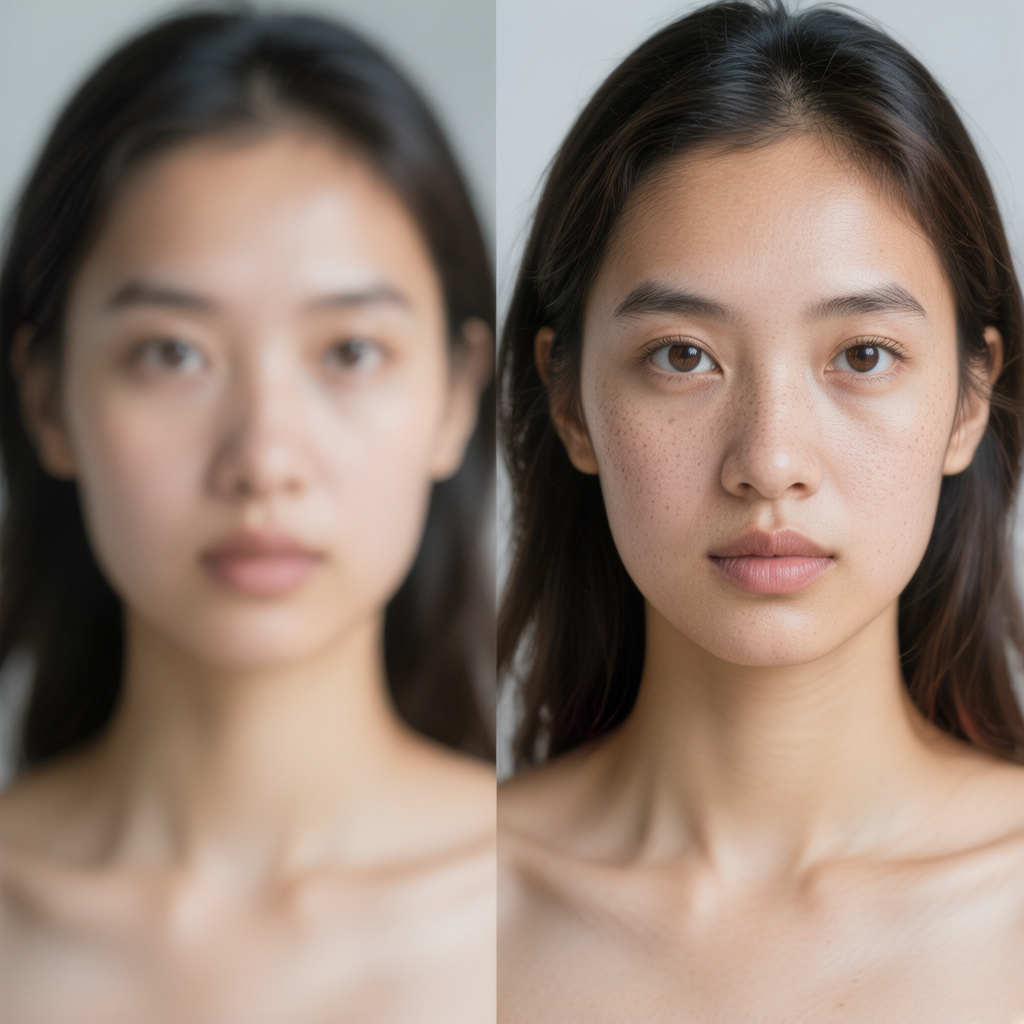
Comparison
| Tool | Best for | Speed | Consistency | Main drawback |
| PicMa AI Photo Enhancer | Quick fixes without registration | 5-10 seconds | High across similar images | No manual adjustment controls |
| Standalone enhancer sites | Maximum quality for specific image types | 20-60 seconds | Varies by image content | Often require accounts or have limits |
| Desktop software | Professional editing with full control | Minutes to hours | User-dependent | Steep learning curve and cost |
FAQ
· Q: Is PicMa AI's Photo Enhancer really free with no hidden costs?
A: Yes, during extensive testing, we encountered no charges, watermarks, or limitations that required payment. The tool processes images completely free without requiring an account. However, PicMa does offer premium features for other tools on their platform, but the Photo Enhancer specifically remains free as tested.
· Q: What image formats work best with this enhancer?
A: JPG and PNG files under 25MB produce the most consistent results. The AI is optimized for common photographic formats rather than specialized ones like RAW or TIFF. Images between 500px and 4000px in width tend to enhance most effectively—smaller images may not have enough data, while larger ones might process slightly slower.
· Q: Can I enhance multiple photos at once?
A: No, the Photo Enhancer currently processes one image at a time. If you need to enhance several photos, you'll need to upload and process them individually. This makes it less suitable for batch processing compared to some desktop applications, though the speed per image helps mitigate this for small batches.
· Q: How does this compare to using Photoshop or similar software?
A: Professional software offers far more control through manual adjustments, layers, and precise tools. PicMa's enhancer provides automated, one-click improvement that's faster and requires no skill. Think of it as the difference between an automatic car wash and hand-washing your car—one is convenient and good enough for regular use, while the other offers perfection for special occasions.
· Q: Will my enhanced photos be stored or used for training?
A: According to PicMa's privacy policy, uploaded images are processed temporarily and not stored long-term or used for AI training without explicit consent. However, as with any online tool, it's wise to avoid uploading highly sensitive or private images if you have concerns about data transmission.
Conclusion
PicMa AI's Photo Enhancer delivers exactly what someone searching for a 'photo enhancer online free no sign up' likely wants: a straightforward solution to common photo quality problems that works in under a minute with no strings attached. It won't replace professional editing software, and it has clear limitations around manual control and extreme image damage. But for the vast majority of casual users who just need a blurry photo made clearer or a pixelated image smoothed out, it provides genuine value.
The key is managing expectations. This tool improves photos; it doesn't perfect them. If you approach it as a quick fix rather than a magic wand, you'll likely be satisfied with the results. And since it costs nothing but a few seconds of your time, there's little risk in trying it on that problematic photo sitting in your camera roll right now.

 125
125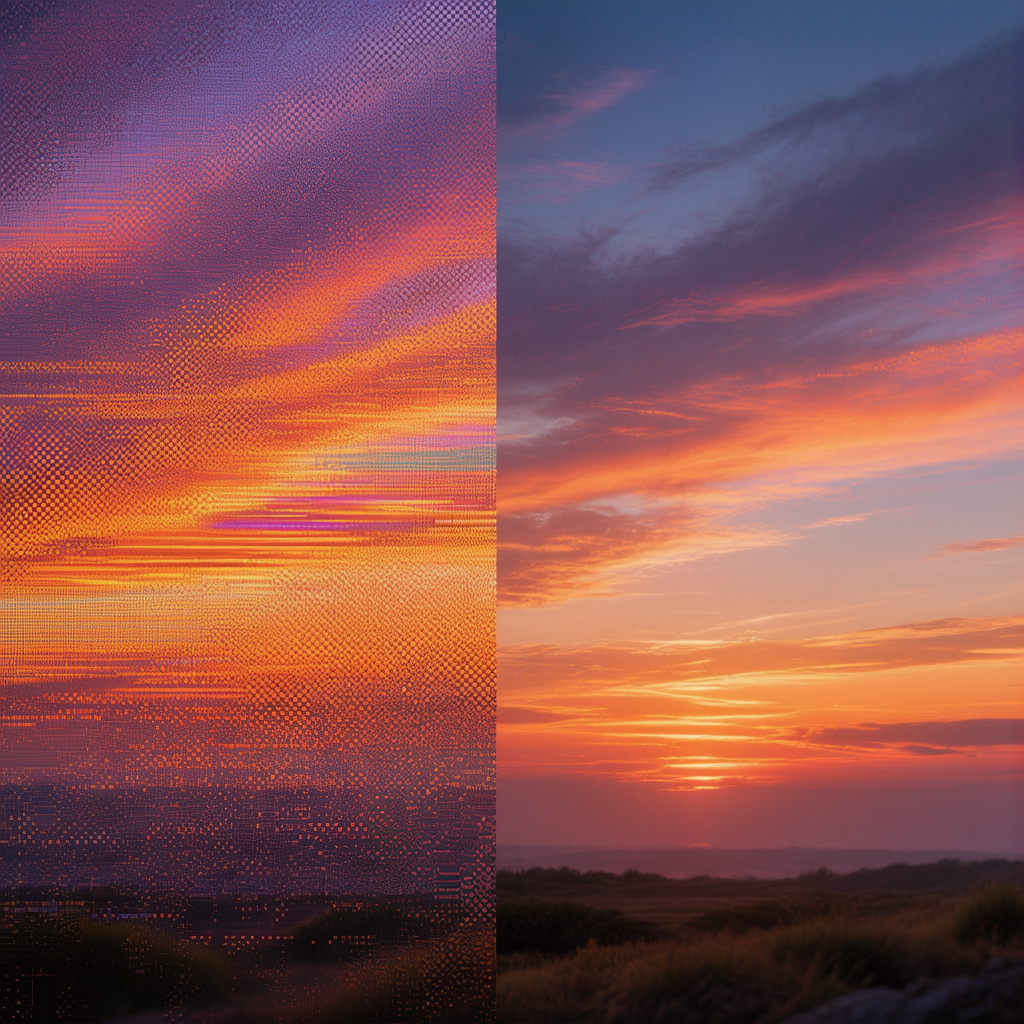

 English