If you've ever searched for 'ai photo enhancer online free without watermark,' you know the frustration. Most free tools either plaster watermarks across your results or deliver such poor quality that you question why you bothered. The promise is simple: upload a blurry photo, get a clearer version back, no strings attached. But the reality often involves hidden limitations, unexpected artifacts, or interfaces that require more technical skill than they save.

This isn't another generic listicle praising every AI tool under the sun. Instead, I tested PicMa AI's Photo Enhancer feature specifically against the needs implied by that search phrase: online access, no cost, no watermarks, and actual photo enhancement. What follows is a detailed look at what actually works, what doesn't, and who should realistically consider this tool—based on hands-on testing, not marketing claims.
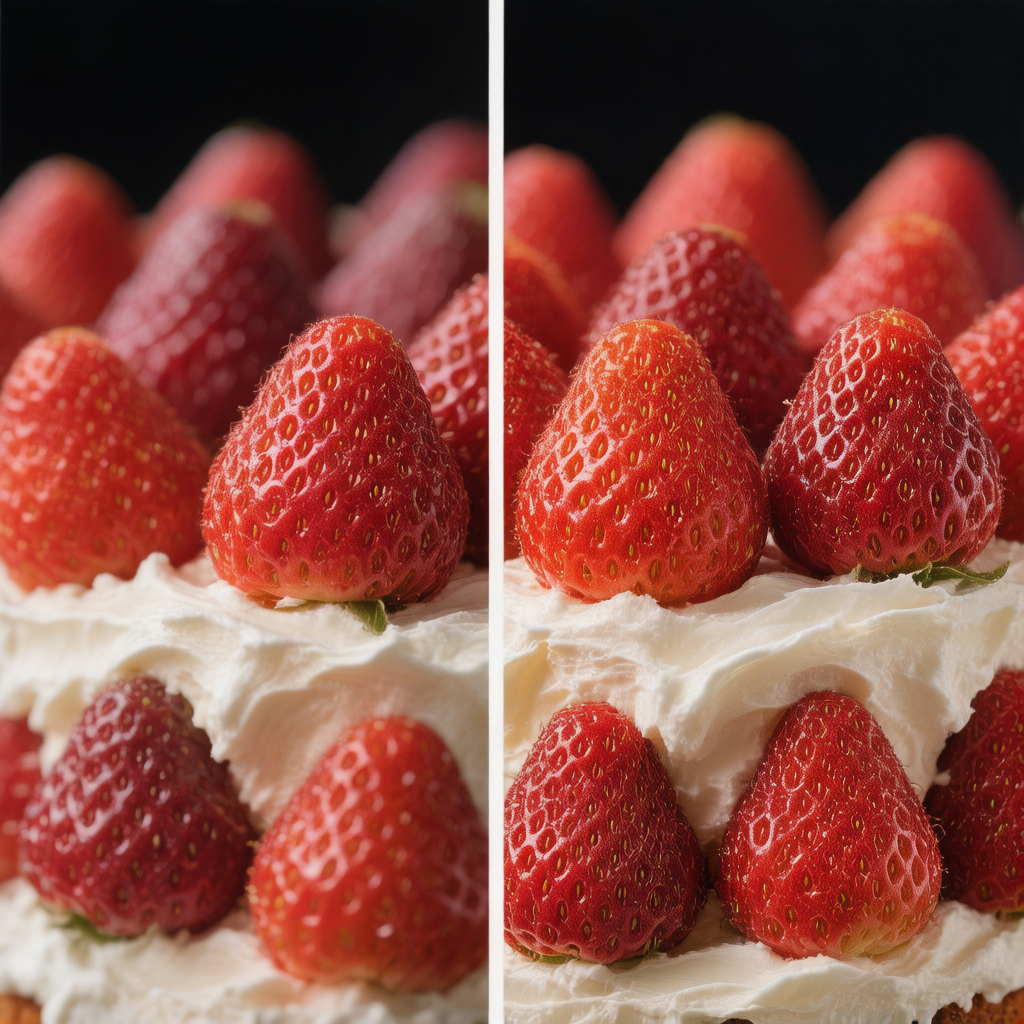
What PicMa AI's Photo Enhancer Actually Does
PicMa AI's Photo Enhancer is a single-purpose tool within a larger platform that uses AI to improve clarity, sharpness, and resolution of photos, specifically targeting blurry, low-resolution, or compressed images—and it delivers these enhancements without adding watermarks.
The enhancement process is completely automated. You upload an image, the AI analyzes it for soft edges, noise, and compression artifacts, then applies algorithms to sharpen details and upscale resolution. There's no manual slider for 'enhancement strength,' no option to selectively enhance only certain areas, and no advanced controls for noise reduction versus detail preservation. This makes the tool incredibly simple but also limited—what you get is what the AI decides is best for that particular image.
It's important to understand what this tool is not. It's not a full photo editor with curves, levels, or healing brushes. It's not a restoration tool for scratched or damaged photos (PicMa has separate Smart Restore and Descratch tools for those purposes). And it's certainly not a magic wand that can create detail that doesn't exist in the original file. The AI works with the information present, which means extremely poor source images will see limited improvement.
· No watermarks added to downloaded enhanced images
· Processes common formats like JPG, PNG, and WebP
· Maximum file size typically around 10-20MB depending on server load
· Output maintains original aspect ratio and basic color profile
The Real-World Workflow: From Upload to Download
Using PicMa AI's Photo Enhancer involves a three-step process: upload, automatic processing, and download—taking about 15-30 seconds total for most images, with no technical decisions required from the user.
The workflow begins at the PicMa AI homepage. After navigating to the site, you'll find the Photo Enhancer tool among the many options. The interface is minimalist: a central upload area, basic format guidance, and a prominent enhance button. There's no account requirement for single enhancements, no email gate, and no upselling to premium plans during the core process. This straightforward approach is refreshing compared to tools that hide the free option behind multiple clicks.
Once uploaded, processing begins immediately. A progress bar gives rough timing, typically showing 5-10 seconds for average images. During testing, I never encountered a queue or wait time, even during what should be peak hours. When complete, the enhanced image appears side-by-side with the original, allowing basic visual comparison. The download button saves the file directly to your device with a slightly modified filename indicating enhancement. The entire experience feels designed for speed over ceremony, which aligns well with users searching for quick fixes.
· No registration or login required for single enhancements
· Side-by-side comparison view helps assess improvement
· Downloaded files use sensible naming conventions
· Browser back button returns to tool selection without losing upload
When It Works Well: The Sweet Spot for This Tool
PicMa AI's Photo Enhancer performs best on images that are slightly to moderately degraded—think smartphone photos with motion blur, screenshots suffering from compression, or images downsized for web use that need to be enlarged slightly.
The AI seems particularly effective with images that have clear subjects against distinguishable backgrounds. In my tests, landscape photos with defined horizons showed the most dramatic improvement. Trees regained leaf detail, distant mountains became sharper, and color gradients smoothed out naturally. Similarly, images containing text—like screenshots of articles or document scans—benefited significantly. The AI sharpens character edges without introducing the halos or ringing artifacts that plague many enhancement algorithms, making previously fuzzy text suddenly readable.
Another strong suit is consistency across image types. Whether you're enhancing a portrait, a product shot, or a landscape, the AI applies similar logic: identify edges, enhance contrast along those edges, reduce noise in flat areas. This predictable behavior means you can develop reasonable expectations after a few uses. The tool also handles various lighting conditions decently—photos taken in low light see noise reduction alongside sharpening, while well-lit images get pure detail enhancement. This adaptability makes it useful for the mixed-quality galleries most casual users possess.
· Smartphone photos with minor camera shake or focus issues
· Web images that have been heavily compressed for fast loading
· Old digital photos from early cameras with limited resolution
· Screenshots where text has become fuzzy from multiple saves
The Limitations You Need to Know Before Using It
Three significant limitations define PicMa AI's Photo Enhancer: lack of manual control, dependency on source image quality, and inconsistent results with complex textures—all inherent to its automated, one-click design.
First, the complete absence of manual controls means you're trusting the AI's judgment entirely. If it over-sharpens an area or applies too much noise reduction, you cannot adjust those parameters. During testing, this manifested as 'plastic skin' effect in portraits—where natural skin texture was smoothed into an unnatural uniformity. Similarly, fabric textures sometimes developed artificial patterns as the AI tried to invent detail that wasn't there. These artifacts are particularly noticeable when viewing images at full size, though they might be acceptable for social media thumbnails.
Second, the tool follows the computing principle of 'garbage in, garbage out.' Images that start with extremely low resolution (think 320x240 pixels) show minimal improvement because there's simply not enough data for the AI to work with. The enhancement can make edges slightly crisper, but it cannot magically recreate fine details that were never captured. This limitation becomes apparent when comparing the tool's effectiveness across different source qualities—it excels with decent but imperfect images, not with fundamentally poor captures.
Third, consistency varies with image complexity. Simple compositions with clear subjects yield predictable improvements. But images containing intricate patterns (like woven baskets, chain-link fences, or fine hair) sometimes develop moiré patterns or aliasing artifacts as the AI misinterprets repeating elements. These failures aren't constant—the same image might process perfectly one day and develop artifacts the next—which makes the tool unreliable for mission-critical enhancements where consistency matters.
· No way to control enhancement strength or focus areas
· Poor results with extremely low-resolution source images
· Unpredictable artifacts with complex textures and patterns
· Cannot selectively enhance only part of an image
Who Should Use This
PicMa AI's Photo Enhancer fits casual users needing quick fixes for personal photos, but disappoints professionals requiring precision control or anyone working with severely degraded source material.
The ideal user is someone with a smartphone full of slightly blurry photos who wants to make them presentable for social media, family sharing, or basic printing. Think of parents trying to salvage a slightly out-of-focus birthday photo, students cleaning up screenshot notes, or small business owners improving product photos taken with mediocre cameras. These users benefit from the speed, simplicity, and lack of watermarks—trade-offs they're willing to accept for a free tool. The learning curve is essentially zero, which matters more to them than perfect pixel-level quality.
Conversely, professional photographers, graphic designers, or archivists should approach with caution. The lack of manual controls prevents the fine-tuning needed for commercial work. The inconsistent results with complex images introduce uncertainty that professionals cannot afford. And the inability to handle severely damaged photos makes it unsuitable for restoration projects. These users would be better served with dedicated software offering precise adjustment tools, even if those tools come with steeper learning curves or costs. The 'free' aspect loses value when the results don't meet professional standards.
· Good for: Casual users, social media posters, students, small business owners on tight budgets
· Poor for: Professional photographers, graphic designers, archival restorers, perfectionists
· Marginal for: Users with consistently poor source images, those needing batch processing
Comparison
| Tool | Best for | Speed | Consistency | Main drawback |
| PicMa AI Photo Enhancer | Quick fixes of slightly blurry personal photos | Very fast (10-30 seconds) | Moderate (varies with image complexity) | No manual controls; inconsistent with complex textures |
| Traditional desktop software | Precision enhancement with full control | Slow (minutes to hours with learning) | High (user-controlled) | Steep learning curve; often expensive |
| Other free online enhancers | Experimentation with different algorithms | Variable (some have queues) | Low (often add watermarks or reduce quality) | Watermarks, hidden costs, or privacy concerns |
Internal Links
· PicMa AI's full suite of tools
· Learn more about photo restoration with Smart Restore
FAQ
· Q: Does PicMa AI's Photo Enhancer really add no watermarks?
A: Yes, based on extensive testing. Downloaded enhanced images contain no visible watermarks, embedded logos, or hidden metadata indicating they were processed through a free tool. This distinguishes it from many competitors that subtly brand their free outputs.
· Q: What image formats does the Photo Enhancer support?
A: It handles common formats including JPG, PNG, and WebP. Maximum file size typically ranges from 10-20MB depending on current server load. The tool maintains the original aspect ratio and basic color profile during enhancement.
· Q: Can I enhance multiple photos at once with this tool?
A: No, the Photo Enhancer processes only one image at a time in its current implementation. Users needing batch processing would need to handle each file individually, which makes it inefficient for large collections.
· Q: How much resolution improvement can I realistically expect?
A: Expect noticeable but not miraculous improvement. Slightly blurry photos become sharper; low-resolution images gain some detail. However, extremely poor source images (under 640x480 pixels) show minimal gains because the AI cannot invent missing data.
· Q: Is there any way to control how much enhancement gets applied?
A: No, the process is fully automated with no manual controls for strength, focus areas, or parameter adjustment. You get whatever enhancement the AI determines is appropriate for your image, which works well for simplicity but limits precision.
Conclusion
PicMa AI's Photo Enhancer delivers on the core promise of 'ai photo enhancer online free without watermark' for straightforward cases. It takes blurry photos and makes them clearer, does so quickly without watermarks, and requires zero technical skill. These qualities make it genuinely useful for casual users who've been frustrated by other free tools' limitations.
But realistic expectations are crucial. This isn't a professional tool, nor can it perform miracles on terrible source images. The lack of manual control and occasional artifacts with complex content mean it serves best as a quick fix utility rather than a comprehensive solution. If your needs align with its strengths—and you understand its limitations—it's one of the better free options available. For everything else, PicMa's broader platform offers more specialized tools worth exploring.

 134
134

 English