"I want to create a high-quality transformation video that will go viral on social media, but I can't handle complicated video editing software..." – Do you find yourself thinking that?
As of 2026, the trend in visual expression is rapidly shifting from static images to "moving content." Among these, "anime-to-real-life transformation videos" combining the latest image AI and AI video technologies are gaining massive impressions on TikTok and Instagram Reels.
In this article, we'll break down how anyone can easily create professional-grade AI transformation videos by linking the popular tool PicMa studio with the next-generation video generation AI "seedance 2.0". We'll guide you through the steps in an easy-to-understand way!
1. Haven't tried it yet? Why "PicMa studio" is getting attention in 2026
In the 2026 AI creative industry, PicMa studio is gaining massive support from creators.
With traditional tools, you had to jump between different services for "image generation" and "video conversion." But with PicMa studio, everything from creating high-quality materials with image AI to generating AI video is seamlessly completed in one place. The fact that it runs entirely in a browser, eliminating the need for a high-spec PC, is another reason why so many social media creators choose it.
2. From anime to reality! The overall flow for creating a transformation video
The process of making a video where an anime character seamlessly transforms into a realistic human is surprisingly simple.
[Generate anime image in PicMa studio]
       │
       ▼
[Use PicMa studio GPT-Image 2 to make it photorealistic]
       │
       ▼
[Animate it using the "seedance 2.0" feature]
By following these three steps, even beginners can easily create AI anime-to-real-life transformation videos.
3. Generate an anime image in PicMa studio
First, prepare a high-quality anime image that will serve as the base of your video.
- Go to the PicMa studio GPT-Image 2 page.
- Enter a description of your ideal character (e.g., Create a delicate vertical anime illustration of a young fox-eared girl standing in profile on a sunlit old-fashioned shopping street, looking back over her shoulder with a soft melancholic smile. She has very long silver-white hair with straight bangs, pale skin, gentle pink eyes, exactly 2 large fluffy animal ears, and exactly 1 large fluffy white tail visible at the lower right. Dress her in an ornate dusty rose pink kimono with layered lace trim, embroidered floral brocade, a wide tied obi bow at the back, and dangling tassel ornaments. Add an elaborate hairpiece on the right side of her head: exactly 3 prominent flowers, a metallic leaf-and-jewel ornament, long chains, purple tassels, and a translucent ribbon bow, plus a small round hat or halo-like cap behind the ears. Set the scene in a nostalgic Japanese-European market lane with warm morning backlight, cobblestone walkway, wooden storefronts, leafy trees overhead, and a soft blue sky with scattered clouds. Include exactly 2 vintage street lamps on the left, one tall black lantern and one smaller glowing lantern, plus 1 oval hanging shop sign that reads owa days with a small paw print beneath it. Show background pedestrians in muted kimono-like clothing walking away, softly blurred and not competing with the main character. Place large blooming flowers in the lower left foreground, including pale pink and lavender blossoms. Use highly detailed linework, romantic pastel colors, luminous rim light through the hair, intricate fabric patterns, shallow depth of field, dreamy watercolor-and-ink anime rendering, vertical 9:16 composition, no modern objects, no watermark, no extra readable text beyond the shop sign.).
- Press the generate button and download the base anime image.
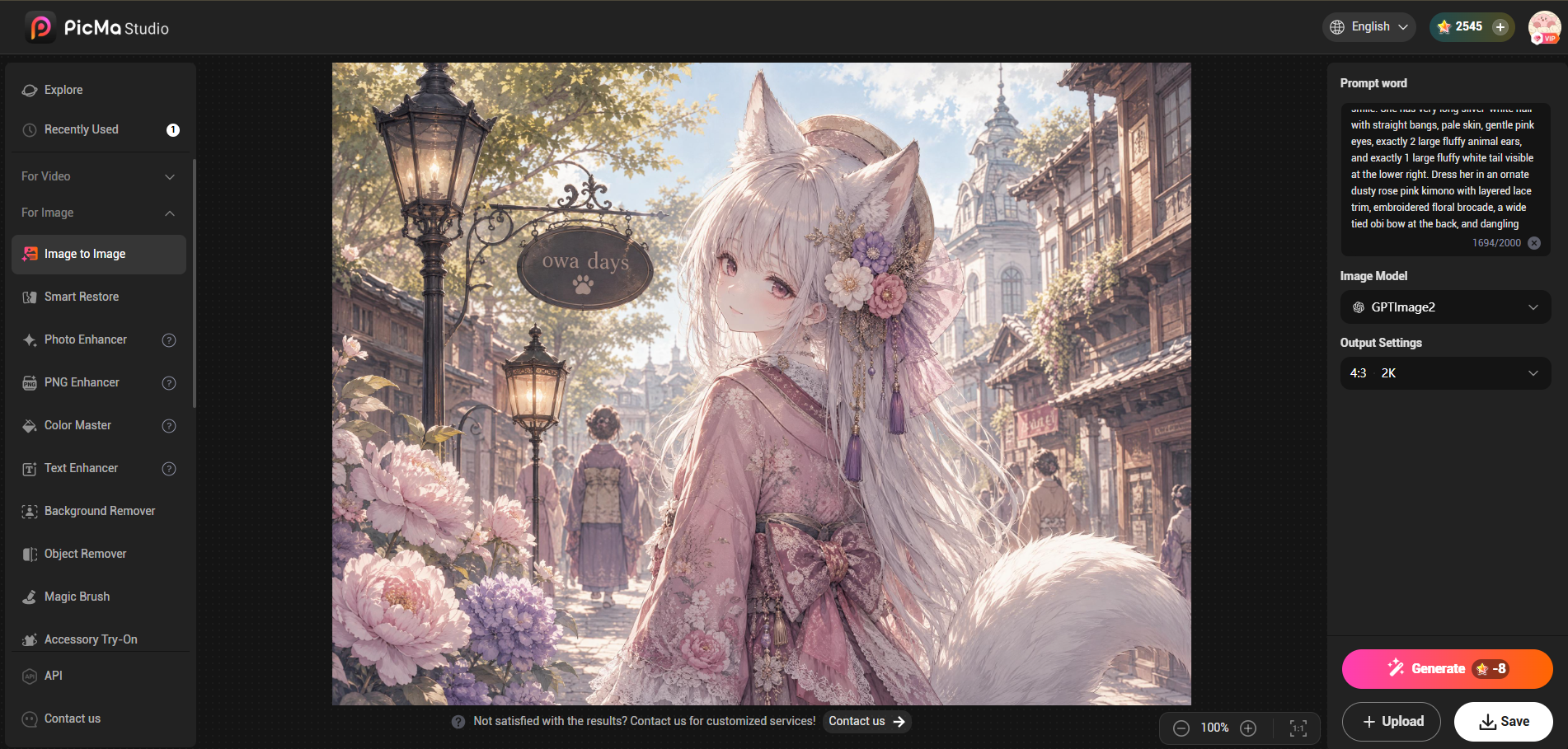
Using PicMa studio's advanced image AI engine, "GPT-Image 2", you can create beautiful, flawless anime illustrations in an instant, even with short prompts.
4. Transform the anime into a realistic photo using GPT-Image 2
Next, convert the anime image you created into a realistic, photo-like image.
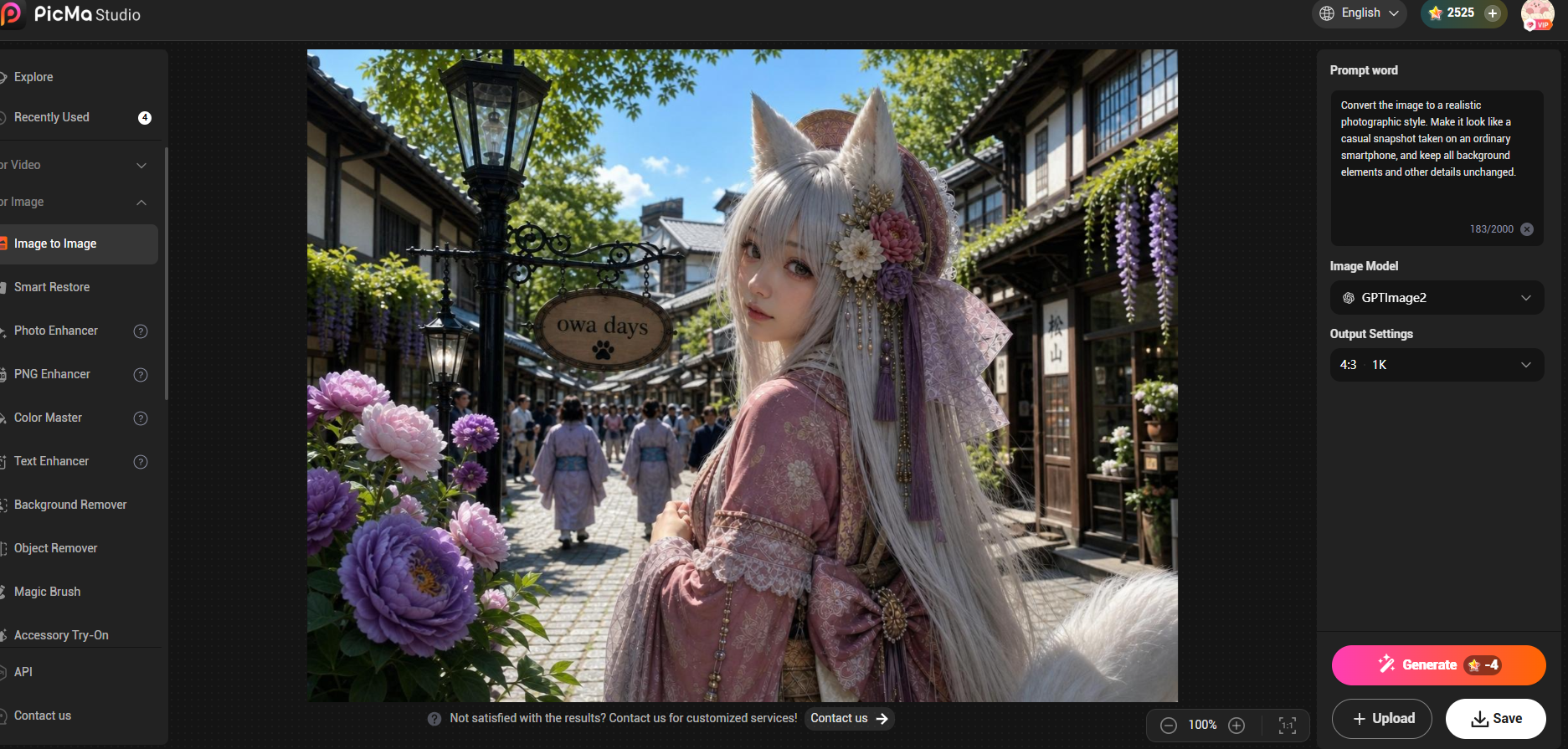
- Continue using the GPT-Image 2 image upload feature and load the anime image you just generated.
- Add elements like "photorealistic, realistic person photo, portrait" to the prompt and generate.
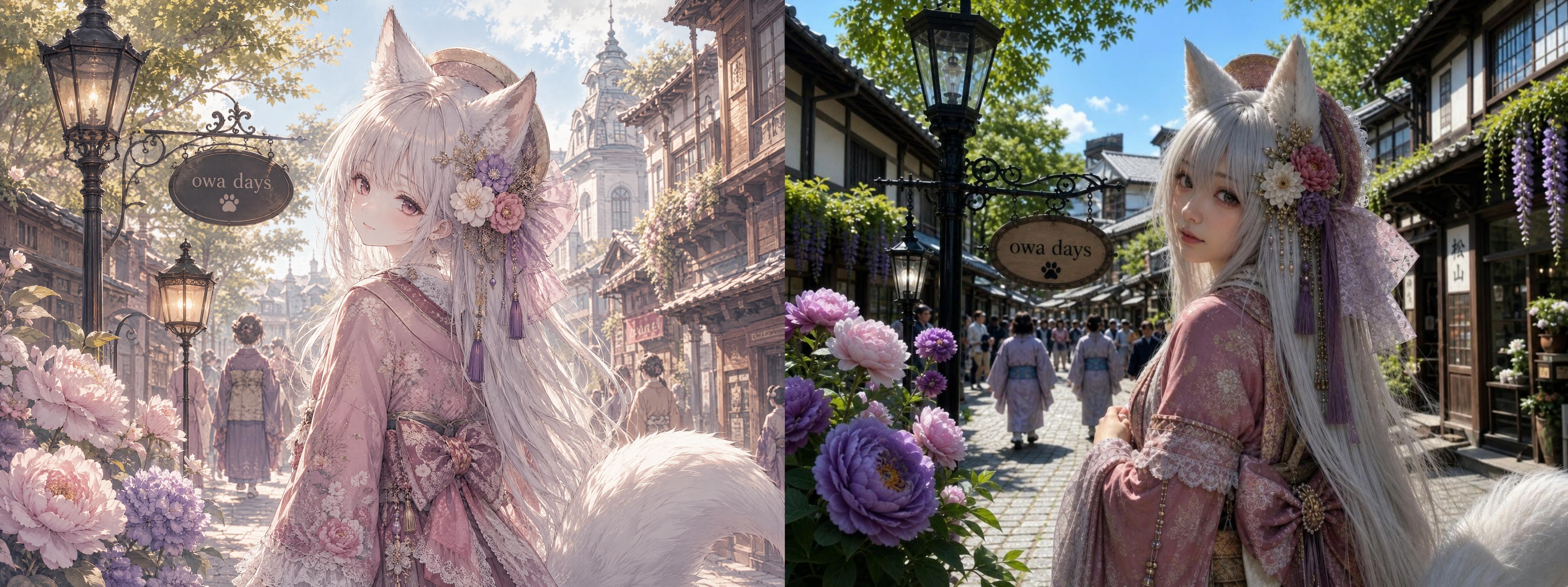
- You'll get a high-quality image that looks like a real person, while maintaining the composition and features of the anime version.
Having both an anime and a realistic version of the image is the key to creating a beautiful transformation AI video.
5. Create the transformation video with "Frame-to-Video"
Once you have your materials, it's time for the video (animation) creation process.
- Go to the seedance 2.0 video generation page.
- Select the "Frame-to-Video" feature. Set the "anime image" as the first frame and the "realistic photo" as the final frame.
- Adjust the speed of the transformation and other effects, then start generation.
Thanks to seedance 2.0's smooth interpolation technology, the transition between the two images is seamless, creating a breathtaking transformation AI video!
6. Summary
By combining PicMa studio's excellent image AI with seedance 2.0's innovative AI video generation feature, anyone can easily create viral transformation videos.
No complicated editing knowledge is required. Why not try using the latest AI tools right now to experience creating your own unique videos?
👉 Try it for free on the PicMa studio official website

 92
92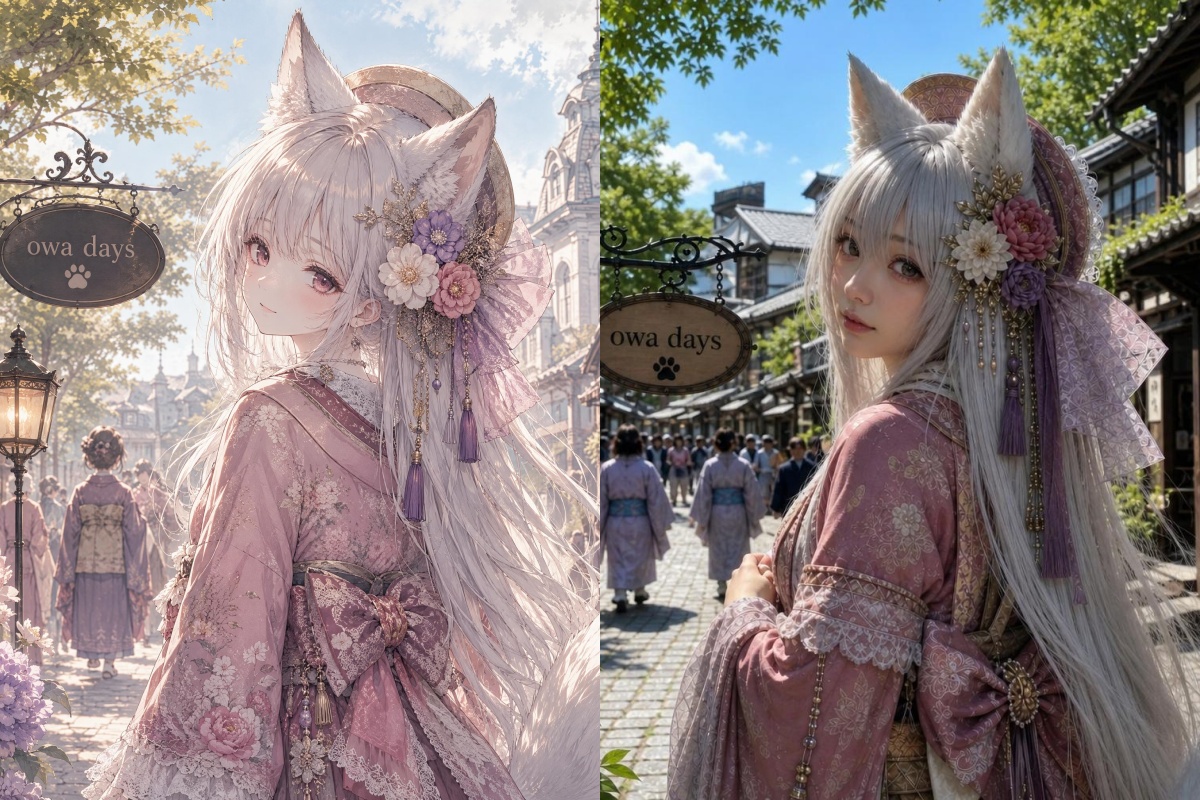

 English